

Mac 101: Add a useful message to your OS X login screen
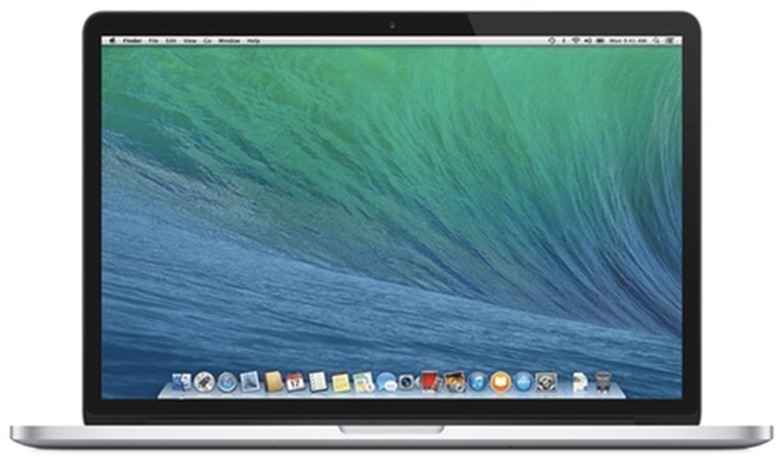
Did you know that recent versions of OS X (OS X 10.7 Lion or newer) allow you to add a short message to the login window that is displayed when your Mac is locked? The message can be anything — a note appropriate to users who access the computer, a cheerful line of inspiration for yourself or contact information in case your computer is lost.
Follow these steps to add a message to your login screen:
- Open System Preferences and then select the "Security & Privacy" pane.
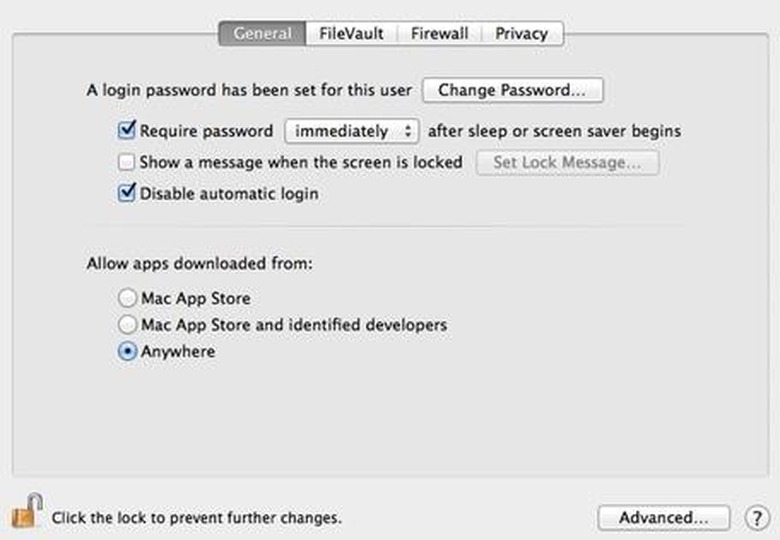
- Click the lock icon in the bottom left to unlock it and make changes. You will need to enter an administrator name and password.
- Select the "Show a message when the screen is locked" option, then click "Set Lock Message." You can type in a multi-line message with special characters and emoticons.
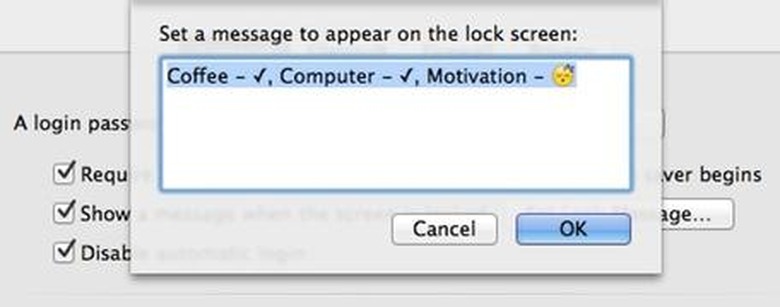
- Type the message you want to display in the login window.
Log out of your account or restart your computer to access the login screen and view your changes.