

Top 7 Excel Formulas You Can't Do Without

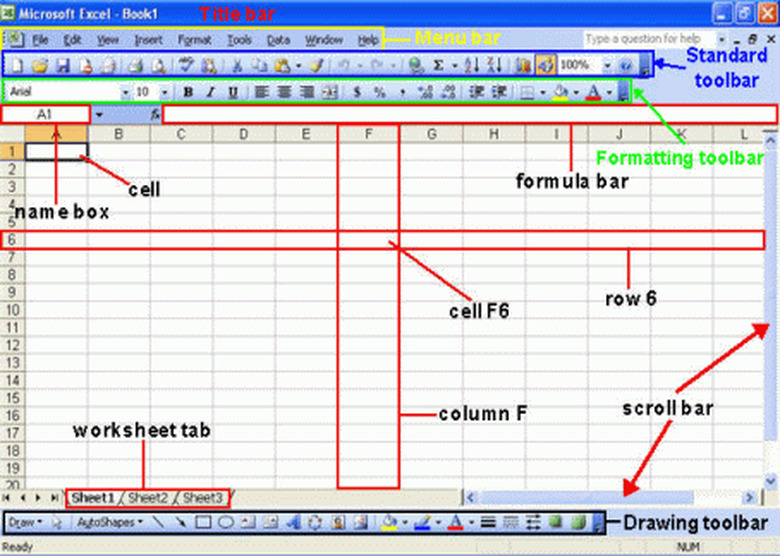
Akin to Microsoft Word, Excel too is one of the widely used programs today – a credible aide in organizing lists & data in order. From a corporate office to NGO, Excel exercises a dominant popularity everywhere. But what, when you have to manage huge lists in Excel? Manual operations in Excel can be really cumbersome when it comes to elaborate lists but then, there are some cool excel formulas which would help you here.
SUM
Formula: SUM (A2,B2) or SUM (6,6) or SUM (C1:D5)
Quite literally, the formula here would enable the user to add two or multiple numbers together. One can take cell references her as well. Don't worry, even if you have got numbers with commas in between, the formula would add the numbers correctly for you.
COUNT
Formula: COUNT (B1:B10)
This formula will count amount of cells within a range carrying numbers with them. However, this formula will just count the cells with numbers.
COUNTA
Formula: COUNTA (B1:B10)
This formula will count out amount of non-empty cells within a range-the formula can count cells with both numbers & other forms of characters.
RIGHT, LEFT, MID
Formulas: RIGHT(text, number of characters) – LEFT(same as RIGHT)- MID(text, start number, number of characters).
In case of "text" cell reference can be used as well.
The formulas here return defined amount of characters right from text string. To start with, RIGHT offers amount of characters from right side of text string; then, LEFT does the same from left side- while MID extends count of characters right from middle of word. The user here would have to specify start_number to MID formula & it would grab that specified count of the characters to right of start_number.
LEN
Formula: LEN(B1)
This formula here works to count amount of characters within a cell. However, by character, it means the spaces as well. So, be careful.
TRIM
Formula: TRIM(B1)
When it comes to an accurate count of characters within a cell, TRIM is my favorite. In fact, I would keep it on a higher rank over LEN because the formula does not count in the spaces, except single spaces in between words. Thus, in case, accidentally if there is some extra space kept in your database, you can be assured that TRIM won't count that in.
VLOOKUP
This is one of my most favorite when it comes to Excel formulas and read this tutorial to find out why VLOOKUP is widely popular among Excel users.
Formula: VLOOKUP(lookup_value, table_array, col_index_num, range_lookup)
The formula is designed to look for value in extreme left column of your table & then it would revert a value right in same row, sourced from your specified column. In simple words, you will define some value (lookup_value) that the formula will look for & it will look for it in extreme left column of your table (table_array). If the formula finds a suitable match of lookup_value, it would return that value to your specified column using index_num- which will be relative to left-most column.
In regards to "range_lookup", it refers to a TRUE/FALSE value. In case, the user puts TRUE, the formula will offer the closest possible match and in regards to FALSE, the formula will offer the exact match.
The Excel formulas are here to reduce your hours before the Excel sheet but without any compromise on the needed calculations.