

How to see what's taking up space on your Windows PC
Use a methodical approach to see what’s using the most space on your PC and easily clean it up.
There's so much competing for the space on your computer that it's easy to lose track of it all. Programs, photos, videos, games, downloads and your other items live alongside system data like temporary files and updates. That's not to mention duplicate files and other junk that serves no purpose.
When you need to clean up some space in Windows, it's easy to see what's using the most storage. With this laid out, you can create the most room with the least effort, only dipping into more advanced methods if you're really pressed for space. Don't go digging into folders at random; weeding out what's monopolizing your space gives you more breathing room.
The first step: Storage settings
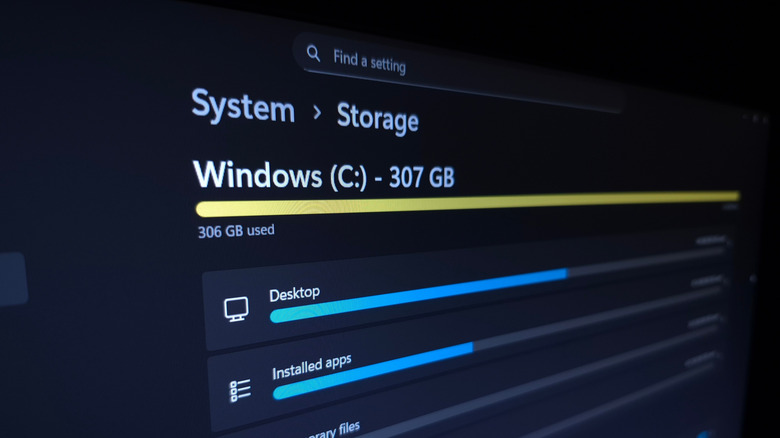
Let's begin with Windows' built-in storage management tool: press Win + I to open the Settings panel, then go to System > Storage. Here, you'll see the total space in use on your main disk, along with a breakdown of what's taking it. Select one of these categories to jump into the relevant place and manage it.
One of the biggest hogs is likely to be Installed apps; clicking this brings you to the Settings > Apps > Installed apps page. Change the Sort by box to Size (Large to Small) to put the lowest-hanging fruit at the top. Under the three-dot (...) menu, hit Uninstall to remove anything you don't use anymore. If you have at least two drives, some programs (like games from the Microsoft Store) provide a Move option.
The Temporary Files category shows several checkboxes for items like Thumbnails that can be easy space-savers. Click Cleanup System Files to show more types of clutter. Be careful with Downloads and the Recycle Bin — while those spots can use lots of space, you might not want to delete them outright. It's best to open the Recycle Bin from your desktop and quickly check for anything you want to restore, since clearing the bin permanently deletes the files in it. Similarly, you might have items you want to save in your Downloads.
If you have multiple storage drives, back on the Storage page, expand the Advanced storage settings section and choose Storage used on other drives to see the same breakdown for the others.
Reducing the storage used by system features
The System & reserved section, which may be hidden behind Show more categories, shows how much storage Windows features are using. While these should generally be your last resort to remove since disabling them removes important functionality, it's possible to reclaim their space.
If you don't use hibernation on your PC, you can disable it to remove the large hiberfil.sys file. Type "cmd" into the Start menu, right-click the Command Prompt entry, and choose Run as administrator. In the command window, type powercfg /hibernate off and hit Enter. If you ever want to use hibernation again, use powercfg /hibernate on.
System restore sends your PC "back in time" to reverse a bad update or unwanted change. Click Manage system restore to open its Control Panel window; there, click your System drive and choose Configure. If you're OK with having fewer restore points in case something goes wrong, drag the Max Usage slider down. Consider using Delete to erase all restore points for even more space in a pinch.
Analyze the files taking space with TreeSize

The Storage menu is a good start, but it's not perfect for checking individual files. Categories like Music and Videos (and Other, where Windows puts anything it can't categorize) just open File Explorer locations, which isn't useful. Several third-party tools make it easier to visualize what's using the most space across folders; my favorite is TreeSize Free.
For best results, use the button on the top toolbar to run the program as an admin, then click Select Directory to choose what you scan — your entire C: drive is sensible. You'll see the largest folders at the top; use the arrows to expand them and drill down. Folders that are likely to be huge include Program Files and Program Files (x86), which is where your installed apps live. Don't delete these files directly — uninstall them as explained above.
Find your account under Users to see which of your personal files should be moved to another drive or deleted. If you see many gigabytes used under AppData, consider clearing the cache or removing downloads for apps like browsers, streaming platforms, and email clients. Right-click any folder and choose Open to show it in the familiar File Explorer interface.
dupeGuru is another tool worth a try. It finds copies of files across your system, which can be a sneaky space waster TreeSize won't catch.
How to easily free up space on your PC
The best ways to free up storage on Windows depend on what you've seen taking it up after following the above steps. If you have Steam games installed that you never play anymore, open the client and uninstall them. Erase large files you don't need anymore, and make sure to clear the Recycle Bin once you've recovered anything you still want from it.
Consider offloading big files you still want but don't have room for. For instance, upload long videos to YouTube, then delete the copy on your computer. Sync your photos with a service like Google Photos, then remove your local copies. Or set OneDrive to only keep cloud copies of files you haven't touched in a while. While these kinds of options can help when space is at a premium, you should have multiple copies of any important data for backup purposes.
If you're constantly running low, buying a secondary drive is a worthwhile expense. The best external SSDs add a terabyte or more so you don't have to agonize over what to delete. External HDDs aren't as fast, but are still fine for data you don't touch often and come at a lower cost given the extreme prices of storage right now. Even a few flash drives can help out.
To save time going forward, head back to Settings > System > Storage and click Storage Sense. This feature automatically cleans up junk every so often without your intervention. Enable Keep Windows running smoothly... to remove temp files on a regular basis, then enable Automatic User content cleanup.
You can choose to run Storage Sense only when your storage gets low, or at regular intervals. Be sure to set the Recycle Bin and Downloads options wisely, since you could accidentally lose data if you're not careful. In the future, as part of organizing your PC, consider putting only files you don't need long-term in Downloads so you can clear it without worry.