

How to join a FaceTime call with your Android phone or Windows PC
No iPhone? No problem. You can still join FaceTime calls on Android or Windows.

You might assume that FaceTime is something you can only use if you have an Apple device. For years, that was the case — just like with iMessage. But it turns out you can actually use FaceTime on an Android phone or a Windows PC. It doesn't work quite as seamlessly, and you still need someone who has an Apple device. But you don't have to feel left out of your friends' chats if they all have iPhones and you don't. All you need is a device connected to the internet and an updated web browser.
The ability to use FaceTime across platforms isn't new. In fact, it arrived back in 2021 with iOS 15 and macOS Monterey, but not everyone knows it's an option. Of course, there are plenty of other cross-platform options for video calls. WhatsApp, Telegram, Zoom, Google Meet — the list goes on. But FaceTime is usually the first option that comes to mind for an iPhone user, since the app is pre-installed on every Apple device.
Joining a FaceTime call from Android or Windows
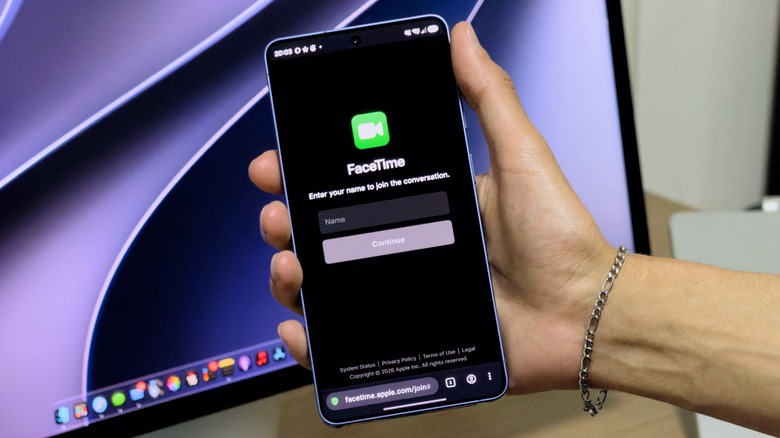
The bad news is that you can't start a FaceTime call from an Android phone or Windows PC. But an iPhone (or iPad or Mac) user can invite you to a FaceTime call using a link. To join it, just open the link and enter your name — your browser may ask for permission to use your camera and microphone. Grant the permissions and tap Join. Apple's only recommendations are to have a strong internet signal to keep the call stable and to use the latest version of Chrome or Edge. There's no need for you to have an Apple Account.
After that, you'll be on a FaceTime call through your web browser on a non-Apple device. It's not perfect, but it works (and supports both FaceTime audio and video calls). You'll have access to standard FaceTime call options when using this method, such as switching to full-screen video, muting your microphone and flipping the camera to show what's in front of you.
However, you can't use FaceTime's screen sharing on a non-Apple device. The SharePlay feature, which lets you enjoy music, movies, games and other content together on a call, won't work either.
How to invite other people to your FaceTime call

On the iPhone side, inviting someone to a FaceTime call is easy. Open the FaceTime app and tap New Call. You'll see a green link button in the lower-left corner of the screen. Tap it to send the call link to the person (or group) you want to invite, then choose an option to send it through, such as Messages or WhatsApp. With this link, the other person can join your FaceTime call through a browser.
If you really want everyone to feel included, try using a cross-platform app for your calls. Most of them are easy to set up, and the experience of using a native app is usually better than relying on a web browser. But if FaceTime is your only option, at least now you know it's not limited to Apple devices.