

What does anti-aliasing actually do to your PC games?
Anti-aliasing makes jagged game graphics look smoother, but some methods hit your GPU much harder than others.
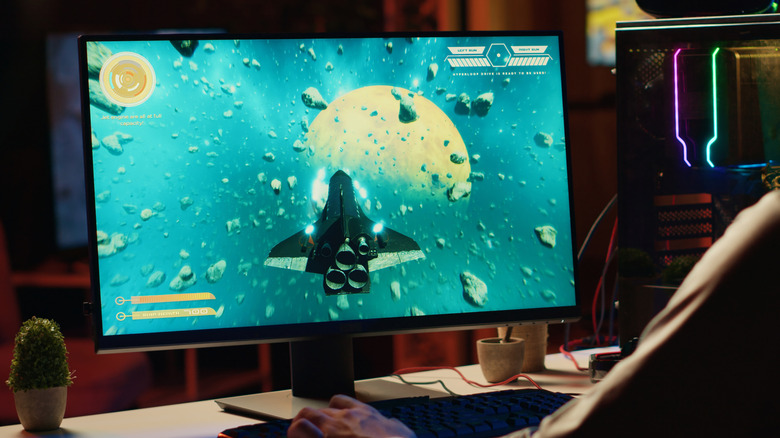
It used to be a flex to get a gaming machine and turn anti-aliasing to the max. If you could get 4x or 8x MSAA without making your game look like a slideshow, you were doing pretty well. These days, that basic graphics option has morphed into an alphabet soup of FXAA, SMAA, TAA, DLAA and other combinations that sound like someone dropped a bag of Scrabble tiles.
Fortunately, they all tackle a similar issue. Games have to represent curved and diagonal edges on a grid of square pixels, which can result in stair-step patterns called "jaggies." Anti-aliasing smooths those rough edges, but there are several ways to do it.
Some ask your GPU to compute additional samples. Others filter the image after it's been rendered, while newer temporal techniques use information from previous frames. The idea is cleaner edges, but there is usually a compromise, such as lower frame rates, softer details or occasional ghosting.
Why different anti-aliasing methods look distinct
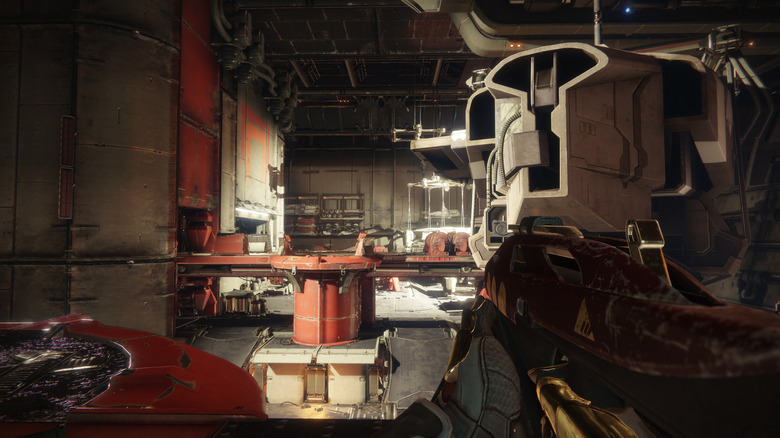
SSAA (supersampling anti-aliasing) takes the brute-force approach, rendering the image at a higher resolution before downsampling it to the final resolution. It works quite well, but is extremely taxing on your GPU, which can result in lower frame rates and other performance issues.
MSAA (multisample anti-aliasing) is a bit more reasonable. It does not supersample the whole image, but instead focuses more samples around the edges of geometry. The more samples you use, the smoother the edges can look, but the greater the GPU load.
There's a catch, however. MSAA primarily addresses geometry edges, while aliasing from materials, textures and transparent surfaces can remain. Epic's current Unreal Engine documentation supports MSAA only with the forward renderer, not its desktop deferred renderer. That's one reason the common 2x, 4x and 8x MSAA modes are not always available in newer titles.
FXAA (fast approximate anti-aliasing) and SMAA (subpixel morphological anti-aliasing) come at the problem after the frame has been rendered. FXAA detects high-contrast edges and smooths them out. It's quick and relatively low-cost, but may soften image detail. SMAA employs more advanced edge and pattern detection to retain sharpness while keeping the performance cost relatively low.
Modern anti-aliasing changes the decision
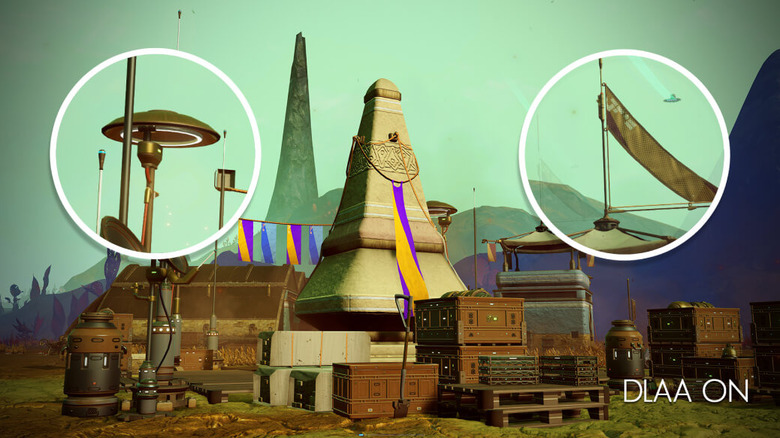
TAA (temporal anti-aliasing) brings previous frames into the picture. It can smooth jagged edges and help minimize the crawling and shimmering sometimes seen on fences, foliage, power lines and distant objects as the camera moves.
That last part is important. Two anti-aliasing methods can appear almost the same in a paused screenshot, while panning the camera can reveal shimmering, blur or ghost trails almost instantly. When comparing settings, move around. Looking at the same wall for 30 seconds isn't a very good graphics test.
TAA can cause softness or ghosting when information from previous frames doesn't line up cleanly. If your GPU is the limiting factor, reducing or disabling anti-aliasing can improve performance, which could be beneficial in a competitive shooter. But that doesn't necessarily mean turning it off is the best setting. It's not always a good deal to gain a few fps while distant fences are all sparkling like Christmas lights.
NVIDIA doesn't position DLAA (deep learning anti-aliasing) as a performance boost: it uses the same Super Resolution technology developed for DLSS but works at native resolution, while AMD has a similar Native AA mode with FSR. Intel's XeSS also has a Native Anti-Aliasing mode that works at native resolution. Our GPU buying guide can help if you're looking for a better experience on a budget.