

Why Xiaomi phones have so many ads (and how to block them)
Xiaomi phones offset hardware costs by injecting a shedload of ads into the user experience, but there are ways to minimize that deluge.
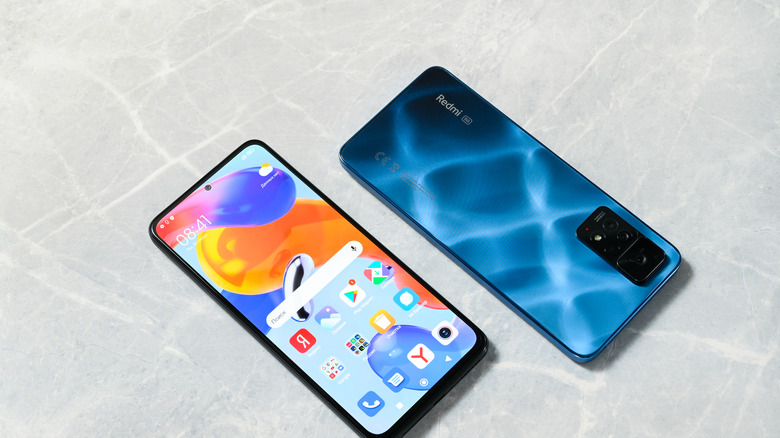
Despite being one of the most prolific phone brands in the world, Xiaomi phones are rarely sold in the USA. Therefore, if you live in the US and happen across one, you might be in for a good deal of culture shock, especially with the amount of ad integration on Xiaomi phones. From file management to music to basic UI, these phones are rife with ads, though there are ways to cut their numbers down.
Indeed, Xiaomi phones are one of the most popular Android devices outside of the US, and a big part of that is their low price. Xiaomi offsets the cost of their hardware by filling its phones with ads, at one point going so far as to include ads in the Settings app (though this was rolled back). If you want to avoid this deluge of ads on your Xiaomi device, you'll need to dig into some settings.
Ads in Xiaomi's apps and settings
To begin with, you'll want to disable the MSA (MIUI System Ads) app, which is the root of many Xiaomi ads. Navigate Settings > Passwords & Security (or Fingerprints, face data, and screen lock if you're on a phone running HyperOS, such as the Xiaomi 17) > Authorization & revocation, and toggle off msa. Then, head back to Passwords & Security (or the aforementioned HyperOS equivalent) and go to Privacy > Ad Services, where you can turn off Personalized ad recommendations (or Personalize ads).
This will take care of the bulk of ads, but commercial content will still be rife. You can turn off ads in individual apps using largely the same methods; for Downloads and Themes, go directly into their Settings, turn off Show Recommended Content in the former and Personalized recommendations and Show ads in the latter. In Music, go to Settings > Advanced Settings and turn off Show Ads. In Mi Browser, go to Settings > Privacy and Security, then turn off Personalized services.
Cleaning up remaining ads in Xiaomi
Both the Security and File Manager apps are a little different, with Security requiring you to go from the hexagon icon in the top-right of the app to turn off Receive recommendations, and then further to Cleaner, where you can turn off Receive recommendations there. When it comes to File Manager, you can quickly turn ads off on older MIUI Xiaomi phones by tapping the three lines in the top left, then going to Settings > About before turning off Recommendations. If you're running on a newer phone powered by Xiaomi's HyperOS, the best you can do here is tap the three dots in the right corner of File Manager, heading to Settings and toggling Withdrawal of Consent.
To take care of a few extra steps, if they're all available on your particular Xiaomi device, head back to your phone's Settings. Here, go to Google > All Services, then opt into Reset advertising ID and Delete advertising ID, which will win back a little more of your data from ad personalization. You can also turn off notifications for any app that would show you ads simply by going to Settings > Apps > Manage Apps and tapping on any of the apps listed to turn off their notifications, but this will turn off helpful notifications as well as advertisements.