

Your Apple TV 4K may be making your movies look worse, but this setting helps
Stop your Apple TV 4K from sacrificing visual quality for a smoother user experience.
We may receive a commission on purchases made from links.
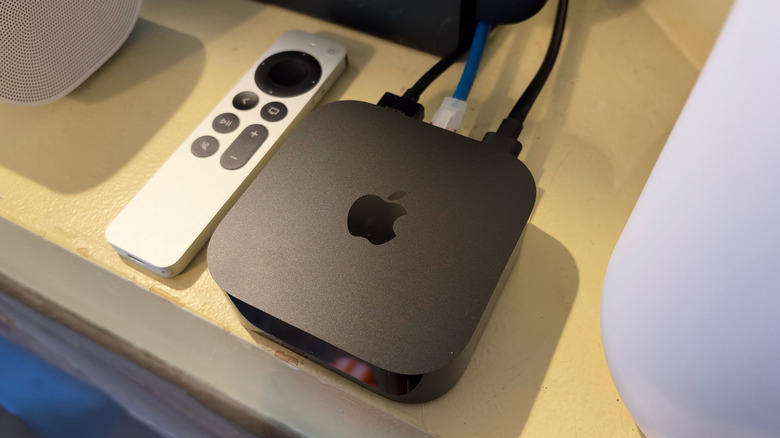
The Apple TV 4K has been Engadget's favorite premium streaming device since 2022, and the 4th-generation version keeps it at the top of the pile thanks to its speedy CPU performance, surround sound audio, built-in mics (for Siri AI) and four-screen Multiview, among others. But while the hardware is great, a pair of default settings might be quietly ruining your streaming experience.
The issue here is Apple TV's default approach to content matching. As configured from the factory, your Apple TV automatically converts all content to the same format, adjusting frame rates and dynamic range up or down to match a predetermined setting, usually HDR and 50 or 60 fps depending on your display. This can be a real issue if you watch content, especially movies, shot at other frame rates and dynamic ranges, resulting in pictures that can look washed out, overprocessed, or jittery.
Apple does this because switching between video formats slows processing, may cause pauses or skips and can offer an uneven viewing experience. If you value image quality, however, you should enable your Apple TV's Match Content features. Turning Match Content on makes your Apple TV 4K play content in its original format. You will briefly see black screens when the Apple TV switches frame rates or dynamic range settings, but it's ultimately a small price to pay.
Matching High Dynamic Range
Dynamic range has quickly become everyone's favorite formatting buzzword. Essentially, the term refers to the range of light and dark captured in an image. This significantly affects the color depth and contrast of your television's pixels and directly influences how vibrant TV shows and movies appear.
Content is either in standard dynamic range (SDR) or high dynamic range (HDR). The former is a legacy format that still serves as the industry standard for most cable broadcasts. SDR provides 8-bit color depth and a maximum brightness of 100 nits. High Dynamic Range, on the other hand, is an umbrella term that covers formats like HDR10, HDR10+, HLG and Dolby Vison. Depending on the format, you can reach up to 12-bit color depth and 10,000 nits of brightness.
By default, your Apple TV converts all content to the same dynamic range format, likely HDR. But while upscaling SDR content to HDR sounds like a life hack for better image quality, it can cause washed-out colors and noisy visuals. Conversely, forcing everything to SDR means you lose those deep, clear color palettes film nerds drool over.
So if you are going to spend the extra $100 to upgrade to the 4th-generation Apple TV 4K, ensure your new streamer displays your content's original dynamic range. To do so, go to your Apple TV's Settings and select Video and Audio. Then, select Match Content and turn on Dynamic Range. Now, Apple TV 4K will switch between SDR and HDR to reflect the content you are viewing.
Save your frame rates

Now, let's talk about frame rates. Remember, a video recording consists of a series of still images displayed in such rapid succession that your eyes perceive them as one continuous stream. Each image is called a frame, and the frame rate indicates how many frames a video shows per second, also known as frames per second (or fps). The higher the frame rate, the better the video captures fast movements. Notably, this differs from your television's refresh rate, which measures how many times your television's pixels refresh their images per second.
Frame rates will vary widely based on what you are watching. Movies are mostly shot at 24 fps. Live television broadcasts, meanwhile, are captured at a slightly higher rate, typically 30 fps. Live sports and other fast-paced content typically opt for 60 fps. More isn't necessarily better here, and increasing the framerate of a 24 fps video can cause jitter and motion issues.
Setting your Apple TV 4K to Match Frame Rates avoids these issues by playing content at the original frame rate. To do this, follow the same formula as with dynamic range. Open Settings on your television, navigate to Video and Audio and select Match Content. From here, enable Match Frame Rate.