Kamakshi Venugopal

Engadget Editorial Policies

The unique content on Engadget is a result of skilled collaboration between writers and editors with broad journalistic, academic, and practical expertise.

In pursuit of our mission to provide accurate and ethical coverage, the Engadget editorial team consistently fact-checks and reviews site content to provide readers with an informative, entertaining, and engaging experience. Click here for more information on our editorial process.

Stories By Kamakshi Venugopal

  • Is the iPhone 6s still worth buying in 2017?

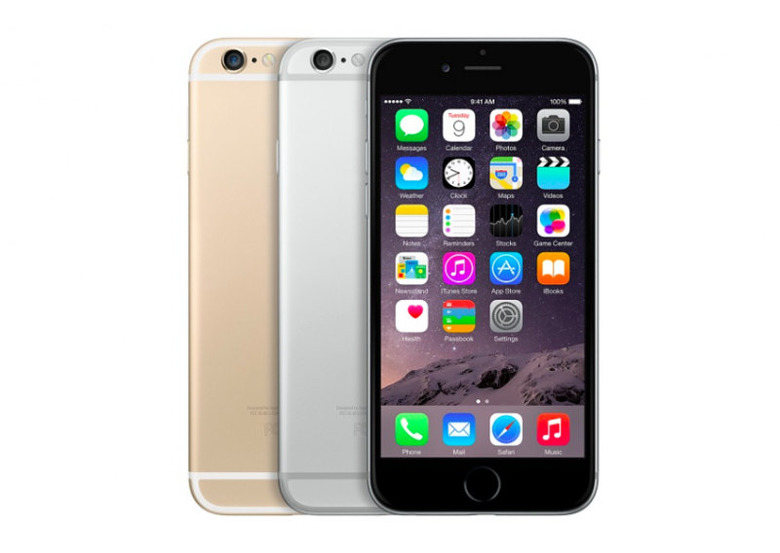
    iPhone 7 and 7 Plus are excellent handsets. Despite tough competition from Android handsets such as Google Pixel and Samsung Galaxy S7 edge, the latest iPhone have managed its position as the most sought after gadget. However, if you are not a gaming freak or not keen about water and dust resistant coating on the latest iPhones, it is probably the ideal time to get yourself the iPhone 6s. I know the 6s is now a couple of years old, but here's why it makes sense: It looks like the iPhone 7 iPhones offer excellent smartphone experience. However, we all know that most consumers buy the iPhone for the bragging rights. Apple's smartphones are a status symbol. In terms of design, there's hardly anything that separates the iPhone 7 from the iPhone 6s. So if you are planning to buy a handset just for show off, why not purchase a last generation handset that runs the latest version of iOS without any issue? Comes with the convenient 3.5 mm jack With iPhone 7, Apple has done away with the headphone jack. Now no matter how fancy the new Lightening port is, this move means that all your beloved earphones are no more compatible with the iPhone 7 unless you put up with lousy adaptors. Moreover, since there is only one port, you cannot connect the headphone and charge your iPhone 7 simultaneously. This isn't an issue on the good-old iPhone 6s, which comes with the universal audio jack. Screen remains the same Screen is undoubtedly the most important aspect of a smartphone. However, going from 6s to 7, Apple hasn't made significant improvements to the display. The iPhone 7 sport a 4.7-inch screen with 750x1334 pixels, so does the iPhone 6s. Along with the pixel density, even the scratch protection remains the same on these two iPhones. Similarly, the iPhone 7 Plus and iPhone 6s Plus sport a 5.5-inch screen with Full HD resolution. Affordable after the recent price cut Apple's products have never been about value proposition. However, since the iPhone 7 is the go-to handset for Apple fans, the last generation handset has received some significant price cuts in most countries. For instance, the 32 GB iPhone 6s costs $661 in India, $600 in the US, and $610 in China sans contract. Runs same software Thanks to Apple's timely updates, the iPhone 6s perfectly runs the latest version of iOS. Although the iPhone 7 packs-in more power, in use case scenario, it is difficult to spot the performance difference between A9 chip in iPhone 6s and A10 SoC (System on Chip) in the iPhone 7. The iPhone 7 definitely packs-in more power than its predecessor. its camera is also slightly better than that of its predecessor. However, it is still not the upgrade everyone was hoping for. Especially, buying a handset that looks exactly like the one from 2014 isn't a smart move. Therefore, it makes sense to pick-up a cheap iPhone 6s now and wait for the next iPhone, which will come with a fresh design.

    By Kamakshi Venugopal Read More
  • Fine Tune Your Google Pixel Experience With These Tips

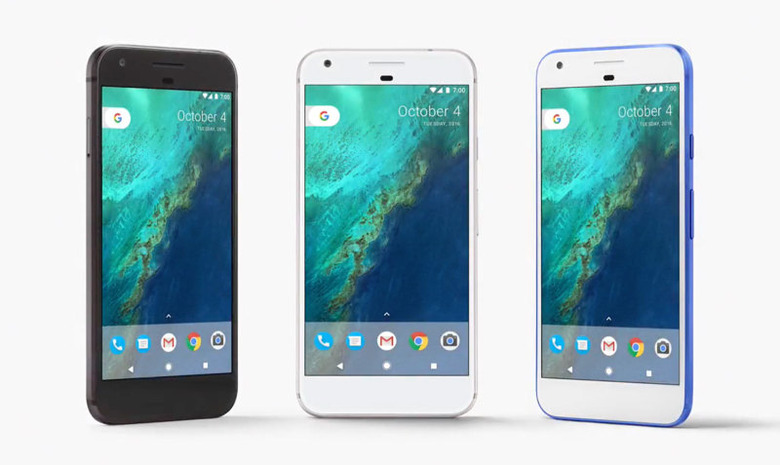
    Google's Nexus phones have been go-to devices for Android purists. Considering the hardware and experience on offer, these phones were reasonably quite priced. The drill was that every year Google would partner with a manufacturer such as HTC, LG, Samsung, or Huawei to roll out a device. However, last year, the search giant took a different path by building its own phone. Being a Google phone, the Pixel comes with a lot of goodies baked in. Of these, the Moves features has been quite popular. As you may already know, swiping on the fingerprint scanner lets you pull down notifications. There are more nifty features in the Google Pixel that aren't much talked about. So let us introduce these features to you. Hide sensitive information from homescreen If your spouse snoops on your phone, you would have definitely activated the fingerprint lock. However, sometimes your phone's notifications reveal so much information that it defeats the purpose of a screen lock. For instance, preview of your freshly received WhatsApp message can give away the gist of a conversation. If you want to get in such uneasy situation, we suggest you make the following changes. Head over to Settings, go to Notifications, and then click on the 'cog' placed on the right side. You will be presented with an option called "On the lock screen". Now, click on the option called 'On the lock screen' and set it to 'hide sensitive notification content'. With this option enabled, you will get notifications for WhatsApp and Messenger, but the contents will be hidden until you unlock the phone. Turn on the notifications light In a meeting you have to put your phone on a silent mode. However, that does not necessarily mean that you can't keep up with the social alerts. Instead of sound, you can set the Pixel to notify you via a flashing LED. To activate this feature, head over to Settings. Click on Notifications, then tap on the cog icon. Now activate the "pulse notification light". Block calls We all despise marketing calls. So much so that many people refuse to receive calls from unknown numbers. However, the flipside of this strategy is that you may end up missing a few important calls. This is where software such as Trucaller comes to the rescue. Using the crowd sourced data, it helps you identify spam calls. Considering that Google has no shortage of data the company has integrated a similar system in Pixel phones. To turn this feature on, bring up the dialer. Click on Settings, then enable 'Caller ID & spam'. In the same menu, you also find an option to add a number to a block list. Split screen multitasking Made popular by Samsung, the split-screen multitasking feature has made it to many Android phones. However, it wasn't part of the core Android OS until Nougat. Android 7.0 comes with built-in dual window multitasking. On Pixel phones, you only have to press and hold the recent apps button [square] to access this feature. Another neat trick lets you swiftly switch between Switch recent apps. To use this Alt-Tab esque feature, you have to double tap on the recent apps button. Quick Actions If your friends have been showing off their iPhone's force touch features, worry not. Pixel too has similar functionality where you get quick actions bar right on the icons. All you have to do is press and hold any native app icon such as Maps, Drive, or Calendar. Adjust icon and font size If the text on your Pixel phone is too small for your liking, you can increase the font size. Go to Settings - Display - Font Size. Similarly, you can enlarge other user interface elements such as Icons and message bubbles from 'Display Size' option. On Screen search Google's much hyped Now on Tap feature did not go down well with the users. However, the search-giant hasn't given up on the contextual search results yet. The feature is hidden behind the Google Pixel's Assistant, and here's how to access it. Need additional information about something you see on the screen? Simply long press the software home [circle] button to bring up the Google Assistant. Scroll down and you will be presented with related content such as videos, social media updates, and news.

    By Kamakshi Venugopal Read More