Randy Murray

Engadget Editorial Policies

The unique content on Engadget is a result of skilled collaboration between writers and editors with broad journalistic, academic, and practical expertise.

In pursuit of our mission to provide accurate and ethical coverage, the Engadget editorial team consistently fact-checks and reviews site content to provide readers with an informative, entertaining, and engaging experience. Click here for more information on our editorial process.

Stories By Randy Murray

  • Set a new record of adware annoyance with geographiQ Worldwide

    I have downloaded and used a lot of apps over the years and have seen a number of interesting attempts to get me to buy a paid version or make in-app purchases. I'm completely OK with that, as long as it isn't too intrusive. This little quiz app sets a new standard for punishing anyone daring enough to try and use it. There are 6 second delays between every action. It's not even a very good game. geographiQ Worldwide requires iOS 6.0 or later and is compatible with iPhone, iPad, and iPod touch. This app is optimized for iPhone 5. I am a big fan of educational apps and thought that a quiz about countries, states, capitals, and flags might be interesting and helpful. Let me get this out of the way first: even ignoring the punnishing aspects of the developer insisting that I buy their app, their quiz is almost impossible to use and extremely frustrating, even on my new iPhone 6. The maps do not allow zooming or repositioning and even on the larger screen I find it very difficult to pinpoint a tiny country or state. Switching from portrait to landscape doesn't help matters much, but presents the maps in a completely different, but still unusable fashion. Put let's set all that aside. What is both frustrating and actually very interesting is how much effort the developer goes to in trying to goad one into buying they paid version. When one selects a specific quiz the app displays a screen with a progress bar, a big "Buy Ad Free Version," and two different ads. The delay is at least six seconds. After you're done waiting you are still required to touch the X beside the progress bar to move on to the selected quiz. OK, take a breath and take the quiz. Then, when you're one with the quiz and want to return to the main menu to select another quiz the app displays the plea and punishment screen again. Every time. Select a quiz, accept your punishment. Finish the quiz, it punishes you again. I fully support the "freemium" approach to apps, especially games. Some developers are extremely clever about how they do it. I have recently enjoyed playing Retry. It's a fun little app that let's you save individual stages by either using collected or purchased coins or use a limited number of "view ad" buttons every day. I happily click the button and let the ads play. I'm not annoyed at all, in fact, I'm happy to do it to save my progress. This is a great way to generate income with ads. I am disgusted with how geographiQ Worldwide's developer hammers the user at every point, begging for money and actively punishing the user when they don't pony up the cash. At least they could design a better app that might be worth paying for.

    By Randy Murray Read More
  • Track your big events with Widget Countdown

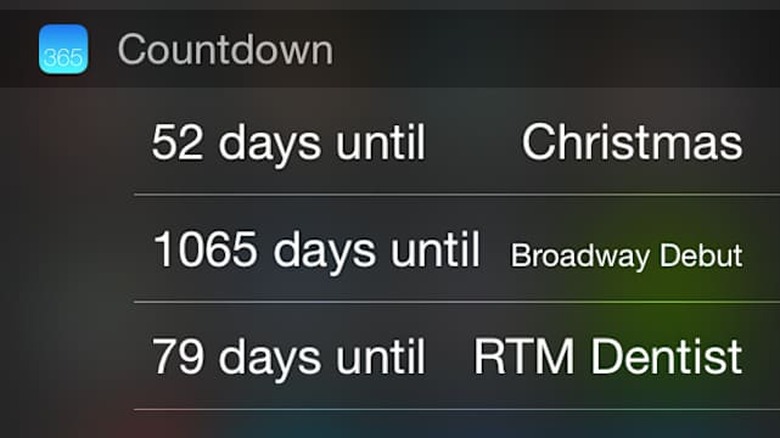
    There are big events in life. Some we can't wait for, others we dread. It's easy to put them on the calendar, but thats not as immediately clear as seeing just how many days or hours remain until something happens. Widget Countdown puts your big events front and center where it's easy to keep track of them. The app is US$0.99 and requires iOS 8.0 or later and is compatible with iPhone, iPad, and iPod touch. This app is optimized for iPhone 5. When initially presented with Widget Countdown my first reaction was, "I don't need yet another calendar." I get by with the built in iOS and Mac OS Calendar, even though I'm not terribly excited with them. I do like and use Fantastical for fast access and creating events and reminders. But, Widget Countdown isn't a calendar. It's not even about counting widgets. This app about setting up and displaying future events. A most importantly, it can display these events within the Notification Center. The app itself is beautifully and thoughtfully designed. It's very easy to create new events directly from your existing calendar events or to manually create them within the app. You can give each event a name, specify a date and/or time, and select a background picture. The app lets you search online for pictures from 500px or Flickr with a keyword search. The result it very nice. It would make a great lock screen, if Apple permitted such a thing (it does not). I find that I don't often launch the app to review my upcoming events. Instead I pull the Notification Center down from the top of the screen and find them displayed there (after adding them by editing which apps to display there). That's the really useful feature of this app. It's just the text, that's enough and what makes this app terrific. I find that limiting the number of things that I include in the countdown to make it easier to think about upcoming events. Add 20 items and the list becomes unweildy. But limit yourself to just four or five events and it's much easier to deal with. When using the app itself you can flick up on the displayed days to reveal the hours remaining. You can also send the image of the event countdown via any of the system services, including Mail, Messages, social media apps, etc. Unfortunately the app adds a commercial message to your image as well, but you can delete that. I still find this practice annoying and tacky, especially for a paid app. Note to app developers and publishers: don't beg for positive reviews with popups in your apps and don't tack on advertisements in messages. If you want to keep track of the big upcoming events in your life, I do like Widget Countdown, especially for the Notification Center access. Don't let that next birthday or anniversary sneak up on you.

    By Randy Murray Read More
  • Make a mess of your contacts with Business Card Reader Free

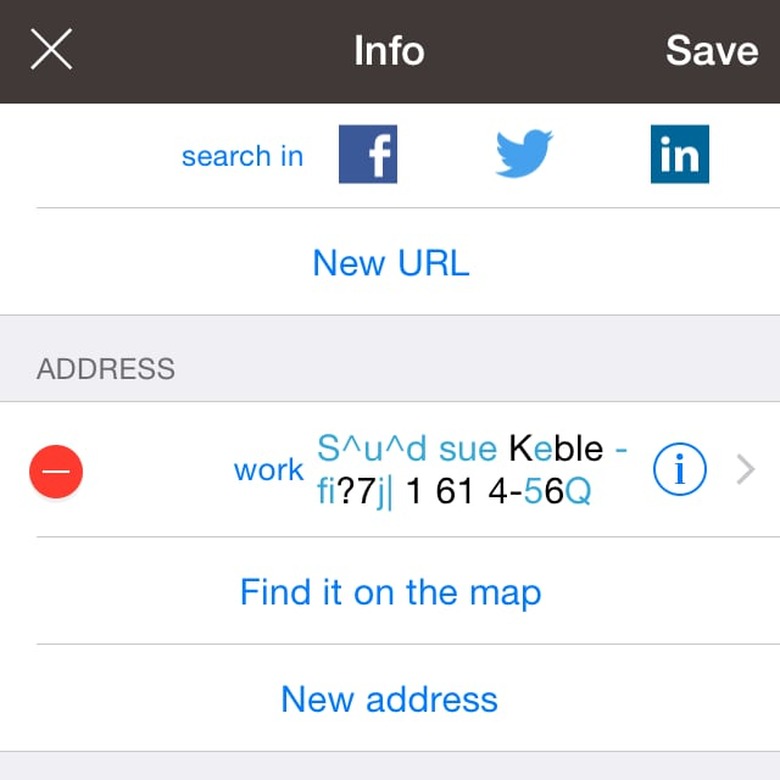
    OCR - Optical Character Recognition is a very difficult thing to do right. Scanning pages of text can now be done fairly successfully, but business cards have always been a mess. Some are loaded with design elements, weird fonts, and non-standard placement of information. Business Card Reader Free is another attempt to do what might seem to be simple: use your iPhone's camera to easily import business card information into your contacts. The app requires iOS 7.0 or later and is compatible with iPhone, iPad, and iPod touch. This app is optimized for iPhone 5. I tested it on iPhone 6 running iOS 8.02. The application is free, but limited and includes displays adds (and they're rather intrusive). I have a love/hate relationship with business cards. On one hand they can be beautiful and in the past, back when they were expensive to produce, they were a sign of credibility. Now anyone can print off a few hundred cards they designed for a few bucks. On the other hand business cards are annoying little slips of paper that seem to breed and multiply. I use to have binders full of cards, physical Rolodexs, and other file systems. I bought one of the first Palm devices (still called the "Palm Pilot" at that time), to try and organize my growing stack of business cards. Later I worked for a calendar and contact management software company and looked at a lot of scanning solutions. Very few proved to be any improvement or provide any time savings over simply keying them in yourself. Think about it. It might seem like scanning should save you time, but in fact there is really very little information on a business card. It doesn't take that long to just key one in. It's when you have a stack it seems intimidating. I tested out Business Card Reader Free on a variety of cards. I was unsurprised to find that it had difficulty with even the most basic of cards. When I scanned in a clean, simply designed card it still required that I edit the scanned text, an act that takes longer than simply typing it in. On the more exotic cards (and far too many people have ugly, over designed business cards) it couldn't make much sense out of the card at all. The app does have links to the built in Maps app, can send the imported data to Contacts, and can look to Facebook and Twitter for additional information. That's all nice, but if you can't manage the initial scanning, there's no point in the other features. Beyond that, the free version is severely crippled. You can purchase an "unlimited" one month trial for $2.99 per month or $19.99 per year. The paid premium account gives you unlimited scanning, gets rid of the adds, allows you to synchronize to card databases, and exports to Salesforce. You can also buy "recognitions" in lots for 50 for $4.99. You can also disable the adds for 99 cents. Don't waste your time with Business Card Reader Free. Just set aside your stack of cards and when you have a few minutes, type a few directly into your selected contact manager. You'll save yourself a lot of frustration and heartache.

    By Randy Murray Read More
  • Get detailed instruction to life's nagging problems with Trusper

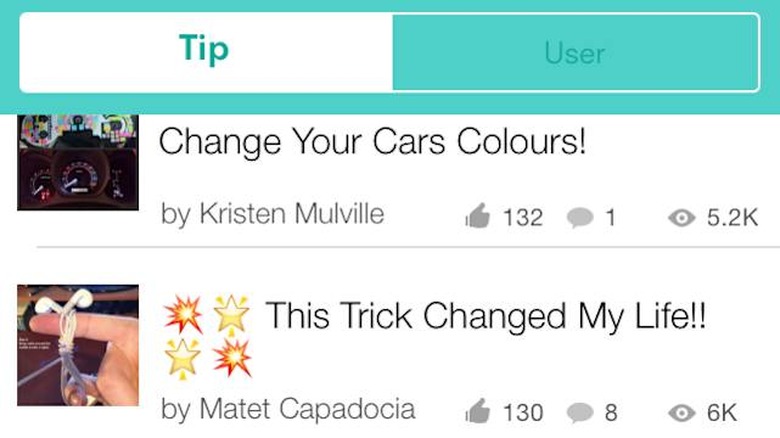
    As a child of the digital age my first impulse when presented with a "How do I do X?" question is to ask the internet. For the most part I can find the answers to most questions within a few clicks. But it's often more difficult to find usable step-by-step instructions on how to actually do things. Trusper Tips, Tutorials, How-to's is an app that sets out to deliver clear instructions and answers on a wide variety of topics. Trusper requires iOS 6.0 or later. Compatible with iPhone, iPad, and iPod touch. This app is optimized for iPhone 5 (I tested on an iPhone 6 running iOS 8.02). If forced to pitch this app as a Hollywood movie, I'd say, "It's Pinterest for How-To Tips!" That's pretty much it. While Pinterest typically displays single images, Trusper displays mini-tutorials. This works best when the tips are a series of clear photographs or illustrations. It works less well for text-only tips. Trusper is cleanly designed and if highly visually oriented. I found it easily to use on my new iPhone 6 but it becomes better and better as you move up screen sizes. It's much better on an iPad and excellent on a big external monitor when using the trusper.com web site. It's just truism that instructional photos are better when bigger and easy to examine. For the most part the display on the iPhone 6 was fine. When first launching Trusper you'll see that it's yet another app that requires a Facebook login, but will permit signup with email. The app then asks you to select from several high-level interest categories, like fashion, automotive, food, etc. It then presents you with popular, trending, and other tips. This is the point where you'll see the community aspect of Trusper. All of the content is user-generated. Posters can be rewarded with "Likes" and comments are an integral part of the tips. You can also post questions and quandaries to be answered by others or select from the list of asked questions with tips of your own. And if you answer questions and create your own tips you gain likes. I'm not sure what this collection of karma gains you, except, perhaps bit of self-esteem. After exploring a selection of available tips I found that I liked the ones where people took there own photos and gave instructions from personal experience. I found a very nice on on using Mason jars to start an herb garden. That's a lot of work and I appreciated the poster's efforts. I even added additional information in a comment to the post. I also found far too many tips that were simply recycled from other sources, particularly "life hacks." And the use of stock or "borrowed" images was widespread. If you like and use Pinterest then you'll probably like Trusper Tips, Tutorials, How-to's. It's suited more to browsing tips and finding interesting things than it is to simply search for required instructions. If you enjoy looking for interesting idea, you might like this app, too. If you're not into browsing, but need instructions on how to build something or do something, I recommend trying sites like Instructables.com for detailed how-to instructions.

    By Randy Murray Read More
  • Schedule your education and learning with Gibbon

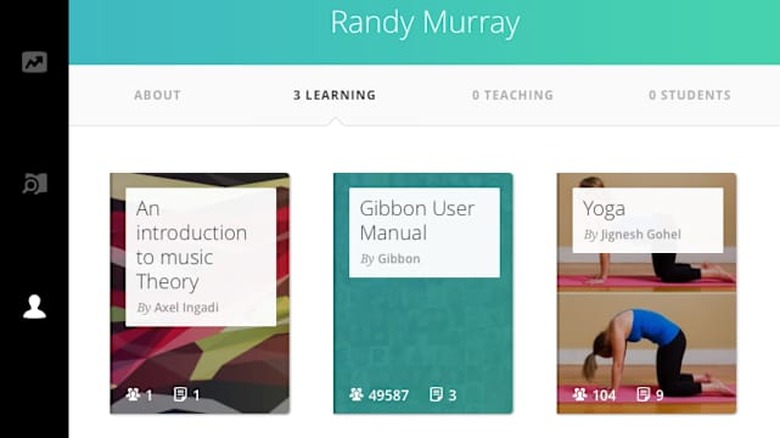
    One of the biggest, yet still mostly undelivered promises of the iPad age is for this device to become the universal textbook. Use this small, light piece of glass and metal to replace not just heavy and expensive textbooks, but open up the vast store of human knowledge. But so far we've only seen hints and promises. Gibbon offers more towards that promise with "curated learning" covering an array of subjects. This app is for the iPad only and requires iOS 7.0 or later. In my ideal, Star Trekian future, one would be able to access the best, most effective lectures, classes, and training on every conceivable subject, right through your handheld techno-magical device. And all delivered by the experts in each subject area. It's a glorious vision. It's somewhat available. I'm a big fan of Duolingo and I'm using it, sporadically, to polish up my Spanish. But what if I wanted to learn the basics of quantum physics. Or building iOS apps? This is what Gibbon sets out to offer. The people behind this app have set out to provide "curated textbooks." You can create an account, no charge, and select the subject that you want to learn from their library. You can use either your iPad or their web site to do this. It's an admirable effort. Unfortunately it's really very early. The selection of courses/text books is slim. And while Gibbon claims to provide "curated" offerings, anyone can build their own textbook and offer it up. My look through the current offerings didn't show any indication if the course I was about to select was any good, designed and written by someone who actually knows the subject, or provides any reason why I should take their course other than the fact that it was there in the catalog. That's not very reassuring. The app itself is relatively simple. I can load up course work and track my progress. But the "textbooks" aren't much more than text and many are actually just a shell that links to other, existing content, like Youtube videos. There doesn't appear to be any testing, quizzes, or verification that I've actually learned anything. It's not really curated if I have no way of telling the high quality stuff from the crap. Gibbon offers an organizational, paid solution and that makes sense. Most organizations need to do a lot of internal training and an approach like this makes sense, especially when designing and delivering their own training. A general, public education solution will need better, certified training to really become useful. I am a big supporter of online and electronic education, but Gibbon is far too early in the development stages to see if their approach will provide any real educational benefit over simply looking up stuff in your browser. I hope that Gibbon can take this to the next level and offer textbooks and training from highly qualified writers and teachers.

    By Randy Murray Read More
  • Amazingly fast and file transfer with Send Anywhere

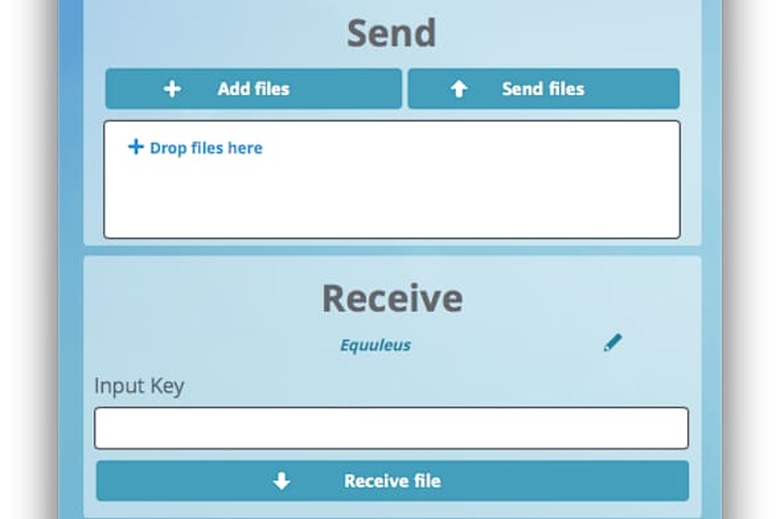
    I don't typically think of moving files between devices as being very difficult. Then again, I'm an old geezer and remember "sneakernet"-moving files by physically carrying them around on floppy discs because there was no network. It's really not that hard to transfer files anymore and there are lots of ways to easily send them pretty much wherever we want. Send Anywhere, however, surprised me with a different approach to secure, point-to-point file transfers between computers or mobile devices. The Send Anywhere app is free and requires iOS 5.0 or later and is compatible with iPhone, iPad, and iPod touch and is also available for Android, Windows, and on the Mac through the browser. The iOS app is optimized for iPhone 5. The app claims to have been created for "simple, unlimited, instant file transfer." That's still needed in a world where not everyone is using an iOS device. Between iPhones and iPads you can use AirDrop. You can also just email or transfer many files using SMS, or use Dropbox (but then again, not everyone does). Considering that, as well as file size limitations, it really is useful to be able to send a single file one device or computer to another, directly, without uploading anything to some server. There's also the matter of security. Email and SMS are "in the open," meaning that the contents of their messages are easily readable by others. If you are concerned about privacy and security, you need to take extra measures. Send Anywhere uses SSL and a 6-digit key for standard transfers and offers enhanced security keys as well. Files are transferred, not stored on any servers. All transfers are only available for a limited time, the default being 10 minutes. That's all good news. To use Send Anywhere devices do need to be online for transfer files. It does not use any direct networking, like Bluetooth. But both devices are on the same local network then your file will not travel out onto the larger internet. It's not often that a piece of software surprises me, but Send Anywhere managed it. I loaded the free app on both my iPhone and my iPad and then transferred photos between them easily. I then visited Send-Anywhere.com on my Mac. I dropped a file into the Send box and clicked the Send files button. Here's where the surprise hit me: there was my iPhone listed as under "Nearby devices." Very cool (NOTE: your device must be turned on and the app launched for this to work). A simple click on my listed phone and I instantly received a notification about the file. That little bit of unexpected nicety was a pleasant surprise. I was more skeptical about the QR code. I typically find them annoying and useless, but with this app they actually serve a useful function. Say that you and an associate are together and she wants to send you a file. Using Send Anywhere on her device she can display a one-time-use QR code and you, using your device with Send Anywhere, can use your camera to capture the code on her device and initiate the file transfer. Slick. It works great, but it may be overkill. If you're together and both have the app launched you should be able to detect each other. Or you could type in the short code number. It worked, but it may not be necessary. There are, however, considerable limitations to Send Anywhere, largely due to how files are used on most mobile devices. iOS is built to largely give you access to desecrate files outside of specific apps. With Send Anywhere you can send and receive photos, videos, and contact records, but that's about it on iOS devices. You can send files that you've received from someone else, but not a file that you might have somewhere else on your device. You can't send music, but you might be able to receive it if sent from another device, although you won't be able to move it to your Music library. I was able to successfully send photos and PDFs between iOS devices and my Mac and it was very easy. I was not able to successfully send a Pages document. I tried sending different Pages files multiple times from my Mac to my iOS devices and each time the transfer ended with an error. I could successfully send and receive Microsoft Word documents between devices. I'm forced to conclude that however surprising and nifty this app is that there's really not much use for it. If you do find that you need to frequently transfer files between devices and can't easily do it with email, SMS, or through online storage like Dropbox, then you might find Send Anywhere useful. I'm certain that you'll find it well made and very easy to use.

    By Randy Murray Read More
  • Sound Circle won't let you sleep

    I love napping. I could make excuses about it making me more productive and alert, but the simple fact is that naps and sleeping are a great personal pleasure. It's not easy to nap just everywhere and at anytime. I find that "white noise" and soothing sounds can really help me to nap on airplanes, while waiting in various lounges, or just when I want to catch a quick power nap. I've recently tested Sound Circle, an ambient noise app. Sound Circle requires iOS 7.0 or later and is compatible with iPhone, iPad, and iPod touch. This app is optimized for iPhone 5. The app is free with a $1.99 in-app purchase for the timer and playlist functionality. When using an app to provide soothing sounds for napping I have just a few simple requirements. First, the app should present me with a selection of "environments" to select from, like softly falling rain, gentle waves, twilight in the forest with birds and insects, or generated electronic noises. The second basic requirement is a timer to let me confidently fall asleep knowing that I'll be awakened on time. Sound Circle does offer a nice, basic selection of sounds, but you have to purchase the timer feature. I do like how Sound Circle allows me to select multiple sound samples and combine them, setting each sound at the desired and separate volume. But I found the controls balky and unresponsive. The app also provides several built in piece of music. I'm not sure exactly how many, because each time I tried to move past the seventh selection the app crashed. Sound Circle is best used with headphones to give a full immersive experience. Professional nappers like myself also use a sleep mask to enhance the experience. The lack of a timer is a real shame. Frankly, it makes the app a non-starter for me. While I'd be open to purchasing sounds or other features, a timer is basic required functionality. Without it I just can't use this app for napping or sleeping when I'm concerned with waking at a specific time. Sound Circle offers a playlist option, but that's also part of the in-app purchase. Frankly, if you want to sleep to a playlist of your own music you can build your own with the built-in Music app and simply set a timer using the Clock function. I don't nap as easily to music (OK, soothing classical or ambient music can work), but many people enjoy falling asleep this way. You just don't need another app for that. My recommendation for music to sleep by? Brian Eno's Music For Airports. Especially nice for use when sleeping in airports and awaiting delayed flights. Sound Circle has potential, but it's not ready for prime time. If you're looking for a sleep noise app with reliable features I highly recommend White Noise.

    By Randy Murray Read More
  • Menote is yet another diary app

    Your iPhone or iPad can make remarkably handy devices to chronicle your life with. Diary and note taking apps can make the process easier and perhaps even fun. But not all diary apps are equal. Menote is YADA-Yet Another Diary App. It's free, relatively good looking, but awkward to use and has limited features. Menote requires iOS 7.0 or later and is compatible with iPhone, iPad, and iPod touch. The app is free with In-app purchase for premium features for $2.99. I am a strong advocate of keeping a journal or diary. It's a very useful exercise, and not just for writers. I have the 100 year old line-a-day journal that one of my great uncles kept and it's a fascinating piece of family history. I keep my own on my desk and write in it every day. There are lots of options for keeping a diary using iOS devices, including the built-in Notes app. You can use heavy-duty apps like Evernote, or purpose-built diary apps like the award-winning Day One. The promise of these apps it to make it easier to keep a diary because your device is with you and you can also capture images, location information, and more. As I gave Menote a trial run I found that it didn't offer special features or a significantly different or better experience than using other apps. In fact there were more than a few frustrations with using Menote. The app looks nice on the iPhone, but on the iPad it's just blown up for the bigger screen. That's disappointing. The app doesn't allow a switch to landscape in the main view and when creating or editing an entry and you switch to landscape the app removes the menus and controls. You are required to turn your device back to portrait orientation to save, add pics, or return to the main view. Syncing in Menote is not automatic or easy. I created an entry, with photos, using my iPhone and then checked my iPad. Nothing there. I opened and closed both apps repeatedly and eventually the entry sync'd over. There is an option for manual syncing and it's more reliable, but that's a poor substitute for reliable automatic syncing. On top of all that I am also not sure just how "free" the app is. Menote uses proprietary storage, limited to 50 MB. You'll need to purchase the premium option at $2.99 to gain an extra 1 GB. I am uncertain how many entries and photos the initial 50 MB represents. Purchasing the premium features will gain you that 1 GB extra storage, password protection for individual notes, notifications, and a night mode theme. I did not test the premium features. If you are committed to keeping a diary or journal I'd recommend Day One. The app is $4.99 for the iOS app and $9.99 for the Mac OS app. I find it to be really well thought out apps for both iOS and Mac. Day One also syncs with iCloud, not proprietary storage. Menote might be worth a try if you don't require a Mac version and use only a single iOS device and you're looking for a free option.

    By Randy Murray Read More
  • Letterspace gets iOS writing and editing right

    It's easy to write on an iPad or iPhone, but editing and revising, not so much. At this moment I have six separate writing apps on my iPad and the all share the same problem: if you want to edit or change a word or phrase, you are required to touch the spot on the screen near where you want to "insert" the cursor and then fiddle around, moving your finger around to try and get to the precise spot that you want. Letterspace, a clever new iOS app, solves this problem elegantly. Letterspace requires iOS 7.1 or later, is compatible with iPhone, iPad, and iPod touch. The base app is free, but has an In-App purchase option of additional fonts and colors for $4.99. Letterspace really is beautifully designed. When you create a new document you are presented with not only the blank page and the virtual keyboard, but they are separated by a and a few useful characters not displayed on the basic iOS keyboard. That's nice, but the real magic happens when you type a line or two of text and then run your finger across this bar. The cursor moves easily and quickly back and forth across your text. The moment I started using sliding approach to move the cursor I fell in love with it. This is exactly how editing should work with touch devices. Using it for the first time was one of those, "of course!" moments. It's brilliant, simple, and very effective. But is that enough for a writing app? I found the app to be well designed and easy on read and use. Letterspace includes a few other clever features. Along with the sliding cursor bar the app includes smart quotes and parentheses in the editing bar. Simply touch the parentheses, type, and touch it again and you get both proper open and close characters. That's a nice touch (and it makes it easier to add parenthetical phrases like this). There's also a not as well thought out feature that allows you to create list items that you can then toggle by touching the screen. Once again, clever, but this feature doesn't come off as well. To make it work I needed a total of 10 key presses to start a new task. That took some fiddling about to make it work and once I did figure it out it didn't seem like a strong benefit to me over other list making apps. It would be much more effective and usable is one didn't have to manually start the process. The app also recognizes hashtags, a nice feature for searching, and an archive feature for clearing documents from the front display. Letterspace also uses iCloud for syncing and that worked very well when I tested it on both my iPhone and iPad. I found it easy to send a document that I'd created in Letterspace via the standard iOS methods, including AirDrop, Message, and Mail. I particularly appreciated the "Open In" feature, allowing me to open a Letterspace document in some of the other writing apps on my device. I spend my working day writing, either on my iPad, iPhone, or more likely, my MacBook Pro. I prefer to have my current projects immediately at hand without intentionally and manually moving them about. That's one of the things missing here: a Mac OS seamless option. My current default for writing fully cross-platform is Simplenote (iOS) and nvALT on my Mac (and I can do the same with Pages and even Microsoft Word). When I use these apps I never have to think about where a doc is or how to move it-it's just where I need it. Letterspace's additional niceties don't trump what I need the most: having my documents readily at hand without pre-planning. If you don't need seamless syncing and availability Letterspace is an exceptionally nice writing AND editing tool. My initial delight at using it remains, but that may not be enough to cause me to move from my current apps.

    By Randy Murray Read More
  • Monitor your Twitter mojo with Merlo

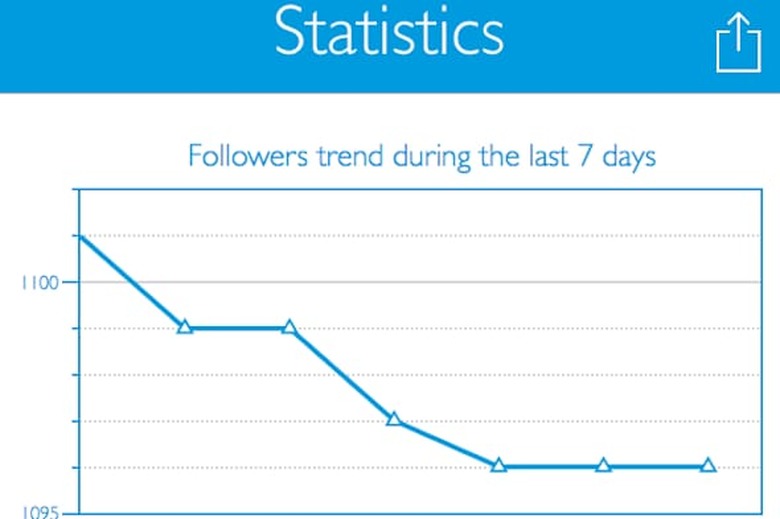
    Can you tweet more effectively? Merlo, a new iOS app, might help you to do just that (but only if you can make out the tiny graphic displays-more on that below). Merlo requires iOS 7.1 or later, is compatible with iPhone, iPad, and iPod touch, and is priced at $1.99. The majority of Twitter users, like me, tweet about things that interest us and move on to the next thing. Businesses and organizations use Twitter differently. More and more businesses and organizations are coming to understand just how important Twitter can be, especially as a part of PR and communications. Organizations need to know a lot about the effect of their efforts online. And there are big, complex and expensive social media management tools available that can help with this gargantuan task. The idea of having a social media analysis tool right there in the palm of your hand is intriguing. That's where Merlo comes in. Merlo is a iOS app designed to provide basic info to Twitter users about the effect of their tweets. In particular it displays information about gained and lost followers, the number of retweets and favorites, historical tweets and other basic trends. Setup is easy, but does require a 24 hour wait for a full report display. You can also import Twitter backups, but the process is cumbersome. The app can only track a single Twitter ID. I'm not sure who this app is really for. Organizational users need more robust tools, tools that can handle multiple Twitter IDs and sophisticated message tracking. Casual Twitter users don't need any tracking or analysis at all. For someone like me the data and reports that Merlo provides is mildly interesting at best. The one piece of information that I did gain from the Merlo reports is that I might improve retweets by releasing the daily post on my own site at 9 AM Eastern time rather than 8 AM as I currently do. It's worth experimenting with. That alone might have been worth the $1.99 app price. The real bone to pick with this app is its design. The designer aspires to "beautiful infographics," but what he ended up with is an app that is very hard to read. The report displays don't look too bad as screen shots as you'll see displayed here, but viewing them on a iPhone makes my aging eyes tear up. There's just too much data to display in such tiny charts. The choice of that particular shade of blue increases the difficulty in reading (Note: I did not test on an iPad). I also found some odd navigation in selecting "View More Stats" from the Statistics display. This selection forced a change in orientation, from portrait to landscape (the app's main displays are only portrait). These additional reports are larger and easier to read, but require you to close the view to return to the regular app display. I was also a bit chagrined that one of the four main displays in the app was primarily taken up with pleas to follow, rate, or promote the app (along with a short tutorial on how to import Twitter backups). This section might have been better used for the oddly placed "View More Stats" display. There was nothing about Merlo that really excited me. And the design of the app made it difficult to use and view. Merlo strives for "beautiful minimalistic design," but it ends up being very difficult to read and does not provide much info of value. Save your two bucks.

    By Randy Murray Read More