

OpenAI rolls out a Lockdown Mode for extra protection against prompt injection attacks
The company says most users don't need to use the feature.
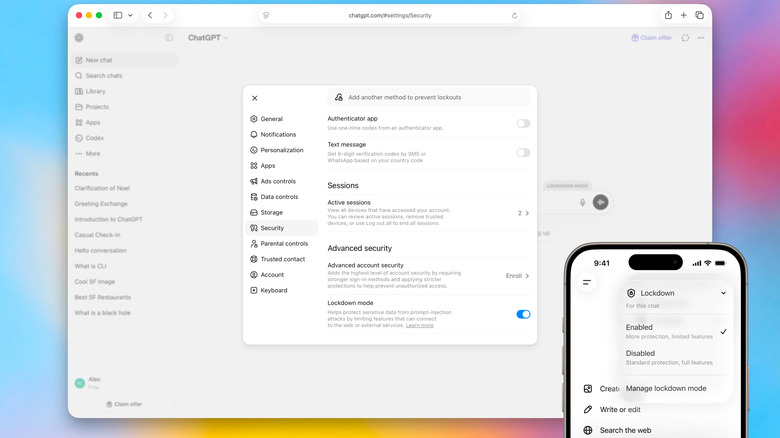
OpenAI has begun rolling out Lockdown Mode, an optional security setting designed to offer users advanced protection from prompt injection attacks. For the unfamiliar, prompt injection is a form of social engineering that is specific to conversational chatbots. As AI systems have become better at pulling information from the internet, people have begun hiding malicious instructions on webpages and other places to try and trick those systems.
OpenAI is billing Lockdown Mode as a sort of last line of defense against prompt injections, building on the robust protections that it says it already offers through ChatGPT, its models and backend systems. "Lockdown Mode is not intended for everyone," OpenAI explains. "It is designed for people and organizations that handle sensitive data and want stricter protection from data exfiltration risks related to prompt injection."
To that end, enabling Lockdown Mode limits some of the features OpenAI offers through ChatGPT and its other products. For instance, you can still use image generation and upload photos to ChatGPT, but it may not pull images from the internet or display any images inside of a response. The chatbot also cannot download files to analyze, though you can still manually upload documents if you want its insight. Other features, such as Deep Research and Agent Mode are disabled completely. "Lockdown Mode does not change memory, file uploads, the ability to share a conversation, or whether your conversations may be used to improve models," OpenAI adds. "Many of these settings are separately configurable by workspace admins."
The company also notes Lockdown Mode won't stop prompt injections from appearing in content ChatGPT processes. Instead, it's designed to prevent an attacker from extracting sensitive data from your account by limiting network requests that someone could exploit. Lockdown Mode is available to all personal accounts, including those using ChatGPT through OpenAI's free tier. To activate it, open ChatGPT's settings menu and select Safety and security. Under Advanced security, tap Lockdown mode and flip on the toggle. You can temporarily disable the additional protection by selecting Manage from the status message that appears above the chat window and selecting Turn off for this chat.
Separately, OpenAI is rolling out an active session manager that allows users to see any devices or browsers that have been used to access their account. From there, the company offers the option to log out of individual or all sessions at once. Just note the latter can take up to 30 minutes to complete. "If you suspect unauthorized account activity, change your password if you use one, review your sign-in methods, and contact OpenAI Support," the company adds.