

What's the difference between USB 3.0 & 2.0 and which should you use?
The ports look the same, but one is much faster than the other.
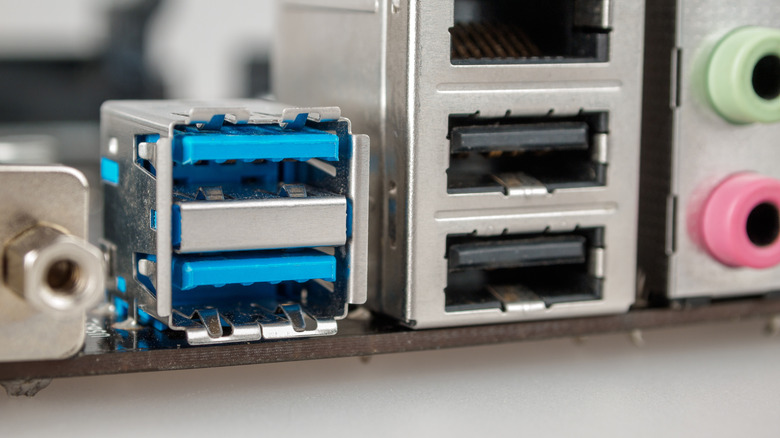
There are various USB standards, but how do USB 2.0 and USB 3.0 ports differ? If you're fretting about what sort of socket you should plug your favorite PC peripherals into, it's important to know the key differences between the two standards. While any USB port should power your accessories, connecting devices to USB 2.0 instead of 3.0 can lead to performance issues.
The hard and fast rule is this: USB 3.0 is a decidedly faster format than USB 2.0. That means it allows for speedier file transfers. The newer standard also offers more bandwidth and power draw, making it a far better option for SSDs or Ultra HD webcams. Here's how you can tell the difference between USB 2.0 and USB 3.0 so you can know which standard to plug your peripherals into.
How to spot the difference between USB 3.0 and 2.0
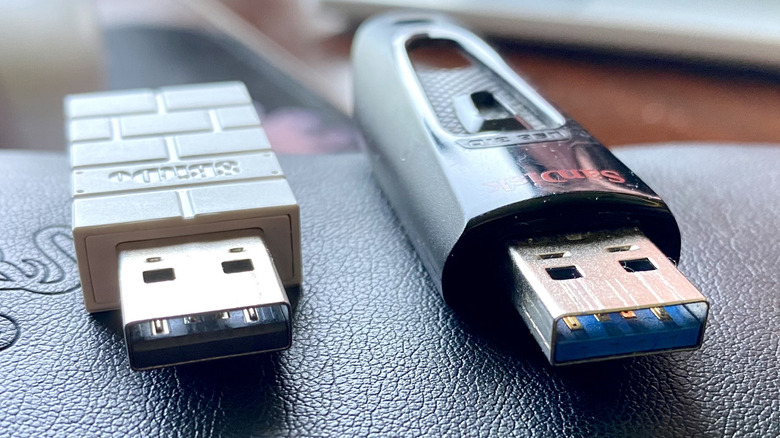
Visually, the easiest way to tell a USB 2.0 peripheral apart from a 3.0 one is by color. Much of the time the inside of USB 2.0 sockets are either black or white, whereas USB 3.0 sockets are often blue. Depending on the manufacturer, this isn't always the case for USB 3.0, but it is in the majority of instances (though some USB ports can be purple).
As for performance, USB 3.0 is far quicker and provides more bandwidth than USB 2.0. The aging latter standard tops out at max speeds of 480 Mbps, while first gen USB 3.0 can hit 5 Gbps (the more modern USB 3.2 format can even reach 20 Gbps). In terms of real-world file transfers, USB 2.0 hovers around 20-40 MB/s, compared to the 300-500 MB/s average speeds of USB 3.0. Power output also varies with the two standards. USB 2.0 can offer up to 2.5 watts, compared to 4.5 watts with USB 3.0.
Is USB 2.0 still used today and when should I use it?
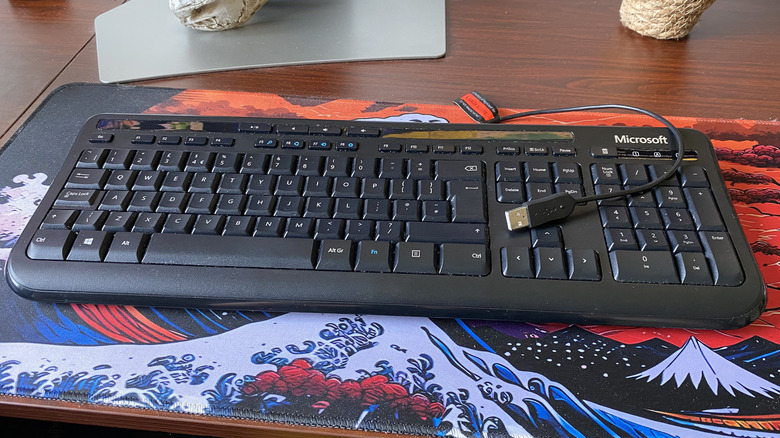
USB 2.0 devices are very much alive and well. Indeed, most mice and keyboards still use the older standard as they don't require much bandwidth. Which USB port should you use for your mouse and keyboard? Unsurprisingly, that would be a USB 2.0 socket. Because they don't require much power, there's very little benefit in plugging these undemanding peripherals into a USB 3.0 port. Instead, you should keep your USB 3.0 connections reserved for more bandwidth-hungry devices, like external SSDs or 4K webcams.
Though demanding peripherals mostly now use USB 3.0, there's a reason USB 2.0 hasn't gone the way of the dodo. Put simply, USB 2.0 controllers cost less to manufacture, while also supplying all the power and speed PC accessories such as printers, Bluetooth speakers or wireless gamepad dongles require. The USB standard has been around since 2000, and it's unlikely to disappear anytime soon.
Can I plug a USB 2.0 device into a 3.0 port and vice versa?
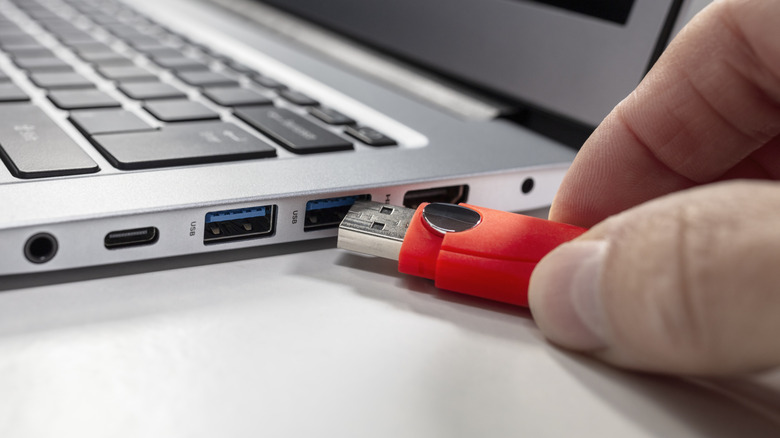
You sure can. USB is a backwards compatible format, and USB 3.0 ports will happily accept a USB 2.0 device and vice versa. You're better off freeing up faster USB 3.0 slots for high-end webcams so that you get the full bandwidth benefits of the format, no question. Yet if your PC has a bunch of USB sockets to spare, USB 2.0 keyboards and mice will have no problem playing nice with USB 3.0.
It's a somewhat different story when plugging USB 3.0 devices into USB 2.0 sockets, though. If you plug an external SSD into the older USB port standard, you'll hobble its performance, as max speeds are capped at 480 Mbps. This will lead to lower transfer speeds, essentially nixing the main benefit of owning an SSD over an HDD. Your USB 3.0 device will still work in a USB 2.0 port, you just won't be getting optimal performance.