

How to connect your Roku Streaming Stick or TV to Wi-Fi without the remote
All isn't lost. These tricks can get you streaming again in no time.
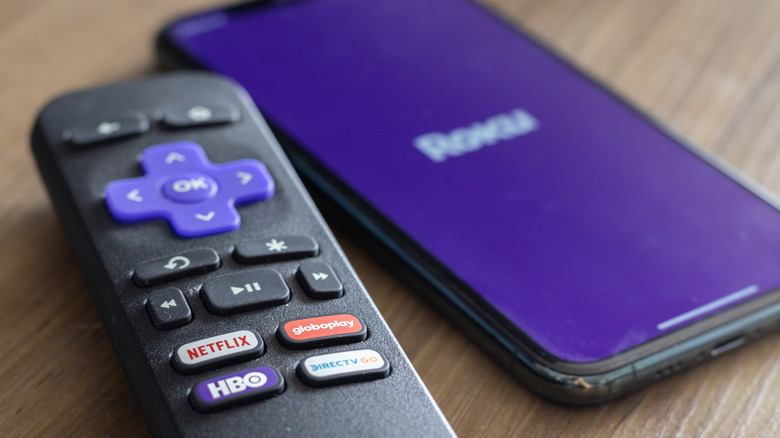
If you've misplaced your Roku remote, don't sweat it — it happens to the best of us. The good news is that you don't need it to get back online. Whether your Roku lost its connection after a router upgrade or you've simply no idea where that remote ended up, there are still ways to reconnect without needing the remote at all.
You can connect your Roku to Wi-Fi without a remote using the free Roku mobile app, a mobile hotspot trick or an Ethernet cable. The right method depends on whether your Roku is already online and what devices you have available.
Why is my Roku not letting me connect to Wi-Fi?
One of the first things we have to figure out is why your Roku is not letting you connect to Wi-Fi. There are a handful of reasons why this could be happening. The most frequent one is a mistyped password. Signal strength is another common issue. Older Roku models could even have issues if you're trying to connect it to the 5GHz network instead of the 2.4GHz band it actually supports.
If the password and signal both check out, you should try unplugging the Roku for about 10 seconds, then power-cycling the router and modem separately for about 30 seconds to clear any glitches.
Ways to connect your Roku streaming stick or TV to Wi-Fi without the remote
Use the Roku mobile app
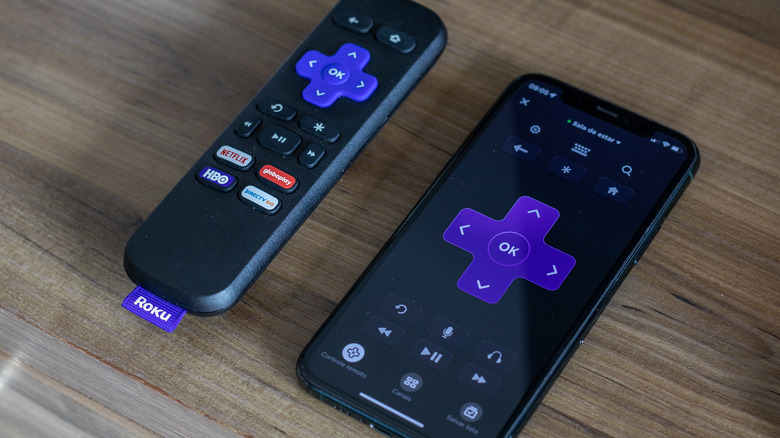
The quickest fix to your internet-less Roku is to use the Roku mobile App. How to install the Roku mobile app? Well, you go download it from the iOS App Store or the Google Play Store. It's absolutely free to get and use.
-
Launch the Roku app.
-
Connect your smartphone to the same Wi-Fi network your Roku is currently using.
-
Open the app, tap Devices, and select your Roku. Tap on Remote to open the virtual on-screen controller.
-
Now you can navigate to Settings > Network > Set up connection > Wireless.
-
Pick the new Wi-Fi network and enter the password.
Note that this method only works after your phone and Roku are already on the same network, so it won't work for the very first setup unless you use the hotspot trick.
Match a phone hotspot to your old network
What hotspot trick? This one. If the Roku has no active internet connection, you could use two mobile devices, like two smartphones, or a phone and a tablet. You'll also need to remember the exact name (SSID) and password of the Wi-Fi network your Roku was last connected to. Spelling and capitalization matter, so they must match character for character.
-
On Device 1, turn on Mobile Hotspot. Rename the hotspot's network name and password to exactly match your old Wi-Fi network.
-
On Device 2, connect to the hotspot you just created. Open the Roku app on Device 2.
-
Unplug your Roku from power, wait up to a minute, then plug it back in.
-
If the Roku recognizes the name and password combo, it will automatically connect to Device 1's hotspot, mistaking it for your old network.
-
Launch the Roku app again on Device 2, tap Devices > select your Roku > open Remote.
-
Go to Settings > Network > Set up connection > Wireless.
-
Now you can select your actual home Wi-Fi network and enter the password.
-
Now you can ditch the hotspot.
Try an Ethernet cable
If your Roku device or TV has an Ethernet port, this is the easiest and fastest fix. Plug a cable directly from your router into the Roku. This will instantly connect the device to your network with no setup screens and no remote needed at all.
If you still haven't found your remote, you'll want to use the Roku app to control and navigate the device.
A missing remote is frustrating, but it's rarely a dealbreaker. The Roku mobile app handles most situations if your device is already online. The hotspot trick covers situations where your Roku has lost its connectivity entirely. If your device supports it, an Ethernet cable can get you back up and running in seconds. Ensure you keep the Roku app updated on your phone, as it will be a handy backup remote.