

Getting an 'iPhone Unavailable' message? Here's how to fix it
You'll need your old passcode or Apple Account password.
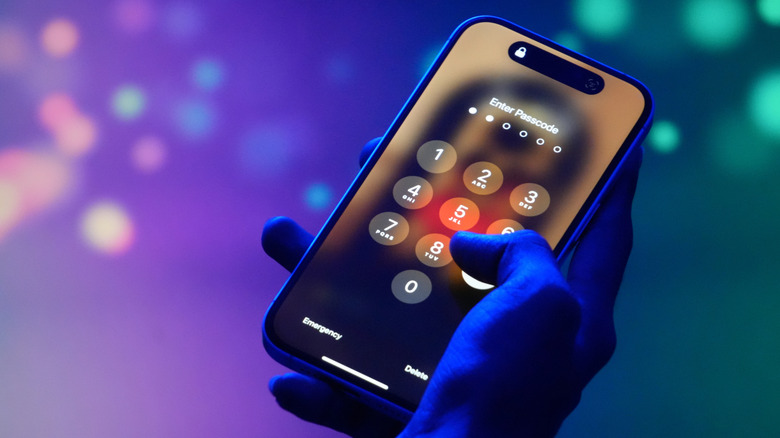
Getting an "iPhone Unavailable" message on your lockscreen is never a welcome sight. The issue is a common one, caused by entering an incorrect passcode too many times. It's a system meant as a safeguard against unwanted access, but it can just as easily be triggered by unintentional pocket presses or plain old forgetfulness. Thankfully, there are several ways to get access to your iPhone again, though some are a bit more labor-intensive, depending on the circumstances of your lockout.
How to fix an iPhone Unavailable message
Your options for an iPhone Unavailable error vary slightly depending on your iOS version, if you've changed your passcode recently and what other technology you have available.
Use Passcode Reset
If you're using iOS 17 or later and have reset your phone's passcode within the last 72 hours, you have the option to revert back to your old passcode to solve the issue.
-
After five incorrect passcode attempts, the iPhone Unavailable screen will appear, and you can select the Forgot Passcode option in the lower righthand corner
-
Select Enter Previous Passcode
-
After entering your previous passcode and unlocking your phone, you'll immediately need to reset the passcode to a new number
Reset your iPhone without a computer
To reset your iPhone without a computer, you'll need to be using iOS 15.2 or later, have Find My previously enabled, have an active cellular or Wi-Fi connection and know your Apple Account and password. Apple recommends that, if you're using an eSIM on iOS 16 or later, you should contact your carrier before following these steps, as they may be able to give you a QR code that allows you to set up your eSIM again.
-
From the iPhone Unavailable screen, select Forgot Passcode
-
Select iPhone Reset
-
Enter your Apple Account password to sign out of your account
-
Select Erase iPhone, which will delete all your data and settings. If you're using an eSIM and iOS 17 or later, you'll have the option to keep your eSIM but erase your data, or delete both your data and eSIM
-
Your phone will restart; from there follow the instructions to set up your device again
Reset your iPhone with a computer
To reset your iPhone with a computer (either PC or Mac), you'll need a cable to connect your phone to your computer and an internet connection. On PC, you'll also need the Apple Devices app, which can be found on the Microsoft Store. After resetting your iPhone, you'll only be able to restore it if you have an existing iCloud backup.
-
Turn off your iPhone by holding down the side button and volume down button, then using the power slider
-
Connect the cable to your computer, then plug in your iPhone and quickly hold down the side button
-
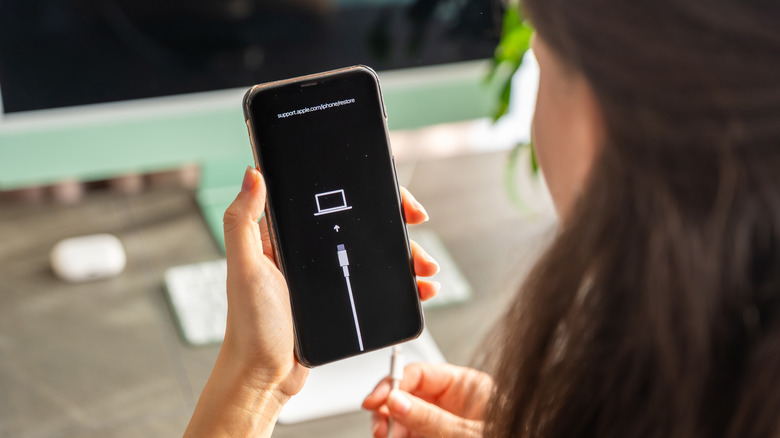
Keep holding the button when the Apple logo appears, and continue holding until the image of a computer and cable appears; this means your phone is in recovery mode
From here, the directions differ slightly depending on if you're using a PC or Mac.
Resetting an iPhone on PC
-
Open the Apple Devices app and select your phone from the sidebar
-
If needed, opt to trust the device, then select General
-
Choose Restore and follow the instructions
-
Once your iPhone has been restored, you can disconnect the phone from your PC and set up your iPhone
Resetting an iPhone on Mac
-
Open Finder and select your phone from the sidebar
-
If necessary, allow the accessory to connect to your Mac
-
A window will pop up stating there's a problem with the phone that requires it to be updated or restored; choose Restore
-
Once restored, you can disconnect your iPhone and set it up again
Apple notes that you may need to update your iPhone before you can finish the restoration process; if your phone restarts during this process, you'll need to shut your phone off and repeat the steps for entering recovery mode.