

How to soft and hard reset your iPhone
If your phone's acting up or you're transferring it to someone else, you'll need to reset it.
When trying to troubleshoot iPhone issues, there are several escalating steps that can be taken as potential fixes, including both soft and hard resets. Before you resort to taking your phone in for repairs, consider some basic troubleshooting at home.
The tech community at large has long been split about the specific definitions of soft and hard resetting. To some, a soft reset means restarting a device, while a hard reset is a complete factory reset that erases all data. To others, a factory reset is a completely separate concept, and instead the difference between a soft and hard reset is whether a restart was done through a device's menus or by cutting the power manually. To add even more confusion, where does clearing your settings, but not erasing all of your data, land on this scale?
It can all get very convoluted, and there's no definitive answer. However, for the sake of this article, we'll be looking at three types of useful resets under the following definitions:
-
Restarting: Rebooting your phone without losing any data
-
Soft Reset: Clearing all settings without wiping out data
-
Hard Reset: A complete reset of the phone, erasing all data
How to force restart your iPhone
Restarting your phone can be beneficial for myriad reasons, and it's often the best first step to iPhone troubleshooting — the old recommendation of turning something off and on again is always a good place to start. It acts as a quick refresh, clearing your RAM and closing any problematic programs. If the usual dual press of the side button and volume up button doesn't prompt the power slider on your phone to appear, you can force your iPhone to restart with the following steps:
-
Press and quickly release the volume up button, then do the same with the volume down button
-
Press and hold the side button until the Apple logo appears; this can sometimes take more than 10 seconds, so be patient
How to soft reset your iPhone
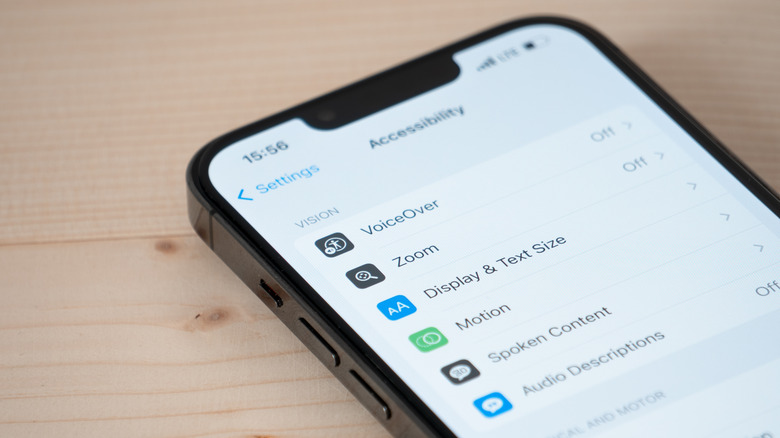
A soft reset of all your iPhone's settings is a good next step in trying to flush out a problem. It's a middle ground between a simple restart and losing all of your data, though you should be aware of what settings you'll need to redo after the reset. Network settings (i.e., Wi-Fi and Bluetooth), any Apple Pay cards, location and privacy permissions you've given to apps and websites, display and sound settings (like your wallpaper, alarms, ringtones and Liquid Glass settings), and any words your keyboard has learned over time will all be reset.
To clear all of these settings in your phone, follow these steps:
-
Go to Settings
-
Select General
-
Select Transfer or Reset iPhone
-
Select Reset
-
Choose which settings to delete; for a complete settings wipe, select Reset All Settings. Or more finely tune your selection based on why you're resetting (if you're resetting because of network issues, for example, you could select Reset Network Settings).
How to hard reset your iPhone
As a last resort when troubleshooting, or if you're getting rid of your iPhone, you can give the device a hard reset, which will completely erase all data on the device. For iPhone problems that seem unsolvable, sometimes starting with a blank slate is the answer. It's recommended that, before you do this, you create an iCloud backup of your device as a safety precaution. To initiate a factory reset, you'll need to make sure you know your Apple Account password and phone passcode, then follow these steps:
-
Go to Settings
-
Select General
-
Select Transfer or Reset iPhone
-
Select Erase All Content and Settings, then hit Continue
-
Choose to either keep or delete your eSIM; if you delete it, you'll need to reactivate your plan with your cellular carrier
-
Enter your iPhone passcode and Apple password, then watch as all your data is erased.