

How to let Claude send emails for you
Put your email on autopilot with Anthropic's Gmail connector.

Imagine having an assistant that reads, drafts and sends emails without you even having to lift a finger. That's exactly what Claude can do once you connect it to your Gmail account. Thankfully, it's quite easy to set the whole thing up with Anthropic's Gmail connector, which bridges the gap between Claude and your inbox. Once Claude is plugged into your email, you can fine-tune the approval settings so you stay in control of every message that goes out. The connector is available for all plans, so you don't need a paid Claude subscription to use it.
Once connected, Claude can search and read your emails, draft replies and send or forward messages. It can even organize your inbox with labels and threads without needing any special commands or rigid templates. You just describe what you need, and Claude figures out the rest.
Approval controls are a key part of this entire experiment. By default, Claude asks for your consent before sending any email, replying to anything or even forwarding an email. Therefore, you get a chance to review before anything goes out. If you're wondering how this all works, let's go through how all settings work, how to adjust them if you prefer a more hands-off approach and just what options you have depending on your plan.
How to set up Claude to send emails
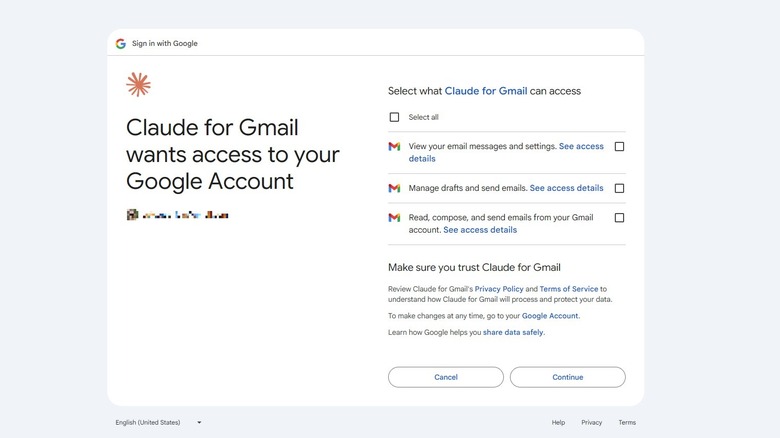
In order to connect your Claude account to your Gmail, use Anthropic's Gmail connector. The whole setup will only take a few minutes.
-
Go to Claude in your browser or launch the app.
-
Tap Customize > Connectors or tap the + sign in the chat and choose Connectors.
-
Go to Browse connectors and find Gmail. It's going to be one of the top connectors available, so it's easy to spot.
-
Sign in with your Google account, grant permissions and you're done.
Once connected, you don't need to know any special commands or prompts. In fact, you can just go in your usual chat interface and ask Claude for help. For instance, you can say "Find the last email from Alex and draft a reply."
From there, Claude will search for the specific email you want to reply to, read it and create a draft reply in that thread. Claude tells you exactly what the draft says, and you can choose to go back to Gmail to send the email yourself, or you can just tell Claude to do it. And don't forget that you can use Claude for other inbox-related tasks too, like forwarding emails or organizing your inbox with labels and threads.
One thing to keep in mind is that you'll need to use your personal Claude account for this. Otherwise, if you're using an account that's part of a Team or Enterprise plan, you'll need the plan owner to enable the connector at the organization level before you, or anyone else, can sign up with their work account.
How do you control when Claude sends emails?
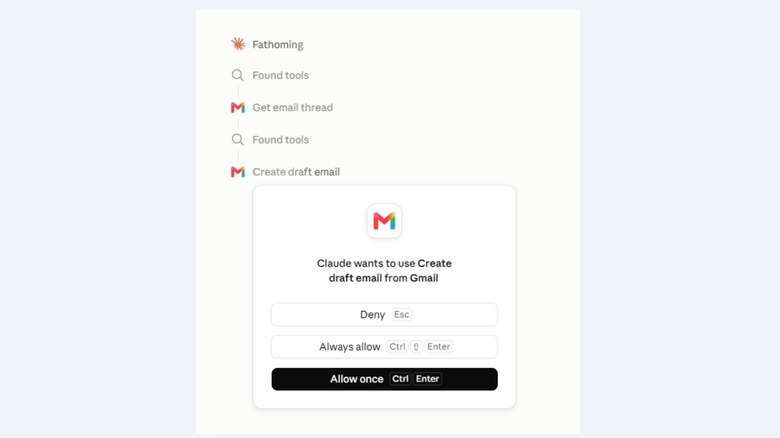
By default, Claude asks for your approval before doing anything. In fact, instead of giving it blanket permission, you can have the AI ask for your approval for each and every situation where it needs to create a draft email.
If you prefer a more hands-off approach or if the constant requests for permission are getting on your nerves, you can adjust this quite easily. On Team and Enterprise plans, owners can decide whether members can let these actions run without asking each time. Individual users can toggle specific tools on and off right from the chat interface. Here's how you can do this:
-
Go to your chat interface and click the plus sign. Go to Connectors and pick Gmail.
-
There's a slew of tool permissions to fiddle with, and you'll find them under Read-only tools and Write/delete tools.
By default, the read-only tools are under an Always allow setting so that Claude can retrieve specific emails, email threads, list labels and so on without asking. The write/delete tools are by default under "Needs approval," so Claude will ask for your nod every time it creates or deletes a label, marks a message as Spam, replies to emails or does anything else that could really affect you. You can switch from one setting to another at any time, and the options are Always allow, Needs approval, or Block.
The sensible thing is to start this by having Claude ask for permission, and once you're comfortable with the quality and tone of the replies, you can loosen the reins a bit. Allowing Claude to handle emails for you can be a big step for most folks, but for those who are starting to integrate AI more and more into their work and private lives, letting it handle replying to some emails here and there can be a great way to free up some brain cells for other jobs.