

How to use Google's Find Hub to locate your Android phone
You don’t even need another Android device to access the hub.
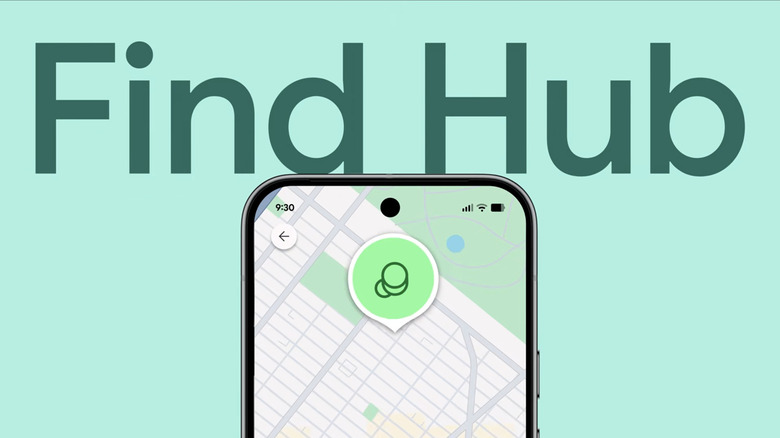
Google, just like Apple, has a tracking network that can help you locate missing Android phones, tablets and accessories. It's called the Find Hub, and it's the first thing you should check if your Android device goes missing. You don't even need another Android device to access it — you can just as easily load the Find Hub on a browser on your computer or a smartphone. For this piece, we're going to focus on how to use the Find Hub to find a missing Android phone and what to do when you locate it.
Make sure your phone can be located
The first thing you should do is ensure your phone can be located in case it does go missing. To start with, always keep your phone updated with the latest software. If you're good on that front, check that you're logged into a Google account you still have access to by going to Settings on your phone then tapping your name and then your profile info. You can find the Google account you're using with your phone there. Make sure to verify your email address, as well.
Again, from Settings, go to Location and make sure it's switched on. After that, go back to the Settings page and go to Security or Security and Privacy. From there, go to Find Hub or to Lost Device Protection > Find My Mobile and make sure that Allow device to be located or Allow this phone to be found is ticked on.
You'll also find an option that says Find your offline devices or Offline Finding. Switch that on so that you can still use Find Hub to see your device's most recently recorded location even if it's offline. Take note that you would have to set a PIN, pattern or password on your phone to be able to use the offline finding feature. If you have a supported model, like a newer Pixel phone, Find Hub can even locate your device several hours after it's turned off. Just tick on With network in busy places only or With network everywhere under Find your offline devices, if either is available. Your Bluetooth and Location must also be on.
The options' wording will depend on your device's brand and its custom software interface, but they will mostly likely sound similar to the ones above.
How to use Find Hub
If you do lose your phone, open the Find Hub app on another Android device or a Wear OS smartwatch, or go to the Find Hub website on a browser. Sign in with the Google account logged into your phone and then go to the Devices tab. From there, you can see where your missing device was last located. If it's within 10 meters from where you are, you can launch Maps from the Find Hub interface to get directions to its last location. You can also remotely trigger your phone from the hub to Play a sound to make it easier to find, even if it's set to silent.
In case your phone was stolen or if you lost it far from your current location, you can take more drastic measures to protect your privacy and security. From the hub, you can tap Mark as lost to lock your device with your PIN, pattern or password. It can also secure your data with two-step verification, as long as the missing phone is running Android 17 and up and has fingerprint or Face Unlock. When you choose to mark your device as lost, you'll be able to enter your contact info and a message to display on the lock screen of your phone. However, take note that thieves and scammers could use the information you display to trick you into unlocking the phone for them.
If you've lost hope of ever recovering your phone and would just like to protect your data, you can Factory Reset it remotely from Find Hub. You can think of it as your last resort and nuclear option, because it will permanently delete all the data on your device and will also remove it from the Find Hub, so you cannot use the feature to find your phone anymore.