

The hidden features every Waze user should know about
There are a load of features tucked away in Google's 'other' mapping app.

There are some services that become most people's default simply by doing many things right, and Google Maps is one of them. Its coverage across different countries and reliable navigation make it difficult to replace. Apple Maps has long since recoverd from its disastrous launch, but most people looking for an alternative will tend to gravitate toward Waze — which Google has owned since 2013. The app still looks and feels a lot different from Google Maps, though, with a stronger emphasis on the real-time driving experience.
Since Waze is a crowdsourced navigation app, it relies on real road users to report things like accidents, potholes, traffic congestion and police activity as they encounter them. Beyond navigation, Waze offers a surprisingly useful set of features that many users may not be aware of, since these options are often buried inside the app's menus. For starters, if you're traveling to a friend's place and you have their address saved on your phone, Waze makes it easier to start navigating there without having to manually enter the address every time.
Open Waze, swipe up and scroll to the very bottom where it says "Drive to friends & family." You'll need to grant Waze access to your contacts for this feature to work. Once enabled, simply type your friend or family member's name in the search box. As long as you have an address saved for that contact, Waze will let you begin navigation with a tap.
It's understandable if you're uncomfortable sharing your entire contacts list with Waze. If you want to revoke this permission, navigate to Settings > Apps > Waze > Contacts and tap on None on an iPhone. For Android, head to Settings > Apps > See all apps > Waze > Permissions > Contacts and tap on "Don't Allow."
Use your own voice for directions
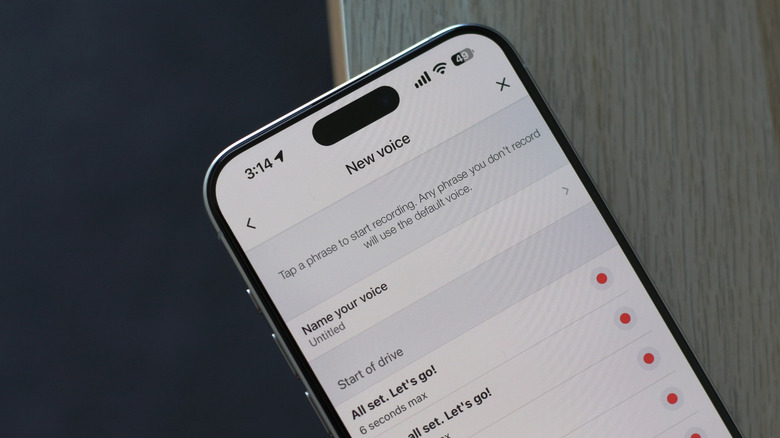
Waze is already known for being more customizable than its competitors. For instance, you can select a "Mood" by navigating to Settings > View profile > Mood. This lets you pick how your avatar shows up for other Waze users, so if you're in a particularly bad mood, you can pick an avatar that matches your energy. You can also select a sidekick, which adds a little bit of personality to the navigation experience by changing your vehicle's icon, avatar and even the voice that guides you along your route.
What's even cooler is that Waze lets you record instructions in your own voice. You can, of course, have a friend or family member do the voice lines for you. A TikTok user shared how they used this Waze feature to capture their kid's adorable voice to make every drive a little more special. You can change voice packs on Waze by heading to Settings > Voice and sound > Current voice. There is a vast selection of presets you can choose from, or you can tap "New voice" to record your own set of navigation prompts.
Waze lists a total of 39 (yes, I counted) different prompts for you to record, with a maximum recording length of six seconds. There are voice lines for everything from basic turn instructions to warnings about hazards and speed cameras. If you don't record a phrase in your own voice, Waze will play the default navigation voice for that instruction instead. Although, if you don't want to be caught off guard when a completely different voice suddenly chimes in, it might be worth recording all 39 prompts.
Plan a drive with Waze
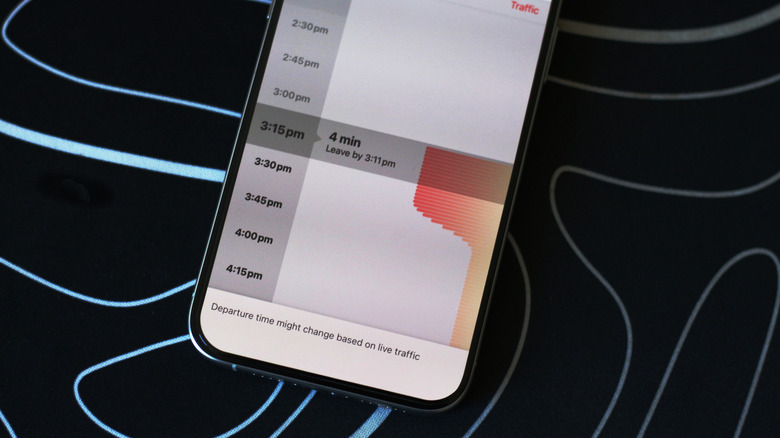
Another useful Waze feature that often goes underutilized is the ability to plan your trips ahead of time. If there's a commute you need to make later in the day or an appointment you have scheduled for another date, Waze can recommend when you should leave based on the expected traffic along the route. There are two ways to schedule trips using Waze. The easiest is to search for your destination as usual and tap on the "Leave later" button instead of "Go now."
This will let you pick your arrival time in increments of 15 minutes. Waze also displays the expected traffic levels next to the selected arrival time. You can change your starting location as well as the day of the week if you want to schedule a drive further in advance. Tapping on "Save" will add the trip to your planned drives. You can view this list by tapping on the hamburger menu and heading to "Plan a drive." Here, Waze also lets you connect your calendar so any upcoming events that have a location attached can automatically show up as planned drives.
If you want to dig even deeper into Waze, there's another hidden trick worth exploring — secret codes that can be entered into the search bar. They let you access a couple of the app's diagnostic tools and toggle certain features. For instance, entering "##@morph" unlocks a secret monster mood avatar for your profile and "##@cctts" clears the app's text-to-speech cache, which can fix certain issues you're having with voice navigation. There are other Waze search codes you can try, but it's best not to mess with ones that are intended for troubleshooting.