

One cable mistake could be killing your desktop PC's gaming performance
Your monitor might be connected to the motherboard instead of your graphics card, and the fix takes only a cable swap.
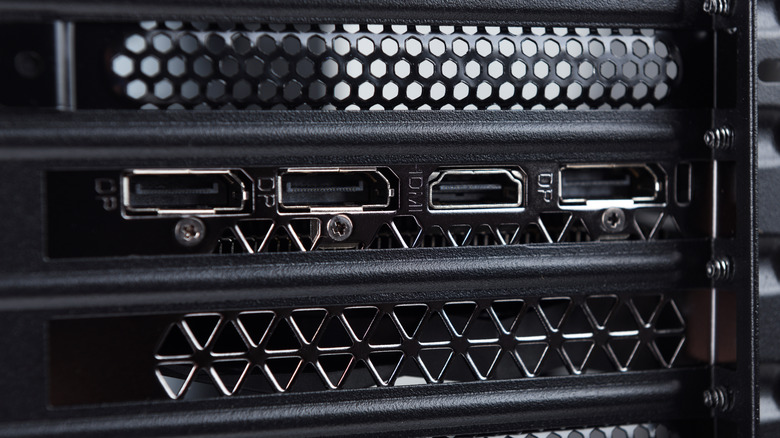
You may have a great graphics card in your gaming desktop and still be disappointed with its performance because of where the monitor is plugged in. Many PCs have HDMI, DisplayPort and USB-C monitor connections in two places: on the motherboard and on the dedicated graphics card. The same cable can fit either set of ports, which isn't particularly helpful.
If your desktop has a dedicated graphics card, the monitor should normally connect to that card's outputs. You may end up with less capable integrated graphics or a blank screen if you use a motherboard port. Instead of assuming that the problem is your hardware, start by inspecting the back of the case. The motherboard's video outputs typically use the graphics integrated into the CPU (if it has any), instead of the dedicated graphics card in a PCIe slot.
Why plugging into the motherboard can hurt gaming performance
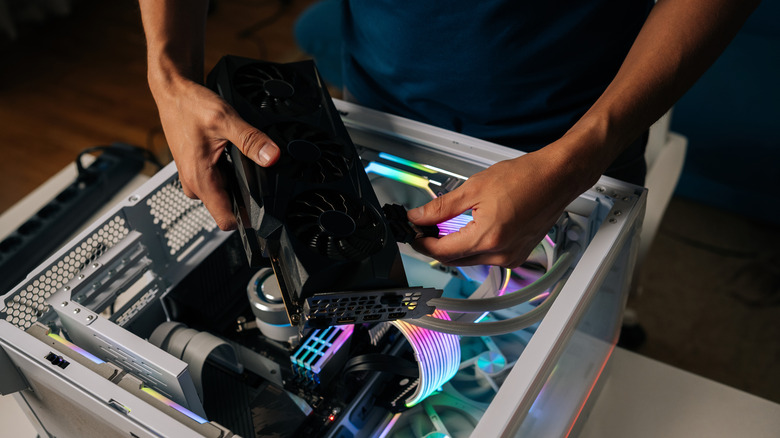
Integrated graphics are suitable for basic tasks and less demanding games, but typically cannot compete with your dedicated graphics card — even if you know how to boost GPU performance without buying new hardware. If Windows runs your game on integrated graphics instead, you're missing out on the performance of your dedicated GPU.
Plugging into the motherboard doesn't always leave the dedicated GPU idle. In some Windows configurations, that card can still render games and pass the frames through integrated graphics, potentially adding overhead. Microsoft doesn't state a percentage of performance loss for this configuration, and the impact will depend on the hardware. That's why some gamers don't notice the mistake immediately.
For others, it's a black screen. Motherboard video outputs won't work with Intel desktop processors carrying an F or KF suffix, since those chips lack integrated graphics. Some PCs also disable the integrated GPU when a dedicated card is installed, so a blank screen doesn't necessarily mean your graphics card has failed.
How to make sure you're using the right port
Luckily, the correct ports are typically easy to find. The motherboard's video outputs are grouped with its USB, Ethernet and audio ports. The graphics card has its own outputs on a separate expansion bracket, typically lower down on the back of a conventional tower. They're often horizontal rather than vertical, but orientation isn't universal, so check which ports belong to the graphics card.
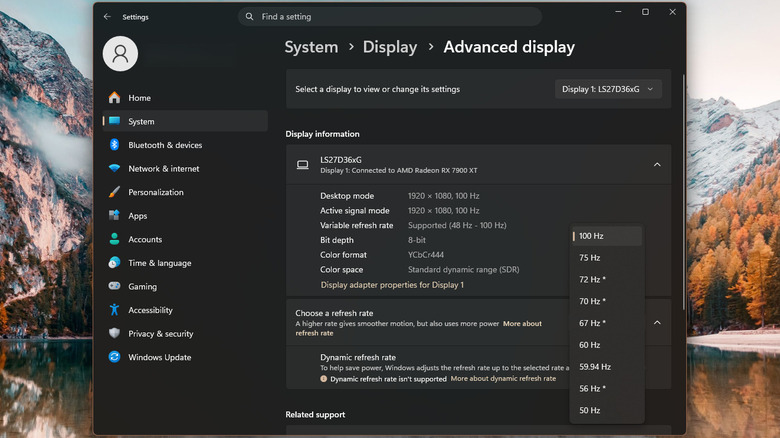
Turn off the PC, move the monitor cable to the graphics card and select the corresponding input on the monitor. Both HDMI and DisplayPort support high-refresh-rate gaming, provided your graphics card, monitor and cable support the resolution and refresh rate you want. DisplayPort comes standard on most modern gaming monitors, but if you are already using HDMI and it is working at the resolution and refresh rate you need, then you don't need to purchase a new cable. For Windows 11, go to Settings > System > Display > Advanced display and check the refresh rate.
Do remember, though, that a 100Hz monitor that's set to 60Hz will only show 60 updates per second, no matter what the graphics card renders. If your screen goes black after switching to the graphics card, try a different GPU port or cable. Before checking the power connectors or seating on the card, shut down and unplug the PC. Finally, if integrated graphics aren't disabled, you can even connect a second monitor to the motherboard's output, depending on your system's compatibility.