

How to boost your GPU performance without buying a new one
Your old GPU might not be able to compete with a new card, but it can run better with some tweaks.
In this increasingly anti-consumer tech world that seems fixed on abandoning all else in favor of data centers, there's rarely been a worse time to buy a new GPU. While many panic-bought PCs to avoid RAMaggedon, there's an even bigger crowd of PC gamers who have been unable to pick up a new graphics card for years.
Just because you're unable to afford a shiny NVIDIA RTX 50-Series GPU doesn't mean you can't squeeze more performance out of your current card, though. Some graphics tweaks, supersampling advice and general GPU maintenance will help boost FPS performance in your favorite games.
Use supersampling and frame generation to boost FPS
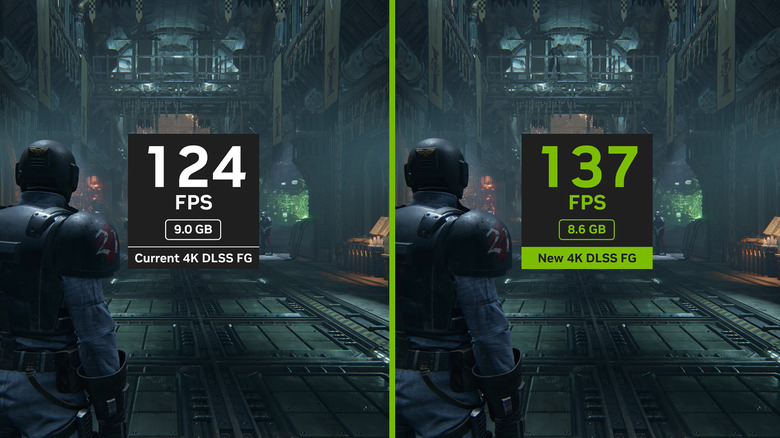
In an era where graphical advancements are outpacing hardware evolution — hello, path tracing — it's becoming vital to get the most out of your current GPU through any means necessary. As someone who is now smitten with high-end ray tracing (it looks incredible in the likes of Cyberpunk 2077 or Marvel's Spider-Man 2), I'm all about embracing AI to help boost frame rates. And yes, I do need to give my soul a shower for admitting that.
Whether you're interested in advanced ray tracing features or not, it's clear that graphically demanding games now rely on various forms of supersampling to lock down buttery, console-beating frame rates. Be it AMD FSR, NVIDIA DLSS or Intel XeSS, making the most out of AI-driven, FPS-boosting tech can be crucial for maintaining stable performance at high resolutions. None of us can be snobs when it comes to supersampling or frame generation now.
Both NVIDIA DLSS 4.5 and AMD FSR 4 produce image quality that's on par with playing games at native resolution, while drastically boosting performance. These technologies work by rendering a game at a lower internal resolution (thus producing fewer pixels) before using deep learning techniques to upscale the final image to a far higher pixel count. Since DLSS 2.0 launched back in 2020, I have leaned on supersampling. With the current iterations of the big three solutions, it basically means free frames with little downside.
The issue of NVIDIA's DLSS 4.5 Multi Frame Generation tech is a little more complicated. While it's capable of producing 200 fps-topping results in Hogwarts Legacy with the x6 modifier enabled in my experience, it adds serious input latency in games that support the fledgling technology. Earlier incarnations of Team Green's tech that top out at x2 and x3 modifiers perform nicely on supported titles, with the added benefit of producing fewer distracting visual artifacts than MFG (like shimmering around in-game text).
As a PC player of 30 years, I can recommend supersampling without hesitation. Regarding the pros and cons of frame gen, I suggest experimenting with it until you make up your own mind.
Lower settings and turn off ray tracing

This is an obvious one, but if your GPU is sputtering away and dropping frames in the best PC games, it's best to lower graphical settings right away. Only the fastest graphics cards can cope with a modern AAA title's Ultra preset, so unless you're rocking a top-tier card, it's wise to drop your settings to Balanced. If your GPU is a couple of generations old, selecting a game's Performance preset should help you claw back even more frames at the cost of graphical fidelity.
Unless you've got an ultra-obsessive eye, it's unlikely you're going to miss features like ambient occlusion or screen space reflections. By all means, tinker with in-game sliders to see what you like the look of and whether you can stomach the resulting performance cost.
In high-octane first-person shooters or fast-paced racing games, fancy rendering techniques are wasted on most gamers. Do yourself a favor and disable any setting that doesn't enhance your experience. An increasing number of PC titles (like Resident Evil Requiem) have excellent graphics menus that provide before and after shots of how effects alter a game. If you can't appreciate the difference in these preview panes, shut the setting off to improve your chances of boosting fps.
Those on budget GPUs should never enable ray tracing. This ultra-advanced lighting technique uses multi-bounce illumination to create incredibly realistic in-game shadows and reflections, but it's hugely punishing on performance. Unless you own a beastly graphics card, ray tracing should almost always be disabled, as it can often lower frame rates by some 20 to 40 percent.
Remember the basics, clean your GPU and consider overclocking
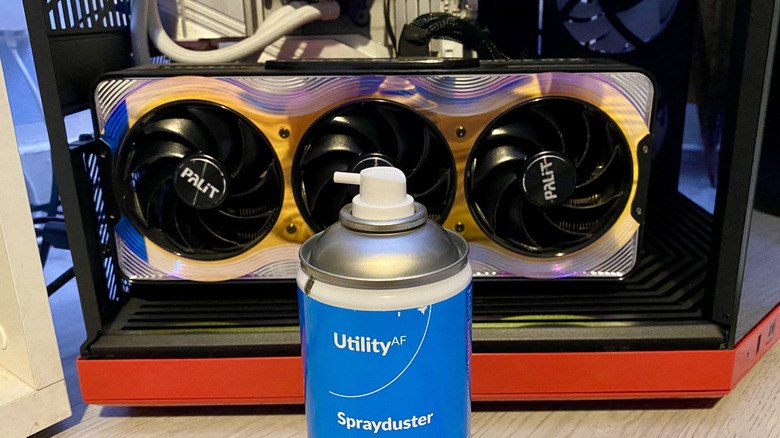
Though the above methods should help pump up your frame rate numbers, there's a physical element to this as well. You must know how to clean and organize your PC properly to get the most out of it. Keeping the inside of your system tidy can be a surprising way to up its effectiveness.
Thermal throttling is a potentially big issue for both your GPU and CPU. If you don't regularly maintain your machine, dust can quickly build up, leading to a situation where the pride and joy of your gaming PC can't maintain a regular airflow. Dust gathering around the fans of a GPU can lead to decreased performance as your card hits its temperature limit more quickly. Once it does, core clock speeds will reduce in order to lower temps, resulting in reduced frame rates.
To safely clean your graphics card, first switch off your PC and unplug it. Once you gain access to your GPU, you'll want a can of compressed air and a soft microfiber cloth on hand. Use short spurts of air directed at the fans to disperse debris, then give the card a gentle wipe with the cloth. This isn't a guaranteed FPS booster, but it will at least keep your GPU in good (hopefully optimal) shape going forward.
Don't neglect the basics, either. Keep your GPU driver updated for the best performance, and close as many background apps as possible so your system isn't devoting significant resources to anything outside your game. If you want to get advanced, overclocking your GPU can wring out more performance by going beyond the manufacturer's intended settings. MSI Afterburner is the recommended tool for the job, though you'll need to research how to do so safely.