

You don't have to look at your Apple Watch to get the time
You can keep track of the time without missing a beat, thanks to a discreet Apple Watch setting that comes in a few versions to suit your schedule.
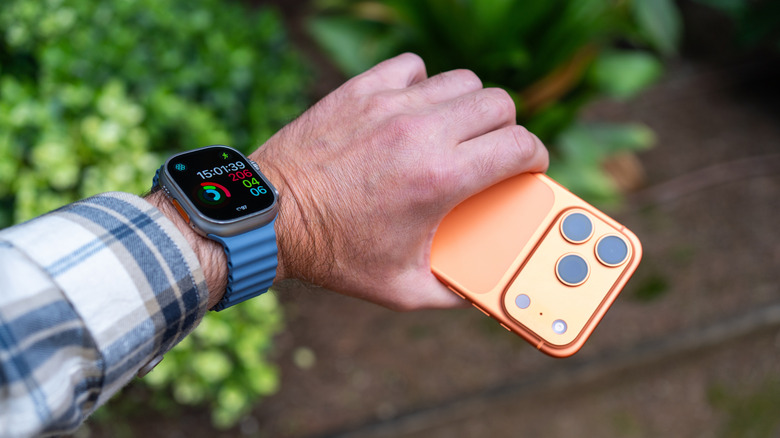
One of the ironies of smartwatches is that for some people, telling the time is low on the list of priorities. You can always check your iPhone if you need to, and most of us spend hours every day in front of some form of clock, whether it's a PC or an old analog ticker hanging on the wall. It's actually features like fitness tracking and quick notification checks that elevate the best Apple Watches to must-haves.
One way or another, we need to know the time, and Apple Watches come with a variety of ways to communicate it. Something you may not have heard of, though, is the ability to get it via vibration. It's something Apple calls Taptic Time, a reference to the Taptic Engine that produces haptic feedback.
Here we're going to explain how to enable Taptic Time, how it works and, perhaps most importantly, why you'd want to bother. The short answer to the last item is that for some people, a visual check just isn't an option.
How to turn on and use Taptic Time on your Apple Watch
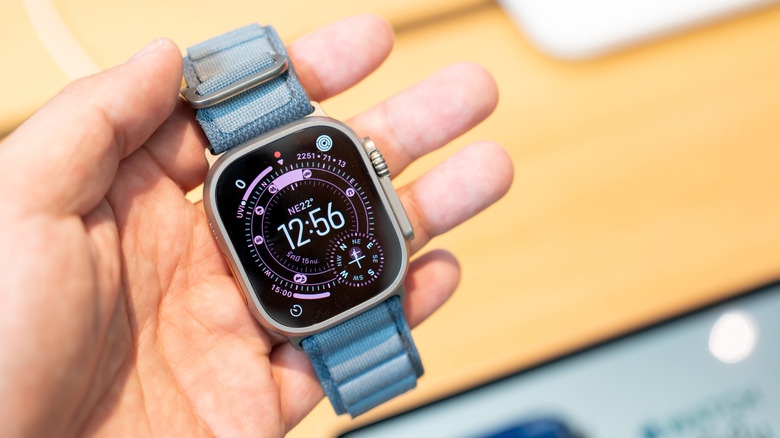
To enable Taptic Time, launch the Settings app on your Apple Watch. Next, select Clock, then Taptic Time. Toggle the feature on. At that point, you'll be presented with three options: Digits, Terse or Morse Code.
That last one should probably be avoided unless you're a 19th-century telegraph operator. Terse may not be much better, though. It uses long taps to indicate that five hours have passed since midnight, short taps for additional hours, then long taps again for quarter-hour increments. It's not hard to learn, but a 15-minute margin of error could mean the difference between catching your rideshare to the airport and having to rebook your flight.
The most precise and intuitive option is Digits. This uses long taps for tens and short taps for ones and applies that to both hours and minutes. For example, 10:09 would be one long tap, a pause, then nine short taps.
When VoiceOver is on, you can also turn on Taptic Time by double-tapping the watch face while the screen is inactive. Apple notes, though, that Taptic Time won't work in any fashion if your Apple Watch is set to always speak the time. To fix that, you can go to Settings > Clock, then turn on Control With Silent Mode under Speak Time.
Who should actually use Taptic Time on an Apple Watch?
The honest answer is that most people shouldn't. Even if it's just every 15 minutes, having your wrist vibrate repeatedly can be annoying, much less trying to interpret a coded pattern. That's particularly true on recent Apple Watches, which have motors strong enough that alerts can be startling, even when you're expecting them.
The main beneficiaries of Taptic Time are going to be the visually impaired. In that scenario, it might initially seem strange to buy one of the best smartwatches. But with the right accessibility options enabled, you don't need to see well to benefit from some of the Apple Watch's selling points, like fitness tracking, or controlling music and some of the best smart home accessories without having your iPhone nearby.
If your eyesight is fine, you might nevertheless want haptic feedback to keep you more mindful of the time, in which case Terse mode will be the least intrusive choice. It's also conceivable that your job or hobbies might put you in situations where checking your wrist is impractical. I like to ride electric unicycles, for example — while that keeps my hands free, sometimes I need to focus on carving the pavement.