

Give your old iPad new purpose as a home video call station
Save your phone's battery and use your old iPad as a FaceTime machine instead.
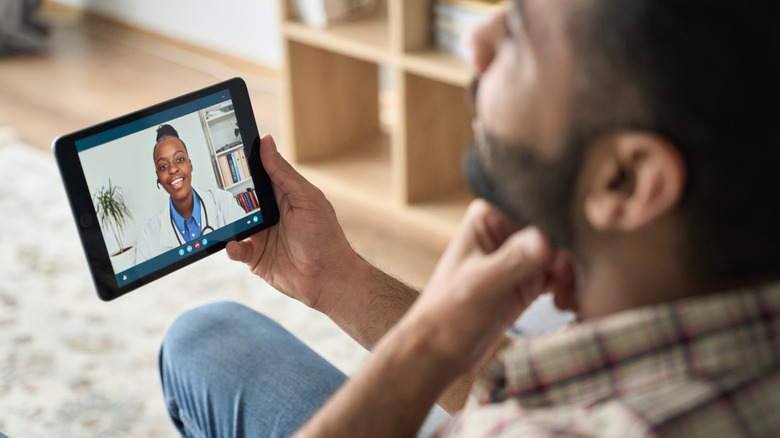
There's a good chance you have an old iPad sitting in a drawer somewhere at home, especially if it no longer runs the latest version of iPadOS. The good news is, there's still plenty you can do with an old iPad, and one of those things is turning it into a video-calling device for you and your family. Depending on the model you have, it still runs FaceTime and other video-calling apps — not only that, but you can also use it as a webcam for your Apple TV. It's especially useful when you don't want to hold your phone while calling someone, or even if you don't want to drain your laptop's battery. All it takes is changing a few settings and maybe buying a good stand for your iPad.
How to set up your old iPad for video calls
The first thing to check is which apps your iPad can still run, because the version of iPadOS it's running determines just how useful an older iPad can be. For FaceTime, most iPad models still work since it comes built-in. You might not have access to some of the latest features, but it works for basic video calls — unless we're talking about a really old iPad, like an iPad 2. On your iPad, open the Settings app and tap General, then About to find your iPad's software version and model. For example, Zoom requires iPadOS 15 or later, which means it can run on supported older tablets such as the iPad Air 2 if they are updated to the latest compatible software.
For FaceTime users, you can simply open the app on your iPad and check if you're still signed in to your Apple Account. If not, just enter your email and password to sign in. And if you want to use other apps, find them in the App Store. Now it's time to find a good place to set your iPad. Although some cases allow you to prop your iPad up on a table, a stand that brings the camera closer to eye level usually works best. Wall mounts are also an option, especially since many people were already mounting their iPads on the wall to control their homes long before HomeView became a thing.
Also, it's best to always keep your iPad plugged into the charger. The battery in an older iPad might not be able to hold up for very long anymore. Older iPads don't show battery health in Settings the way newer ones do, but you can still check it if you want using Mac apps like CoconutBattery. And if you're setting up your iPad for a relative who isn't very tech-savvy, try turning on Guided Access in Settings > Accessibility to lock the iPad to a single app.
Use your iPad as a camera for video calls on Apple TV

If you have an Apple TV at home, your iPad can also function as a webcam for it. This makes the video call experience much more immersive, since you can see everything on the big screen. The catch is that the Continuity Camera feature requires a 2nd-generation Apple TV 4K or newer and an iPad running iPadOS 17 or later, which rules out very old models. Still, if both your Apple TV and iPad meet the requirements, setting it up is super easy. Simply open FaceTime or any other app with Continuity Camera on your Apple TV, select your profile and confirm the prompt that appears on your iPad.
Your profile does not appear on the TV, select Other and scan the QR code with your iPad's camera. If connection still fails, confirm that both devices use the same Apple Account, keep Wi-Fi and Bluetooth enabled and check that your hardware meets the iPadOS 17 or later and tvOS 17 or later requirements. Once everything is set up, your Apple TV will use both your iPad's built-in camera and microphone for the video call. During a call, press and hold the TV button on the Siri Remote to open Control Center and access camera settings, such as Center Stage, Portrait Mode and Reactions.
Continuity Camera requires you to place your iPad in landscape mode with the camera facing you, so a cheap tablet stand could work well here to keep your iPad in front of the TV. These tricks also work for an older iPhone if you have one, and you can also set it up as a permanent webcam for your Apple TV — something you can't do with an iPad. There are also other fun things you can do with your old iPad, like turning it into a digital photo frame or a live streaming setup.