Edward Watkinson

Engadget Editorial Policies

The unique content on Engadget is a result of skilled collaboration between writers and editors with broad journalistic, academic, and practical expertise.

In pursuit of our mission to provide accurate and ethical coverage, the Engadget editorial team consistently fact-checks and reviews site content to provide readers with an informative, entertaining, and engaging experience. Click here for more information on our editorial process.

Stories By Edward Watkinson

  • Phantom Phone Vibration: 90% of us affected

    Do you often think your phone has just vibrated in your pocket but when you check there are no messages or alerts? You are far from alone in this case, its an illusion created in your brain. In a online survey conducted by Smart Caller and supplemented by data from this US study. it has been revealed that 90% of smartphone users are feeling the effects of the phantom vibration syndrome at some point. These people think that their phone vibrates when it is not. So what is the cause of this illusion? The research suggest that it "Bodily habits" developed by the mobile phone users said Dr. Robert Rosenberger at the Georgia Institute of Technology. People who frequently wear glasses forget their presence. It would be the same phones placed in users' pockets. Thus, the phones become "a part of their body." Anxiety and iDisorders People then perceive other sensations like clothing movement and muscle spasms as vibrations from their mobile phone, but it's just a hallucination. Some earlier studies show that phantom vibration syndrome is not considered by most users as something "painful". The study of these new phenomena is of great interest to researcher, specifically changing behaviours related to the growing intimacy of technology and its users. It could named "iDisorders" according to the term coined by Larry Rosen psychology professor. A concept that encompasses the full impact of technology on our psychological health. We are now so anxious we interpret a simple signal of neurons located below our pocket as an incoming call while it is a simple itch"

    By Edward Watkinson Read More
  • 5 tips to speed up Windows 10

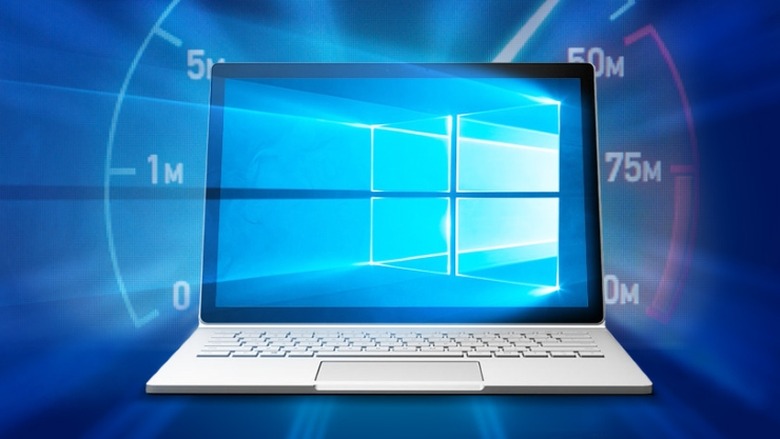
    After the failure of Vista, in part due to his tendency to take a lot of resources, Microsoft began to pay more attention to the lightness of the system. Since Windows 7, the minimum requirements has changed for either Windows 8 or Windows 10. After installing the system starts quickly and navigating the system is fluid. In smaller configurations, however there are some tricks that you will further accelerate certain tasks. If you have updated from another system, these tips will also serve you well. 1. Accelerate the start Right after installation, Windows 10 is a system that boots quickly, a little less after weeks or months of use. This is usually the fault of the many programs that launch at startup along with Windows. It is easy to disable by inspecting the Startup folder and using the Start tab of Task Manager. 2. Remove "Wake Up" Password There is no point leave the computer too long to save the life of the machine and energy. Only upon awakening, Windows 10 asks you your password. If you use your machine in an environment without risk to confidentiality it is possible to disable this feature in the account settings and connection options 3. Remove the lock screen This may appear as a detail for some but depending on how you use your computer, this lock screen can quickly become annoying. Before accessing the login screen where you can select an account and complete the password entry, you must click or touch the screen to "raise" a lock screen. A small change in the registry with a reg file can correct this. See here for instructions. 4. Accelerate the start menu There is often a bit of a lag before the start menu appears after you press the start button. This is normally caused be the advanced settings of the system and with some simple changes to remove "window effects" and disable animations helps speed this up. 5. Quickly Shutdown I must admit that the stop button of the Windows 8 system was a bad idea, it has been fixed in Windows 10. It must still bring up the Start menu, click, and choose to shut down or restart . The most impatient people will enjoy trick to create a directly accessible button on the taskbar on the desktop or in the tiles. Check out this guide: http://superuser.com/questions/968672/shortcut-to-shutdown-or-restart-windows-10-in-less-than-three-keystrokes​ If you have any issues with windows 10, Microsoft have a global customer service support team you can call on 0344 800 2400 (UK). Opening hours are Mon - Fri: 8:00 am - 7:00 pm and Sat: 9:00 am - 7:00 pm. Call costs do apply but its often free to call them. See here for 0344 number call costs in UK. Phone numbers for other countries see here: https://support.microsoft.com/en-gb/gp/customer-service-phone-numbers/en-gb

    By Edward Watkinson Read More
  • How to protect yourself from keyloggers

    In the modern era, it is important for each house and industry PC users to bear in mind how to protect their pc from viruses, spyware, adware and malware infections. Users also want to be mindful how to give protection to non-public information, equivalent to usernames and passwords for online banking services, from fraudulent assault such as electronic mail "phishing". In past times, viruses appear to have basically existed in order that they could give their authors a few more or less perverse thrills. However, an increasing number of virus and malware programs are actually managed and created by way of felony organizations. The criminals can control huge bot-nets (networks of infected computers), which they occasionally use for sending out huge amounts of spam e-mail. Other criminal assaults can use infection via spyware and adware to allow the criminals thieve the pc owner's identity, and their financial information. Keylogging is one method used to steal private information, comparable to IDs and passwords for on-line banking services and a keylogger scanner will have to be incorporated with any excellent anti-spyware software. "Phishing" assaults are very common. An individual would possibly receive a telephone name or an e-mail, stating that their financial institution needs to make sure account details. Never respond to a phone call or electronic mail of this type. Criminals send out tens of millions of e-mails like this every month, and those who respond will quickly find out that they have been defrauded of the contents in their online financial institution account. Always make sure that all PC in your home or business are protected by means of anti-virus and anti-spyware programs. Ensure that those systems run regularly, and download the updates from this system supplier which enable them to detect new attacks. Also review the protection knowledge supplied by means of your online banking provider.

    By Edward Watkinson Read More
  • The mobile phone key to empowerment for teenagers?

    The mobile phone is now one of the last tangible markers of the transition between childhood and adolescence. Smart Caller have just completed a survey which found that the average age of owning a smart phone is now just 12 years old. If there is now a stop to the declining age of first-time equipment (12 years on average), reflecting concerns expressed in public health, purchasing the first mobile phone by parents is almost an initiation rite to passage to adulthood. On the one hand, parents who agree to the request of the child in the name of preserving the relational unity within the family circle in a society where time constraints and distance reduces the possibilities of communication. This act of purchase is usually justified on the basis of greater safety of the child:"I know I can call him or he can call me if he needs me" . Several recent studies have shown that family status influence the possession of a mobile phone. Thus, youth belonging to a single parent or living alternately with their father and their mother are most likely to own a mobile phone while youth from two-parent families are less likely to own a mobile phone. On the other hand, children who see it as primarily an instrument of emancipation from parental and sesame towards recognition of their peers already have. It is striking to note that once the young person has appropriated this phone and its contents, it is ringfenced as intimate object vis-à-vis its parents but is in contrast widely shared, exchanged and open for his peers as the very condition for integration into the community. Therefore, the mobile phone becomes a natural extension of the adolescent who uses it as an affirmation of self with all the highly emotional aspect associated with them as part of a personality under construction. Contravention codes imposed by the adult world as expressed for example very often via camera phones. These are then used for dual purposes which are currently as many means of provocation conscious or unconscious.

    By Edward Watkinson Read More
  • Are You Killing Your Laptop - 4 Ways to Tell

    For many of us, our laptop is currently one of the most important devices in our lives today. The reason for this is very obvious; a lot of us depend on our laptop when it comes to working, be it online or in our individual offices. A recent study by SmartCaller found that 61% of laptop users find the speed of their computer frustrating highlighting how big an issue this is. I think there are a lot of articles out there about why you should have a solid laptop and how to spice up your laptop with great software. One area that very few people pay attention to is the area of laptop maintenance, and there aren't very many articles on the subject out there. If you're a laptop user, there are a lot of signs that you're already "killing" your laptop, and this article will be giving you a few signs from your laptop that shows it might be suffering. It takes too Long to Boot The first sign you might be killing your laptop is if it is taking too long to boot. It doesn't matter if it is taking too long to start up or if it is taking too long to shut down, a great sign that your laptop is not in good health is if it is taking too long to boot. A good laptop computer should be able to start without much hassle, and if you are noticing a significant difference in the laptop speed you are getting now compared to when you just purchased your laptop computer then there is every probability your laptop isn't in good health. It is Always Hanging Another sign that you're killing your laptop computer is if it is always hanging. Have you ever tried to use your laptop only to see it start to hang? If you're experiencing a situation like this then you might need to do something, fast! One of the major signs of a laptop not being healthy is the laptop always hanging. A good laptop should be responsive, so it is very important for you to do regular checkups on your laptop to ensure it is always fast and responsive. It is becoming too hot compared to when you purchased it Another sign that shows you are killing your laptop is when it is becoming too hot compared to when you purchased it. If you find it difficult to use your laptops on your laps due to the heat it generates, or if you notice your laptop is starting to generate more heat in a strange way then you should quickly look for a solution. Applications aren't Responding Quickly Another sign that your laptop isn't healthy is that applications aren't responding quickly. Whenever you open an application, depending on the application, it should be quick to load. If applications are not loading quickly on your laptop and there is no sign that something is going on, then your laptop is probably experiencing some problems that needs a solution. Conclusion In most cases, you might not even know that your laptop isn't okay. The best thing to do if you experience any of the above with your laptop is to take it to an engineer to help you look into it, and also ensure you are careful with how you use your laptop. That will ensure your laptop lasts a lot longer than average.

    By Edward Watkinson Read More
  • Get the most out of your next vacation with these 12 apps

    Maps, guidebooks and pocket dictionaries used to be regarded as travel essentials - but no longer. The digital age has lightened our luggage and made navigating our way around new places a whole lot easier. All you need is your smartphone or tablet, fully stocked with a selection of excellent travel apps. From the best app for taking holiday photos, to unrivalled navigational apps, here is our pick of the travel apps deserving of a prized place on your home screen. Pre-planning BBC Weather Keeping an eye on the weather in the weeks running up to your trip will ensure you don't arrive unprepared. Maybe your destination is experiencing an uncharacteristic cold snap, or stormy showers when the sun goes in. One thing's for sure: by consulting the BBC Weather app, you can pack accordingly and avoid any meteorological surprises. Available for Apple and Android. Price: Free. PackPoint If you still aren't sure what to pack, from weather-appropriate clothes to travel documents, enlist the help of PackPoint. Simply enter your destination, the length of your trip, the intention of your trip (business or leisure) and highlight the kind of activities you expect to be trying out. Once you are done, PackPoint provides an interactive checklist of everything from visas to thermals. Available for Apple and Android. Price: Free, but with optional in-app purchases. XE Currency For many people, organising currency is as simple as picking up a packet of Euros. Many destinations, however, still use their own currencies, and the XECurrency app is the place to find out more. From Icelandic Krona to Indonesian Rupiah, the app includes more than 180 currencies for you to calculate and convert. This is a great help when it comes to budgeting. Available for Apple, Android, Blackberry and Windows Phone. Price: Free. Expedia From flights and hotels to transfers and activities, the Expedia app is a great all-rounder. As well as being able to book your trip, you can get a head start on planning your itinerary by visiting the 'activities' tab. You can either enter your destination or let the app use your location: a great feature for when you find yourself with a spare afternoon while away. Available for Apple, Android and Windows Phone. Price: Free. Restaurants Foodspotting Foodspotting is a restaurant app with a difference: rather than pointing you towards nearby eateries, it points you to your favourite dishes. So, let's say you're in Rome and are craving risotto – simply type risotto into the app's search bar and you'll be presented with tantalising pictures of the nearest dishes, complete with ratings and reviews. Available for Apple, Android, Blackberry and Windows Phone. Price: Free. OpenTable In between sightseeing, visiting museums, relaxing on the beach and other choice travel activities, there is barely time to even think about what you want to eat, never mind book a table. OpenTable can solve at least one of those problems, though, letting you make restaurant reservations on the go. Convenient and easy to use, you can be booked up in minutes. Available for Apple and Android. Price: Free. Exploring Time Out – Discover Your City Why pack a stack of guide books when you could consult the Time Out: Discover Your City app? Incorporating city guides for the likes of Barcelona, Miami and Sri Lanka, you'll have your destination at your fingertips with one tap. You can find a nearby event, an interesting museum or a table at the best restaurant. Save your favourite spots to create your very own personalised guidebook. Available for Apple and Android. Price: Free. Museums of the World If you want to inject culture into your travel adventure, download the Museums of the World app. Whether you want to find out more about a museum you have in mind or take your pick from nearby institutions, you can discover a world of knowledge in this simple app. You can even browse by collections, exhibitions and events, as well as save your favourites. Available for Apple, Android and Windows Phone. Price: Free Google Goggles Have you ever wandered past an intriguing building and wondered about its history? Well, wonder no more – consult Google Goggles. Your very own pocket-sized, cultural encyclopaedia, this app is designed to tell you more about the history around you. And you don't even have to find out what your chosen painting, building or sculpture is called. Simply open the app, point your camera at whatever has caught your eye and, if it recognises it, Google Goggles will load a selection of search results to help you find out more. Nifty stuff! Available for Android. Price: Free. Memories Instagram When it comes to sharing travel memories with your friends back home, Instagram has no equal. As well as being able to take pictures via the app, you can upload ones you took earlier, apply one of a variety of filters and share it to your social media channels of choice. Recent updates also mean you can now edit your pictures within the app, experimenting with things like brightness and contrast to achieve that perfect snap. Available on Apple and Android. Price: Free. Bonjournal Bonjournal is a virtual travel diary that will fit into your pocket, so you can wave goodbye to cumbersome notebooks. As you go about your trip, snap pictures and add inspiring words to create an exciting narrative. With a minimalist design and simple sharing mechanism, you can make your friends back home green with envy. Available for Apple. Price: Free. Getting around Uber Uber isn't just a great app for getting around at home - you can use it during your travels, too. Available in 67 countries, it takes the hassle out of getting from A to B in a strange place. Once you've entered your starting location and end destination, your driver will be assigned, and will often arrive within minutes! You can track their progress, and will receive text alerts to let you know they are on their way or outside. The best part? Payment is taken through the app, so you needn't get lost trying to find your nearest cash machine. Available for Apple, Android, Blackberry and Windows Phone. Google Maps Google Maps is a simple yet effective app for those who like to travel on foot as often as possible. All you need to do is type in where you want to go, let the app use your current location, and it will show you the quickest route, either on foot, by car or via public transport. Once you start navigating, the app will give you verbal directions to ensure you turn down the right streets and don't end up out of your depth! Available for Apple and Android. Price: Free. While many people would say that technology can disrupt a holiday, it can also enhance it, making the travel experience much less stressful, and even more inspiring.

    By Edward Watkinson Read More
  • Four Kid-Friendly Gadgets for Your iPad

    Everyone who has an iPad and children know that they make a pretty good combination. Today's children are growing up playing with Mommy and Daddy's tablet computers. There is no shortage of apps for kids, and they can provide hours of entertainment. There are apps that allow kids to virtually play almost any traditional game or toy. There are learning apps that give kids a fun way to learn things like letters, numbers and colors. The touch screen of the iPad is ideal for kids who don't have the fine motor skills to push tiny buttons on laptops or smartphones. The youngest generation may be raised on tablets just like their parents were raised on Nintendo. If you want to enhance the fun your kids can have with your (or even their own) iPad, there are a variety of kid-friendly gadgets that work with the iPad to bring even more entertainment possibilities. With the holiday season fast approaching, consider some of these new and innovative toy accessories for the iPad. Disney Cars 2 AppMates These "AppMates" from Disney are miniature toy cars inspired by the popular kid's movie Cars 2. Your children can move the little cars across the screen of their iPad to drive around the movie's world of Radiator Springs. They can race, and they can collect virtual items for solving different missions. It is recommended for kids of all ages. The cars are available from PC World and from the Apple Store. You will also need to download the free Cars 2 AppMATes App. HELO TC Touch-Controlled Helicopter Your kids can fly around this twin-rotor helicopter using their iPad. Available from Argos and you will need to download the free HELO TC app. The helicopter can be controlled with a virtual joystick on the iPad touch screen, or your kids can tilt and move the tablet around to steer. The app will even store up to three flight patterns for automatic repeat. And with the touch of a button, the Auto Land feature will bring the helicopter down safely. Crayola ColorStudio HD Kids love to paint and draw, and now they can do it the high-tech way. The Crayola ColorStudio HD uses the iMarker stylus. With the iMarker, your children can color and draw on the iPad with ease. They can also switch between the iMarker and their fingers at anytime. Just download the Crayola ColorStudio HD app. There are animated coloring book pages, and your kids can create their own pages or just free draw. As a proud parent, you can even instantly share their creations on Facebook. GameChanger Game Board The GameChanger is an electronic game board. You just slip your iPad right into the middle cradle, and the board and all your game pieces will interact with the iPad to guide you through the game. Use your iPad to spin the wheel. There are removable skins so you can play a variety of games with the GameChanger. Right now it has two games, Animal Mania and Magic School Bus, but more skins are in the works. It is designed for ages 6 and up so the whole family can play together.

    By Edward Watkinson Read More
  • Keep Spam Where It Belongs.. Away From You

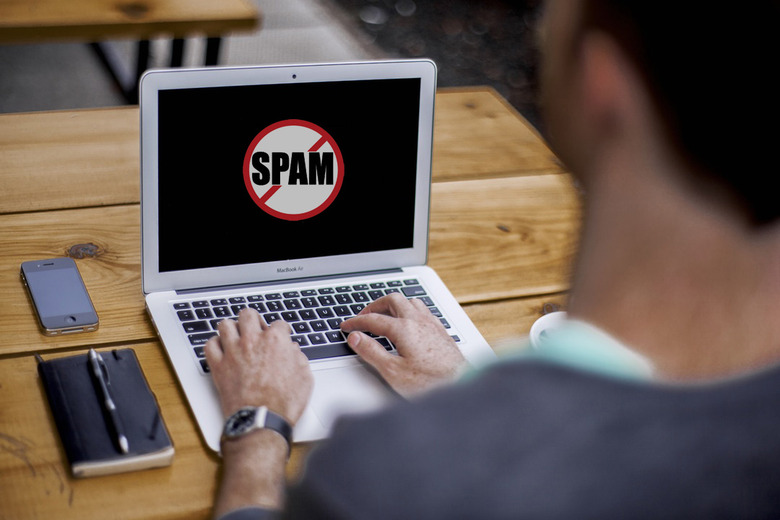
    Spam is not only annoying, it is dangerous. The less of it in your business, personal computer or on your phone, the better. The anti spam industry continues to grow in proportion to its need, and there are many good anti spam programs out there. But your business doesn't want good; your business wants the best. The four attributes that any top level spam program should have are these: 1. The program should be easy to customize to keep up with the latest technology. 2. It should be feature heavy 3. It should be easily installed 4. It should be consistent and stable. Working with SmartCaller we've tried and tested over 30 programs and below you will find the top 10 anti spam programs based on this criteria. 1. SPAMfighter This top ranked anti spam program allows the user to whitelist or blacklist any email they receive. The entire network functions as a whole, and if an email is blocked from a domain a certain number of times, it is then blacklisted from the entire community. The program also protects against email fraud such as phishing and identity theft, and also recognized spammy pictures as well as text. 2. CA Anti Spam Software Formerly known as Qurb Anti Spam Software, this top ranked spam fighter starts working immediately upon installation. The program, which won the Editor's Choice award in PC Magazine for three years in a row, automatically takes your whitelist from your current emails. CA also integrates very well with Outlook Express and Outlook. 3. Email Recover After connecting to your Internet Service Provider, Email Remover gets email header info and lets you pick those headers from senders that you do not want to receive anymore. The program then deletes those mailings from the mail server. 4. Cloudmark Desktop Made specifically for Outlook Express and Outlook users, Cloudmark is another community based program that has over one million users. The program works behind the scenes to take away all unwanted email from your inbox. The program is well known for being able to tell personal emails from spam, and will never delete a personal email. Because of its innovative network approach, Cloudmark Desktop also stops phishing emails as well. 5. ChoiceMail ChoiceMail allows you to easily filter your emails by a number of factors, including IP address, domain, or reputation. This program works on a guilty until proven innocent formula, which requires some upfront investment; however once the initial work is done, ChoiceMail does an excellent job of controlling unwanted email. 6. MailWasher Pro A powerful yet system draining program. However, it ranks as one of the most effective and reliable spam filters around. Perhaps as the developers overhauled the program in 2010, they created a graphic heavy program to attempt to dampen the learning curve. No matter. It is still one of the most feature laden spam filters ont he market, allowing users the power to block unwanted mail in a number of ways. 7. iHateSpam Although this particular product only works with Microsoft Outlook, it is one of the most powerful anti spam add ons for that program. iHateSpam returns to a community based filter, and blocks according to server, IP address, header information, sender's address, etc. 8. SpamBully This program actually allows users to get back at spammers by bouncing unwanted emails back to them. The software also automatically reports spammers to the Federal Trade Commission and the owner of the server that the spammer is on. 9. SpamEater Pro One of the most customizable programs on the list, the program allows the user perhaps the most freedom to make his or her own rules about filtering spam. 10. Spam Buster If you are looking for a simple, easy to use program, this is the one for you. It makes up for its relative lack of features with simplicity.

    By Edward Watkinson Read More
  • App-roved: The Best Apps for Interiors Inspiration

    Our homes are precious. We want them to look their best and reflect our personality, but this isn't always easy. Whether you're trying to work fitted wardrobes into an existing bedroom design, or are planning to renovate your entire home, visualising the finished product can prove challenging. This is whymany homeowners are turning to technology: apps that can lend an inspirational helping hand.PinterestThe best known of these is Pinterest. Using the Pinterest App you can create a nifty mood board that's the perfect way to store your interiors inspiration. With the ability to create multiple 'Boards', you can plan everything from a whole renovation to a single room-redesign. From colour schemes and themes to appliances and furniture, Pinterest helps you envisage how everything fits together.It is also one of the easiest apps to use. Once you have signed up, simply browse the categories and, when you find an image you want to re-pin, click the 'Pin It' button in the top left of the picture. You can even add a Pinterest button to your browser, for when you come across something elsewhere on the net that you just have to have.HouzzThe Houzz App is the whole package, acting as both mood board and enabler. Similarly to Pinterest's 'Boards', you can curate 'Ideabooks' full of gorgeous interiors and must-have products. In addition, you can read informative articles, find a professional to help with your redesign and even purchase the homewares that steal your heart. On account of its ease of use and clean design, Houzz is an essential in any homeowner's app arsenal. ​This app is great for inspiration for all elements of your home, whether its your lounge, the kitchen, a bedroom, a wardrobe or a bathroom. Its also worth checking out the top 5 trends for 2016 to give you an idea about what's going to be hot next year.myPantoneEver spotted something in the shade of green that would work perfectly in your own home, only to search for a paint match in vain? Take a look at myPantone : a clever little app that could solve your colour woes. Simply snap a picture of your dream colour, open it in the app and myPantone will provide you with a selection of matches. You can even generate harmonious colour combinations to create a room palette.ColourSchemerIf you are struggling to visualise your dream colour scheme, ColourSchemer is an ideal source of inspiration. This interactive colour wheel can help you create a whole variety of schemes, from chic and minimal to bright and daring. Choose a colour and receive shortcuts to the most complementary schemes, drag and drop to experiment with colour combinations or simply browse the predefined options. ColourSchemer even incorporates colour blindness simulation – a feature that allows you to see what your colour schemes will look like to users with colour deficient vision.Has one of these apps caught your eye? Perhaps you've used one before? If you have a recommendation to share, please tell us below.

    By Edward Watkinson Read More
  • How Money-Saving Apps Can Help Pay for Your Smartphone

    Smartphones are more popular than ever before and this isn't going to change any time soon. Once you add the cost of the latest phone together with the monthly charges for your phone and internet services, most smartphones will set you back around £30 / $45 per month, based on a two year contract. If you're contemplating taking the plunge, or have a smartphone already but having a hard time paying for it, put that smartphone to work and think smart. By downloading apps that help you save money on the things you need to buy anyway, along with reducing your monthly call charges, your smartphone can literally pay for itself! Here are some of the best money-saving apps and tips. Money-Saving Apps For Food Grocery IQ We all know that impulse buys waste a lot of money, so wouldn't it be nice if you could print out a concise shopping list to help you stay on task? Sit down with your weekly shopping list and fire up the Grocery IQ app. As you enter each item, it will tell you the current price at your local market, then search for any related discounts or coupons on it. If you're not picky about the brand, you can check which brands are in stock and compare prices. Once you've chosen what you want to buy, the app will group your items by aisle so you'll be in and out of the store in a snap. You can even email the list to yourself to print it out, along with any coupons it found for your items. RedLaser If someone in your family has food allergies or you're trying to lose weight, this app will become indispensable to you. When you scan the barcode of an item you're considering purchasing, it will not only look for a better price in other stores, but also provide essential nutritional information, including a list of food allergens you need to avoid. Staying healthy will definitely save you money in the long run! Money-Saving Apps For Shopping KeyRing Rewards Cards You've probably signed up for loyalty reward cards from many of your favourite merchants, but the cards are taking over your wallet, or are easily misplaced. Wouldn't it be nice to store them all in your smartphone? This app keeps track of all of them for you, and will also alert you when special offers become available from each store. ShopSavvy This app is very powerful because it enables you to scan the barcode of an item you're planning to purchase, and then it will tell you which local store or online merchant is currently offering it for the lowest price. Imagine how much you can save with just this app alone! Basket Savings This amazing app is similar to ShopSavvy, because it will help you find the lowest price for any item you're about to purchase. But Basket Savings takes things to the next level with over 800 million products and sale prices from over 100k different stores. Avoid Calling Premium Rate Numbers SmartCaller Did you know that calling a premium rate 0845 / 0870 phone number can cost you up to 45p per minute and are not included in your free minute's allowance? Use a service like Smart Caller to search for Freephone numbers for the company you want to call. This can save you a huge amount on your monthly phone bill. The best phone number prefixes to call are freephone 0800 or 0808 numbers or any of the increasingly popular "03" range including 0300, 0333 and 0345 numbers. Please Press 1 When you call shops and businesses you often find yourself spending several minutes navigating the phone menu system. Did you know you don't need to all the menu options before pressing the option you want? Using Please Press 1 you can Find phone numbers and menus for thousands of phone numbers and view the menu options you need. Once you know these you can call the company and as each menu starts press ahead. This means you're spending less time on the call and ultimately pay less on your phone bill.

    By Edward Watkinson Read More
  • Understanding Why Your Broadband Is Slow

    The UK Government have recently announced a Universal Service Obligation (USO) which will give people and businesses a legal right to request a 10Mbps broadband connection by 2020, no matter where they live. The USO has specifically cited a broadband speed of 10 Mbps as this is the miniumum speed that a typical business or home will require in 2020, according to Ofcom. Whilst this is a long way off, the news has sparked fresh debates about current broadband speeds with many people saying that they don't get the speed they are paying for. There are a number of factors that can impact your broadband speed, this short guide will hopefully help you find out if you have slow broadband and what to do about it. Do You Have Slow Broadband? Before you go on to see why your broadband is so slow you should test the speed of your connection. This is easy to do as there are many broadband speed checkers and testing programmes online. You can find them through the search engines or on many comparison sites and troubleshooting sites. Once you have tested your connection you can see if you are in line with the UK average or if you are not getting anywhere close to the speeds you should. What Time of Day Is It Something that most broadband users do not take into account is the time of day when they are connecting. Like most things in life there are peak times in the broadband industry. During these peak times your normally fast connection will slow down. This is basically due to the demand on the network. The most common peak times are over the weekend when most people are at home and have the ability and time to go online. The reason why peak times cause slower speeds is because all broadband infrastructure is shared between a number of people. If all the people decide to use the connection at one time it is like everyone using a single lane on the road. The line becomes congested and everyone's speeds will slow down. There is not much you can do about these slow speeds. Providers have tried to make it easier for their clients during these peak times by offering shaped broadband packages. With these shaped packages most ADSL users should not have too much trouble with slow peak times. However, people using mobile broadband will have serious issue at peak times. The reason why mobile broadband is different has to do with the number of mobile devices trying to connect to the network. A lot of people in the UK have two mobile devices that connect to mobile broadband. If all of these devices try to use the network at the same time the demand will be too great for the network infrastructure. In these cases even your provider will have a hard time doing anything to help the situation. Where Do You Live or Where Are Your Offices? There are certain connection types that are affected by where you are located. The two connection types that are affected by this are ADSL and mobile broadband connections. ADSL works off the phone lines and the speed of your connection will vary depending on your phone line infrastructure. The main factor in slow ADSL connection speeds in relation to location is where your local exchange is. If you are close to the exchange your speeds should be quite good. However, the further from the exchange you get the slower your connection will be. This is something that does not affect too many people in the cities as there are more exchanges in urban areas. If you live in the country or on the outskirts of the town then you may have some problems. The reason for this is that it is not cost effective for providers to run a big phone line network in the country for a handful of people. When it comes to mobile broadband around 90% of the country can get mobile signal. However, this means that 10% of the country is out of coverage range. If you are in the 10% you will not be able to get mobile broadband. Of course even if you are in the coverage zone the broadband you get could be rather slow. Mobile broadband is transmitted to you via the mobile phone towers. If you are very far from the tower the signal strength will be weaker. If there are a number of buildings between you and the tower the signal strength will also be weaker. It is possible that large electrical fields like those around pile-ons can affect the signal being sent to you as well. The type of mobile connection you are getting will also be affected by your location. 3G connections are available to everyone in coverage zones because this is the standard for mobile broadband. If you have decided to get a 4G connection you will be more limited. The 4G network offers greater speeds overall but the connection is limited to cities at the moment. This is bound to change over time. Are there Any Alternatives? Out of all the broadband connections used the ones affected the most by location and times are ADSL and mobile broadband. The question you may be asking yourself is whether there are any alternatives you can use. Fibre optic broadband connections are less likely to be affected by these two factors. For people in rural areas who are severely affected by their location it is possible to get satellite broadband. Fibre optic broadband is the most commonly used alternative. The infrastructure for this connection has been rolled out to 60% of the country and there are plans to continue laying down the network. Cable broadband offers greater speeds than ADSL and mobile broadband so even if you do have a dip in speeds you are still faster than most. Satellite broadband is not the best option for anyone and is seen as more of a last resort. This broadband costs much more than others and requires special hardware to be installed. Of course this signal does not have any black-spots which is good for people who cannot get other broadband. However, it is not only expensive but the speeds offered do not measure up to the other alternatives.

    By Edward Watkinson Read More
  • Four Top Tips For Saving Money When Calling Tech Support

    As computers and technology become more important in every aspect of our lives, as does the need for help when they go wrong. Many businesses have great on-line help portals and FAQ sections but sometimes there is no substitute for picking up the phone and speaking to someone. For most people, calling a tech support number is not a pleasent experiecne. They are often expensive, with long waiting times and a phone tree that takes several minutes to navigate before you get to department you actually need. As such it can end up being quite a costly call. Depending on the phone number being used by the technical support team, you can be paying up to 50ppm for the call from a landline and even more from mobiles.Each of these tips will help you save money on your calls to tech support teams and reduce the amount of time you will need to spend on the call. These tips also apply when calling other premium rate phone numbers like booking lines, complaints lines etc.1. Avoid calling at peak timesLike most telephone based service, technical support numbers have busy periods and quieter times. By calling during quieter times, you are less likely to get stuck in a long que listening to annoying hold music. This will significantly reduce the total call duration and therefore the cost as well as meaning you are generally less frustrated. The off peak (quieter) times for each support number will be different, however in general the quietest times and therefore the best times to call are weekdays between 10am - 11.30am or 2pm - 4.30pm.2. Skip through the menu systemMost larger companies have a phone system with various menu options. You can often sit there for minutes (which feel like hours) pressing number buttons to get through to the right department. The most fruistrating situation is when you spend several minutes navigating the phone system menu to have a automated voice tell you that the department is currently closed. Most people are aware that if you know the various menu options in advance, you can quickly Press Ahead without haveing to wait to be told all the menu options. By pressing ahead, you can sometimes save at least a minute or two on each call. When calling premium rate tech support lines this can quickly add up in terms of both time and money.Before calling the technical support number its worth checking http://www.pleasepress1.com to see if they can provide the various menu options for you call so you can press ahead and skip through the phone menu system.3. Call cheaper alternative phone numbersMany technical support departments use 0844, 0845, 0870 or 0871 non-geographic numbers (NGNs). As well as providing a 'national service' they are often used as they generate revenue for the company. Most people are hesitant to call these numbers as the costs are often not well advertised and generally cost a lot more to call than a standard 01, 02 or 03 number. However sometimes it is possible to slash the cost of calling these NGN's to zero.For a lot of companies there is either a freephone number or a standrad geographic number (01, 02 or 03) that can be called to reach exactly the same destination. Companies don't like to advertise these as they want you to call the revenue generating NGNs but they do exist. Using websites like SayNoTo0870.com and http://smartcaller.org/ you can search their database to find the cheaper, or free to call version of the phone number.Since 1st July 2015 calls to 0800 and 0808 "freephone" numbers are now free from mobiles as well as landlines. So if you find a freephone number do not worry about calling them from your mobile, you will not be charged. There is a lot of confusion about the 03 number prefix. There is lots of information available about the various 03 prefixes (e.g. 0345 numbers) however if you have "free minutes" as part of your phone package, then calls to all 03 numbers must (by law) be included within these and you wont pay a penny for the call (unless you run out of inclusive minutes). This applies to both landlines and mobiles.4. Make sure you have all the information readyEveryone has been in the situation where you spend ages in a que, only to be asked "do you have the serial number handy" and you then have to go scrabbling around to find it. Before you make the call, ensure that you have all the details and information you might need in front of you. This includes serial numbers, product make & model, software version number, warranty number etc.Having this information to hand will prevent you either leaving the support assistant waiting on the phone or even having to call back once you have the details which will not only cost you time but also money.By following these four simple steps and using a little common sense, you will be amazed at how much money you can save. You also wouldn't believe how less stressful the call will be when you know your not paying up to 50p per minute for the privilege of speaking to a support assistant.

    By Edward Watkinson Read More