

Pixel 11 Pro review: Google AI as your enabler
How much AI do we need?
- Rambler is an effective voice typing tool
- Instant Night Sight is fast
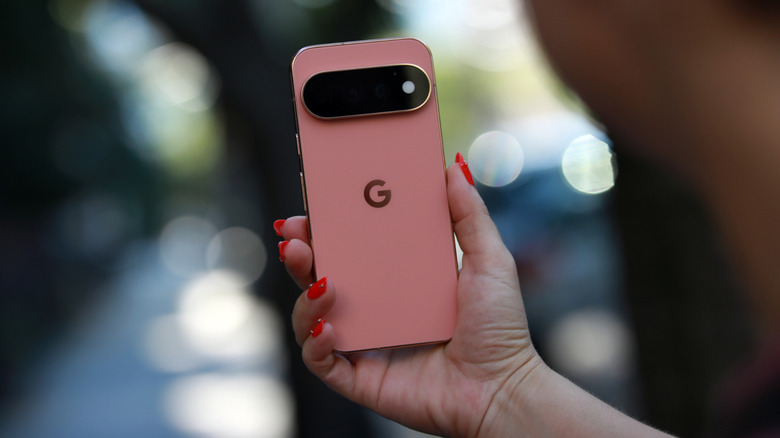
- Beautiful build and colors
- Less RAM
- Costlier than before
I am speaking this sentence aloud into Rambler, Google's new AI-powered dictation keyboard feature.
I'm trying to write some of this review hands-free with Rambler because there is a time crunch, and so my ability to jot down my thoughts without worrying too much about speaking very cleanly is extremely helpful. But also, it's just good testing for this review.
Before you run away, let me assure you I have returned to typing on my laptop. A lot of the new features on Google's latest flagship phones are rooted in the idea that AI can help you do things better. Whether it's in choosing what moments in a scene to capture, what verbal utterances to delete in a message or how to fill in the details of a faraway subject in a photo, the Pixel 11 Pro's new AI tools are here to edit you or fill in gaps.
I won't speak for everyone, but many of the new features do fit in very neatly with how I use my phone. Often, I send voice memos instead of text messages to my friends because I hate typing more than a few words onto a phone screen. Sometimes I take videos with the intention of clipping them or exporting stills and screenshots of my favorite frames later on. Features like Rambler and the other AI enhancements I tested for this review seem potentially very helpful.
But the line between helpful and aggressive is fine and tricky to define. At what point do these AI tools go too far and, when you consider that the Pixel 11 Pro costs $100 more than its predecessor and has less RAM, are these features justified? Would you be better served with an older or simpler phone? While the Pixel 11 Pro is a very satisfying handset, it feels like Google went a step too far with the software enhancements this year.
Hardware and display
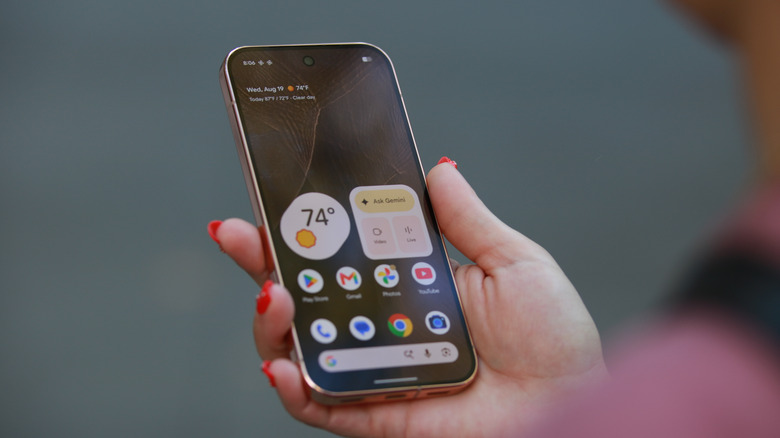
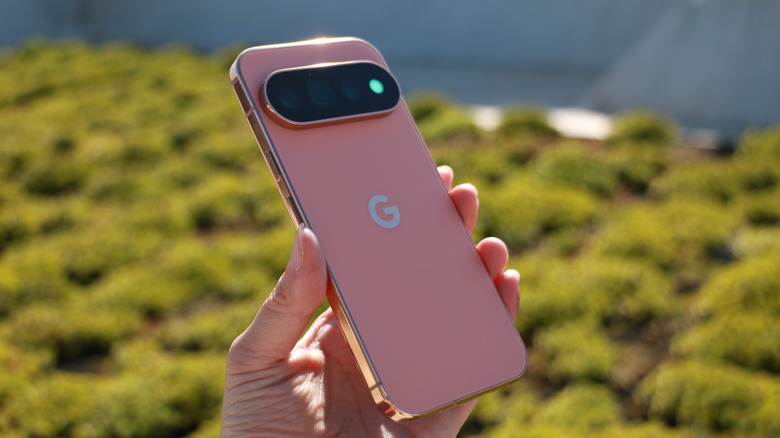
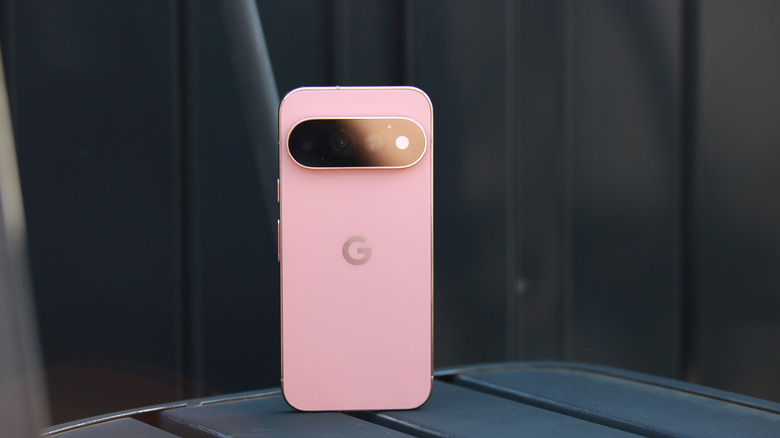
One thing the Pixel 11 Pro has going for it is hardware. The phone looks attractive, feels solid and has some respectable specs. My review unit is in the peachy Canyon shade, and that pleasant hue, together with its polished, color-matched edges and accents, make for a very handsome device. Everyone I showed it to agreed, though one of my friends (Gen Z) thought the logo on the back needed to be tweaked.
Not only does the Pixel 11 Pro feel nice to hold, its one-row pill-shaped rear camera module makes it wobble far less than its competitors when placed face up on any surface. It might seem like a petty quibble, but if you've ever tried to tap at your messages when all your fingers are oily, you'll find the Pixel much easier to work with.
Google has made the Pixel 11 Pro's screen about 300 nits brighter than the previous generation, and given it an "anti-scratch coating" that makes it 2x more scratch-resistant. I've been fairly careful with my review unit, and so far haven't marred the screen. I also found the panel plenty bright, and it was typically easy enough to read, if a bit reflective.
One of the most noticeable changes to the hardware this year is in the camera bar. Instead of an odd crescent-shaped metal housing on the right side for the flash, the Pixel 11 Pro's rear module has glass from edge to edge, making for a more seamless look. There's also the new HiLight, which is a ring of LEDs around the camera flash. (I'll go into how this performed in a bit.)
The redesigned camera bar is the only real way to tell the difference between the Pixel 10 Pro and the Pixel 11 Pro. Both of them have the same dimensions, which makes sense since they both have a 6.3-inch Super Actua screen that refreshes from 1Hz to 120Hz. They have the same aspect ratio and resolution, as well. The Pixel 11 Pro is about 0.1 oz lighter, weighing 7.2oz, and that might be due in part to its 4,850mAh battery being a bit less capacious than last year's 4,870mAh setup.
There are some other hardware differences, with the typical processor upgrade this year to the new Tensor G6. While Google has gotten rid of the entry-level configuration that came with 128GB of storage, it also cut the amount of RAM from 16GB to 12GB. It's somewhat understandable given the current supply shortage, but worth noting. I have yet to find the RAM shortfall causing major issues in performance, but my review unit is still brand new and memory issues, if any, will likely show up over a longer period of use. I did find the Pixel 11 Pro to be pretty snappy overall, and the Tensor G6 within seems to live up to its performance promises so far.
Cameras and photography
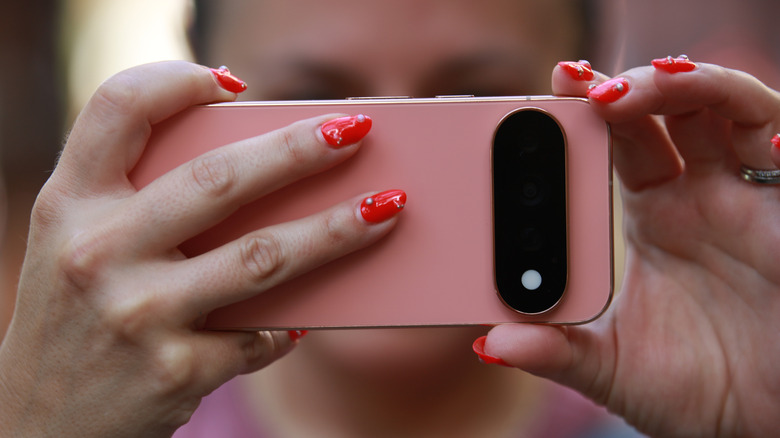
The bulk of Google's updates this year are around photography and mostly in the software. As far as the hardware changes, the Pixel 11 Pro's 50-megapixel main sensor is a bit bigger than before, while the telephoto camera is also slightly tweaked with a larger half-inch sensor. The front camera is the same 42MP system as on the previous model.
The main updates on the software side are Magic Capture, Instant Night Sight, Camera Looks, Creator Suite, Pro Stable Video and the expansion of Pro Zoom to 120x (up from 100x before).
I'll dig into each of these, but before I get into the nitty gritty of the new features, I'll just point out that, in my experience, Google still has a superior Portrait mode to Apple. It's easier to use and works in a much wider range of scenarios, whereas on iPhones you're still required to be a certain distance away and wait for the camera to decide when it's ready to capture a portrait with a blurred background.
Camera Looks
That said, Apple might have the upper hand when it comes to built-in filters. Camera Looks is ostensibly Google's answer to the Photographic Styles that were introduced on the iPhone 13 series. Apple did update these styles when it launched the iPhone 16 models, which made them more elegant and pretty.
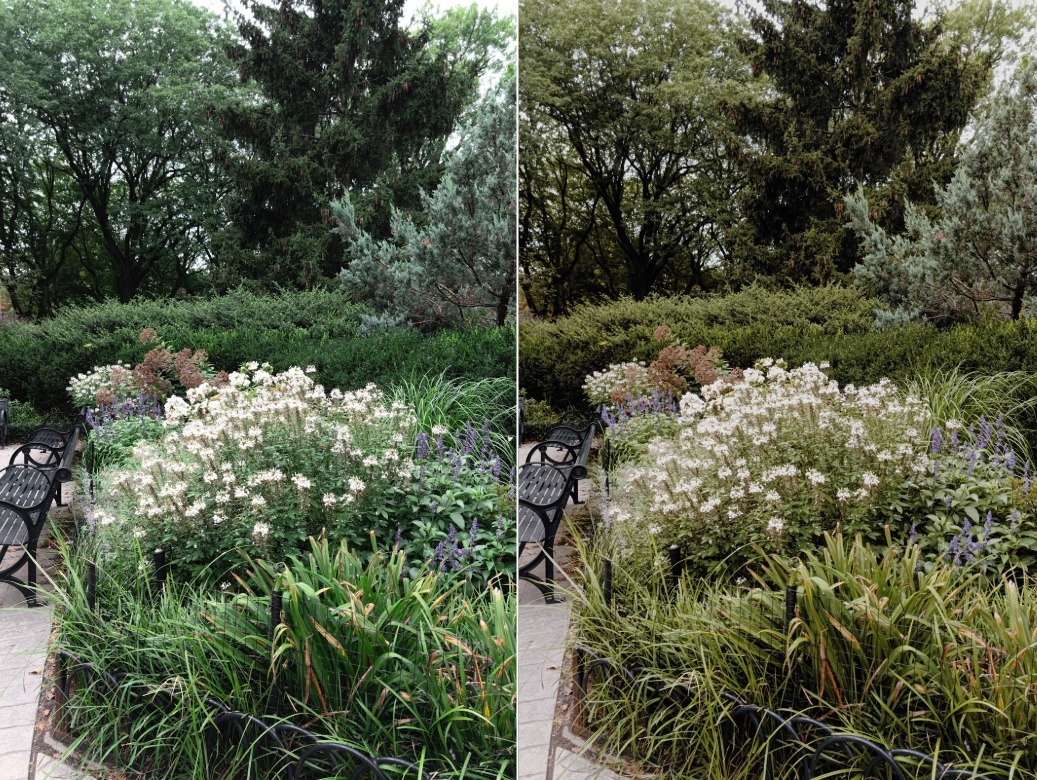
The Pixel 11 Pro's Camera Looks feel like the initial version Apple rolled out. There are four looks that are more permanent: Original, Natural, Shadows and Vanilla. Pick one of these and your preference will remain active the next time you open the camera. From the Looks picker, you can swipe through a carousel of six additional filters. These will remain active for that shooting session and revert to your default look after. The options here are: Default, Editorial, Velvet, Classic, Digi, Black Tie and Minimal.
The difference across the entire lineup, permanent or not, is not huge. You can customize each look to your preference, but because Google is likely not using depth information the way Apple is, the filters feel surface-level. When you swipe between, say, Luminous or Ethereal on iPhones, you'll see a fairly drastic change in background colors, skin tone, overall hues as well as highlight and contrast levels.
 Cherlynn Low for Engadget
I don't want to dwell too long on a feature that's something you'll likely play with once and forget about after landing on a favorite vibe. But I do think this is one area of photography where Google lags behind Apple, and that's worth noting since that's somewhat rare.
Instant Night Sight
Google consistently outperforms the smartphone competition on nighttime photography and instead of resting on its laurels this year, it upped the ante. With its Tensor G6 CPU and some other tweaks, the company was able to greatly shorten the amount of time needed to capture shots in low light. Part of the solution was due to the larger sensors, allowing the phone to get shots with more light and thus requiring fewer frames to get more data. Exposure times were reduced as a result.
In practice, I did find Night Sight to be a lot faster than the iPhone 17 Pro Max. I used both phones to take pictures in a pitch black room and the Pixel was consistently quicker to finish capturing the shot. When there was a little bit more light, the Pixel finished getting the shot before I even counted to two. I know what phone I'm taking with me the next time I go on a night hike.
120x Pro Zoom is a bit too much
The AI generative fill on Google's 120x Pro Zoom feature is, to put it gently, a bit much. I can see the appeal of getting up close to extremely faraway objects, but I find the actually applicable scenarios to be few and far between. I frequently photograph wildlife from a distance, so I'm excited about greater zoom options. But when I tried to take a shot of a heron perched on a branch on the Delaware river, I actually found 120x zoom to be too much. The previous 100x zoom brought me close enough, and the additional distance gained actually forced me into an awkward crop.
That wasn't a big issue though. My main problem with 120x Pro Zoom was in how uncanny the results were. Cleaned up lines on buildings and inanimate objects is fine, but the picture my Pixel 11 Pro delivered of the heron up close gave me chills. And not in a good way. Its feathers felt too neat, almost like Gemini combed it out for a photoshoot, and its facial features just felt uncanny, as if the bird was casually smiling at me while plotting my death.
 Cherlynn Low for Engadget
My overthinking aside, even my friends immediately shouted "That's AI" when they saw the photo. And the metadata would prove them somewhat right, since it was indeed filled in with AI. If Google's intention with 120x Pro Zoom is to help you get clearer shots from far away, then sure, the overly clean and perfect images deliver. But is this something I would use regularly? I'm not sure.
The whole point of taking pictures is almost lost to AI these days. We use photos to capture lovely memories or prove we were at a place or event. Neither of these purposes is enhanced by the presence of AI edits. No one is going to look at that photo of a heron and think, "Wow, Cherlynn got really close to that bird and it looks nice." They might instead assume, "Wow, Cherlynn ran this dodgy picture through AI, and all the uncanny realism is a bit too distracting. Is the bird even real?"
We can keep judging why people (myself included) take photos, but for now I'll just say that the practical challenges of shooting at that zoom level are ultimately in the way of utility. I had to struggle to steady the phone so it could frame up a shot, and the viewfinder kept locking onto other parts of the scene as it attempted to help keep what it thought was my subject in view. I actually had to fight it to get the bird back in sight.
Had the very still, stately heron been a skittish deer or a speedy dancer at a concert, I would have lost the shot and worse, missed living in the moment as I fought the phone.
My conundrum here is that none of the photos I took on my iPhone 17 Pro Max were much better by comparison. Google continues to prove it is technically superior at computational photography, but maybe we don't need to keep pushing this particular envelope.
 Cherlynn Low for Engadget
I guess the relative good news here is that when I used 120x Pro Zoom for stationary objects like details on a gigantic art installation from a distance, the results weren't quite as eerie and seemed clean.
Magic Capture
Funnily enough, Google introduced a new feature that is supposed to help you stay in the moment. Instead of carefully framing up a shot and waiting for a picture perfect moment to happen, Magic Capture allows you to hold up your phone and just point it at whatever is happening. It'll basically capture a video while you do that, then pick out some highlights it thinks are worth saving.
You can record for up to two minutes, after which time the Pixel will just stop recording. Later, depending on how much good stuff it believes there was, it'll just save a few still images to your photo gallery. The good news is it will also store a video version of the clip, so you're not completely dependent on the AI to make the decisions. And as with all videos in the Photos app, you can export any frame within as a picture.
In my testing, Magic Capture was good at pulling out obvious moments from my soft-box jump sessions. From a 43-second clip, the system found six different shots that it deemed memorable. Two of them were of me at the top of the box with my arms outstretched, one was when I pretended to fall on my side and another when I was performing a side plank leg lift. One more was of me mid-pushup while the last one was of my attempt at a Mario pose with bent arm and leg.
Not a bad selection, all told, but a bit obvious in its logic. It seems to think big movements or poses that are different from the rest of the clip are standouts, which isn't wrong per se. It just might not flag more subtle moments like, say, the surreptitious eyeroll of a toddler who is over their aunt putting a camera in their face.
Magic Capture is supposed to be best at situations involving sports, pets and kids. I'm pretty sure a wild squirrel at my neighborhood park doesn't count as a pet, but my attempts to use Magic Capture to get some fun shots of it yielded about three shots for each of the roughly 30-second videos I took. And all of them were blah.
I'll need more time to see if the system learns to better determine what moments are important, but for now, it does seem to save a bit of time. That is, if you can really trust AI to decide for you what special moments are, because otherwise you'll still be going back to the source video to choose for yourself, rendering any time savings moot.
Creator Suite, Pro Stable Video and Circle to Search in camera
Most people won't spend too much time with features like the Creator Suite, which provides an onscreen teleprompter and convenient project management tools. If you're after social media fame, you might find these helpful.
Google brought Circle to Search to the camera app, which lets you use your viewfinder to ask questions about things around you. This would have come in handy when a scary-looking half-engine symbol came up in my partner's Mini Cooper dashboard over the weekend, but alas, I did not have a signal. When I did end up getting connected, it took me a few minutes to get acquainted with the gesture of long-pressing the bottom bar on the screen. As someone who is used to Google Lens and Apple's Visual Intelligence, I was surprised it took Google this long to enable this feature.
Finally, I was curious to see how Pro Stable Video would perform, since I often want to record videos while biking on rocky roads. Dangerous, I know, but more on that later. To use Pro Stable Video, you have to first turn on Video Boost, then make sure you don't switch away from the 1x camera while recording. At first, I was underwhelmed by the result, as I could see the footage thud with every step I ran. But hours later I got a notification that Video Boost was complete. Google sends these to the cloud for more processing, typically to enhance brightness and reduce any shakiness.
While the end product was noticeably smoother and the thudding was mostly gone, I still found it too jittery, as the horizontal swinging motion wasn't eliminated. This is another one of those Google features that works, but I'm not sure that I should use. The scenarios where I'd enable Pro Stable Video, like motorbiking, running or paddle-boarding, are those where I really shouldn't be risking my safety (or a phone's) by holding up a camera.
An assortment of other Gemini things, both useful and not
In the name of being comprehensive, I present – a list of non-camera features new to the Pixel 11 Pro:
-
HiLight
-
Rambler voice typing in Gboard
-
Live Translate for media
-
Charging screen savers
-
Tap to share in Quick Share
-
Proactive Gemini actions and automations in chats
-
Proactive suggestions when searching in apps
-
Rich visual cards in Gemini suggestions in chats
-
Location-based suggestions in At A Glance on your lock screen
-
Saving loyalty cards to Google Wallet
I simply haven't had enough time with the Pixel 11 Pro to adequately test every single one of these, nor do I want to test my editor's patience by writing another 2,000 words on all of them. So I'll focus on the most noteworthy handful (and perhaps update this review if any of the others jump out over time).
HiLight is underwhelming right now
Of these, I initially thought the most delightful addition would be HiLight. It seemed like such a nifty idea when Google first announced it. A colorful ring of lights that would tell you who was calling, or whether Gemini heard you, so you can keep your phone face down and your eyes on your companion? Sign me up!
As of this writing, HiLight on the Pixel 11 Pro only does two things. It shows you when Gemini is listening and processing, as well as when one of your favorite contacts is calling. That's it.
In the future, you should be able to integrate HiLight with more apps and it should get more functional. But as it stands, the feature's usefulness is very limited. Worse, you'll have to jump through a few settings hoops to get it working right. I didn't get the full HiLight experience until I updated my software, restarted my phone, manually enabled HiLight, Hey Google, Flip to Ssh and a bunch of lock screen features before I saw the light glow when I invoked the assistant. I also had to go into individual contact cards and mark people as my favorites before the option to set their HiLight color appeared. Right now, you're also limited to just five colors to choose from.
Rambler shines
My disappointment in HiLight was completely made up for by the efficacy of Rambler. After tapping the dedicated microphone button above the number row in Gboard, I started, well, rambling. In almost all instances, the Pixel 11 Pro accurately conveyed my thoughts, cleaning up my uhms and ahs, even when I straight up said the wrong words and said "wait no, I meant that." All the text messages I dictated appeared well-written, with no typos or errors, complete with appropriate punctuation and capitalizations.
I did run into a minor issue, when I asked Rambler to make a new paragraph and it deleted everything and started over instead. Eventually I realized that pausing for a few seconds would naturally cause the system to move on to a new paragraph and I never really had to awkwardly say "delete delete delete" or "new line, new paragraph."
The most impressive thing about Rambler, however, is its multilingual support. I was doubtful at first, but was instantly won over when I said the following:
Well hello, how is everyone today? I am testing Rambler, and since our group is so multilingual, I thought I'd try to drop in some 华语 and see how that worked.
The above is what Gboard spat out, which is word for word everything I said, down to the Chinese characters. I was stoked to be able to use idioms in Mandarin that didn't have equivalents in English, and Rambler competently transcribed things I said like "let me tell you the 来龙去脉 of it all" or "I felt so 委屈."
The consistency with which it inserts Chinese characters as opposed to hanyu pinyin (Romanized version) is unclear, though. Right after I sent that first message to my friends, I followed up with the below, and you'll see "huáyǔ" there as the pinyin version of 华语.
I stumbled a little bit right before I said "how is everyone today" and after I said "well, hello," and it pretty accurately translated huáyǔ so good job. And I didn't even have to install a language pack.
My colleague Sam, who is half Taiwanese, found Rambler inserted hanyu more often for him. It's hard to tell what causes the inconsistency, but as a native speaker my guess would be that our pronunciations and accents are different. (It would be quite funny if Rambler inserted hanyu for less-accurate Mandarin pronunciations and used characters when they were better.)
Considering the number of messaging apps that have added the ability to transcribe voice memos, including Apple's own Messages, Rambler is serving people in a way that conserves bandwidth. Telegram even charges a premium for the transcription feature, so Google offering this in Pixels is a nice touch.
AirDrop compatibility is major
One of the reasons I hesitate to switch from iPhone back to Android is AirDrop. Or rather, was. Last year, Google brought support for AirDrop transfers to Quick Share, and has expanded device and app compatibility for it since. Though it's not brand new, I found it very helpful to be able to send my iPhone-toting partner some videos of him dirt biking that I took on the Pixel 11 Pro. Google did add the ability to tap Pixel phones together to initiate the transfer of contacts, photos and videos when it launched the Pixel 11 series. It's another page out of Apple's playbook, but certainly makes cross-device media sharing much more convenient.
Charging screen savers
I've been trying to get accurate estimates of the Pixel 11 Pro's battery life, so I've only charged it about twice. The first time, I hadn't set up the new dynamic charging screen savers yet, so really I've only had about one organic opportunity to see them for myself. Once I had set them up and selected the pages featuring charge progress, weather, smart home controls and a rotating carousel of my favorite pictures (of me), I was quite pleased with the result.
Basically, when your Pixel 11 Pro is plugged in and locked, the device can show a customized screen. Sort of like Google's take on Apple's StandBy Mode. To be clear, this is a slight improvement on the previously available charging screen savers on Pixels in that you can add multiple pages and swipe through them now.
To switch between the pages you've enabled, you'll need to swipe in from the edge of the screen. These panels are quite customizable, and you can also set whether the screen saver appears when the phone is plugged in, upright and plugged in or only when it's charging wirelessly.
Battery life so far
I still need to run our battery test to get better numbers for comparison, but in my experience so far the Pixel 11 Pro lasts decently long. I charged it fully on Saturday evening and it only gave up on Monday morning. I need more time with it to get a better sense for how it performs once it's fully loaded with all my extra apps and games, but I'd expect runtime to dip a bit once I account for the endless doomscrolling and mindless gaming that I usually do when not in the middle of a ton of work.
I'll make sure to update this review with the battery scores when I've run the test, but for now, I've not found anything alarming or troubling about the Pixel 11 Pro's performance here.
Wrap-up
Clearly, Google has spent the last year imbibing its flagship Pixel phones with even more AI. Whereas the Pixel 10 lineup felt like a thoughtful mix of helpful features and clean Android software, this time around, evaluating the Pixel 11 Pro is a trickier task.
Some new tools, like Rambler and Instant Night Sight, are genuinely impressive. Others, like pushing from 100x to 120x Pro Zoom, seem unnecessary. And the rest of them are nice to have but haven't moved me deeply. Perhaps with more time, I might grow to find Gemini's proactive suggestions helpful.
At $1,099, the Pixel 11 Pro costs $100 more than its predecessor and has less RAM, making it seem like a poorer deal. And while that price puts it on par with the Samsung Galaxy S26 Plus, the latter is a larger handset, so it's not a straightforward comparison to make.
On its own, the Pixel 11 Pro is a solid phone. It looks and feels great, takes great pictures in all kinds of lighting conditions and offers plenty of useful tools. Most of those aren't brand new, though, like the excellent Recorder app or the overall ease of navigation. And though I have deep misgivings about the pervasiveness of AI features here, I can't deny that at the moment, Google remains better at it than the competition. If you don't have a big problem with AI features or find it easy to ignore or disable them, you'll find the Pixel 11 Pro to be arguably the best Android phone of its size and price.