

How to organize and group your Safari tabs in macOS 27
Apple's latest desktop OS can make your tabs much neater, if you want it to.

Apple's Safari is getting some very welcome upgrades with macOS 27 this year. And if you're one of those people who gets lost amid so many open tabs, there's a new feature just for you. In addition to the existing Tab Groups feature, Safari is now adding automatic tab organization — and the feature works exactly as the name suggests. It uses Apple Intelligence to keep all your tabs organized without you having to do a thing. No more wasting time trying to find that tab you opened days ago.
Although Safari can now organize your tabs for you, the feature isn't enabled by default. What this means is that after installing macOS 27 on your Mac, the tab in experience will be the same as what you're already used to. Setting up automatic tab organization is quite simple, though. But first, make sure your Mac is updated to macOS 27. Otherwise, you won't be able to use this new way to organize your tabs.
Keeping your tabs organized in Safari
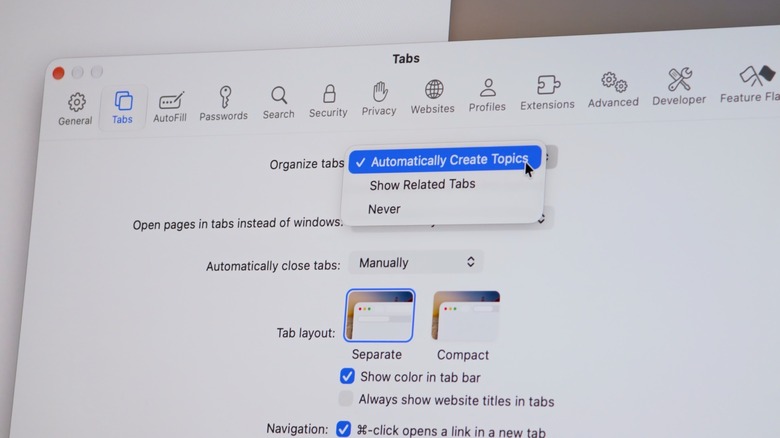
Start by opening Safari and going to its settings. You can do this by clicking on Safari in the Menu Bar, or simply by pressing "Command + ," (yes, the comma key). With Safari settings on your screen, look for the Tabs menu. The first option should be Organize Tabs. Select Automatically Create Topics to have Safari organize your tabs for you. Just close the settings window and the feature will be there waiting for you.
Now you can open as many tabs as you want (or as many as your Mac's RAM can handle) and they'll be automatically organized by topic. For example, if you open three or four webpages about GTA VI, the browser will likely create a "Video Games" group with all of them. Open three more articles with news about Taylor Swift, and well, you get the idea. It's all done using AI to understand the content of each tab. But don't worry, it's all processed on-device, so Apple isn't actually keeping tabs on your browsing history.
You might want more control over how you organize your tabs, but with a little help from Safari. If that's the case, go back to the Tab settings and select the "Show Related Tabs" option instead. That way, Safari will provide suggestions for tab groups, but won't group them automatically. It's a great balance between the mess of keeping lots of tabs open and having Safari do everything for you.
More new features coming to Safari with macOS 27
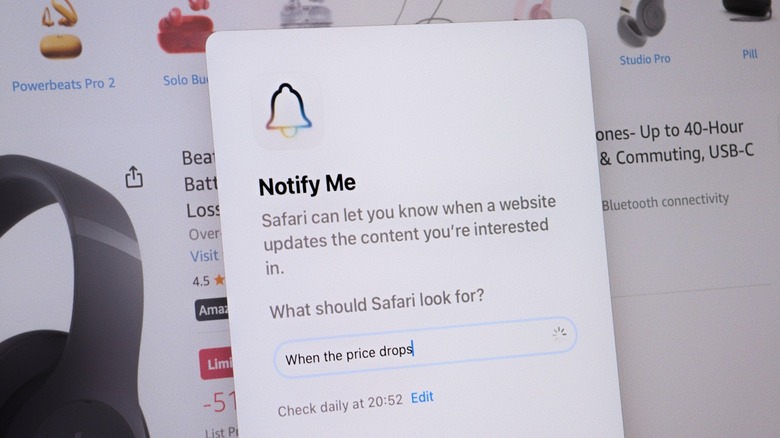
Even if you're not planning to organize your tabs with AI, there are other cool features in Safari on macOS 27. One of them is Notify Me, which helps you monitor changes to a webpage. Want to know when a product is back in stock or when the price drops? That's exactly what this feature does. You'll receive a notification when Safari detects the change you specified on that webpage. There are also AI-powered custom extensions. Just describe what you need, like "remove privacy pop-ups," and Safari will do the job for you.
macOS 27 is still in beta. Apple is expected to release the update to everyone this fall. Don't want to wait until then? Sign up for the Apple Beta Program to install the update now. Just be sure to back up your data, since beta software will always be beta software and may fail sometimes.