

Installing an iOS public beta on your iPhone? Always do this first
Installing an iOS beta can be a fun way to try the latest OS, but make sure you don't miss this crucial step.
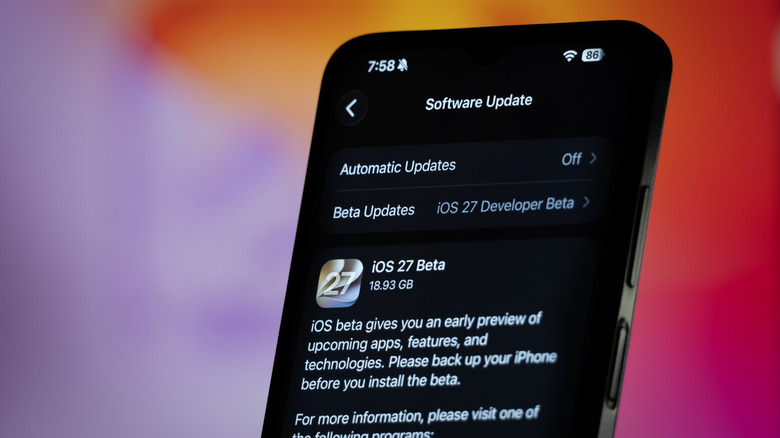
Apple typically announces a new version of iOS every June at WWDC. And although it isn't released to the public until the fall, beta testers can get a sneak peek at the new features a bit earlier. As our iOS 27 preview found, there's a lot to try out this year. The iOS 27 update comes with the long-awaited Siri AI and also improves Liquid Glass.
Installing the beta on your devices is pretty easy, but there's an important step not everyone thinks about: creating a full backup. You never know when one of your favorite apps might run into problems with the untested OS. Or even worse, your iPhone might brick during the update. Losing your data is a nightmare, so you must take the time to back up before venturing into a beta release.
Keep an archived backup before updating
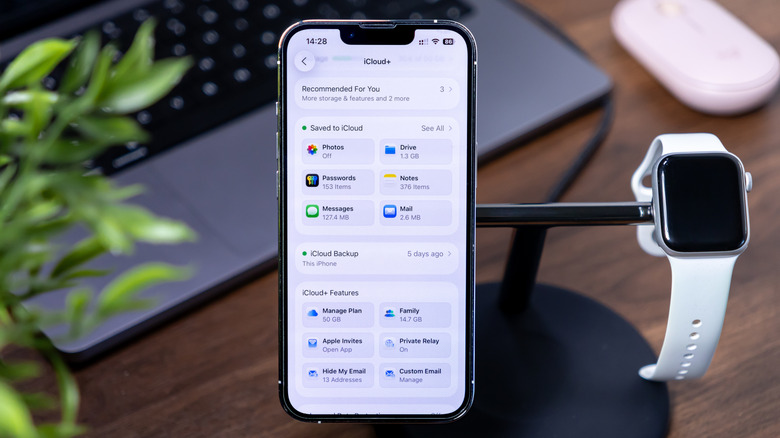
You have a few ways to keep an extra copy of your iPhone data, with iCloud being the easiest. Having your contacts and photos in the cloud means you have less to worry about if something goes wrong. Still, not every app syncs with iCloud.
That's why you need a proper backup. Aside from syncing data like notes and contacts, iCloud can also create a full backup of your device, which happens automatically when you have this feature turned on. To check if it's enabled, open Settings, tap your name at the top, then choose iCloud > iCloud Backup. Make sure the Back Up This iPhone toggle is enabled.
While this is great under normal circumstances, iCloud backups aren't the best option for beta users because they're automatically updated from time to time. After you install the iOS beta on your iPhone, iCloud will eventually save a new backup based on that beta version. And if you need to downgrade for any reason, your new beta backup made won't work with the older, stable version of iOS.
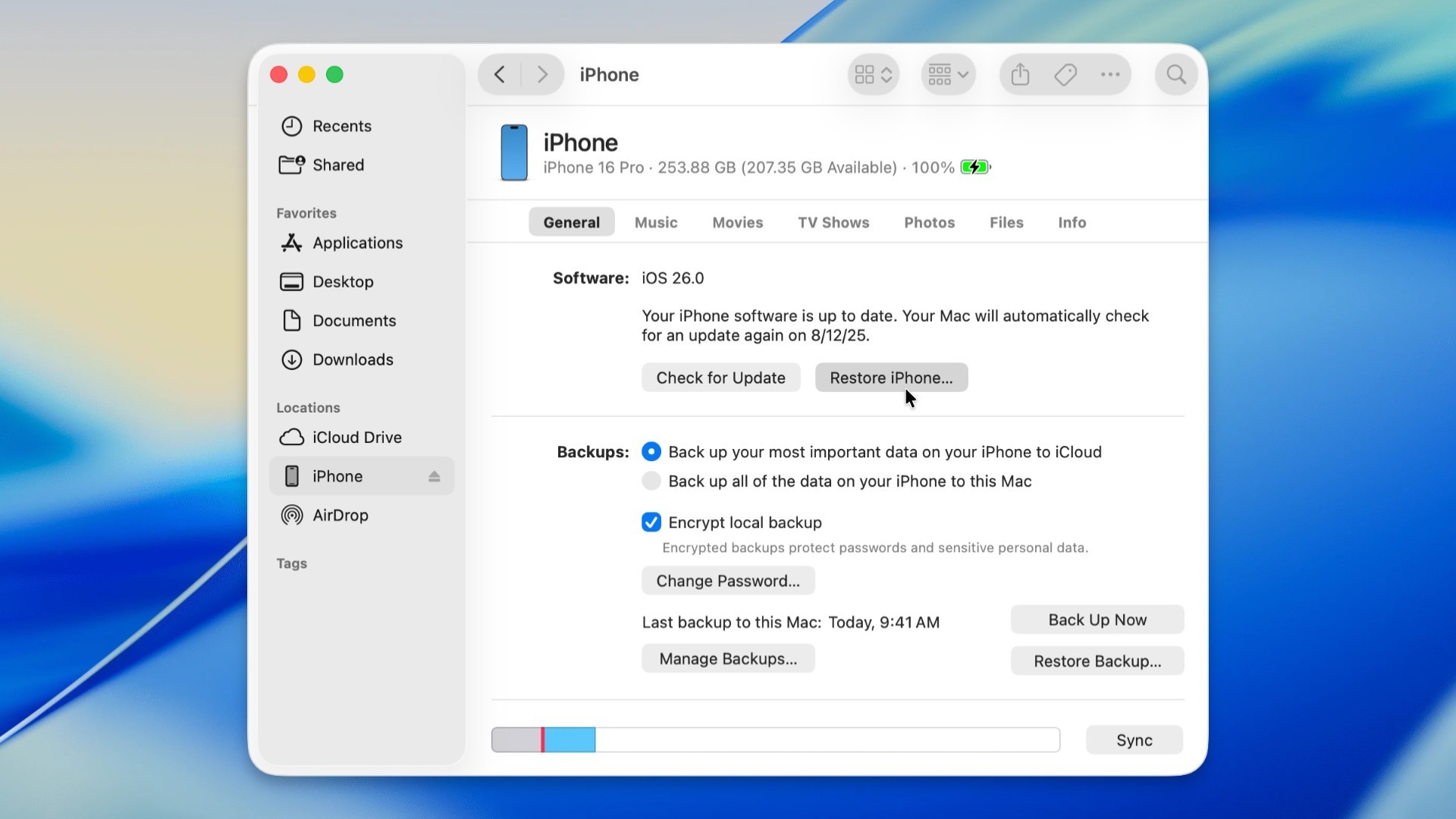
Instead, before installing a beta, you should archive a backup using a computer. First, connect your iPhone to your computer, where you may be asked to enter your iPhone's passcode to establish a trusted connection between them. On a Mac, look for your device name in Finder's left sidebar. On Windows, use the Apple Devices app.
On either platform, open the General tab after clicking your phone's name. Select the Back up all of the data on your iPhone to this Mac/computer button. Check Encrypt local backup to include sensitive info like saved passwords, Apple Health data and Wi-Fi settings. You'll need to enter a password to protect this encrypted backup; keep it somewhere safe because you can't restore the backup without this.
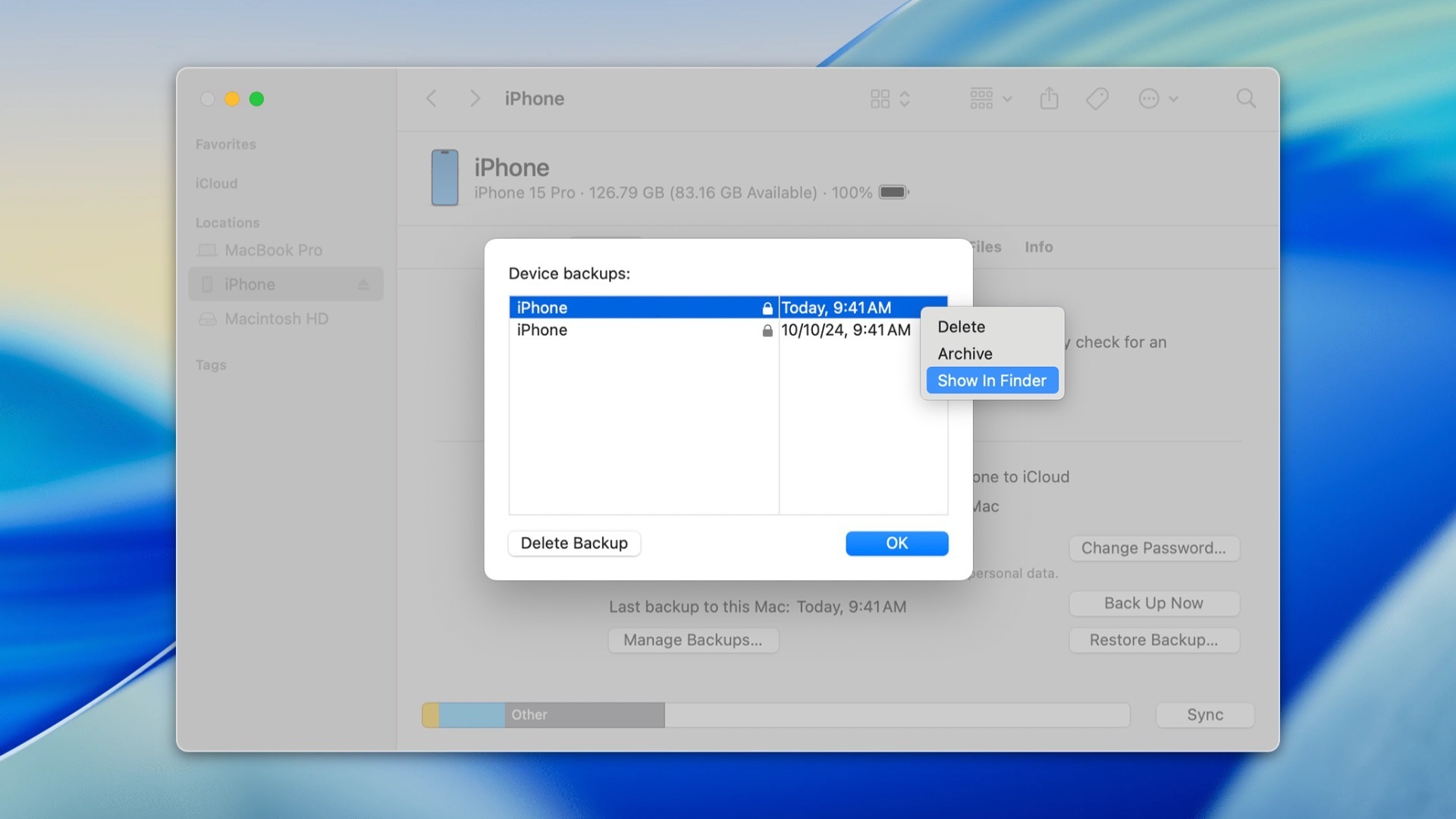
Once that's done, choose Back Up Now. The more data you have on your iPhone, the longer the process will take. Once the backup is complete, select Manage Backups, right-click the latest backup in the list and select Archive.
 Apple
Apple
Doing this will leave that specific backup untouched, even if you create a new backup later. Now you'll have a copy of everything on your iPhone from before you installed the beta, which will work if you return to the prior iOS version.
How to revert to a stable version of iOS
Say something goes wrong when you start using the iOS beta, such as an app you rely on not working with the latest OS. Maybe your phone has become slow or the battery is draining too quickly. These are all problems that can crop up when you run beta software, even though some betas might be stable enough for daily use. If a beta version of iOS is giving you headaches, it's thankfully possible to revert to a stable version.
Start by downloading the latest stable version of iOS, which you'll have to do manually. IPSW.me makes it easy to find the right files for your iPhone. Choose your device, then pick the latest version of iOS (usually at the top of the list in green) to download its IPSW file.
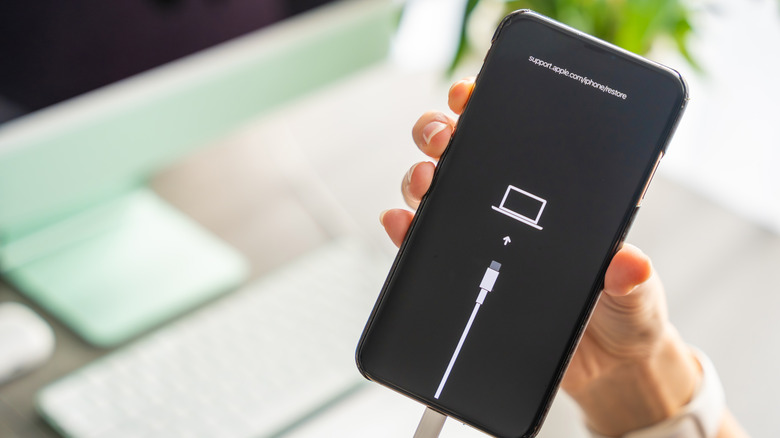
Connect your iPhone to your computer again, then open it in Finder or the Apple Devices app. Because you're downgrading, you must put your iPhone into Recovery Mode; the steps for this differ depending on your device. On all modern iPhone models, press and quickly release Volume Up, followed by pressing and quickly releasing Volume Down, then keep holding the Side button until you see the "connect to computer" screen.
Now, while holding down the Option key on a Mac or the Shift key on Windows, click Restore iPhone. Locate the IPSW file you downloaded, then confirm the restore and wait until the process is complete.
 Apple
Apple
This usually takes about 15 minutes. Once your iPhone restarts, follow the steps to set it up. When you reach the Transfer Your Apps & Data screen, select From Mac or PC and follow the steps to restore the archived backup from your computer.
While this is a tedious process compared to iCloud backups, it ensures you have a copy of all your data even if you run into beta problems. While betas can be exciting, you might not want to bother with them unless you love being on the cutting edge of what's happening in iOS. At the least, it's best to use a spare device so your primary iPhone remains stable.