

Here's how the iPhone 18 Pro's Apple Reference Image tech works
Apple is giving your photos a tamper-proof seal.
It'd be naive to say that we've always been able to trust what we can see, as if seeing something is evidence that it really happened. There's plenty of evidence throughout history of doctored photos, designed to fool the viewer into believing a story. That said, those skills weren't easily accessible. Now, anybody can create realistic images, or alter photos, just by using their phone. You can't rely on wonky letters or extra fingers to make it obvious, either.
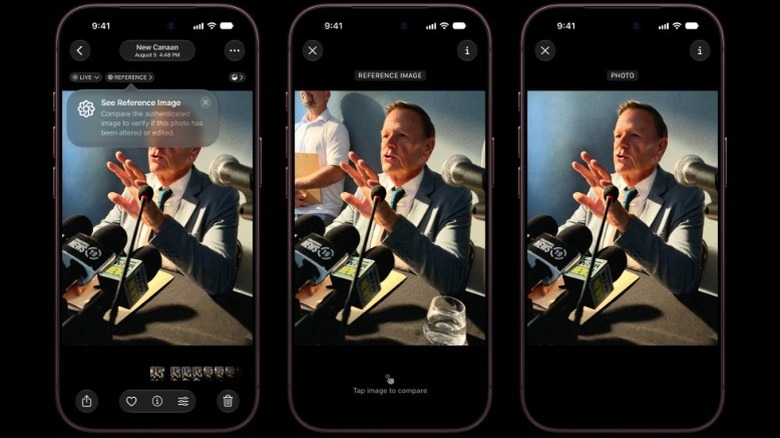
Apple's trying to address this problem with Reference Image mode on the iPhone 18 Pro and Pro Max. The camera creates a protected copy of what it captures, along with evidence of when the photo was taken. When you're ready, Apple's Private Cloud Compute service checks that this record hasn't been tampered with and turns it into a photo with a digital signature that can then be checked to verify its authenticity.
The proof starts inside the camera
Adding a digital signature, backed by Apple's own cloud service, is supposed to give you confidence that the finished photo is legitimate. How, though, can you be sure that the signature is legitimate?
Apple points out that someone could, theoretically, replace or change a camera's image before it's marked as authentic. Reference Image mode is designed to protect against this by adding its first digital signature inside the camera sensor itself.
The sensor has its own private cryptographic key, which is generated when the phone is manufactured and kept inside it, to create a signature tied to the image data it captures. It's a digital tamper seal. No other phone has that key, and if someone else alters the data, it'll no longer pass the signature check. Apple certifies the corresponding public key during manufacturing so that its cloud service can verify the sensor's signature.
Reference mode is opt-in for the iPhone 18 Pro or Pro Max's main camera, so it won't be enabled by default. To switch it on, you'll need to tap Settings > Camera > Reference Image, then tap Add Reference Mode, before following the on-screen instructions. To use it, open your camera, then swipe to select Reference Mode. When you take a photo with it switched on, the camera sensor converts the light it captures into digital image data and signs it using its own unique cryptographic key. The mode also stops the sensor's firmware from being able to modify the captured data (again unlikely, but covering another potential area of attack).
During manufacturing, Apple records which camera sensor belongs to which phone. The sensor and the phone's security processor each have their own digital key, which they use to sign parts of the capture record for each photo. Apple's cloud service then checks those signatures and confirms that the sensor and security processor belong together. This is designed, in theory, as a safeguard to stop someone from removing a genuine sensor and using it elsewhere to pass off fake photos.
The evidence is stored using a popular RAW format called digital negative, or DNG. It's linked to the end photo that your camera produces. Before development, you can retain it indefinitely, or share it for someone else to develop later. You'll see both in the Photos app to compare and contrast. After development, the negative moves to your deleted photos folder and gets automatically deleted after 30 days unless you recover it.
The timestamps help prove when the photo was taken
One of the easier-to-understand parts of the verification process is a timestamp window. Apple Reference Image will include evidence of the capture time without relying on the clock set on your phone. It uses signed timestamps from Apple's cloud service to establish a window when the photo was taken. It'll work even when you're offline, too, as your phone keeps the latest timestamp it receives. When you're back online, it'll get another, although depending on how long you're offline, that can leave a much wider window.
This is all about giving you an idea when a photo was really taken. You're not just changing the date and time on your phone or tweaking the metadata. For instance, if somebody claims a photo was taken today, but Apple Reference Image's timestamps place it six months ago, you can sound the alarm bells.
Apple says that these signed timestamps will happen every 15 minutes, at least on average, although it'll depend on your internet connectivity. The timestamp you get establishes the earliest possible point that the photo could have been taken without relying on your phone's time and date. When you take a photo, your phone will request another timestamp, giving you a clear window to work with.
It won't give you the exact second that you took the photo. If the earlier timestamp fails verification, Apple will revert to the earliest possible date: March 31, 2026. It uses this date because the feature just didn't exist before then. If the later timestamp is missing or rejected, Apple uses the time the image is developed in its cloud service instead. This'll leave a much wider window, but still gives you boundaries that the system can verify.
Apple's cloud service develops the finished image
There's still a bit of work to do before the final photo is ready for you to use. The digital negative contains all of the sensor data, along with the evidence needed to check it, but the data still needs processing so that you can view it. When you decide to develop the photo, your phone uploads the negative to Apple's Private Cloud Compute service. This is where you'll need an internet connection, even if you took the photo while you were offline.
Apple's remote service runs through a check of the sensor's signature, along with the signature from your phone's security processor. The two should go together: if they don't, it'll fail. It'll also check the timestamps to make sure that the capture record is legitimate.
Apple also runs the data through a neural network, which checks if the image data has characteristics that it would expect from a photo taken by an Apple iPhone's camera sensor. Apple records a confidence score for the image and updates a running score for its sensor. If needed, it'll revoke individual images or all images from a particular sensor if something goes wrong. These checks happen before the final image is signed off.
Your privacy is protected
If all goes well, though, you'll see your final, supposedly tamper-proof photo with a digital signature for proof. The RAW image is processed and compressed into a JPEG, before Apple's final signature is added and it's sent back, linked to your original photo. The reference image likely won't look as bright or vibrant as the regular photo on your phone, as Apple only does basic demosaicing, lens correction and tone mapping when processing the RAW file.
There are some privacy concerns that Apple has tried to cover. Its Private Cloud Compute servers are designed to keep the images they process inaccessible, even to Apple. You don't have to publicly identify yourself as the photographer to provide a verifiable image, and there isn't a public ID that can link different photos to the same device, either. Apple keeps a private record that links sensors to images, but the service holding that record doesn't have access to the images itself.
What you end up with is a photo that has a chain of evidence, from the point your camera's sensor captures light. While no system is foolproof, it should give you reasonable confidence that the image hasn't been faked or adjusted in a way to make you question whether it's real or not. If you want to use Reference Image, you'll need an iPhone 18 Pro or Pro Max and to be in a country or region that supports it. The hardware components involved, including sensor-specific cryptography keys, mean that you won't find this feature on older iPhones, though any device running iOS 27, iPadOS 27 or macOS 27 can view reference images.