

How to check the temperature of your PC's CPU
There's some solid free software that can help you keep tabs on your computer's health.
The temperature of your CPU is one of those things you don't really think about unless something is wrong with your PC. When it's working, this tiny chip makes everything you do on your computer — from having multiple browser tabs open to editing photos and playing your favorite games — run smoothly.
But if your PC is suddenly more sluggish than usual or your fan is starting to sound like a jet engine, there's a good chance it could be overheating and the culprit might be your CPU.
Don't panic! The CPU's temperature can fluctuate for a lot of different reasons, and there are several free tools available that can tell you how it's doing.
Monitoring the temperature of your CPU
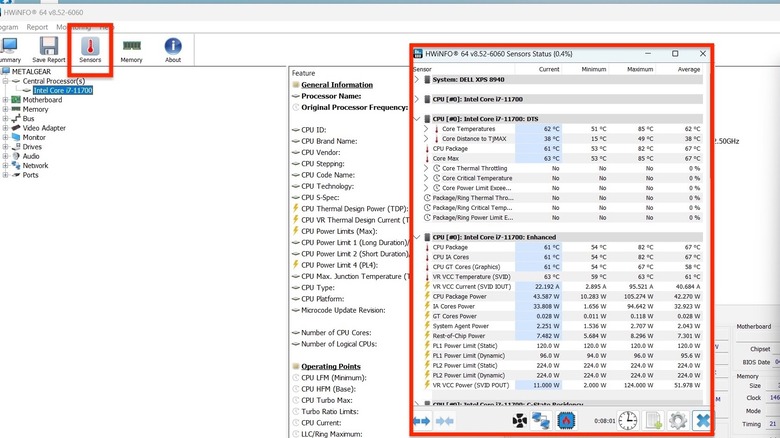
One of the best tools you can use to check the temperature of your CPU is HWiNFO, a free diagnostic tool that gives you a ton of real-time data about the hardware in your PC or laptop. Once installed, open the program and click on the Sensors tab to bring up a new window with temperature readings (displayed in Celsius) about your CPU.
There are other free apps like Core Temp and HWMonitor that can provide the same information as well. Whichever you choose, it can be helpful to turn them on every so often to see how your CPU is doing under different conditions. For example, you can fire up a game, video editing software or some other resource-intensive program to see how the CPU temperature changes compared to idle.
While the exact figures vary by CPU, an average running temperature of 60 degrees Celsius or below is typically considered a good baseline for everyday use. But if the CPU is consistently hovering between 70 to 90 degrees Celsius, you should look into what's causing the spike and if it's becoming a long-term problem. Pushing 90 degrees and above could indicate some serious overheating and might reduce the CPU's lifespan if it doesn't cool down.
You'll know ahead of time if it gets to that point: Most modern CPUs will throttle performance once the temperature is too high, significantly slowing down your PC as a way of protecting itself. But if throttling still isn't enough to cool the CPU, you might also experience freezing and crashes.
Keep in mind that these temperature readings are just guidelines and that your experience will vary depending on which CPU model you have. But if you're curious about pushing the limits of your processor (like overclocking for better performance), it's best to consult the original manufacturer for more accurate temperature ranges.
What do you do if it's running hot?
There are a few steps you can take if your CPU is running hotter than normal. It might be as simple as getting rid of a program that's eating up all your processing power — you can test this yourself by opening up Windows Task Manager and closing any apps that could be taxing the CPU.
But if the temperature still doesn't drop, your PC might have more of a hygiene problem than a software one. You can open up your tower to see if any dust has accumulated in the fans or on the components themselves. Use a can of compressed air to push the dust out and improve the airflow in your case. Many cases also have dust filters that can be removed and cleaned out.
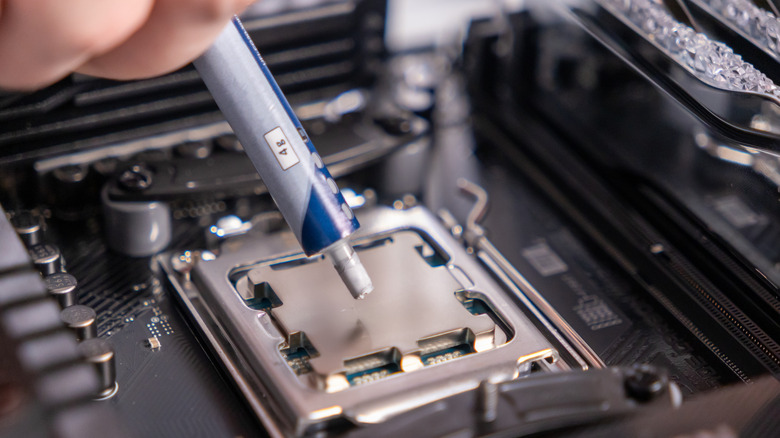
You might also need to reapply thermal paste on the CPU, which can dry up over time. The paste serves as a thin layer of connection between the CPU and its heatsink, helping dissipate heat as the temperature rises. This isn't particularly challenging to do yourself, but will require temporarily removing the cooling hardware from your CPU, so find a good guide online and follow along.
The temperature of your CPU is just one indicator of your PC's overall health. But in a time where the price of PCs and laptops have sharply increased due to the AI bubble, it's more important than ever to be proactive about taking care of your electronics.
In addition to GPUs, RAM, and storage, prices of CPUs have been steadily climbing. Earlier this year, both AMD and Intel — two of the biggest chip manufacturers for PCs — increased their CPU prices and reportedly plan on doing it again. So normal check-ups like this can help extend the longevity of your PC and avoid the need to buy costly replacement parts.