

Commons reasons your Android phone's icons won't move and how to fix it
It’s most likely your home screen settings.
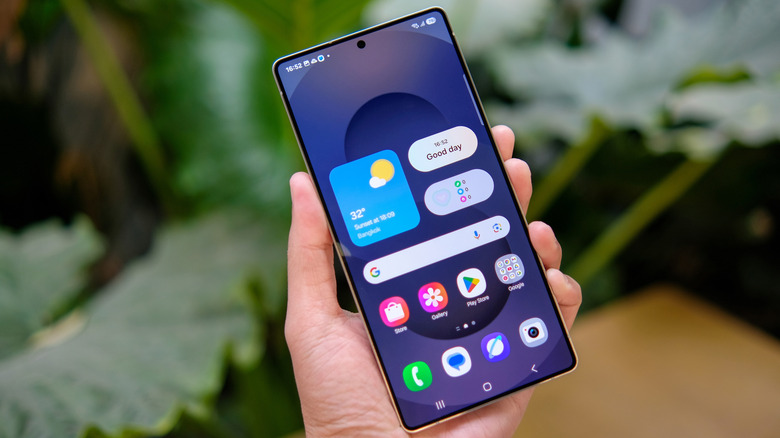
Android phones offer plenty of customization options to help you organize your apps. Some settings, unbeknownst to users, can reorganize your phone's icons or prevent you from moving them at all. A home screen that keeps changing can be frustrating, but the good news is you can fix it without much troubleshooting.
Many Android phones can auto-arrange icons in your app drawer, usually called automatic sorting. This causes your phone to organize icons in alphabetical order, by install date or by other listed criteria. App or OS updates can also change your home screen grid, so don't be alarmed if icons rearrange after a major software update.
If your icons aren't moving at all, check your home screen and launcher cache settings. A locked home screen is the main culprit on most phones. However, if you're using a Google Pixel or stock Android without a locked home screen setting, clearing your launcher cache is another option. Employing either solution is fairly straightforward.
Fixing a locked home screen
The most likely cause of locked icons is a locked home screen. Many Android manufacturers enable locked home screens by default, preventing you from moving icons. You can fix this by going into your phone's home screen settings and turning the setting off.
Most Samsung phones let you access this setting by going to Settings and searching for "Home Screen." From there, look for the option "Lock Home Screen Layout." Toggle it off to enable icon movement again. If you are using another type of Android device, you can usually find this setting under the "Home" tab of your device.
Once you've unlocked your home screen, you might notice that your icons will sometimes reorganize themselves without your input. This could be due to some auto-sort options in your phone settings. You can find these sorting options in your home screen settings—on Samsung phones, under "Settings," while on some Android phones, under "Home." If your home screen layout is still not to your liking, consider resetting your home screen and restart your phone.
Clearing a bloated launcher cache
On Android devices without a locked home screen layout, such as Google Pixel phones, you may want to clear your launcher cache instead. Your phone's launcher cache saves all temporary data related to your home screen. If this cache gets bloated, it can make your phone more prone to crashing and cause inconsistent home screen behavior, including frozen icons.
Clearing the launcher cache is similar across Android phones, though the launcher app varies by manufacturer. Head to your phone's settings menu and look through your apps. You're looking for your phone's launcher. Google Pixel uses the Pixel Launcher; Samsung phones use One UI. Select the app and head to its storage settings. You should see an option to clear its cache. After you clear it, you should notice your home screen is more responsive. We also suggest rebooting your phone once you've cleared the cache to ensure it actually gets cleared out. If your phone remains unresponsive, restart your phone in safe mode to see whether a third-party app is causing the problem.