

Improve your Android Auto experience by doing these simple things
Its customization options are pretty much infinite.
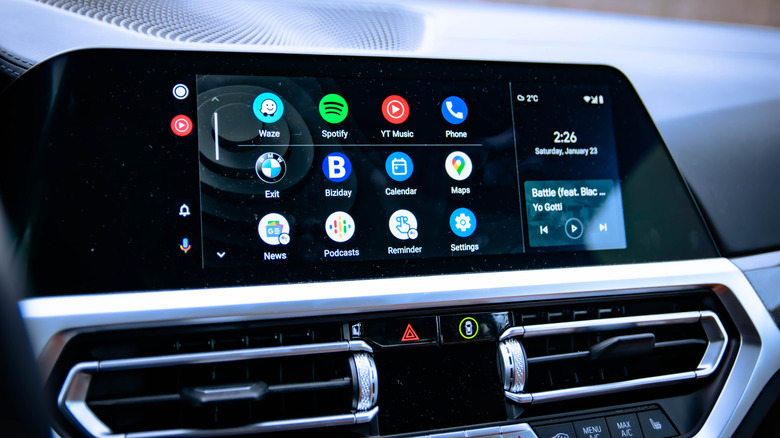
Android Auto is easily one of the most useful tools drivers have today, but most people only use it with default settings, missing out on some really cool features. You connect your phone, the interface loads up and you accept whatever Google decided to serve you. That's an understandable starting point, but there's so much more to Android Auto — so many more features that can help you optimize it for your particular needs.
The truth is, Android Auto has a surprisingly large number of settings and features. With a few precise adjustments, you can meaningfully change how the platform performs, reducing distractions, improving safety and making your car feel more like yours. From cleaning up a cluttered home screen to unlocking hidden developer options, controlling media playback and switching to Google's Gemini assistant, there are loads of simple changes that can have a big impact.
With over 250 million cars using Android Auto worldwide, there are just as many options to make the most out of what this app has to offer, whether you're a Sunday driver or a daily commuter. Let's go through some of the simple things you can do to improve your Android Auto experience.
What cool things can Android Auto do?
There are so many things you can use Android Auto for. Primarily, of course, you can use it to pop up the map you need to get to work, your vacation spot or whatever other destination you need to reach. It can also become the interface you need to take on calls, reply to messages and generally stay in touch with the world. A few small tweaks can make Android Auto a million times better, so let's go through a few of the best ones.
You can clean up the Android Auto home screen
For exactly no good reason, Android Auto pushes about a dozen apps into the home screen. Mine inexplicably had an icon to open Adobe Acrobat and another for IFTTT. Now, don't get me wrong, these are fantastic apps to use on your smartphone, but will I ever use them in my car? Absolutely not! By going to Android Auto > Customize launcher, you can decide which apps stay and which get hidden away. Keep the absolutely necessary there and ditch the rest — there's no good reason to scroll through so many icons if you're not going to use them. Keep the navigation app of your choice, the call and messaging tools and your media playback. That's it.
You can also take this chance to sort the apps however you need them most, pushing those you know you use more often to the top so you can access them more easily. The last thing you want to do is spend unnecessary time scrolling on the car's infotainment screen while you're supposed to be focused on traffic.
Unlock Android Auto's developer settings
Listen, Android Auto offers some great settings to fiddle with, but more are buried away. Developer mode isn't just for engineers, and you can surface hidden options that can help with troubleshooting and customization.
-
Open Android Auto on your phone and scroll all the way down. When you see About or Version at the bottom, tap it around 10 times until a confirmation message appears.
-
Now you can tap on the three-dot menu at the top and go to Developer Settings.
If you want to ensure Android Auto always connects to your car wirelessly, you can check the box for it. This feature will rapidly deplete your phone's battery, however, and there's some lag you should be well aware of. If you want to stick to a wired connection, you can just uncheck the box. The Developer Settings is also the place where you can go and force video resolution to certain values if you want to ensure everything looks crisp even when the internet is slower.
Force the Android Auto theme
For your Maps app, Android Auto automatically swaps between the night and day modes. If you prefer one or the other, however, back out of Developer Settings and you can force the theme to either one. We get it — dark mode is perfect for night driving; it's easier on the eyes and reduces screen glare, so you might want to use that during the day too.
Ensure Android Auto starts when you get in the car
One of the features you can easily access in Android Auto will ensure the app loads up on your car's infotainment as soon as you get in the car, without having to unlock your phone. That's particularly useful if you use the wireless version since you won't have to dig around for your smartphone. It also means you'll be on your way faster, which can very well be a safety improvement. This works whether your car has native wireless Android Auto access or if you use an adapter.
Control automatic media playback
By default, once Android Auto connects, your media playback resumes. That's great... most times. Other times, not so much. If you left your volume way up the night before, you could very well get a scare as the music starts blasting. You might also not want your book or podcast to resume automatically in the morning while the kids are loaded up in the car.
To adjust this, open Android Auto, scroll down to Start music automatically and toggle the feature on or off, according to your preferences.
Put Gemini to use
Google's Gemini AI assistant has been available in Android Auto for the better part of the year, as the company will retire its old Assistant this fall. You can get ahead of the switch and change it yourself if you haven't already. Go to Android Auto > Digital Assistant > Manage your digital assistant > Digital assistants from Google and pick Gemini. This is also the menu where you can choose the Gemini voice you want to use, where you can choose to simply talk to interrupt Gemini's ramblings and to give Google's AI more insight into your life for better results (by allowing it to analyze on-screen text and images, for instance).
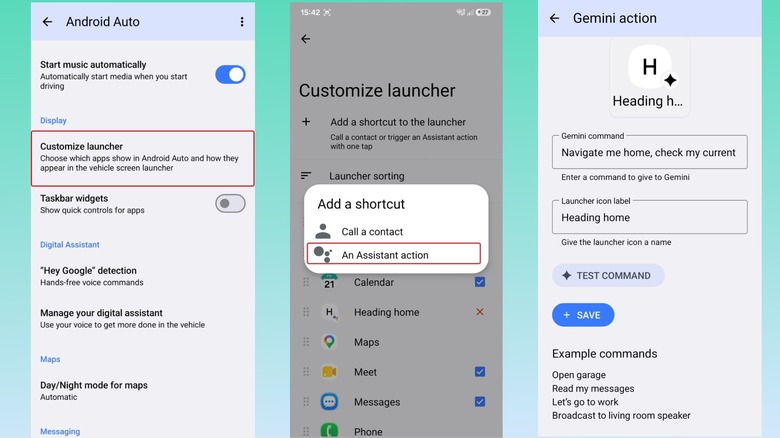
So how exactly can you put Gemini to use? Well, that's the cool part. Go back to Android Auto > Customize launcher and tap Add a shortcut to the launcher > An Assistant action. You can even leave this on your Android Auto screen if you want to.
Type your desired command for the assistant, give it a name and test it out before saving. One that I have set up is this: "Navigate me home, check my current ETA and text [Husband's name] to say I am on my way and should arrive around [ETA]." This sets my home as the target destination and fires off a WhatsApp message to my husband telling him when I should arrive. You can take things further and ask it to check the traffic on your route, play a specific playlist on Spotify and read you your daily calendar. If you have smart gadgets at home, you can include them in the routine by asking the robot vacuum to run just as you leave for work, or have the thermostat start working so you get home to the perfect temperature. The possibilities are endless, especially since you can add as many of these as you want.
None of these changes require third-party tools or advanced technical knowledge. They're easy to implement and can improve your Android Auto experience quite a bit. They add up to a smoother, safer and more personalized driving experience, and that's exactly what we all want.