

How to use Gemini on Apple's CarPlay
If you want to directly use the Gemini app, there are a few wrinkles.
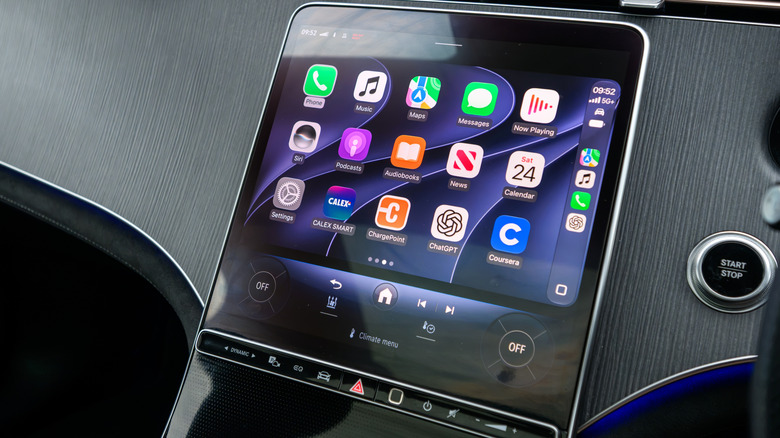
Apple doesn't have a history of playing nice with others when it comes to allowing rivals on its platforms. Outside the European Union, for example, an iPhone or iPad developer can't offer its own in-app purchase system—it has to use the App Store, where Apple takes a large cut of each transaction. That's why apps like Spotify force you to use other devices to pay, circumventing Apple's own store and commission.
However, one area where the company has been relatively generous is AI on CarPlay. With the launch of iOS 27, it opened the gates to third-party AI apps like Claude, ChatGPT and yes, Google Gemini, even though they're in direct competition with its overhauled version of Siri. Apple's assistant does have an advantage in native integration, but that may not matter if you're not closely tied to Apple apps and services.
Using Gemini with CarPlay is relatively straightforward, and there are actually two ways to access it. There are a few catches, however, including a couple of hurdles to jump through if you want to use the dedicated Gemini app.
How to use the Google Gemini app in CarPlay
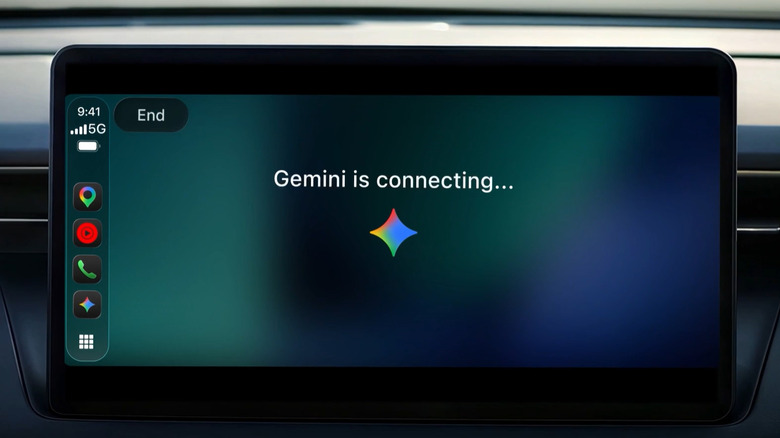
To get started, make sure CarPlay is already configured for your car, and that you've downloaded the Gemini app on your iPhone. The app will automatically be added to your CarPlay homescreen(s) the next time you connect to your car. If you want, you can always remove it or reorder your apps by going to Settings > General > CarPlay > [car name] > Apps.
You're not ready to talk yet, though. The app simply won't work unless you've already used Gemini Live on your iPhone, the real-time voice version of the chatbot. We're not entirely sure why this limitation exists, but Google also requires permission to use your iPhone's microphone, so you might trigger this by opening Live.
At this point, everything should be set. To start chatting, tap on the app's icon, then select New Conversation or the title of an existing one. Loading a prior chat simply gives you and Gemini the advantage of context.
Using Gemini in Google Maps
If you'd rather not switch to a separate app to talk to a chatbot, Google is slowly integrating a Gemini button into Google Maps. While it initially launched only in the US, as of November 2026, Google says it's rolling out the feature to over 30 European countries. It appears to be a very gradual rollout.
While the obvious purpose is to prompt Gemini for directions, you can also be a bit more vague. If you ask "What's the name of that park where the Austin City Limits festival is held?", Gemini should figure that out and offer directions from there. You can also ask follow-up questions, say, if you want to know the weather forecast for the weekend, or avoid the city's multiple toll roads. On the way there, you could even use the AI to report any traffic incidents.