Tony Tran

Engadget Editorial Policies

The unique content on Engadget is a result of skilled collaboration between writers and editors with broad journalistic, academic, and practical expertise.

In pursuit of our mission to provide accurate and ethical coverage, the Engadget editorial team consistently fact-checks and reviews site content to provide readers with an informative, entertaining, and engaging experience. Click here for more information on our editorial process.

Stories By Tony Tran

  • What Is A DNS Server And How Does It Work?

    This article is for beginners, who have recently get started with the computer and the Internet. If you already know what a DNS server is and how does it work, then please skip this guide because it only contains basic information. This information is necessary for beginners, but not for you, an expert. Back to the main point, what is a DNS server? Let me explain it in an easy way. Do you know a phonebook or an address book? Do you have any in your home? Basically, a DNS server works like a phonebook or an address book, which contains lots of IP addresses of websites. When you type www.google.com, your browser will send a request to DNS resolver to find IP address of www.google.com in this address book and return it to your browser. From there, your browser will load website's content from returned IP address. Note: Sometimes, DNS server encounters a few errors that lead to unable to send requests in or out. It could be a problem from your computer side or the server side. One of the most common errors on your PC that related to DNS server is DNS Probe Finished No Internet, visit the following link to learn how to resolve it. How Does A DNS Server Work? If you want me to explain in a complicated way, then you should know that there are some points you might not know. When your browser sends a request out to find the real IP address of www.google.com, your computer will forward that request for DNS resolver. DNS resolver is an automatically bot, which will go anywhere to find the IP address of www.google.com for you. The first place it will come is the root domain name server. At this location, two situations can happen: Situation #1: If there is any cache of www.google.com that stored in this root server, it will return the result in the cache for DNS resolver. Then DNS resolver will come back to your computer and give that IP address for your computer, as well as your browser. Situation #2: In case there is no cache stored, root server will tell DNS resolver a place to find TLD servers. You might not know that each TLD will have its own server. For example, all .COM domains will store in the .COM TLD servers, and all .NET domains will save in the .NET TLD servers. They don't mix with each other. In this case, you are looking for www.google.com; then the root server will tell the location of .COM TLD to DNS resolver. The DNS resolver will come to that place to ask for www.google.com. At this step, there are also two situations, the first one like the situation #1 above. That is mean if this TLD server has a cache of www.google.com that stored in it before, it will give to DNS resolver an answer, contains the IP address of www.google.com. Otherwise, it will tell DNS resolver to visit domain registrar server to find out. Have you understood all information above yet? Yes? Let's move to the next information. At this moment, you might wonder what domain registrar is. In short, they are companies like Godaddy.com, Name.com or NameCheap.com. These companies will help you register a new domain name when you need and store all information related to that domain name in their servers. From that point, you can easily realize that www.google.com is also registered under a domain company and that company will keep all information on the company's server. Now, it's easy to understand, right? The DNS resolver will come and ask domain registrar about the IP address of www.google.com. This company, whatever it is, will give the IP address to DNS resolver and then DNS resolver will bring it back to your computer and your browser. The final step, your browser will send a request to download contents from returned IP address and display it in your browser. The whole story is long, but it only happens in a few seconds, depending on the speed of your Internet connection. You can also visit Visual.ly and view the infographic below to understand easily. http://visual.ly/explained-how-does-domain-name-system-work

    By Tony Tran Read More
  • 5 Video Conferencing Features Make Your Meetings More Productive

    Any time that people are aiming to use more technology, the goal of the game is to be as efficient as possible. Technology not only allows you to do more, but it also allows you to accomplish more with what you are actually doing. Be sure to pay attention to the following five factors in order to help your next meeting become more productive. Multiple Parties Invited The last thing in the world that you will want to do is to replicate meetings over and over again. On the one hand, it can be tremendous to be able to communicate with an employee who is far away and outside of the office. That being said, wouldn't it be terrible to try and communicate with multiple representatives? The simplest idea of having technology is that you can actually make things more efficient, and if you tap into the ability to have multiple parties all involved on the same conference call, then you can connect people from all over as if they were all in the very same room. One meeting and you can get everything done the first time. Cloud-Based Service When it comes to the current world of cyber security and having the data backup, you can't rely on others. Not only is the cost of components and compliance becoming more expensive all of the time, but the potential of losing your data by having a server on-site is riskier than ever. That is exactly why looking into the option of having video meeting solutions like BlueJeans could be one of the best and safest decisions that you could make. So much time as your information is being hosted and backed up on a cloud-based server, you can save money and also ensure nothing will be lost for your entire communication component of your operations. Mobile Device Compatible According to the Pew Research Center, not only are nearly two-thirds of Americans carry smartphones, but that number is up by almost double from just a few years ago. This means you not only have access to all of those people who are carrying mobile devices but with the right sort of meeting software, you can literally get ahold of anyone at almost any time. As more and more individuals continue to become more comfortable with using their mobile devices for video communication, then you can see levels of communication reach all new levels. In a workplace environment you can only imagine how powerful mastering communication is, but having communication on the go means keeping employees and stakeholders involved like they have never been before. HD Capable If you are going to listen to other people, then you need to be able to hear their voice. It should follow in the same manner that if you are going to see other people, then you should absolutely be able to see them clearly. The truth is video conferencing is only as powerful as it is because you can actually get a clear picture. With HD capabilities you will not only be able to master facial recognition, but you can literally see the emotions and read the looks on the faces of who you talk to. This means you can replicate and literally simulate a face to face conversation from across the world as if you were only a few feet from the person in real life. Meeting Recording In a business world where everything from compliance to needing to impress others is crucial, you need to be able to get information from clients or potential clients and have it down the first time. Whether you are going to memorize the information or have a transcriptionist capture, every single word and breath don't matter so much time as you can actually have every sound and action recorded. As many sources, including Bloomberg, have stated before, you have to be obsessed about details in the business world, and you simply cannot let anything slip through the cracks. Instead of dealing with the old-fashioned methods of recalling information, however, you can literally record the entire meeting from scratch and not miss a single second as long as you tap into a video conferencing software which has recording capabilities. Instead of sticking around in the olden days, you had better be comfortable with using new software just because everyone else is starting to scale up. However, instead of just trying to keep up with the times so that you are falling back into the past and seen as a dinosaur, you should absolutely be looking to use video conferencing to get ahead. If you can find ways to tap into the full potential of creating efficiency through technology, then you shouldn't wait another day to start improving the communication in your organization.

    By Tony Tran Read More
  • Three Methods To Capture Screenshots On Your Mac Computer

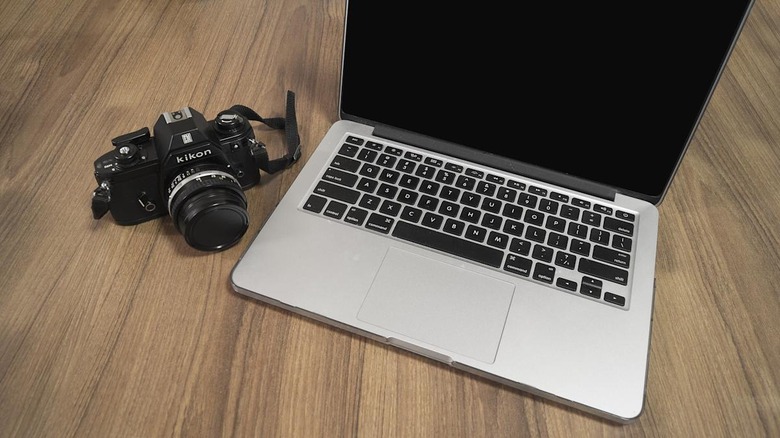
    It depends on what you use your Mac computer for, but if you are a writer, then taking screenshots is an essential process you have to do daily. You may take screenshots to save something you can't write down. But sometimes, you need a screenshot to upload into a particular website. By that, the screenshot is something that essential, and you may need to use it a lot. At the time I move to macOS from Windows, I can say that there were many things strange. It's a whole new operating system with different features and interface. It took me a week to acquainted with how to use macOS and its features. It's too difficult at some points, especially how to capture a screenshot. When I need to take a screenshot, I didn't know how to do that because there is no Print Screen key on the keyboard at all. How can I capture a screenshot without that key? But after some minutes of digging on Google, I know exactly how to do. In the next time, if you don't know how to use anything, just search for it on Google. I'm sure you will find something that useful there. Back to the point, I write this article to tell you that there are three primary methods to take a screenshot on your Mac computer. That are use keystrokes, use Grab and use Preview. From my point of view, use keystrokes to take screenshots is easier. All you need to do is just press some keys and then it's done. Extremely fast, right? To get started, in order to do Print Screen Mac with keystrokes, you can begin with these three keystrokes: Shift + Command + 3 Shift + Command + 4 Shift + Command + 4 then Space The first keystroke is to use for taking a screenshot of a full screen. It's mean what you see in front of you - will be included in the screenshot. Unlike the first keystroke, the second keystroke will help you take a screenshot of a selected part. You just need to press Shift + Command + 4, then move the cursor to choose the area you want. That's it! The third keystroke is the advanced method of the second. By hitting the Space key after using Shift + Command + 4, you can choose a particular active window on your Mac to take a screenshot of. It's a useful feature, right? Along with keystrokes, you can also use Grab or Preview application to take screenshots of your Mac. Both apps have the same functions that I listed above. They also have the ability to take timed screenshots. So, if you want to take screenshots, remember these methods and it will help you capture screenshots faster.

    By Tony Tran Read More
  • What Is Blue Screen Of Death Error And How To Fix It

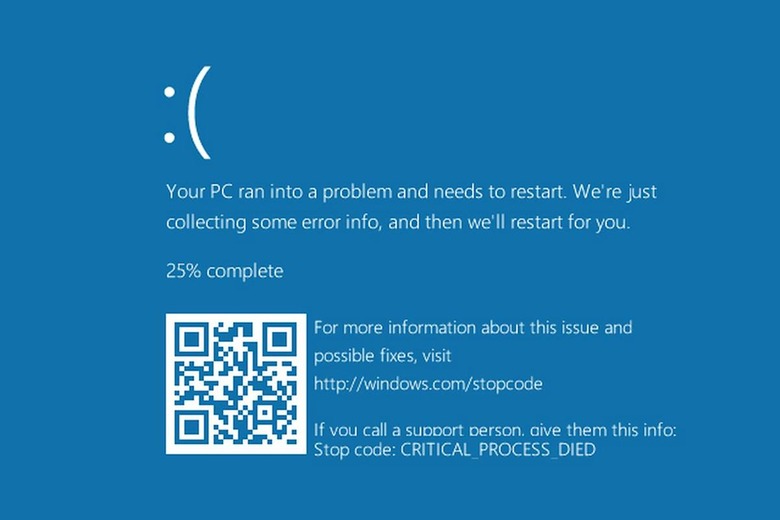
    If you use Windows, you might not be unfamiliar with the blue screen error anymore (aka blue screen of death). It is a fundamental error in Windows and will happen when something is wrong with the hardware, software or the driver. Because many reasons can cause the blue screen error, then you can't use the same method to fix it. From that point, you will have to diagnose the error you are encountering and then take a right solution to resolve. However, you don't need to worry about the blue screen of death error because whenever it occurs, it will show you exact reason that causes the error. For example, if something goes wrong with your solid-state drive, there would be a change that DPC watchdog violation error will appear, plus a blue display. By that, you will know the sub-message of the error and use it to find the reason that caused it. The best method to diagnose and troubleshoot a blue screen error is to use Google. I always found guides to fix most of the errors on my Windows computer by searching the sub-message on Google. You will find all answers there, including step-by-step guides or discussions. Fixing a blue screen of death is not too hard. You only need to know where to get started, and I have just pointed out the place you should go - the sub-message. Sometimes, a blue screen error comes with more detailed about the error, which appears on your blue screen. Such as, it will show the error code, the file name that caused the problem (for example, filename.sys), as well as hardware information. Based on this information, you can easily diagnose the problem and fix it quicker. As I said above, the best method to find appropriate solutions to resolve blue screen of death error is to use Google - and it's always helpful. Trust me! I have been used this method for years since I was used Windows operating system, and it always helps me to find a way to troubleshoot. You should try it, too! Have any questions want to ask about the blue screen of death error? Please leave your comment below. Or if you have any strange error messages, let me know and I will help you to fix it out.

    By Tony Tran Read More
  • Top 3 Best Lightning Cable That You Should Buy

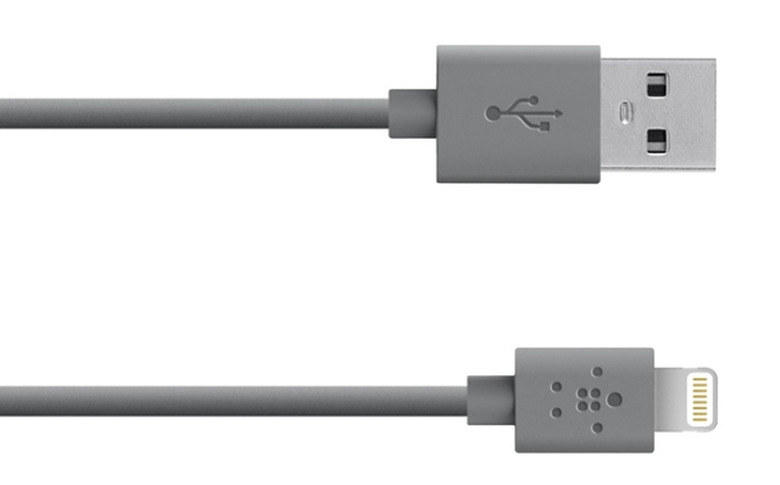
    One of the most common issues faced by iPhone, iPad owners is a broken, frayed or won't charge Lightning cable. When you buy a new original Lightning cable from Apple store, or an aftermarket one - there is nothing can be sure that one won't broken again. Don't want to purchase a new Lightning cable, read this article to learn how to fix a broken iPhone charging cable. In this article, I will show you a few strongest Lightning cables that will help you use to charge your iPhone or iPad longer, extend the time you can use your Lightning cable till it's frayed or broken. AmazonBasics Lightning Cable - 6 feet - $14 If you are going to an Apple store to buy a new original Lightning cable, it will cost you $19. Expensive than your expected price? Looking for a longer Lightning cable, for example, 6-feet? Then take a look at the AmazonBasics Lightning cable, which both longer and cheaper the original one. The limitation of the length of the original Apple Lightning cable is always a problem for many users, especially in the case that the outlet is too far from your bed. The AmazonBasics Lightning cable has 6-feet long and costs you $14. This is an excellent replacement for the original cable from Apple. Belkin Lightning Cable - 10 feet - $15 If you don't like the AmazonBasics Lightning cable because it's not long enough, then take a look at the MFi-certified Belkin Lightning cable, which has a 10-feet length (~ 3 meters). However, a long cable will lead to another serious problem - difficult to manage. So make sure you choose a right one that fits what you need - not too long but also not too short. This cable is also good enough to protect itself from frayed, broken. By purchasing this, you will never encounter iPhone not charging issue at all. Griffin Retractable Lightning Cable - $17 You feel hard to put a Lightning cable into your bag or pocket? Then check out the Lightning cable from Griffin, called Retractable Lightning Cable, which costs you $17 per one. It has a compact solution that will retract your cable into a small box. The box has less than 2-inche wide, 0.5-inch thick. You can either pull out the cable into the box from the USB-based end or the Lightning-based end. What do you think about these Lightning cables? Affordable and worthy? Please share with me what Lightning cable you are using right now and how good is it. For more Lightning cables, check out the iOS forum here.

    By Tony Tran Read More
  • 5 Features The Best ERP Providers Share

    The current ERP landscape is vast and varied, with literally dozens of options for enterprises to consider. That level of choice proves to be both an asset and an obstacle. Solutions exist that are uniquely able to meet a company's needs, but finding them, and separating the good from the bad, can be an overwhelming challenge. The key is to focus on the most important variables, and the quality of the ERP provider is right at the top of the list. Good ones will expand upon the quality and capability of the ERP itself, while bad ones will prove to be a frustrating and expensive burden for your company. In order to find the best of the best, look for these five features that the top ERP providers share. An Agile Development Process There is no such thing as a one-size-fits-all ERP solution, in spite of what many providers claim. And the companies that settle for an ERP that is not specifically customized for its needs, workflows, and strategic objectives often find that it holds them back more than propels them forward. The best ERP providers are eager and able to tailor the solution they offer to the unique requirements of the enterprise using it. That way it is able to start making a positive impact on day one. A Streamlined Implementation Strategy What good is an ERP if it can't get up and running on time and on budget? The implementation process is necessarily complex, but some providers use this as an excuse to drag the implementation out for months and to incur unexpected and unwanted costs at every step along the way. Ideally, your provider will guarantee an ERP implementation that fits into an abridged timeline and sticks within a strict budget. A Responsive Support Network Once a technology as significant as an ERP is in place, it is inevitable that issues will arise. New users will have basic questions. IT teams will need expert assistance. And managers will need to get big-picture insights in order to make smart fiscal and strategic decisions. A great provider will be able to answer any and all of these questions on demand and in full. You should feel like the most important client the provider has rather than just a name in a support queue. A Total Commitment to Accountability You choose to implement an ERP because you realize what a transformative effect it can have on your business. When a single technology is that central to your operations, you can't accept excuses from your provider. If there is ever a problem, confusion, or point of friction, the provider should be willing to accept responsibility and find a solution fast. An Ability to Grow and Evolve The ERP you rely on today may be unsuited to your needs five years, one year, or even six months down the road. Before that happens, your ERP provider should be able to work with you to find a solution better able to meet your changing needs. An ERP that is static quickly loses its utility. Don't look for just one or two of these features in the ERP provider you choose. Insist on finding a provider that can deliver on all five. You will be glad you took the time to find a provider able to help you avoid the hazards and amplify the benefits of having an ERP at your disposal.

    By Tony Tran Read More
  • Five Best Wireless Headphones You Should Buy In 2016

    When you look for a new wireless headphone, there are so many options that are available in the market from many brands, such as Sennheiser, Bose, Beats by Dre, Sony, and Parrot. So, it's hard to make a decision which one is right for you and suit your selection. For that reason, today I made a list of five best wireless headphones in 2016 that you should buy. Also, please note that these reviews are based on my own perspective. It might be right for some users, but sometimes it doesn't. Best Wireless Headphones You Should Know And Buy In 2016 Sennheiser Momentum 2.0 This is one of a few wireless headphones that provides warmest sound quality. Covering and fitting your ears, the Sennheiser Momentum 2.0 will help to reduce noise and deliver a better sound quality. As for the wireless signal, the Momentum 2.0 can work within 35-meter and up to 22 hours of battery, depending on how loudly you play your tunes. Beats Studio Wireless When we talk about Beats by Dre headphones, you might think about something simple but elegant, right? The Beats Studio Wireless comes with the well-balanced sound quality. You are going to use up to 12 hours of battery life in the wireless mode, or just 8 hours if you use the 3.5-mm wired. Bose QuietComfort 35 This Bluetooth wireless headphone is a good one in the noise canceling lineup. It provides a great sound for users who want to use this portable wireless speaker for phone callings. The Bose QuietComfort 35 comes with an excellent battery life, which you can use up to 20 hours with the wireless mode or 40 hours in the wired mode. You can visit here to read more detailed reviews of Bose QuietComfort 35 from GoodPlaces.Reviews. Check it out! Parrot Zik 2.0 What do you think about Parrot Zik 2.0? In my opinion, it's the sexiest headphone on the list. They also offer a mobile app named Zik 2.0, to help you play music on your smartphone. Also, you need to be careful when pressing the power button as there is a change you can touch it double. Sony MDR-ZX770BT The Sony MDR-ZX770BT is the last wireless headphone on this list. It can be considered to be one of the best wireless headphones because it provides excellent performance for users. If you are the user who likes multiple kinds, then I think you would be love this one. So, depends on your selection, grab one wireless headphone that suits the requirements of you. If you have any suggestions, leave your comment below.

    By Tony Tran Read More
  • 3 Simple And Useful Mac Tips For Starter

    The first time when I switch from Windows to Mac OS X, there are many things I feel somewhat confusing and always need to search on Google for solutions. In fact, I spent much time looking on Google more than use my new iMac. As a starter, there are many new features that Windows does not have. Also, the way that Mac features work is a little bit different from what I often do in Windows. So, that's the time I have to learn from beginning to know how to use my new iMac. In this article, I will tell you three simple and useful Mac tips for starters. I will also explain about these features and how to master them. How To Installing And Uninstalling Apps In Mac OS X When you want to install a new program in Windows, you need to download the installation file, then launch it to start the installation wizard where you will choose the folder to install to as well as a few other configuration. But when you install a new application in Mac OS X, you don't need to do that much. Indeed, the installation process is quite simple. By that, you just need to download the .dmg setup file, extract it, drag and then drop the application to where you want to store and then it's done. To uninstall a Mac OS X app is simpler than install a new one. All you have to do is that just drag and then drop the application into your Trash - at the bottom-right of your Mac screen. That's it! How To Take Screenshots In Mac OS X To take a screenshot on your Windows computer, you will need to press the "Print Screen" key. After that, the screenshot will be saved to your clipboard. If you want to transform it into an image, you have to use a photo editor to export it, like MS Paint or Photoshop. Nevertheless, taking a screenshot in Mac OS X is easier and don't need many complicated steps like that. By that, you just need to use a combination of keys, such as: - Command, Shift, 3: To take the entire screenshot. - Command, Shift, 4: To take a selected area screenshot. - Command, Shift, 4 then Space: To take a screenshot of a selected window or application. For learning more about how to take a screenshot on a Mac computer, as well as how to take screenshots with third-party apps, read the above link. How To Close Unresponsive Apps In Mac OS X If you were using Windows OS for a while, I think you won't feel strange with the hot shortcut: Ctrl, Alt, and Del anymore. It's used to view, manage, and close any running programs or processes in the case of that they don't respond. But what about an unresponsive application in Mac? What should you do when an application is turning to unresponsive? When a Mac app is unresponsive, you can use Activity Monitor to force it to close. This tool is quite similar the Task Manager of Windows and works the same. If somehow, you aren't able to use Activity Monitor, press Command, Shift, Esc on your Mac keyboard to call the "Force Quit Applications" and then use it to force unresponsive apps to quit. Have something want to add to this story? Let me know by leaving your comment below.

    By Tony Tran Read More
  • Upgrade To Windows 10 For Free When Microsoft Has Stopped It

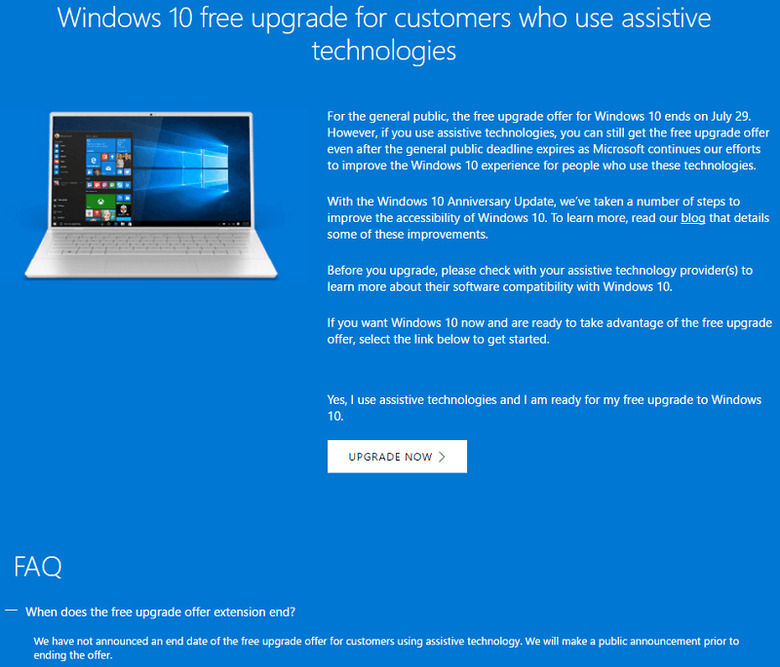
    Microsoft released Windows 10 last year and since then, they were offered the free upgrade program for users who have run Windows 7, Windows 8.1 with a genius license. However, the free upgrade from Microsoft was ended last month, July 29, 2016. For some reasons, many users have missed this free upgrade. How about I said you still can upgrade to Windows 10 for free at this moment? It's right! In fact, Microsoft has stopped its free upgrade program since July 29, but they are still giving the free upgrade for users who are using assistive technologies on their PC. How To Take This Free Upgrade As A Second Change To grab this offer from Microsoft and upgrade your Windows 7 or Windows 8.1 PC to Windows 10, simply go to Microsoft's Accessibility page and then download the "Windows 10 Upgrade Assistant" program by clicking on the "Upgrade Now" button. Once you have downloaded the tool, launch it, select the "Accept" button to accept the license agreement. After that, the upgrade tool will automatically upgrade your computer to Windows 10. Then your computer will be running Microsoft's Windows 10 and has a new digital license which you can use to reinstall Windows in the future. Also, you can choose to upgrade to Windows 10 and then downgrade to Windows 7 or Windows 8.1 within 30 days. After downgrading, your computer still has a digital license so that you can use in the future when you upgrade to Windows 10 again. Microsoft keeps this offer for users who are using assistive technologies because they want these users to have enough time to upgrade to Windows 10 and grab the Windows 10's Anniversary Update. The main reason behinds this is in the Anniversary Update, Microsoft has improved many assistive technologies, such as narrator, high contrast desktop theme, or on-screen keyboard. Many Windows users who are using assistive technologies don't want to upgrade to Windows 10 before those features improve. So that's the point why Microsoft extends the free upgrade for these users. However, this offer probably will not last long. Currently, there is no official word from Microsoft about when this offer will end. But one thing for sure, they will issue a public announcement soon.

    By Tony Tran Read More
  • Reasons Why You Should Use VPN for Private Web Browsing

    Using a virtual private network (VPN) connection will bring you two major results. The first benefit is that VPN will cloak and encrypt your information before transmitting between your device and the VPN server. This will protect your data and information from attackers or even government. The second benefit is that VPN will hide your real IP address, location, and country. This makes you appear to come from a different place like United State or the United Kingdom, depending on where the location of the VPN server is. Depending on the quality of VPN service provider you use, it will slow down your Internet connection speed by 5% to 25%. However, there are many good reasons why you should use VPN to cloak your activities and hide your real IP address. 1. Acess Geo-Blocked Content Like Netflix From Outside The USA For years, many people have used VPN to access and bypass geo-restrictions contents from many online stream media. Due to copyright agreements, companies like Netflix, Hulu, or Pandora can't broadcast all of their content outside of the USA. That means users from outside the USA won't be able to watch many movies and TV shows. By using the VPN service, you can manipulate your computer and change the IP address from your location to be a USA IP address. This will help you bypass restrictions of most media streaming sites. However, as I mentioned above, using a VPN will slow down your Internet speed up to 25%. So choose a VPN service provider that has a good speed is important. According to a discussion from PCGuide forum, a good VPN service usually costs you around $8 per month, for the high-speed plan and unlimited bandwidth. That's why you should choose a premium VPN service instead of using free VPNs. 2. Use Public Wi-Fi In Confidence You may be unaware but most of the public Wi-Fi around you, including Starbucks hotspot or hotel Wi-Fi isn't safe. There is no encryption security for users who use these public Wi-Fi hotspots. A hacker with a few software and needed tools will easily intercept your unencrypted Wi-Fi signal and then exploit your personal information. But if you use a public Wi-Fi network through a VPN connection, then all of your information will be encrypted before sending or receiving, and hidden from hackers. For this purpose, you can use many free VPNs out there, which will help you to maximum your security and protect your data from other people. You can also use Opera browser, which has a built-in VPN that will protect all information that you send or receive within the browser, like Ping News mentioned. So if you are a traveler or regularly use public Wi-Fi, a VPN is a must-have thing. 3. Bypass Restrictions At Work Or School Have you ever used the public computer at school or company? There would always be a few limitations, such as blocking you from visiting Facebook, reading Twitter, preventing you from watching YouTube, accessing Gmail and so on. However, with a VPN connection, you will easily bypass any limitations from the network administrator. Moreover, because you access the Internet through a VPN connection, all of your information will be encrypted, then the network administrator can't collect any details about your activities. I didn't recommend you to violate any rules of your school or at work, but if you feel you have right reasons for bypassing the network restrictions, then a VPN connection will be helped.

    By Tony Tran Read More