Andy Affleck

Engadget Editorial Policies

The unique content on Engadget is a result of skilled collaboration between writers and editors with broad journalistic, academic, and practical expertise.

In pursuit of our mission to provide accurate and ethical coverage, the Engadget editorial team consistently fact-checks and reviews site content to provide readers with an informative, entertaining, and engaging experience. Click here for more information on our editorial process.

Stories By Andy Affleck

  • Pressur is a simple barometer app

    The iPhone 6, 6 plus and the iPad Air 2 added a barometer sensor. Ostensibly it is supposed to help the device better track your steps for the health app by knowing when you've gone up and down stairs. But there is no reason it can't also be used for weather purposes. That's exactly what Pressur does. It reads the data from the sensor and displays it on your screen. The app is simple enough. The main screen shows you the current reading. And the Log shows you a list of the most recent readings. I haven't completely figured out how they are supposed to work. Sometimes I see a lot of recent readings and sometimes it acts like I've just run it for the first time and it only shows me the most recent one. So, often the Trends diagram only shows me one or two data points making for a very boring graph. The app offers an in-app purchase to remove ads and adds some additional options (and maybe the ability to track more than a few data points?). It also allows you to add a trend graph as a Today widget. Pressur is a free app with ads or $0.99 to remove ads as an in-app purchase. It requires the iPhone 6, iPhone 6 Plus, or an iPad Air 2 and iOS 8 and up.

    By Andy Affleck Read More
  • Pzizz, now free and on the iPad, helps you get to sleep

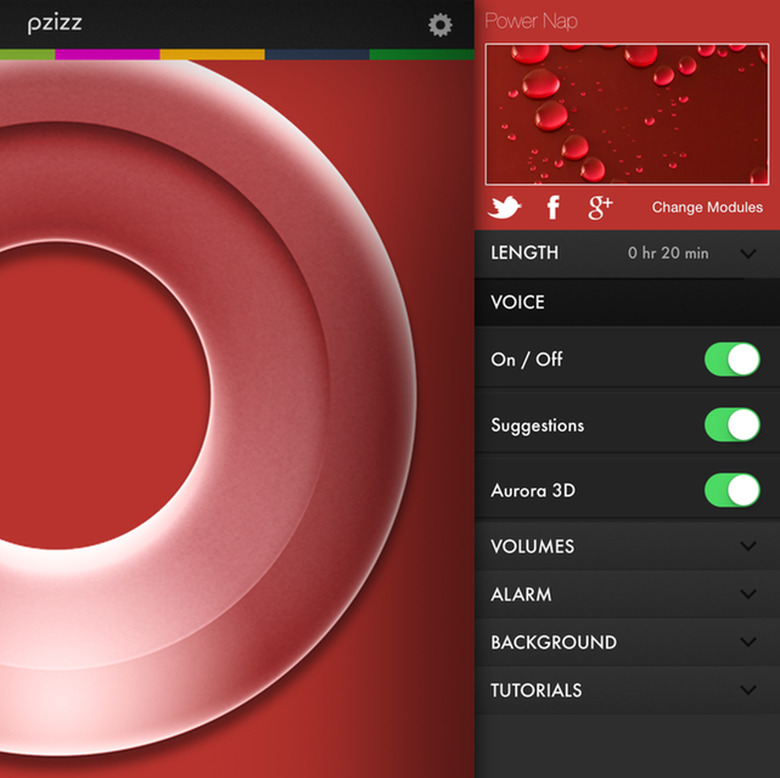
    Pzizz is an app designed to help you get in a good power nap or get to sleep. For years, it's actually been two apps, one called Energizer (for power naps) and one for Sleep (for, well I think you can guess). The apps use a combination of a soothing voice with binaural tones to help you get to sleep. Binaural Tones (or beats) are a type of audio recording where different frequencies of sound are played in each ear, the resulting difference creating a beating tone phenomenon, which, it is believed, influences brainwave activity. There's some controversy and disagreement over how much of an effect they really have but I've found that the power naps really work for me. I've actually been using Pzizz for years, long before it was an iOS App. Granted, back in those days, I either had to have my laptop within earphone-cable-length of my bed or I had to generate my "naps" and push them to my iPod. Nowadays, I can lie down with my iPhone close by, hit start, and get in a nice power nap. I've never really used it for getting to sleep at night mainly because falling asleep with earbuds leads to my rolling over, and getting an earbud pushed into my ear and waking up in discomfort or even pain. But naps are generally on my back and 20 or so minutes in length and not an issue. Pzizz Energizer and Pzizz Sleep have been replaced by Pzizz. It is also now a universal app running natively on the iPad for the first time. This new app is also free, unlike the paid earlier versions and combines both Sleep and Energizer (now "Power Nap") as modules within the app. Using Pzizz is quite simple. You choose which module you wish to use, Power Nap or Sleep, and then choose the settings you want for each. The default settings are a great place to start, especially if you are new to the whole concept. As you get used to using the app, you can experiment with the other settings. The settings include: Length: How long you want Pzizz to play. For Sleep,it will quietly end and for Power Nap it will bring you back to wakefulness through the voice, the music, the binaural beats, and if those aren't enough, it will play an alarm after the end just in case. Voice: Both modules share a master switch to turn the voice on or off and Aurora 3D, which provides a more 3D sound to the entire experience than just regular stereo. Power Nap has an additional setting for Suggestions, which adds helpful hints throughout the nap rather than just playing the beginning and wake up sections at the start and finish. In general, I suggest starting with the voice turned on. Later, when you are an old pro at using Pzizz, you may find you do not need the voice. I personally still use it even after all these years. Volumes: You can change the relative volumes of the voice and the music to suit your personal tastes. Alarm: For Power Nap, you can opt to put an alarm on in case you are worried you will not wake up from your nap. For Sleep, the app suggests you use the built in alarm in the Clock app on your device. The rest is straightforward: put your device in airplane mode so you won't be disturbed, hit play, relax and enjoy your nap or your night's sleep. I am a big advocate for the power naps. When I hit the afternoon coma, a quick 20-minute nap does wonders and gives me the mental energy and focus to get me through the rest of my day. Pzizz is a free universal app for iPhone and iPad. It requires iOS 7.1 or higher.

    By Andy Affleck Read More
  • Wildcard uses beautiful card interface for news and shopping

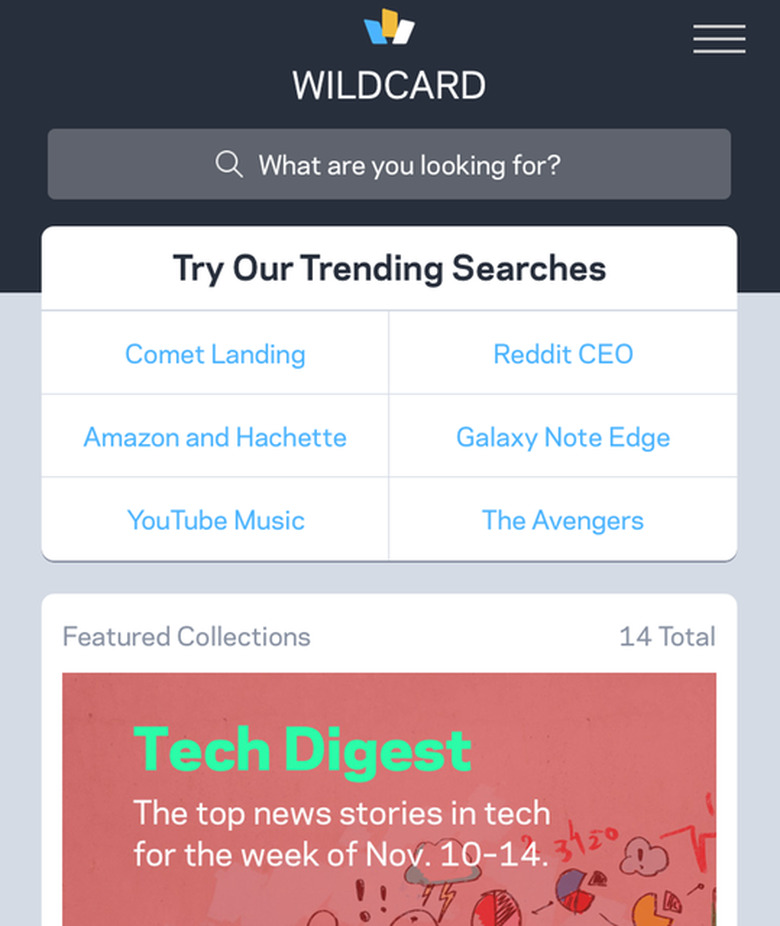
    Wildcard is a slick new app that gives you the latest news from a large, curated collection of sources while also providing you an easy way to shop. The combination of postings from around the web with online shopping may sound a little odd but it works. For example, one featured collection focuses on coffee and includes articles about coffee alongside opportunities to purchase coffee brewers or other related-to-coffee items. Wildcard is free and requires iOS 8 and up. It is optimized for the iPhone 5, 6, and 6 Plus. After a brief introduction, Wildcard's main screen appears listing trending searches, featured collections, a presumably trending article, new brands available in the app, and finally a master directory of the various topics available. The features collections include the displayed (above) Tech Digest, the aforementioned "Home Brew" collection about coffee, and an eclectic collection of others such as water resistant sneakers, how to turn a pumpkin into a keg, and surviving a breakup. The Wildcard directory contains categories such as News, Tech and Gadgets, Lifestyle, Entertainment, and so forth. It is a mix of news (blog and professional) and products for sale. These curated collections span a wide spectrum of sources and interests, which is a good thing. I only wish there was a way to add my own sources to the mix. There are certain websites that are part of my daily mix and they aren't all available in the app. One thing I noticed is that, in some cases, the content presented was a bit stale. For example, Daring Fireball, in the Tech section, displays nothing more recent than October 24 (it is November 13 as I write this). I prefer to make my own decisions about what I will and won't read from a particular source so I hope this is a glitch that will get fixed and not some attempt at ham-fisted curation. That said, I have to say that the actual display of the sources and of the news items themselves are gorgeous. The card metaphor really works in this context and it makes the endless river of news feel manageable. Each site's content is displayed in its own color scheme and generally looks very well done. A few times, such as with Brain Pickings, it fails and the controls at the top of the screen are almost entirely lost (See below). But these are minor quibbles (just remember that even if you can't see it, there is a back button at the upper left!) and does not overly detract from the experience. The online shopping aspect appears to be quite clean. Even here, content is presented in cards from the product information, the checkout form, and so forth, and the metaphor holds here as well. An in-app web browser is provided for when you need or want to get more details on a given product and you are warned that you are now viewing content from outside the app (as if to say, don't blame us if it doesn't look as sexy as it does in the rest of the app). When you first go to purchase something, you create an account, which will store your shipping and billing information and your chosen credit card number. Interestingly, you cannot create an account until you actually purchase anything. At least you can scan your credit card so you do not have to type the numbers in (though I much prefer it when apps support 1Password so I don't even have to take the card out at all). Wildcard is a beautiful app and it does a wonderful job of presenting information and products in a well thought-out interface that is a model of simplicity hiding complexity. If it allowed me to add more sources (or hide others) and otherwise tailor the experience more, it would be even better. For where it is now, it's excellent and it will be interesting to see how it evolves over time.

    By Andy Affleck Read More
  • MessageHub tries to be your one stop for all social networks

    MessageHub wants to be you go-to app for all of your digital communications. That's not an exaggeration, I mean all. It supports Facebook, Twitter, LinkedIn, Yahoo and more. It also supports email accounts Gmail and Outlook. If you set up all of your accounts in this app, you could keep up with everything going on in all of them in one place. Well, that's the theory anyway. But we'll come back to that in a moment. MessageHub is free and is designed for both iPhone and iPad and requires iOS 7.1 and up. On first run, you are given the option of signing in via Facebook, Twitter, or LinkedIn. This links you up to your first account. From there you can link up as many others as you want. Of course, the more you add, the more will appear in your "Everyone" section. I find that often Twitter or Facebook alone can be like drinking from a firehose. Combined views (especially when they include my email inboxes) are simply overwhelming to me. This is why services like Facebook, Twitter, and others provide the capability to create lists of people. I can (and have) create lists for the most important people in my life so I am sure not to miss an important update from them, lost in the noise of the latest meme everyone is reposting. Thus, Facebook and Twitter become more manageable for me and I can catch up with fast glances through the day rather than getting sucked into the vortex of endless streaming content. MessageHub provides none of this. With this app, it is everything at all times. Worse, the main view tries to utilize white space to make the interface breathe but it has the effect of only showing two to three posts at a time making me have to constantly scroll to get through the sheer mass of content. One handy, if somewhat confusing feature is the "Conversations" section. This aggregates together the posts of a given person (sometimes) and conversations held in Facebook messaging or via Twitter, etc. I honestly couldn't quite figure out which it is supposed to be when. Sometimes I see a person's recent posts, sometimes conversations I've had with them, and often nothing at all. For example, I have had conversations with my wife on Facebook messages and she has also posted a few things in the last day. When I look at her entry in Conversations (created a few weeks back), nothing is displayed (and this is despite the fact that in the list of conversations, there is an excerpt from a previous message one of us sent the other. So, in the end, I get what this app is trying to do but the confusing Conversations section, the large amount of white space limiting posts per screen, and the lack of support for lists (you can create groups in Conversations which approximates this feature but I could not get it to reliably work) gets in the way of its goals. MessageHub is free and if it is actively maintained and improved it may become quite useful.

    By Andy Affleck Read More
  • Xpress Yourself: A wonderful way to talk with friends

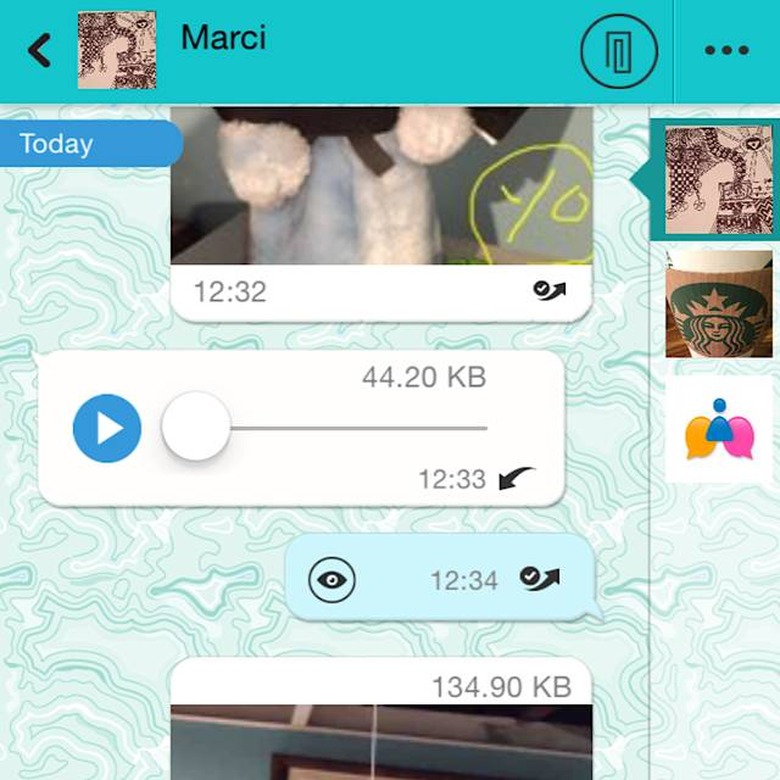
    Xpress Yourself is a chat app in an already crowded field. However, it is also a very polished a fun app and provides the full suite of features you would expect, and then some. In addition to the usual text and photo capabilities, it also adds the ability to draw on pictures, send video and audio, and provides the capability of sending ephemeral messages that expire after 3 to 9 seconds never to be seen again. It also provides a set of built-in themes to let you customize the app in one of twenty ways (ten colors or ten patterns). Getting started is straightforward and a pretty friendly experience. The app walks you through the initial steps to create your account and authorize the app to access various features of your iPhone. After that, it's all about finding friends you can communicate with. You can find friends through the usual methods (searching by name, email, phone number, or by uploading your address book and searching in bulk that way. You can also invite friends by SMS, Email, or by posting notes to Facebook or Twitter. The main screen is called the Hub and it lists recent conversations you have had (most recent at the top). Conversations can be with individuals (in which case, the icon will be that of the person you've been speaking to) or groups. Groups are conversations with multiple people that anyone can create. When you create a group, you can give it a name and a picture (and if you don't, then the icon will forever be the first letter of the group name you give it - you cannot edit either the name or icon once it has been created), and then invite friends to it. The actual conversation view is in many ways, a standard instant messaging view. Your messages are pushed to the right, those of your friends are pushed to the left. What makes it especially interesting and useful is that there is a thin column on the right side with all of your most recent conversations listed (by icon only, no names are displayed). This lets you easily switch between multiple conversations. This feature is just wonderful and I wish all such apps did this kind of thing. The text, audio, video, and picture messages you can send all render nicely in the conversation view. When you opt to make a message (any type) ephemeral, you are setting it so that it only can be viewed for 3, 5, 7, or 9 seconds (in the case of text and pictures) or the duration of a video. Once the time runs out, they may not be looked at again though a placeholder remains in the conversation view as a reminder that such a message was sent at that particular time. The way the display handles showing you the date and time of messages is also very nice, floating the date at the top and embedding the time on each message. It is very easy to see what happened when. All in all, this is a very well polished, fun app to use. I very much enjoyed using Xpress Yourself during testing and I have continued to use it to communicate with people off and on. Like any app of this kind, the biggest issue will be finding an audience. But this is one that is definitely worth checking out.

    By Andy Affleck Read More
  • ColorFit uses photographs to suggest colors

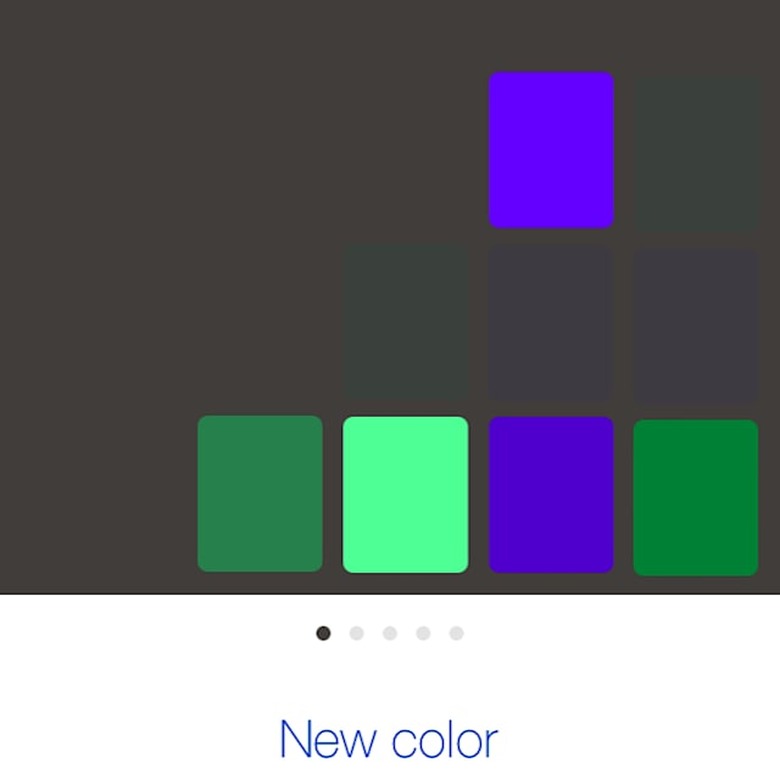
    ColorFit is a simple app that does one thing: uses a photo you take to suggest color palettes. Using the photograph, ColorFit will suggest a set of colors ("Use this colors" [sic]) using a variety of different color schemes including triad, analogous, complementary, quad, and shades. However, that's all the app does and it doesn't even do it that well. For starters, you are invited to tap anywhere on the screen to take the picture and the spot you tap becomes the background color. Then a number of color blocks fall down from the top of the screen in one of the palette schemes provided. Once the colors are given to you they just sit there. You cannot tap them to get their RGB, Hex, Pantone, or other values. Nor can you export the results into a color palette file that you can later import into another program to use. The best you can do is to take a screen snapshot and then bring the resulting file into a graphics program and use the eye dropper to find out what the colors it chose are. If you compare this to Adobe Color CC for iPhone and iPad, or ColorSchemer for iPhone, you will find the latter are far richer (and free). And in both cases, they let you select multiple elements in a given photograph to use to create the scheme. So, I'm left asking what the point of this app is or why anyone would pay US$1.99 for it? ColorFit requires iOS 7.1 and up, works with iPhone and iPad and is optimized for iPhone 5, 6 and 6+.

    By Andy Affleck Read More
  • Life Analytics fails to provide life analysis

    Life Analytics seems to want to do what Moves tried to do: provide you with a record of everywhere you've been but with some graphs to show you how you divide your time among the places you inhabit or visit. However, unlike Moves, which was purchased by Facebook and subsequently seems to have been forgotten and no longer seems to work (at least, not in iOS 8 on any phone I've tried), it provides no map view and any information it provides is confusing and the UI is, for want of a better word, ugly. On first run, the app encourages you to define home and work by using a map and a slider to choose a radius (to geo-fence what is and is not "home" or "work", handy if you live or work in a place where the GPS signal is more variable than setting a specific point would allow). That initial process was clunky and the on-screen directions tell you to tap one button to finish the process while the actual button has a different name. That done, I left the app alone for a few days and went about my life so I could build up some location data and then get some analysis of my life. After a few days, I looked at the app again and what I saw was less than helpful. Now, to be completely fair, I work from home, so I get that this would confuse the app as to when I am at work and when I am at home, so I do not hold it against the app that it shows me at both in equal measure as opposed to, say, being at work for 8-9 hours and then home for the rest. Even taking that into account, the analysis is wonky at best. For example, every single movement I make around my home is listed as some form of transport (again, to be fair, it may be getting very confused by my work and home being the same place). Sometimes, that transport is listed as walking, sometimes as bicycle (I must move around my house faster than I realized!) The charts themselves are poorly drawn with labels overlapping or oddly cropped on the sides of the screen despite the fact that there's plenty of pixels left to provide more of the words themselves. The summary charts showing multiple days are not very useful as the legend defining the colors is off the far left requiring you to scroll back and forth to see what is what. If you make changes (as I did in trying to define work as another location just to see if the transport issues got fixed) they only apply to anything from now forward, not to anything in the past. The large, prominent ad on screen at all times certainly didn't help either. All in all, I found little to like about Life Analytics. If you are interested in tracking your movements and seeing how and where you spend your time, I suggest you look elsewhere. So much of what the iPhone represents is elegance in design and the love of working with something well crafted and with a nice UI. Life Analytics is anything but. Life Analytics is at least free and, while it claims compatibility with a wide variety of devices, the app description says that the motion co-processor is required meaning it should only be compatible with iPhone 5s and up.

    By Andy Affleck Read More
  • Digital StrongBox simply stores securely

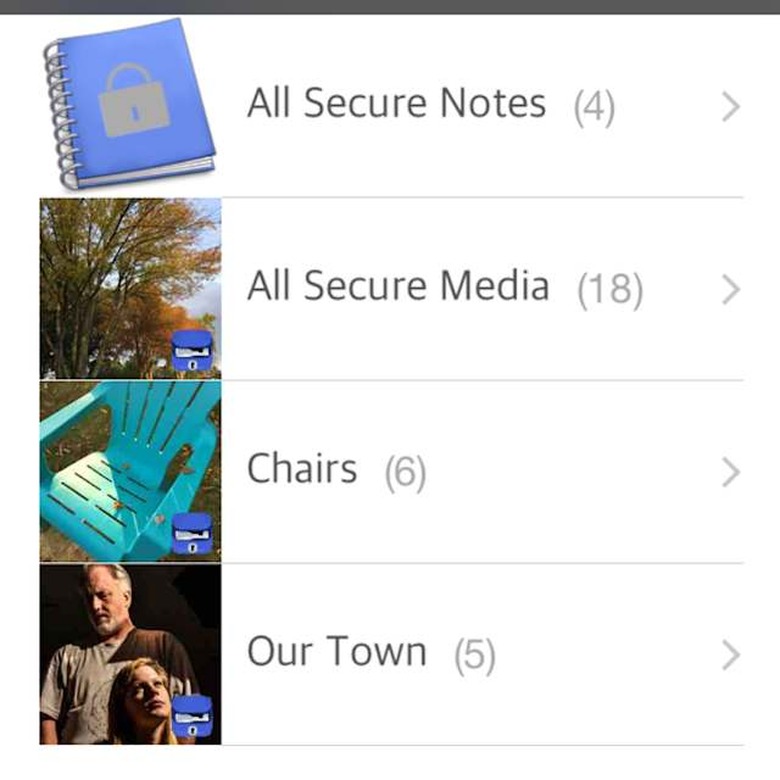
    Digital StrongBox is a simple app to securely store personal information, notes, photos, and videos on your iPhone or iPad so that it is safe from prying eyes. It uses AES-256 encryption, which is certainly strong enough for anyone's purposes and protects your data behind a 4 to 8 digit access code. It requires iOS 7 and up and is a universal app compatible with iPad, iPod Touch, and is optimized for the iPhone 5. The app is quite easy to use and gives you enough prompting when you first run it to get you going. Initially, you have to set up your access code. It is very important that you remember this code because if you lose it, there is nothing that anyone (including the developer) can do to retrieve it or your data. To help you, the app offers to email the code you have selected to you so that you can store it safely elsewhere (your virtual key under the doormat). Once you are past this, you are presented with the main screen with on-screen popup notes pointing you towards the three major features: Adding a new photo album, taking a picture with your camera, and importing pictures from your camera's photo library. Each of these behaves as you would expect and as they behave in countless other apps. For example, adding pictures from my library brought up the standard interface for picking multiple photographs from my various photo albums. Once you add pictures to the app it reminds you that if you want these to be secure, you should now delete them from your camera's photo library so they only exist inside Digital StrongBox. Aside from photos, the other main type of data you can store are notes. These take on four different forms: freeform notes, the kind you find in any notepad, identification documents, financial account information, and passwords. The latter three are simply notes that provide some specific fields and the possibility of attaching pictures in certain cases. For example, under Financial, you can add in a credit card complete with all pertinent information and pictures of the front and back of the card. For Identification, you can do the same with a social security card or your driver's license. For passwords, well, it's not clear to me (aside from the issue of cost) why one would want to use a tool like this for passwords when 1Password and similar are so much more powerful and can integrate directly with Safari in iOS 8 but if you want to just store them and not auto-fill them, it works well enough. Across the app, the UI is clean if a little unpolished. It's the small things like auto-capitalization not (always) being on when typing a new title for a note or document or the fact that the "Notes" indicator for the place where you actually enter a notebook entry is vertically centered next to the content and that the content itself has a rather thin column to work with making it feel cramped. But these are really quibbles. Aside from one crash I had when I first tried creating a password note (which I was unable to replicate) the app appears stable and does exactly what it advertises. If you are looking for a way to store critical information and/or photos and videos privately, then this app is certainly worth a look. Digital StrongBox is free for up to 7 notes and 20 photos/videos. It can be unlocked for US$0.99, giving you unlimited notes and photos/videos.

    By Andy Affleck Read More
  • Share videos easily with RealPlayer Cloud

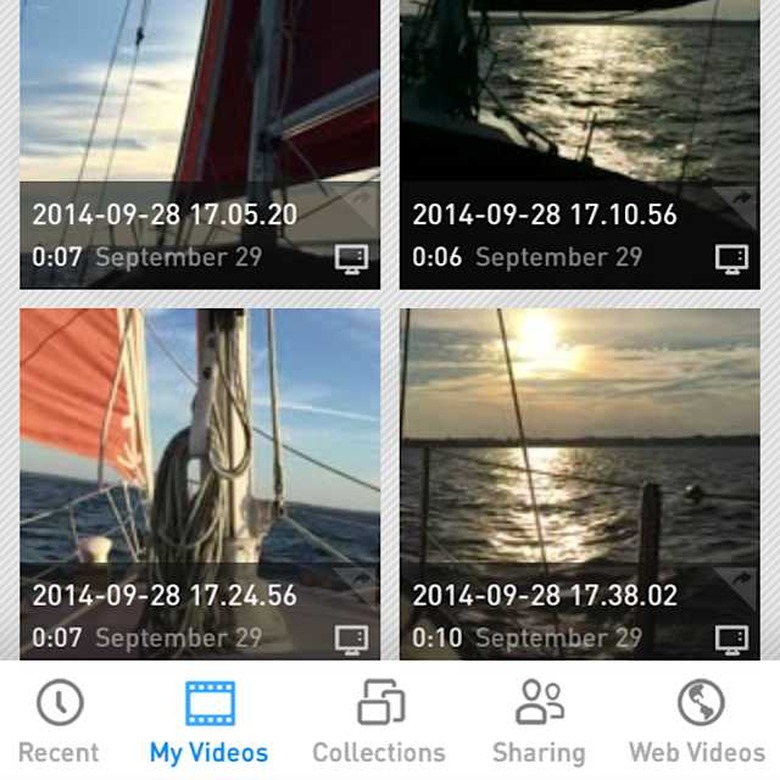
    I'm old enough to remember when Real Video was the only game in town for streaming video. Once upon a time, everyone had some version of real on their computer. Then it went out of fashion or was overtaken by others, perhaps YouTube? I honestly do not remember. I was shocked to discover that RealNetworks are not only still around but introduced (about a year ago) a new app and service: RealPlayer Cloud. RealPlayer Cloud could be described as yet another video sharing app, but, unlike others, which mostly seem geared towards broadcasting videos to the world via Vimeo, YouTube, and the like, RealPlayer Cloud is also about sharing videos with specific people across multiple devices. After you create an account and grant the app all of the necessary permissions to access various services on your iPhone or iPad, it automatically populates its library with every video it can find on your phone in your camera roll. If you also run the companion Mac or PC app, both of which build your library from every video it can find on your hard drive (excluding those in iTunes, iPhoto, Aperture or iMovie libraries), then the library you view on your phone and on your PC or Mac contains every video from both sources (provided the app is running on your Mac or PC at the time, once you quit the app, the phone's library only shows items local to the phone). It does not attempt to figure out duplicates so my own library consists of two copies of many videos, one from my camera roll, and one scraped from Dropbox where I back up my pictures and videos on my phone. Each video gets a helpful icon depicting whether it is from the computer's library (a Mac icon), the local library (a camera icon), or the cloud (a cloud icon). If you tap on either a cloud-based or a computer-based video, it begins downloading the video immediately. As the data plans for RealPlayer are not free, it would have been nice to be given a dialog confirming that I was ok with this, perhaps even letting me know where I was in using my data plan. Videos themselves play smoothly, but I would expect no less from a company who has been doing this as long as RealNetworks has. AppleTV is also supported via AirPlay. When a video ends, you are given the choice to upload it to RealPlayer Cloud or to share it with friends. If you tap out of this screen, you have to rewatch (or scroll to the end of) the video to get those back or use the share options on the home screen. There are three menus on the home screen, the left menu denoted by the now-standard three lines that slides open a left panel giving you access to your camera (to shoot new video), your account information (including data used so far), and the free space on your iPhone or iPad (very handy). The middle menu lets you filter your library (camera roll vs. cloud vs. downloaded vs. Computer). The right-most menu is a mix of functions confusingly grouped under the older, pre-iOS 7 sharing icon (a rectangle with a curved arrow, now a square with an upward arrow since iOS 7). This icon generally calls up a menu where you can send selected content. In this case, you cannot select content until after you invoke this menu and tell it what you choose to do. Not every choice in the menu is about choosing and sharing, some of it is about sorting your library and choosing how it displays. These would make much more sense in the center menu. But I digress. Once you choose what you want to do (upload, download, add to a collection, delete, rename or share) you can then select the videos you want and start whatever process you wanted to start. I think the basic iOS Photos app handles this much better letting you select first and choose operations after. Videos may be shared with people on social networks or directly via Messages, Email or by copying a link and passing it to someone else as you wish. They do not need to have a RealPlayer Cloud account to watch the video but unless you are a paid member, you cannot upload HD quality video and the results are less that optimal. RealPlayer Cloud provides access to popular online videos in three categories: Daily Top 5 (though I do not know what criteria this is based on), Facebook videos posted by your friends, provided you have connected your Facebook account, of course, and Videos you have bookmarked from the previous two screens. RealPlayer Cloud is a free universal app for iPhone and iPad requiring iOS6 and up. Storage plans are available in-app as monthly subscriptions at US$1.99 for 10GB, $4.99 for 25GB and $9.99 for 100GB. Plans renew automatically and can be managed via your iTunes account as you would any other iOS Subscription. The obvious question is whether this is worth it. With iOS 8, I can share videos with members of my family easily enough with iCloud Family Sharing as well as to various social networks. What is harder to do is to share videos with various friends who are not in my iCloud Family Sharing group and that's where this app could come in handy. Also, because it scrapes video from the device it is on, it is a great way to collect everything in one central location quickly and easily. (I discovered some older videos I'd completely forgotten about on my Mac by doing this.) From there you can decide what you wish to upload and how much data you need or want to pay for. For me, the most important feature is what it does for you if you have a smaller device: upload your videos into the cloud and get them off your phone. With RealPlayer Cloud you'll have room to shoot new video and you'll have access to many more of your videos to share and play for people.

    By Andy Affleck Read More
  • Bestie simplifies shopping with a Pinterest-esque approach

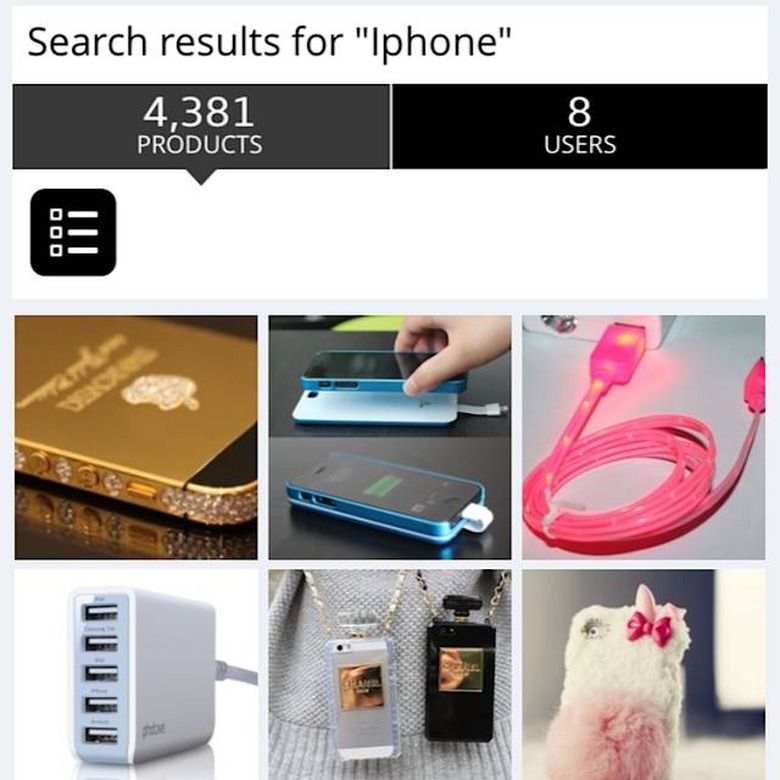
    Bestie is a shopping app that provides a Pinterest-esque approach to shopping and sharing. Bestie is a free app, which requires iOS 6 or later and is compatible with iPhone, iPod Touch, and iPad and is optimized for iPhone 5. At its heart is the concept of curated collection of goods. You can use the app to shop a wide variety of online retailers and add their products to lists you manage. You can follow lists created by other people (and retailers) and they can follow yours. You can also add products to lists that are based on web searches or even photographs you take yourself. There is an appeal to this kind of social shopping. As we all know, often the best finds are those we get from friends: "Where did you get that? I had no idea that even existed!" And Bestie is interesting in that it somewhat obscures the line between recommendations (or at least, "Hey, I thought this was cool looking") from friends and promoted products from retailers actively curating their own collections. As you wander through the products, you can save any item you like to one or more lists you wish to maintain. You are given a "Gifts I want" list by default. Each product lists the number of times it has been saved by others. If you are a Pinterest user, think of "Save" as "Pin It" and you will understand what it does. On the downside, in order to get more detailed information about a product, you have to tap the "Buy Now" button, which takes you to the original website for that product. That is counter-intuitive and a button that indicated that it could be used for "More Info" as well as "Buying" would be a lot more helpful. When first run, you are given the option to create an account but this is not a requirement to browse around and read other peoples' comments on various products. Once you get into creating or following lists, connecting with friends, or buying, you will need to create an account. This comes with agreeing to get on a mailing list (that you can unsubscribe from later if you choose) so if that kind of thing bothers you, you can decide not to join. The App provides five main sections accessed via a tab bar at the bottom of the screen. The main screen, "Home", is simply a scrolling list of the latest additions posted by the people or companies you follow. As I write this, Amazon seems to heavily promoting wall decals of cute sayings that you put on your walls (someone will need to explain the appeal of that to me). Shop, indicated, cryptically, by an icon that denotes trending instead of, say, an icon the denotes shopping, is a matrix view of pictures that can be filtered and sorted in many different ways. The center tab sports a Bestie icon with a plus and is, as you might guess, where you can add products from online stores or through a combination of a photograph you take and providing a URL to the product (useful for someone who runs their own store, for example). Next is a search function that lets you search by arbitrary text (I rather like the steampunk cuff links available on Etsy). Finally, the last tab gives you access to your own profile and your own lists. At the top of every one of these sections is access to notifications (if, for example, you requested to be notified when someone "saves" a product you added) and a screen to follow top users, and friends on Facebook who are or are not using Bestie. I did notice a few quirks along the way. For example, websites that do not render properly on an iPhone screen are virtually useless as I was not able to scroll sideways or pinch to zoom out. So, I was unable to add to any of my lists the cool LEGO Steampunk set. The Search section has a back arrow at the far upper left, even after you have gone as far back as you can. Since the app remembers your scroll position from when you left that first screen, I could not see the search box that is at the very top and was momentarily confused until I thought to scroll up. I am left with one big question: What's the point? What is Bestie providing that doesn't already exist? Wish Lists (both social and private) are available on many sites and Amazon's allows you to add items they don't even sell. Pinterest does much of what Bestie does and already has an established and enormous user base. This is where my wife, a power shopper if ever there was one, ended up after she played with it for awhile. She felt that the app was so simplistic as to hold no real value for her. Especially since it duplicates features she already uses on other sites that are well established. One could argue that it is the all-in-one-place presentation of the content and they may have a point. Most of the shoppers I know (especially my wife) is not looking for something to make the process simpler or to speed it up. In many cases, the journey is the reward and greatly simplifying that journey is not that interesting to them. The other argument in favor of it that I find more compelling is the social aspect. Bestie's ability to share and comment and be part of a communal experience is powerful, but it does have a chicken and egg problem: you need people to use the app to get that value but people may not use the app until it has that particular value.

    By Andy Affleck Read More
  • TunnelBear VPN lets you surf, securely

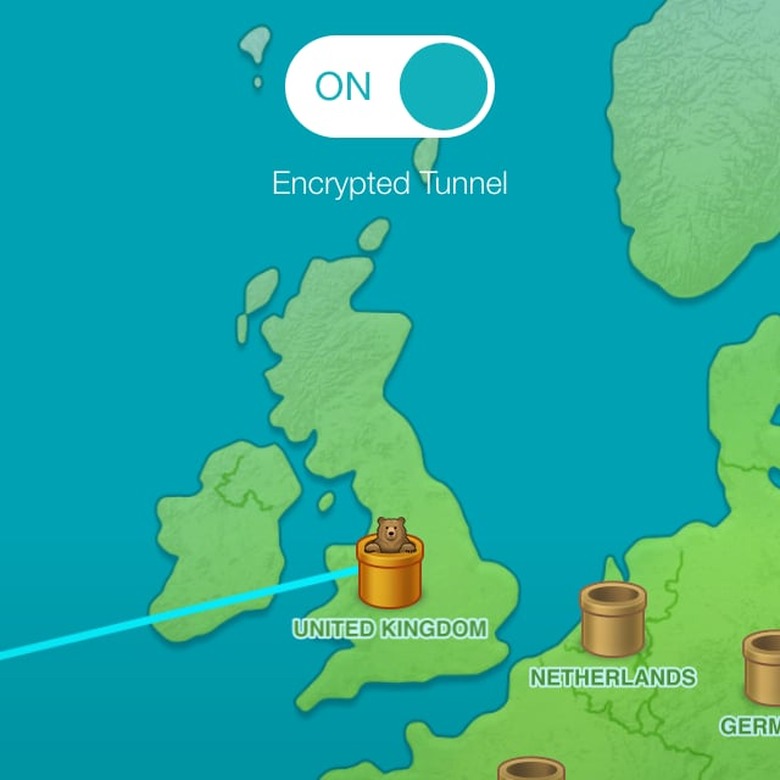
    TunnelBear VPN is a simple app that works beautifully to let you securely surf online using your iPhone or iPad (and there's a Mac version as well). A VPN (Virtual Private Network) is an encrypted connection to a server that permits you to be online without worrying about anyone stealing your passwords or watching your private communications. It also helps to defeat software that tracks your movements online. VPNs are handy for anyone who is concerned about their privacy. Because VPNs hides your location, you can easily connect to a VPN server in another country, which will have the effect of making servers in that country think you are local. This lets you get around restrictions that might be in place. More on that in a minute. Using TunnelBear is pretty straightforward. After you create a free account, you are walked through the steps to get it set up and working. This involves installing a network profile onto your iPhone or iPad but TunnelBear makes it as easy as it can be. You are given the choice of one of two ways to connect to the VPN. The first is through the app itself. The second is using the Settings App on your iPhone or iPad. The latter approach provides faster connecting but may be more technical than some people would like. The app's interface is quite entertaining and also easy to use and understand. You can always try one and then switch to the other by choosing "Reinstall Profile" from TunnelBear's menu in the app. Once you are set up then you can connect. Connecting to the country you live in is the best plan unless you specifically need to appear as if you are in a different country. In my tests, using TunnelBear's VPN is noticeably slower when tunneling to, say, the United Kingdom from the United States. There is a slowdown tunneling locally as well but it is nowhere near as great as it was going across the pond, as it were. TunnelBear claims you should see about 80%-90% of your normal speed and my tests showed that when tunneling within the United States. When I connected to the United Kingdom, that speed dropped as low as 50% at one point. All tests were done using Ookla's Speedtest App. If you are new to the concept of the VPN you might wonder when you would want to use it. Generally, I do whenever I find myself on a public WiFi network. You really don't know who's running it or who might be lurking around on it. For me, the killer feature is the ease with which you can appear to be in a foreign country. During the London Summer Olympics a while back, I heard that some people (cough) made good use of TunnelBear in watching the live, unedited, and un-ruined-by-NBC-commentary feeds from the BBC rather than waiting for prime-time. I have heard others have used it for Downton Abbey or Doctor Who purposes as well. I can neither confirm nor deny the veracity of these statements. (Technically, doing anything like this is not allowed and is frowned upon.) I may or may not have used it to watch the live results in the UK of the historic vote on Scottish independence at 1AM. TunnelBear VPN takes the mystique and technogeekery out of the VPN and does so with a delightful and whimsical user interface. I've tried a few of these types of apps and this is the one I come back to again and again. The app is designed for both iPhone and iPad and requires iOS 7 and up. It provides 500MB free data per month (which is hardly enough to do much of anything) and offers in-app purchases of data plans including US$2.99/month, $7.99 every 3 months, or $29.99 for a full year. Note that if you get the free Mac version and buy a plan through it or through TunnelBear's website, the prices are $4.99/month or $49.99 per year but that gives you unlimited use on your Mac and up to two mobile devices (including Android). For many, that will be the better deal. The iPhone and iPad in-App plans are only for a single device. Finally, you can get 1 free gigabyte of data by tweeting them and asking for it. Instructions are in the app and on their website.

    By Andy Affleck Read More
  • Rocking All Over The World crowdsources rock history

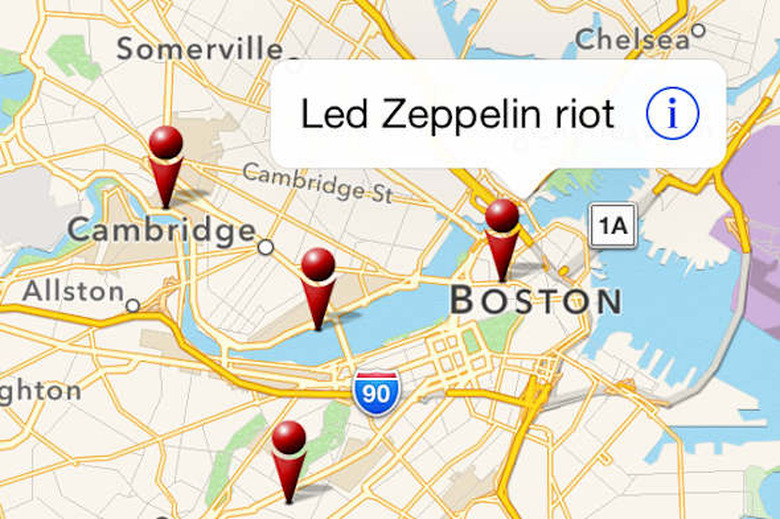
    Rocking All Over the World is a free app for iPhone and iPad that asks you to help crowdsource rock history. Everybody has their own experiences, memories, and pictures from events they've attended. This app asks everyone to share those things to create a map showing where so many great things happened. Rocking All Over the World requires iOS 5.1 and up. The app presents you an interactive map upon which are pins where events have occurred in the past. For example, when I checked Boston I discovered that there had been a Led Zeppelin riot there. I then tapped on it to read what happened (I leave this as an exercise for the reader). The map behaves exactly as you'd expect so you can move around the world and see what is out there. You can also search, but only by items already in the database. You can't use the search to find a specific place (for example, Hurd and West Shore Rd in Bethel, NY) so if you want to place a pin at a specific location, it may take a bit of work to get there. Once you have your location, you can drop a pin there, tap on the text that appears above it, and begin entering your information. The process is quite simple though it does require a connection to your Facebook account in order to upload images or submit entries. When I tried to submit an entry for Woodstock, I told it that it could not post to Facebook for me and then my submission went into an endless spinner. Whether my denying posting privileges is the cause I do not know. Alas, Woodstock is still not in the database. And probably rightly so. The intent of this app is for people to share their own experiences. I was an one year old when Woodstock happened, so I'm not the best person to create that entry. I like the concept of the app and may pull it out from time to time as I travel just to see what I might be near. I wonder how many people have enough events to share to make this an app they use a lot versus one they look at once in a blue moon when they remember it exists or stumble upon it in whatever folder it is in. But I hope it does get used. I think it would be a lot of fun to open up Rocking All Over the World and see the shared experiences of lots of people.

    By Andy Affleck Read More
  • PanStage Music lets you create music together

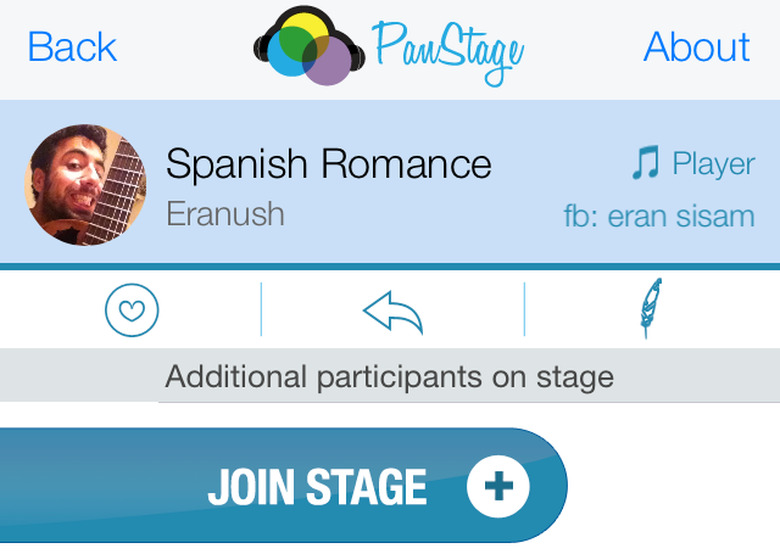
    PanStage Music is a fun free app to let you create music with friends and strangers from around the world. The basic idea is that someone, perhaps you, records a single audio track, perhaps a cappella vocals, or guitar or flute. Then that track is released into the wilds and someone else, perhaps you, adds your own track to it. For example, one person can play "The Parting Glass" on the piano and then up to seven others can add their own parts to the song. Maybe four people add Soprano, Alto, Tenor and Bass parts, and another person adds some violin and so forth. The end result is an interesting collaboration between complete strangers. When you first run PanStage Music, you need to create an account. You can do so using your email address or by connecting to Facebook. Once created, you can listen to existing compositions, start your own or add to an existing one. Recording a track is as simple as tapping the record button and creating some music. The makers of PanStage Music encourage you to use the built-in Mic on your iPhone as they cannot guarantee the quality of (and probably do not want to get into the business of supporting) external mics connected to your phone. And, to be fair, the built-in mic of recent iPhone models are surprisingly good, even for this kind of thing. When you are adding to an existing composition, you need to use headphones so you can hear what has already been recorded while you add your own. Here they suggest you use regular headphones and not ones with an included microphone as the quality of these is often not as good nor can you easily guarantee you keep the mic at a fixed distance to maintain the same recording level. When you are done with your recording you can review it, toss it away or commit it to the cloud. When you do that, it is uploaded as part of the original composition and others can add their own parts if they like. Finding compositions to listen to or add to is done by choosing how you sort the list of everything that is already out there. You can sort by the user name of the creator, by the newest compositions, or by the ones most heard. I imagine that if this gets truly popular, finding specific compositions will get very difficult and the ability to search or filter will be necessary. For example, if I want to sing, I'd like to find any tracks that do not already have a vocal track attached to them. Another feature I would really like to see is the ability to restrict sharing to specific people. I have a number of friends who are musicians and I would love to use this with them to try some things out, especially since we can't always get together to play around musically. Right now, it appears that the only option is to share things with the entire world. PanStage Music is a free iPhone app optimized for iPhone 5 and up. It requires iOS 6 and up and the use of headphones is required for recording additions to existing compositions.

    By Andy Affleck Read More
  • Rare Candy makes habit and skills tracking fun

    A Rare Candy can be used to level up a Pokémon by one level (in the many forms of the Nintendo DS Pokémon series). The Rare Candy App, US$1.99 (free trial version available) and designed for iPhone 5 and up and iOS 7 and up, can be used to level up your own skills by many levels. There are many apps that help you build healthy habits and encourage you to follow your dreams. Rare Candy takes a novel, and fun approach: by treating it like a role playing game (RPG) encouraging you to practice your skills so that you can level up. This leveling up provides motivation and some in-game currency that you can use to purchase new classes of heroes and new equipment to give them. For now, I am just Albereth, the lowly peasant until I earn more coins. But one day, I may become Albereth the Ranger, Knight, Cleric, or Warlock. When you first run Rare Candy, you are encouraged to create both skills you wish to develop and daily habits you wish to build. When you create skills, you do not have to start at the beginning. For example, I want to improve as a photographer but I've been taking pictures for over 30 years. So, I put in 1000 hours when I created that particular skill and automatically leveled up to level 52 and gained the title "Sage Photographer." How flattering. With Acting, I've done that even more and am a "Guru" with that skill. My guitar playing, alas, is nowhere near as developed and I am still a novice. To level up in your skills, navigate to them in the app and tap the "Start Practicing" button. This begins a timer that runs until you stop it. The app helpfully provides ways for you to increase or decrease the time so if you forget, you can add time. If you forget to stop the timer, you can subtract time. And over time you can watch yourself improve in your chosen skill. Daily habits are somewhat different. In many RPGs, your character has health (decreased as you are injured, increased as you heal) and mana (decreased as you use magic, increased as your rest). Rare Candy uses these tropes but slightly differently. Health dailies are habits that have to do with your physical health. Mana dailies are habits that have to do with your mind and intellect. So, going to the gym would be a health habit and reading a book would be a mana habit. Unlike skills, these are not leveled. You just check them off each day you do them and build up streaks. As a tool to encourage skills development, Rare Candy is a lot of fun and I enjoy using it to push myself forward. It would be even more fun if I could compete against friends who are learning the same or similar skills or even just share what I am doing. As a daily habit tracker, it falls a bit short. Not all habits are not necessarily daily. Some people strive to hit the gym 4 days a week and should get rewarded for achieving that goal. All in all, I love the concept and think that Rare Candy is a lot of fun. If it had more flexibility in tracking daily habits, then it'd be just about perfect for my own needs. There is a free version so you can easily test it out and see if it meets your needs.

    By Andy Affleck Read More
  • TimeTrack Free tracks time and handles invoices

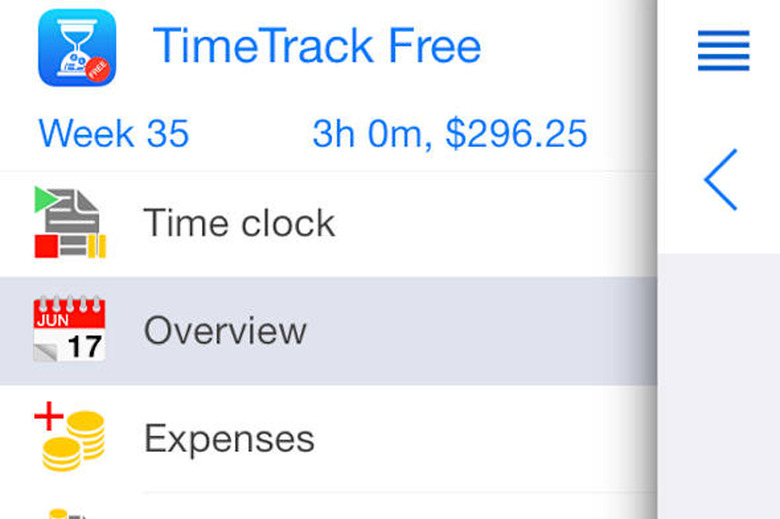
    TimeTrack Free is a full-featured time tracker and invoicing system for iOS. It packs a lot of power into a clean, clear user interface. As a freelancer myself, I am always on the hunt for a way to track my time spent for my clients. So, it was with an eye towards my own needs I reviewed this app. The app works on all iOS devices running iOS 7.0 or later. It is a universal app for iPhone and iPad. The major functions of the app, time tracking, expense tracking, invoicing, analysis of how you spend your time, exporting, backup and restore, defining projects and clients, and settings are all available under the menu on the left side of the screen (accessible under the four line icon in the upper left). After removing the sample data that comes with the app (useful to get a sense of things but easily removed by deleting all of the sample clients from the app), you start by adding in all of your clients. You can add in as much detail as you like on each client (contact names, address, phone numbers, etc.), which will make invoicing easier down the road (as it will fill in the information on the invoice from this data you provide). Once your clients are added, you can then add projects to each one. One of my clients has me on three projects while the rest are all single project clients. You still need to create these single projects in order to do any kind of tracking. With that basic setup completed, you can begin tracking your time. The "Time Clock" is the first item in the left menu. On this screen, you first select the client, then the project, and then you need to create (or reuse) a task. Tasks appear across all projects; you would not create a task for a given client like, "Complete accessibility testing of portal website design" as it is specific to a single client. Instead, you might add, "Development," or "Administration," or "Client Meeting" as tasks. In this way, you can later see how much time you spend doing a given type of task across all of your clients. Once you have a client, project, and a task selected, you can begin the timer. The timer will run in the background until you go into the app and stop it. TimeTrack helpfully sends you a notification event telling you that you are working on a given project since a specific time so that you can later go into the notifications screen and tap on that notification to quickly return to the app. You can also track any expenses incurred for a given client and include this in your invoices. Later, you can create invoices from your tracked times for each client and generate PDF files, which you can easily send to any app that can accept pdf files, as well as Mail. If you are able to print from your phone, you can also print your invoice directly and even track whether or not it has been paid yet. TimeTrack Free has a few interface quirks that got in my way, mainly little things like setting some defaults in settings require you to tap "Done" in order to save the value when, in many other apps, just returning to Settings commits the changes without the extra step. The one quirk that actually caused me some trouble is if I go to edit a particular tracked time and accidentally move the end time to before the start time, it changes the start time to math the new end time. In this way, I lose both the original start time and the length of time the block originally had making it impossible to reconstruct what hours I actually worked due to slippery fingers. I think the start time should remain fixed unless I specifically change it. I rather like this app. It does what it says it will do and provides a good set of supporting features. What is missing is automatic idleness detection (something I wouldn't expect in an iPhone app as my phone spends much of its day sitting idle next to my Mac where I work) and a Mac version. The developers are working on a Mac version and if it includes the idle checking, I will seriously consider switching from what I use today. TimeTrack Free is a trial version of TimeTrack Pro, currently on sale for US$0.99 and regularly US$4.99. It is not specified in either app's description in iTunes nor on the developer's website exactly how the free version is limited and I have not found any limitations in my use of the app so far.

    By Andy Affleck Read More
  • Likes downloads Instagram pictures you have liked

    Likes fixes a glaring problem with Instagram and it's free. The app is designed for iPhone 5 and up and for iOS 7 and up. In Instagram, you cannot save pictures you've liked. I save pictures because they inspire me, amuse me, because I want to later attempt to emulate them to improve my own photography, or because they are pictures of or by my friends and family and I want to remember them. But at any time, anyone can remove their pictures from Instagram and I will lose access to those photographs. Instagram only keeps track of your most recent likes so you cannot go back in time to see pictures you liked in an earlier time. Likes does one thing and one thing only: It downloads to your camera roll any pictures you want from the list of pictures you have liked. When you first run Likes, it asks you to authenticate yourself with Instagram. Once that is done, it presents a list of your favorited photos. A single tap downloads the picture to the "Likes" album in your camera roll (which it creates if it is not already there). A long tap and hold loads that picture in Instragram. And that's it! It's probably the simplest app I have ever used. Pictures that you can download are presented in a grid. Pictures that are in the process of downloading have a red circle that fills in radially (as with iTunes and the App Store). Pictures that are already downloaded have a check mark. The only problem I found with Likes is that it doesn't remember between sessions what has already been downloaded. The grid is clear as if nothing had been downloaded though all of the pictures I'd already downloaded were still in the "Likes" album in my camera roll. I also would like a feature where it periodically checks in the background for new pictures I have liked and sends a notification event to remind me to download the new liked pictures. Of course, this is easily automated using If This Than That. But for people who are not willing or interested in learning to use a service like IFTTT.com, Likes is an excellent solution.

    By Andy Affleck Read More
  • Easy Scan really does scan so easily

    Easy Scan (Smart Scanner) is a new entry into the iDevice-Camera-As-Document-Scanner category. What distinguishes it from all of the other ones I have tried (and I have tried a lot of them) is in how simple it is. It lacks many of the bells and whistles that other similar apps provide and therein lies its strength. The process of capturing a document and routing it to another app or service is simple and fast. I didn't have to create an account or deal with any complicated schemes for moving the files back to my Mac via iTunes or anything else like that. Easy Scan costs US$6.99 and works on all iOS devices running iOS 7.0 or later. When you run the app, you get a simple choice: take a picture or use an existing one. Regardless of which way you go, the next screen shows your document with a flexible selection around it. You can drag each of the four corners to where you want them (to the edges of the paper or to enclose something on the page). Especially helpful is a small zoom window in the corner that shows you exactly where the center of the circle is as your finger obscures the view as you drag the circle). Once your selection is made, Easy Scan then resizes and skews the original back to an actual rectangle. This was necessary for me as my light source is directly overhead and in order to take a picture of my document without a giant shadow in the middle, I had to move to one side, which lead to a distorted picture. The restored rectangle looked good and, most important, the text was legible. You can do simple enhancements to the final image: Rotate it 90 degrees, Punch up the saturation and contrast a bit (and generally lighten a darker image) on a color image, convert it to grayscaleor convert it to black and white, which also pumps up the contrast. This last setting worked very well on standard documents I tested such as bills and letters while the color setting could only do so much with the comic strip I used. Once you have the image the way you want it, you can use the built-in sharing feature of iOS to send the file to a wide variety of places including the camera roll as a jpeg, or to another app as either a jpeg or a pdf. A wide variety of choices were provided including Evernote and Dropbox. Easy Scan also works directly with these other apps (provided they are installed). I did not have to authorize any of them, it was able to simply add the file to the various services. The only place where the app stumbles is in what you do when you are finished and are ready to scan the next item. You have to tap "Back" at the top of the screen, which returns you to the screen where you drag out your selection, and then tap "Retake" to start over. This is very confusing and I would hope they add a button to the final screen to let you scan a new document. Easy Scan (Smart Scanner) is a bit hefty at US$6.99 but if you are looking for something to let your iOS device work as a scanner that is fast and uncomplicated, it's worth considering.

    By Andy Affleck Read More
  • Whese lets you share pictures with your friends simply

    Whese is an app that lets you share pictures with one or more friends. It is a free app for iOS 7 and up. It is optimized for iPhone 5. Whese joins a crowded market of such apps so the question becomes: What distinguishes this app from others like it? To help answer this question, I enlisted the aid of my fourteen year old son. He and his friends spend most of their time texting one another and sending pictures that way. So, he was skeptical at first. But after a few minutes, he began explaining the app to me in detail and declared that he liked it. So, what is Whese? At its heart, Whese is a simple photography app. It provides no editing, no filters, and no way to share your photos anywhere except within Whese itself. The photos aren't even saved to your camera roll. In that, it acts a lot like Snapchat. Unlike Snapchat, the pictures do not have expiration dates. One innovation (and the killer feature, according to my son) is that the feed only shows the most recent picture from a given person. So, if you have ten people in your feed, you won't see more than ten pictures in your feed. This keeps things uncluttered. If you want to see pictures you may have missed, or return to an old favorite, you can always tap on the profile of one of your friends where you can scroll up through their previous photographs. I would have preferred if the feed showed me what I missed since I last checked it but in the theme of simplicity, it makes a great deal of sense to do it this way. Once you take a picture, you can add text to it. Like the camera, this is as simple as can be. You have no control over fonts, colors, positions, or anything else. And, while some may say that that is limiting, I think it is refreshing. There is no time spent tweaking anything or fussing over the perfect look. Instead, you snap, type, and share. There is a lot to be said for removing that overhead of filters and fonts. Once posted, your friends (or the general public if you do not mark your posts as private) can like your pictures and comment on them. Getting started it fairly straightforward. You need to provide your cell number, enter a confirmation code that is texted to you, and then you are all set. You can search for friends by Whese username, Facebook, or by uploading your Contacts and letting it search for matches. You can also invite people via SMS or Whatsapp. My only real gripe with the app are in the interface. Setup itself is accompanied by text to speech that I wasn't expecting and, frankly, scared the heck out of me. After you are all set, there are a series of gestures to go from your feed to your profile and to the camera and I still don't have it down. I appreciate the desire to make the photographs pretty much the only thing on screen, but a little bit of chrome to help me find my way around the app would have been nice. Whether or not Whese can replace other photo sharing tools you may already use is something only you can decide. It's a free app so there's no reason not to give it a try (except, perhaps, the requirement to provide your mobile number when creating an account). My son and I liked it but not everyone we know has an iPhone (or iPod Touch). So, we'll see if we continue using it moving forward.

    By Andy Affleck Read More
  • Timeful for iOS helps you make time for the things you want to do

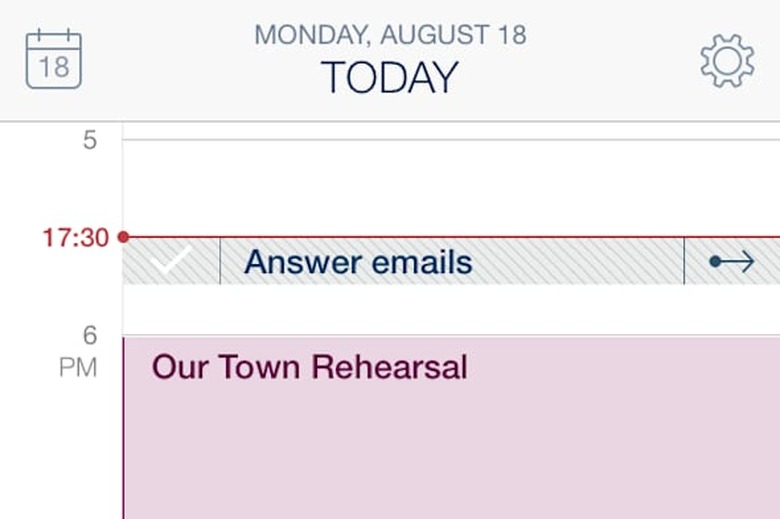
    Timeful for iOS is an innovative app for managing your time, tasks lists, and habits in one place. Where most apps tackle one of the three or provide a task list feature within a calendar app, Timeful actively works to integrate all of those in a way that helps ensure you make the time for the things you want and need to do. Timeful requires iOS 7 or later and is optimized for iPhone 5. Best of all, it's free! When first run, the app asks for permission to access your calendar and reminders. It also requires you to create an account. (This type of thing bothers some users and the developers do nothing to explain why this is necessary, which doesn't help put anyone at ease. I'm personally not bothered by this but I understand that some are.) In the final stage of the setup process, Timeful provides a few suggestions for to-do items you can use to try things out as well as some habits you may want to begin. Whether you use any of the suggestions is up to you. Once you have completed the setup process you can create your own tasks and habits as needed. As you enter new tasks, you can tell Timeful when you would like to do them. Part of the magic of the app is that you don't have to be specific. You can say "Today" or "Tomorrow" or "On" a specific date, but you can also say, "Sometime in the next 7 days" or "Someday before" a given date. When you return to your calendar, Timeful will begin populating it with your tasks suggesting times for each one. You can accept the suggestion by tapping the entry in the middle. You can defer it to tomorrow by tapping the rightward facing arrow on the right, or you can drag it to another place in your schedule for today. If you have specified a time a given task will take (part of the task creation process), you can drag the task from the top of your calendar into the day and it will expand to the right width to match the duration. In other words, an hour-long task will be an hour-long block that you can drag around your schedule. In the example above and below, "Review site accessibility" is a task I have created that will take an hour or so to complete. When I tap on the task (shown above the schedule portion of my day) and drag it downwards, I can then drop it into my schedule and it will fill the correct amount of time (below). Habits are handled in a similar fashion except you specify how many times a week you want to work on them, which days you prefer and which time of day (morning, afternoon or evening) you prefer. Timeful will then attempt to set aside time for those repeating events. Of course, you can move the various habits around to suit your needs. Timeful is supposed to learn over time from your usage and become smarter about picking times for your tasks and habits, but I have not used the app long enough to comment one way or the other on this. Timeful is an innovative idea and fills an interesting niche in personal productivity apps. It may not serve all of the needs of the kind of person who uses tools such as OmniFocus or Things, but then again, the biggest problem is finding the time for everything. Timeful attempts to fill that gap and does it very well. It's free and that makes giving it a trial run a no-brainer. Though, I would recommend giving it more than a few days so you have time to get used to how it works and what it does.

    By Andy Affleck Read More
  • CloudFella manages cloud accounts but is hampered by crashes

    CloudFella for iOS manages your files in four of the major cloud services: Dropbox, Microsoft OneDrive, Google Drive, and Evernote. CloudFella gives you access to all of your files across these services, provides searching, statistics, local storage, and a duplicate files finder. Unfortunately, it is marred by a cumbersome interface and frequent crashes. CloudFella requires iOS 7 or later, and costs US$1.99. It's a universal app, but is optimized for iPhone 5. Getting started is simple. After tapping on the big cloud (the only way to reach the "Link Cloud Services" screen) you tap on each service and authorize CloudFella to access your files. Once linked you need to download the information about your files by swiping right on each service. The item you swipe your finger across does not actually move as it does in other apps, but just begins downloading the data. If you swipe to the left by accident (as I did my first time through) you unlink the account and have to start over. There is no warning or confirmation. It just happens. Downloading the files info went smoothly for three of my four accounts. Downloading files info from Dropbox led to a cascade of error dialog boxes. After clearing twenty of these dialogs, I force-quit the app and re-launched it. Dropbox showed up in my statistics on the dashboard even though the "Link Cloud Services" screen still showed it as not downloaded. Subsequent attempts to download the files info for Dropbox resulted in crashes. When I unlinked Dropbox, it still showed up in the dashboard. The dashboard shows you some statistics about your cloud accounts. Unfortunately, the main pie chart cannot handle the number of files I have and displays a graph with largely illegible numbers that are either cut off the left edge of the screen or jumbled together. Other charts display file sizes, last modified dates, and the number of files and directories. CloudFella has a search function that can search all four services at the same time. This, for me, is incredibly useful as I am a heavy user of both Dropbox and Evernote and being able to search both at the same time would be helpful to me. Unfortunately, searching did not always work. When you perform a search you have to click cancel to begin a new search, which is non-standard and initially confusing until you get used to it. More concerning is the fact that some of my search queries did not return files I know exist. CloudFella lets you download files for local storage and fast access. With the first PDF file I tried, it indicated that it was downloading the file. After a few minutes of this, I force quit the app again (I could not tap on anything else) and re-launched it. The file appeared in the vault anyway and I was able to open it and scroll through it. Finally, CloudFella offers a duplicates feature that is supposed to find duplicate files across all four services. There is little I can say about it because the app crashed every time I tried to use it. CloudFella has the potential to be a useful tool for anyone who manages more than one large cloud account but its non-standard approach to many basic functions and instability get in the way of its usefulness. Once the interface and bugs are cleaned up, it will be worth its US$1.99 price tag.

    By Andy Affleck Read More