TJ Luoma

Engadget Editorial Policies

The unique content on Engadget is a result of skilled collaboration between writers and editors with broad journalistic, academic, and practical expertise.

In pursuit of our mission to provide accurate and ethical coverage, the Engadget editorial team consistently fact-checks and reviews site content to provide readers with an informative, entertaining, and engaging experience. Click here for more information on our editorial process.

Stories By TJ Luoma

  • BitTorrent Sync gives you the flexibility to sync anything

    Several months ago I started replacing Dropbox with BitTorrent Sync ("BTS" for short) for my file-syncing needs, and I couldn't be happier with the results. One study showed BTS was up to 16 times faster than syncing to the cloud. Let me walk you through some of the features and some of the reason why I've grown to prefer it. OS X comes with some standard folders which I had not been able to use since I started using Dropbox; for example, my ~/Documents/ folder went unused because I had to use ~/Dropbox/Documents/, and I couldn't use ~/Pictures/ because if I wanted to sync them they needed to go into ~/Dropbox/Photos/. Now I can sync whichever folders I want, wherever I want, and call them whatever I want. Granted, Dropbox does have a few advantages over BTS, which means that I won't be getting rid of Dropbox entirely. Advantage number one is that files synced to Dropbox are always available, whereas BTS files are only available if at least one computer is on and connected to the Internet. Number two is that there are a great many iOS apps (and some Mac apps) which are designed to sync with Dropbox. Don't worry though, you can use them both together, which is especially useful if you have an "always on" Mac. The BitTorrent protocol is incredibly efficient, which means things like LAN sync between different computers are very fast. Having my ~/Downloads/ folder sync'd makes it easier to update non-Mac App Store apps across my computers. As soon as something is downloaded on one Mac, it is available on others. Now if I store a file on my Desktop, it will be copied to all my Mac's Desktop folders. Keep it one place, it is kept everywhere, or delete it somewhere and it is deleted everywhere. Something like this is exactly what I've been wanting for a long time now. Folders can be anywhere, but some of them aren't suitable for syncing. One example is ~/Library/Safari/Extensions/ which will sync, but Safari will not recognize extensions added directly to that folder, presumably as a security precaution against malware adding extensions without explicit user intervention. Resist the urge to try to sync your ~/Library/Preferences/ or ~/Library/Applications Support/ folders either; it won't end well. As for integration with iOS and Mac apps, I will keep a free Dropbox account to sync those apps which can use it, and I will run Dropbox on one "always on" Mac, but then I will also sync those folders to my other Macs using BTS instead of Dropbox. Like Dropbox, BTS can be paused temporarily if needed (I wish it was possible to pause syncing on a per-folder basis, but alas). Linking computers can be done from the "Share" menu inside the app, and can be shared with others via URL, QR code, or copying the keys. The shared folders can be read/write or read-only, the URLs created for sharing them can be set to expire after a certain number of uses or a certain number of days. Having the code means that you can disconnect and reconnect a synced folder anytime by copying the code, saving it in a safe place, and then reconnecting it later. Even though a selective, per-folder sync would be more convenient, this is a decent work-around for now. Finally, BTS has given me a more flexible sync option than Dropbox, which syncs faster and has no limits except for available hard drive space. If you have wanted to move away from Dropbox, or if you have files that you want to sync and keep completely private, BTS is a great option. Start with one folder (Downloads or Desktop are good options) and see if it helps. Help for getting starting is available at the BitTorrent Sync forums.

    By TJ Luoma Read More
  • Hocus Focus hides inactive apps automatically

    There are two kinds of people in the world: people who like a nice, clean virtual workspace, and John Siracusa. If you're closer to the former than the latter, check out Hocus Focus - a Mac menu bar app which automatically hides inactive apps. At first, Hocus Focus may remind you of Spirited Away (no, not the Japanese animated fantasy film) another Mac app which did something similar. However, according to MacUpdate, Spirited Away hasn't been updated since November 2009. Hocus Focus also has some additional features which make it much better. When you first start it, Hocus Focus will default to hiding inactive apps after 30 seconds. That's a good, basic starting point. However, there's no need to stop there. You can change the hiding time on a per-app basis, or disable hiding for certain apps (drag the time-slider for an app all the way to the left, and it will join a "Disabled" group at the bottom of the list), or you can have apps hide immediately after they lose focus. For example, as soon as I am done with Activity Monitor, I want it hide itself immediately so I don't see it updating in the background, which can be distracting. On the other hand, I often want to keep Tweetbot visible in the background, so I might not want that to hide at all. If I am in the midst of sending messages to someone, I might want to give Messages.app a little extra time before it hides itself, but if I haven't used it in, say, five minutes, then it can hide itself. Last but not least, you can create different Profiles in Hocus Pocus. Each profile can have a different default hiding time (for example, 60 seconds instead of 30), and you can have different settings for which apps to hide, or not hide, or how long to let them be idle before hiding. I created a profile where everything hides after 15 seconds except for MultiMarkdown Composer and Marked 2, which I used while writing this article. My only complaint is that Hocus Focus' profile switching feature using ⌘+\ as its hotkey, which has been 1Password's keyboard shortcut for time immemorial, but you can easily change it in preferences. Hocus Focus was on the Mac App Store under the name Houdini. The app is no longer in the App Store due to concerns about "App Store rejections and rule violations" (understandable, especially if you're familiar with Apple's move towards sandboxing). The move away from the App Store also means that updates will be available to users more quickly. Hocus Focus is free, but donations are accepted.

    By TJ Luoma Read More
  • Alfred Remote is here and it's interesting

    Alfred Remote (US$5) is here, it's really well-designed, easy to use, and I'm not sure how I'm going to use it yet. I can't even remember how long ago I first spotted the "Remote" icon in Alfred 2, but it has been there for so long I've kind of grown blind to it. There wasn't anything there, just a "Coming Soon" teaser, and I didn't hear anything more about it for many months. So I was pleasantly surprised to hear that it was finally going to be available. First, let's talk about the good parts. Alfred Remote looks awesome. It has great icons and the whole app looks and feels like a great deal of care was taken in the design of it. At the bottom are several "pages" which are similar to browser tabs, or iOS folders, each one containing a grouping of related items. By default, "pages" exist for Applications, Preferences, Folders and Files, Bookmarks, iTunes controls, and System Commands. App icons are used where you'd expect, and custom icons exist for other actions. The icons are cleanly designed and look right at home in iOS. You can swipe between the various pages quickly and smoothly. You can add your own pages as well, or rearrange existing ones. Creating new ones could not be any simpler, click a "+" sign and Alfred will show you what actions are available. If you are familiar with creating Alfred workflows, this will seem right at home. It's clear that as much effort was put into making Alfred Remote easy to use as well as looking good. (Insert standard "Design is how it works" reference here.) Once you have "paired" your iOS device running Alfred Remote with your Mac running Alfred, you can start using the built-in actions: launch iTunes, open your mail app, fire up Safari, open the folder with that project you've been working on, etc. Alfred Remote can run scripts, AppleScripts, Terminal commands, and Alfred workflows, so if you want a command which isn't available by default, chances are good that you can create your own. But after I finished going through the "demo" phase of "this is what it can do" I found myself stymied by a fairly basic question: "What would I use this for?" For example: with Alfred Remote, I can launch any app on my Mac from my iPhone. If I want to listen to music, launch iTunes from across the room is a clear win... except that once it has started, I don't have much control over what comes on. I can skip forward or back, I can adjust the volume, I can go to a random album. But if I sit down and really want to listen to a specific playlist, or a specific album, I can't control that from my iPhone, unless I am going to make separate workflows for each one. I can't use Alfred Remote to scroll through my list of movies in iTunes or pick an episode of a TV show. Unfortunately, iTunes is the best example of what Alfred Remote can do when it comes to app control. Other built-in controls allow me to launch Safari, or even execute a saved web search... but then what? I still have to be seated at my Mac to use it. I can launch Messages, FaceTime, Maps, Contacts, Mail, Calendar, Reminders... but after I launch them, I still need to be seated at my Mac to use them, or I could just use the version of those apps on my iOS device instead, which seems much simpler. Again, there is an entire page dedicated to System Preferences, which will immediately launch System Preferences.app and bring the appropriate preference pane to the front, but then I still have to sitting at my Mac to do anything with it. I can open a file or a folder, but, then what? To be fair, I only used Alfred Remote for a few hours. It's possible that there are ideas and use-cases which have not occurred to me yet, but after the initial burst of "Cool! I'm controlling my Mac from my iPhone!" I found myself stuck on "Now what?" I had hoped that I might be able to use Alfred Remote more...um, remotely. I imagined that I might be sitting down at lunch and wondering whether or not I locked my Mac, launching Alfred Remote on my iPhone and sending a message to my Mac to lock itself remotely. Unfortunately, Alfred Remote only works if the Mac and iOS device are on the same Wi-Fi network. (The Alfred team are looking into more "remote" functionality as a potential future addition to the app.) Pairing Alfred to Alfred Remote was also a little clunkier than it needs to be. After starting the pairing process on the Mac and the iOS device, a 12-character passphrase (case-sensitive, letters and numbers) is displayed on the iOS device, and must be typed into the Mac. Contrast this with pairing a new Bluetooth device, where a message appears on both devices saying "Hey, is this code the same on both devices? Press Yes or No." I understand the desire for security, but I'm not sure about the actual risk involved. In order for the pairing process to be initiated, it has to be started from both the Mac and the iOS device at the same time while on the same Wi-Fi connection. Not much of a chance of that happening randomly, is there? And if someone happens to catch me at just the right moment, it would still be simpler just to confirm the code on both devices. Maybe it's just me, but I'm 0/3 when it comes to entering that code correctly on the first try. That being said, obviously the pairing process only needs to be done once per device and per Mac. For me, Alfred Remote will probably be most useful when I create some workflows which will trigger Keyboard Maestro macros, which can be far more involved that Alfred workflows. For example, I could create a shortcut which will trigger my Keyboard Maestro macro to get ready to record a podcast. You could create a similar workflow in Alfred, at least one which would quit or launch specific apps, but even then I struggle to imagine the situation where it is easier to do that on my iOS device than just triggering the same workflow from Alfred on my Mac. This app looks so good and works so easily, I find myself wanting to find some reason to use it. I hope the design team behind the atrocious OnStar RemoteLink app sees Alfred Remote and realizes what a terrible job they did by comparison. This is also only the first release of Alfred Remote – it will no doubt continue to get better and gain more features. But for me, for now, I can't find an answer to the question "What problem does this app solve?" That being said, after having tested the demo version of it and written this review, I didn't hesitate to buy it. I expect that the app will continue to grow and improve, and I would not be surprised if the Alfred community comes up with some cool uses for Alfred Remote that I haven't even considered yet.

    By TJ Luoma Read More
  • Drafts 4 brings a new hope to a favorite iOS utility

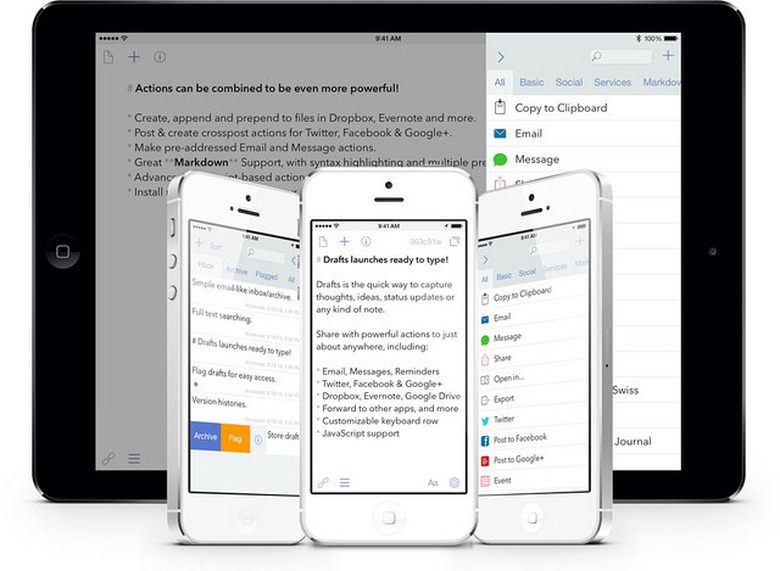
    Drafts lives in my dock on both my iPad and iPhone. Any time I start to write anything on my iOS device, I start writing it in Drafts, because I know that I can leave it, switch to another app, or several other apps, and when I come back to Drafts, what I wrote will still be there, always. When I'm done, I can easily send what I've written to another app, or just copy it to the clipboard. I use Drafts all the time, so when I heard a new, totally redesigned version was coming, I was excited, but also a little nervous. Change is scary, and I didn't want to lose anything that I liked about Drafts. Well, spoiler alert, it only took a few minutes using Drafts 4 until I deleted the old version and never looked back. Drafts version 4 is a new, separate app. That means that you can keep Drafts version 3 on your iPad or iPhone/iPod touch alongside Drafts 4. It also means that you will need to buy it again. Drafts 4 is a universal app for iPhone or iPad, including the iPhone 6 Plus with portrait and landscape support. Drafts is currently available for the absurdly low price of US$5 through October 23, 2014. After that, the price will go to a more reasonable $10. Yes, I know, Apple has made it common for people to think that $1 is a lot to spend on an app, but Drafts is an app which has had ongoing improvement for years from a developer who is committed to the platform. $5 is a steal. $10 is still a reasonable price for what you're getting (not to mention that developers have to eat and pay bills, too). There's a whole lot of awesome inside. Drafts 4 has a long, long list of new features and I won't rehash them all here. Some of my favorites include the Share Extension to easily capture text from other apps and Versions for draft modifications, so you can easily go back to earlier versions after making changes. If you write in Markdown you'll love the new syntax highlighting feature in Drafts. There is also an option for highlighting with a focus on social media, or a plain text mode for those of you who prefer no syntax highlighting at all. As always, one of the best parts of Drafts is how customizable it is, and that's even more true in Drafts 4. The extended keyboard is customizable, and allows "pre-built functions, arbitrary text insertion, and powerful script keys" which can utilize JavaScript to manipulate text. The Extended Keyboard alone would make this an awesome upgrade. Drafts has also had the power to string together multiple actions, and that has gotten much easier in version 4. Now you can put multiple steps in one action without having to come up with an elaborate chain of actions. See the "Actions" section of the "What's new?" guide for more information. If you already have your own custom actions and drafts from Drafts version 3, you can import them to Drafts 4. The process only has to be done once, and there is a Migration Screencast to guide you through the whole thing. Written migration instructions are also available for those who prefer that. (I recommend watching the screencast even if you use the written instructions as a reference, as it makes it clear how the process works.) Personally, I decided to start fresh with Drafts 4 and didn't migrate anything over, as a way of forcing myself to take a closer look at everything the new version has to offer. You can leave Drafts 3 on your iOS device and migrate your old information anytime you want. Drafts is a huge update to one of my most-used apps. If you've used Drafts before, version 4 has just gotten better. If you've never used Drafts, this is a great time to learn more about it. Get it now on the App Store.

    By TJ Luoma Read More
  • How to patch OS X for the bash/Shellshock vulnerability

    There's a big bad bash bug out in the Unix world called Shellshock, and it is pretty serious. Bash is a ubiquitous bit of software; a command interpreter, or "shell," that provides a basic text-on-a-green-screen interface to POSIX/UNIX and Unix-like systems. Bash is present on every Linux distribution, almost every UNIX system, many Android phones, thousands upon thousands of embedded OS versions on hardware devices -- and on every version of Mac OS X ever shipped. Like the recent Heartbleed vulnerability in OpenSSH, Shellshock has the potential to be calamitous; in fact, it could be quite a bit worse than Heartbleed, because in theory Shellshock could allow malefactors to run arbitrary commands on lots and lots of UNIX or Linux machines. If that sounds unpleasant, it is. Shellshock attacks could target several points of entry -- Git and Subversion clients, compromised DHCP servers, etc. -- but the most likely vector would be through the wildly popular Apache HTTP server, included on most UNIX or Linux distributions and on OS X. Mac users might breathe a little easier knowing that Apple removed the System Preference control for the Apache web server in the standard Mountain Lion and Mavericks OS X versions. Apache is still there under the hood, however; it's front and center in OS X Server, and you can easily turn it back on with the free Web Sharing control panel. If your Mac shipped with Mountain Lion or Mavericks (i.e. you bought it in the last two years), it's highly unlikely your Apache web server is turned on. It also probably got turned off if you upgraded to a current OS X edition, so if you didn't take steps to reactivate it, your potential attack surface for Shellshock is smaller than it would be otherwise. (Not sure if your Mac's web server is on or off? Try visiting http://localhost/ in your browser. No page available = off, anything else such as "It works!" = on.) The Vulnerability Summary for CVE–2014–6271 rates Shellshock as a "10," and there is no 11. You can read all about it if you want to learn more (I recommend Troy Hunt: Everything you need to know about the Shellshock Bash bug), but here I'm going to share a way to fix it on your Mac running OS X. As mentioned, the vulnerability is most concerning for Macs used as web servers on the Internet, but the security-minded average user may want to go ahead and patch anyway. This solution comes from Ask Different, one of my favorite Mac Q&A sites. Alex Blewitt (@alblue) wrote up a great answer to How do I recompile Bash to avoid Shellshock. He also wrote it up on his website, so full credit to him for the solution. (If the notion of recompiling a system utility is alien to you, breathe easy; we're going to go step by step.) First, you need to make sure that you have Apple's Xcode development environment installed (the command-line tools alone are not sufficient). If you don't have Xcode, you can grab it for free from the Mac App Store -- but be prepared to wait for a while, it's a 2.5 GB download. Once the App Store finishes installing it, you need to enable the command-line tools by agreeing to the licenses; open Terminal.app and type "sudo xcodebuild -license" followed by a return. You'll be prompted to review Xcode's licensing agreement, which you are welcome to read in its entirety if you have the time. Once the license agreement is done, you'll need my bash-fix script which you can download from GitHub, and you'll need to be logged into your Mac as an OS X administrator (if you're the only user of your Mac, your account is the administrator account). Once you have the bash-fix.sh script downloaded, make the script executable -- type chmod 755 and a space, then drag the downloaded script into the Terminal window, and hit return. Next step, run the script -- drag the bash-fix.sh into the Terminal window, and hit Return. The script will download the source to bash, patch it, compile it, install it, and replace the old instances of the bash and sh executables; it will prompt you for your password along the way, so keep an eye out for that. Apple will eventually issue an official fix for this problem (and these steps should not interfere with that in any way), but if you don't want to wait for Apple's fix, you can get started now. Unfortunately there is another bash vulnerability which, as of this writing, has not been patched. But it's better to fix one problem than zero problems, especially if you have a public Mac server somewhere. Michael Rose contributed to this post. Update: (26 Sep, 10:15 a.m.) If you are getting an error, be sure to run sudo xcodebuild -license and agree to the terms and conditions. Then re-run the script. -- Tj

    By TJ Luoma Read More
  • How to easily add secure FileVault passcode to your Keychain

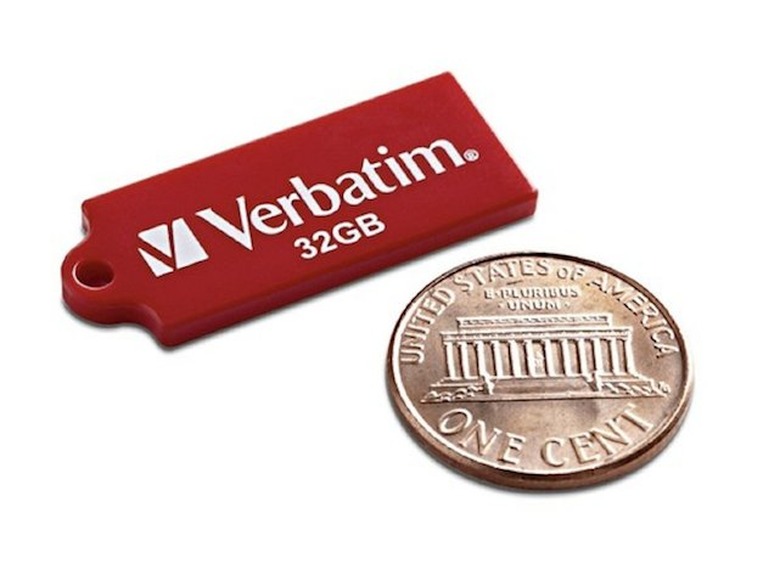
    Since I have a terrible habit of losing things, I decided to encrypt my Verbatim "Tuff-N-Tiny" USB drive. This was a simple matter of control-clicking the drive name in Finder, choosing "Encrypt" and then setting an encryption password. I also decided to use 1Password to generate a nice, secure, long, random password: I copied that password from 1Password and pasted it into the password field in Finder, and made a note in the "hint" field that it is stored in 1Password: I clicked "Encrypt Disk" and Boom! done. I considered myself quite clever for being such a good practitioner of security practices... ...until I plugged the USB drive into another computer. As expected, the password prompt appeared. I switched over to 1Password, copied the password to the clipboard, and tried to paste it in to the prompt. OS X would not allow me to paste into the password field. I thought I would solve the problem by using Keyboard Maestro and have it simulate typing into the Secure Input password field, which is how I usually get around the "Can't Paste Here" problem. For some reason, it did not work, despite repeated attempts. Suddenly I felt extremely stupid for making such a long, random, hard-to-type password. I was definitely not looking forward to re-typing it on each Mac that I might want to use with the drive. A less... peculiar ... person would have just changed the password to something simpler. But I wanted to know if there was a way to use the secure, long, random password without having to type it all in manually. The drive can be mounted easily (and without requiring me to enter the password) on the Mac where it was first configured because the information is immediately stored in the Keychain. That gave me the hint I needed to figure out how to configure it on my other Macs. I went to the Keychain Access.app in /Applications/Utilities/ and searched for "Transport" (the name I had given the USB drive) and found this: Aha! Now that I knew the correct information to put in the Keychain, I went to my second Mac (but did not put the USB drive in yet), launched Keychain Access.app and chose File " New Password Item... from the menu. Put the name of the drive into the first two fields, and then put the password into the password field. Click Add. Then find the new entry in Keychain Access, and double-click on it. Change the "Kind" to "encrypted volume password" and copy the drive UUID to the "Where" field. Click Save Changes and quit Keychain Access.app. Pro Tip: If you forgot to copy the volume UUID from the first computer, you can get it from the System Information.app under Hardware " USB and then select the drive. You will see the UUID in the information window. Now you can plug in the USB drive, and when you do, you will see this prompt to allow access to the entry you created in keychain: Be sure to click "Always Allow" unless you want to be prompted every time. Whew! It might seem like a lot of steps, but it's pretty easy, and much easier than trying to type 8vphs/tEUX7FH'w9Td>tO]Qoq7ob6]W0+!BN_9J2o.Uh}jGz98 without making a mistake. Update 2014-10-07: I discovered two additional tidbits today which might come in handy for anyone else who comes across this page later on: If you are using this on OS X 10.7 (Lion), then you need to use "Encrypted Volume Password" instead of "encrypted volume password" The reason that my Keyboard Maestro "insert plain text by typing" macro did not work was because I use Option/Alt+V and if you keep the Option/Alt key held down, it changes the characters which are typed. When doing this via ScreenSharing (which is how I was doing it), it seems impossible to release the Option/Alt key fast enough to avoid corrupting the typed password. However, this can be easily worked-around within Keyboard Maestro itself: I simply added an option to my Keyboard Maestro macro to insert as plain text by typing when I select a Status Bar (aka menu bar) item, and when I use that instead of Option+V it works! Which, of course, means that you do not need to go through the much more complicated process of manually adding this to the Keychain Access.app. Live and learn.

    By TJ Luoma Read More
  • Be aware, be careful, be prepared for iCloud Drive

    If you use iCloud: you need to be really, very, no-I-am-not-exaggerating, super careful when you upgrade to iOS 8. Otherwise you could break iCloud syncing to all of your Macs. I hope I have your attention. When you are setting up a new iOS 8 device, you will see a screen like this (image courtesy of Realmac Software): If you choose "Upgrade to iCloud Drive", then iCloud document syncing will stop working on your Macs unless you are using the Yosemite beta and the Mac app has been updated to use iCloud Disk. There is no way to "undo" the decision to move to iCloud drive, so you will have to wait until Yosemite is released (or join the beta) and the Mac app is updated. TUAW's advice is that you wait to upgrade to iCloud Drive until Yosemite is officially released. You can always upgrade to iCloud Drive later. You cannot "downgrade" from iCloud Drive back to regular document and data syncing. It is entirely likely that there will be bugs and glitches and problems with iCloud Drive at first. Unless you have a strong desire to be part of the ongoing testing of iCloud Drive, wait. Personally, I think iCloud Drive sounds great, but it is yet another one-point-oh release of syncing software from Apple, who does not have a very good track record in this arena. I'm in no rush to move over to it. Backup your iOS device to iTunes before you install. While I have your attention, let me make another suggestion: make a local backup of your iOS device before upgrading to iOS 8. A local backup or your device is the best chance you have to protect yourself in case something goes wrong. If you have pictures on your iOS device, I highly recommend that you connect it to your Mac, launch Image Capture.app and copy all of your pictures to your Mac hard drive. Yes, even if you use iCloud backup and/or Photo Stream. Why? Because I'd much rather you have two copies than none. Just in case. Belt and suspenders. Import them to a folder on your Desktop named something like "iPhone Pictures 2014–09–17" and if the upgrade goes off without a hitch you can just trash the folder. "But I use iCloud backup!" That's good! iCloud backup is great and convenient. I use it myself. However, the day of a new iOS release is the last day you want to be trying to restore your iOS device from an iCloud backup. Apple's servers are going to be slammed. You want a local, current backup you can use just in case. The good news is that you can easily make a manual backup in iTunes, even if you usually backup to iCloud: Be sure to encrypt the backup, which tells iTunes to include your various passwords in the backup. Note: if you haven't done a backup to iTunes recently, it might take awhile. I did a manual backup a day before iOS 8's arrival, and I'll update it while I'm waiting for iOS 8 to download. Image Credit: Nicolas Raymond created the awesome Crossing Road Grunge Sign - Welsh Dragon above. Used by permission.

    By TJ Luoma Read More
  • xScope 4 released and currently on sale for 50% off

    xScope version 4 has been released by The Iconfactory. If you aren't familiar with xScope, it is a tool for designers who need to measure, inspect, or test design elements. Version 4 comes with dozens of new features which I won't bother regurgitating here, but will highlight some of the ones that stuck out to me. I first learned of xScope several years ago when I was looking for an on-screen ruler to check the dimensions of a web page I was creating. Of course xScope can do that, but it's sort of like saying you can use your iPhone as a tip calculator. It can do many kinds of measurements to check dimensions, rulers, and basically anything else on your screen. There are controls to check sizes on Retina vs non-Retina displays, on-screen guides, and more. One of the most interesting features of the new version is the text feature, which lets you search, decipher, and convert text into HTML entities, URL encodes values, or other formats. It also has a handy loupe feature which helps you check colors and measure small spaces easily. If you do app development or work with CSS on web pages or any other of a wide range of design work, you should check out xScope. As part of the version 4 release, it is currently on sale for US$25, which is 50% off the regular price. If you want to try it before you buy, you can download a demo from their website. You can buy it either directly from The IconFactory or from the Mac App Store. (As always, my recommendation is to buy directly from developers whenever possible, which allows them to give you upgrade pricing and also gives you faster updates without having to wait for the Mac App Store approval process, which is often very slow.) A $50 app stands out in the world of "fart app pricing," so I was interested to see how people would react. This morning I searched Twitter for for xScope and @xscopeapp and the response has been overwhelmingly positive. Several people called version 4 an "instabuy". "For my work, the Text tool in the new version of @xscopeapp is enough to warrant the upgrade cost. Nice effort!" - @alstonebridge "No brainer this one: Upgraded to @xscopeapp 4.0 and it's not even "release thursday" yet. Use it every single day. Kudos @gedeon and team." - @hiltmon "Fab-tastic xScope 4.0 is out. Brilliant tool for designers, photographers, and me." - @mattgemmell There were plenty of others, but perhaps the most helpful comment for people who are considering it is this comment from a few days ago by Kerri Hicks who wrote: ".@chockenberry xScope probably saves me about five minutes a day. At $50/hr, it'd pay for itself in about two weeks. Can't wait for upgrade." Developer Craig Hockenberry has been at work on xScope full time for the past year and reminded users that "It's been 2.5 years since the last xScope release and included (non-trivial) Photoshop Mirror, Retina and Mavericks updates for FREE." Those who are familiar with The IconFactory know that they have a great track record of developing and maintaining great apps for iOS and Mac. If you aren't sure that xScope is for you, get the demo and try it out. As a non-developer/non-designer, I wasn't sure that it was something I would use, but I bought xScope 3 some time ago and regularly find times when I think "Oh! I can use xScope for that!" For example, sometimes when I'm making Keyboard Maestro macros, I have to use mouse positioning and movements. I could either try to guess and use trial & error (& error & error...) or I could just fire up xScope and get it right the first time.

    By TJ Luoma Read More
  • Solstice tip: Automatically run f.lux every day at 6 pm

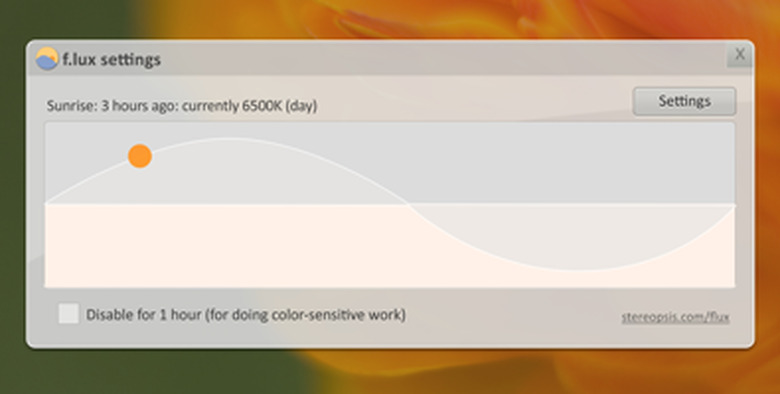
    It's the first day of summer in the Northern Hemisphere, so it's a perfect time to note that sitting in front of a glowing blue light for hours on end isn't particularly natural for us humans. f.lux is a Mac app which automatically adjusts the brightness and color of your computer display. The general non-technical idea behind the app is that the usual blue-white light from the screen tricks your brain into thinking that it is daylight, which suppresses the natural sleepiness response to the cycle of day/night. Are those claims scientifically valid? I have no idea, but a) there seems to be good science behind it, and b) I can tell you that when I run f.lux, I tend not to stay up as late, and if I turn f.lux off at night I am amazed how blindingly bright my Mac's screen is. The app is free, so if you use your Mac after sundown (and I bet you do!), why not give it at try? The other day on Twitter, Greg Pfeil wrote: "Realizing I've been up late on the computer lately because I disabled @JustGetFlux a couple days ago and forgot to turn it back on." I had been using a Keyboard Maestro macro to launch f.lux every day, but decided that it would probably be better as a launchd trigger because I'm not sure what happens to Keyboard Maestro time-trigger macros if your Mac is asleep when they are supposed to run, whereas I'm 99% sure that launchd will "catch up" and still run the command when the computer wakes up. Plus launchd is something anyone can use, even if they don't have Keyboard Maestro (which you should, but that's beside the point). To do this, first download f.lux and install it. Launch it and be sure to give it access to your location. Configure it if you like to tweak things, or just use the default settings (FWIW, that's what I use). Next, download this gist: and save as ~/Library/LaunchAgents/com.tjluoma.flux.plist and then either: 1) logout/login or 2) enter this in Terminal: launchctl load "$HOME/Library/LaunchAgents/com.tjluoma.flux.plist" Voilà! Now you never have to worry about remembering to launch f.lux again! And if the app is already running, that command won't cause any problems. If you want to change the time when f.lux launches (for example, in the winter you might want it to launch at 4:00 p.m. instead of 6:00 p.m.) change the plist file <key>Hour</key> to something other than 18. As always, when editing launchd plists I recommend LaunchControl.

    By TJ Luoma Read More
  • The novice's guide to excellent Mac backups

    Do you have a backup of your Mac? No? Get one. Wait, did I say one? I meant three. But one is a good place to start. Everyone knows they are supposed to back up, but maybe you aren't sure what you should do or how you should do it. I'm here to help. Step 1: The Bootable Backup (aka "clone") What is it? A bootable backup is a second hard drive that you can use to boot your Mac when your primary hard drive dies. Why do I want a bootable backup? Because when your primary hard drive dies, you can use it to boot up your computer and use it until you can replace your primary hard drive. How do I make one? First: buy a second-hard drive which is at least the same size as your current, internal hard drive. Second: attach the hard drive and run software such as SuperDuper (free, or US$28 for additional features like scheduling) or Carbon Copy Cloner ($40). Third: Repeat step two periodically. What are the problems with bootable backups? There are a few possible problems: If you don't update the "clone" often enough, you might lose new files that you have added to your computer. However, if you update the clone "too often" you might copy problems from your primary hard drive to your clone, or you might not realize that you accidentally deleted files from your primary hard drive and when you update the clone, those files will be deleted from your clone too. The biggest problem with bootable backups for people who use laptops is that you have to remember to connect the second hard drive to your computer and update the clone. How do I use it if I need it? Or how do I verify that it is working? It is important to "verify" your clone occasionally (once a month would be a good idea). To do this, restart your Mac with the clone drive attached and hold down Option / Alt key on your Mac while it is starting up. You should see an option to choose your clone drive. Select it, and make sure that your computer starts up. Once it does, reboot it again the same way and choose your primary hard drive. If you could only have one kind of backup, it should be a clone. But you should not, under any circumstances, only have one kind of backup. At the very least, you should have a clone and Time Machine. Step 2: Time Machine What is it? Time Machine is Apple's built-in backup solution. It is intended primary to help you retrieve a file (or folder) that you accidentally deleted, or revert to an earlier version of a file if you made changes to it that you no longer want. Why do I want one? Time Machine is ideal for restoring a file or folder that you accidentally deleted, or if you made changes that you need to undo by going back to an earlier time. How do I make a Time Machine backup? Buy a second-hard drive which is at least as large as your primary drive, and ideally twice the size. The larger the drive, the further back you will be able to go into the past. As soon as you plug it into your Mac, it will ask if you want to use it for Time Machine. Just say yes and it will go to work. What are the problems with it? Time Machine requires that you have an external drive connected.[1] By default, Time Machine runs once per hour, and if you have made a lot of changes, it can take awhile to back up. Many people have noticed that Time Machine makes their computers slow down significantly when the backup is active (although this does seem to have gotten better in recent years). You can tell Time Machine to "skip" (or, more specifically, delay) a backup, but there are obvious risks to doing that too often. Also, it is important to note that Time Machine does not backup your entire drive, and you cannot boot from a Time Machine backup. How do I use it? Once Time Machine has been running for awhile, go to an existing file and folder and launch Time Machine.app to see previous versions of the file or folder. Step 3: The Off-Site Backup Two backups – a clone and Time Machine – is great, but you know what's better than two backups? I'll give you a hint: it's three. What is it? An "off-site backup" is one that exists somewhere other than where your computer is. Why do I want one? You want an off-site backup in case of theft or disaster (fire, flood, etc). If someone breaks into your apartment or house and takes your computer, they are very likely going to take any hard drives they see also. If your home burns down (or floods, or gets wiped out by a tornado or other natural disaster), your backup is going to be just as destroyed as your originals. How do I make one? The easiest way is to sign up for an online backup service from a place like CrashPlan or Backblaze. For a fee, they will automatically backup your hard drive anytime it is connected to the Internet. I have used both of these services, and they are both excellent. In my experience, CrashPlan was a bit cheaper, but Backblaze backs up not only your main hard drive but any other connected drives (other than Time Machine, etc. which would be a waste). CrashPlan is often criticized because it is a Java app instead of a native Mac app, and often seems to cause computers to slow down a great deal, although there are settings which can be adjusted to decrease the CPU usage when the computer is in active use.[2] CrashPlan can also be used to backup to another computer (like to a friend or relative's computer in another state) at no charge. While setting that up is outside the scope of this article, it is an option for those who would like to avoid a recurring charge for this. One of the other benefits of a paid CrashPlan or Backblaze account is that you can use an iPhone or iPad to get a copy of a file from your account even when you are not at home. Also, if you do lose your computer and backup, both companies will (for a fee) send you a hard drive with your entire backup on it, which can save a ton of time after a disaster. What are the problems with an off-site backup? The biggest problem with an off-site backup is that "upload speeds" (that is, the speed at which your computer can send information to either CrashPlan or Backblaze) are usually pretty slow. A lot of that has to do with the generally terrible state of broadband Internet in the United States in general. It can take weeks (or longer) for your initial backup to be completed. However, once it is done, only changes have to be made, which are usually fairly small. How do I use it? Both CrashPlan and Backblaze can be used simply by creating an account, downloading their app, installing it, and letting it run. Both offer a free trial period of at least a couple weeks (which is good since it will take quite awhile for your files to upload anyway). After that it's just a matter of leaving your computer turned on, even when you aren't using it, until the initial upload it completed. Now you have a "3-legged" backup system A clone/bootable backup plus Time Machine plus off-site backup gives you a very well-rounded backup system that should protect you well for the inevitable day when your hard drive dies. (Notice that I keep saying "when" your hard drive dies, not "if" because it's only a matter of time. Every hard drive dies eventually.) Such a system will cover most of the eventualities, as long as you use them. Especially with MacBooks, it is difficult to remember to plug them in to update your clone and Time Machine. I recommend that when you get ready to go to bed, you simply get in the habit of plugging in your MacBook at night to update Time Machine and SuperDuper. It is also a good time to let your online backups update as well. Dropbox - a 4th leg? A three-legged table is far superior to a two- or one- legged table, but when it comes to backups, I recommend one more piece. The good news is that this is the easiest piece, and it is completely free: Dropbox. If you have somehow managed to avoid hearing about Dropbox, here's what you need to know: it's a folder on your computer which syncs to "the cloud" (a/k/a "the Internet). The original idea behind Dropbox was sync, not backup, and you will still hear people who will say that "Dropbox is not a backup." To which I say: "Isn't it?" Every time you save a file to your Dropbox (when you are online), Dropbox will upload that file to Dropbox's servers, and those changes will sync to any other computers which are currently on and linked to your Dropbox account. Now, people will often say that "sync is not a backup" but Dropbox isn't just sync. All Dropbox users can go to their accounts on Dropbox.com to revert any change and un-delete files for up to 30 days, which sounds a lot like what Time Machine does. Now, Dropbox only gives you 2 GB for free (although it's easy to get up to 5 or 6 for free) so I wouldn't recommend using Dropbox instead of Time Machine, but there is one advantage that Dropbox has that Time Machine does not: Dropbox runs all the time. If you are editing a new file at 12:05 p.m. and your hard drive explodes at 12:10 p.m., chances are very good that your Time Machine backup will not have it, because Time Machine only runs once an hour. Your clone almost certainly won't have it, because you probably only update that every day or so. Your off-site backup may have it, as long as your backup was up-to-date before you created that file. But if that file was saved in Dropbox (and you were online while editing the file), that file was almost certainly updated on Dropbox. 2 GB is not a lot of space. You aren't going to store your iTunes or iPhoto collection on there, but any time I am actively working on a file, I am saving it to Dropbox, because I know that if all else fails, I will still have that file on Dropbox. If you don't like Dropbox, there are plenty of other choices out there: Google Drive, Box, Transporter, ownCloud, BitTorrent Sync and others. As long as the service syncs immediately (or reasonably soon – Transporter has been reported as being slow, I have not heard about the others) it can be an additional backup for you. It is not one that I would recommend instead of the three methods listed above, but it is one that I use in addition to them. "Do I need a separate hard drive for my clone and Time Machine?" Strictly speaking no, you don't, but with one important caveat. Remember: all hard drives die, and that includes backup drives. When your Time Machine backup drive dies, you will lose all of your historical information and the ability to undo/undelete files. If you use one drive for both Time Machine and your clone and that drive has a hardware failure, you will have to recreate both your clone and your Time Machine backup. So ideally you should have two separate drives. However, if you understand the trade-offs, it can be more convenient to only have to deal with one drive which can serve both purposes. For example, let's say that you have a 500 GB drive in your MacBook. You could buy a 2 TB external drive and use Disk Utility to "partition" the drive into one 500 GB partition to be used for cloning, and one 1.5 TB drive used for Time Machine. The primary benefit here is convenience, especially when traveling, but also just for every-day usage. A "bus-powered" drive only needs to be plugged in to a USB port on your Mac, meaning that it does not need to be plugged in to A/C power and does not have another cord to go with it. These drives are also small enough to fit easily inside a laptop bag so you can take it with you wherever you go. SuperDuper can easily be configured to launch whenever the drive is attached, and Time Machine will start as soon as its drive is recognized. Therefore with one drive you can plug it in at the end of the day, check to make sure that the clone process starts, and then go to bed while you computer backs itself up. SuperDuper can also be configured to run every day, or every "X" days, at a certain time. I have it set to run at midnight, and when I see the app launch it is a good reminder for me to go to bed! "TL;DR... just tell me what to do without all of the blah blah" Download SuperDuper, install it on your Mac, and register it for $28 to unlock all of its features. Get a hard drive (or two): If you are going to use one drive for both SuperDuper and Time Machine, get one which is 3x or 4x the size of your hard drive (i.e. if your drive is 1 TB then you want a 3TB or 4TB drive). When it comes, partition it using Disk Utility to have two partitions: one the same size as your hard drive (for SuperDuper), and another the other for TimeMachine If you are going to use two drives, buy one the same size as your hard drive, and another one which is at least 2x the size. Start a trial account with either CrashPlan or Backblaze and begin your initial upload. Create a Dropbox (or other) online account to use with your "currently active" files. Set a calendar reminder for at least weekly to remind you to connect the drive to your Mac. Actually, if Time Machine is enabled, it will continue to make backups even when your external drive is not connected, and when you reconnect it with your Time Machine drive, it will sync the changes over. This is called "local Time Machine backups." That is a great feature, but when your hard drive dies, any changes since the last time you actually connected to your Time Machine drive will be lost. ↩ CrashPlan's developers have said that a native Mac app is being developed, but it was originally supposed to be out in 2013, and we're mid-way through 2014 and it still has not seen the light of day, so I suggest not holding your breath. It might be tomorrow, it might be next year. ↩

    By TJ Luoma Read More
  • ABBYY FineReader Pro is an unparalleled OCR solution

    If you want fine-grained control over OCR and unmatched export options to a plethora of formats, ABBYY FineReader Pro for Mac is definitely worth a close look, but the current version has some significant caveats which you should consider before spending US$100 on it. FineReader's Exceptional Features If the most important feature of an OCR app is how well it does at recognizing text from a PDF or image file, then FineReader Pro is, by far, the best OCR app that I have ever used. I have thousands of journal articles saved as PDFs. Some of them are pretty good quality, but a few of them have image hovers best described as "a hasty Xerox made on a Friday afternoon before Spring Break by a work-study student who was far more interested in literally anything else." Crooked, dark, speckled, you name it. Time and time again, FineReader came through. Its automatic analysis was generally good, but when I took the time to use its more advanced features, it rewarded me with output that was as near-perfect as anyone can expect from an OCR application. FineReader then gives you an unparalleled assortment of export options, including four different options for PDFs alone: "Text under the page image" is what most people usually expect and want from an OCR app: the OCR'd document looks the same on the screen, but you can copy/paste from it into any other application. However, the option for "Text over the page image" will allow you to keep the formatting close to the original, but edit the results, if needed, and see it on the screen. This is especially useful if you want to edit the resulting PDF to correct any OCR mistakes, which will still happen, regardless of which app you choose. Export as Word (or RTF or ODT), Excel, CSV, or PowerPoint Exporting as PDF is only the beginning. You can also export to Word (.docx), including four layout options (exact copy, editable copy, formatted text, plain text), plus options to retain page numbers, headers and footers; keep line breaks and hyphenation; keep page breaks; keep pictures; keep text and background colors; high line uncertain characters; and keep line numbers. (All of those options are also available for RTF and ODT/OpenOffice.) I was surprised and somewhat perplexed to see options for Excel (.xlsx) and PowerPoint (.pptx) files, but that was mostly due to the fact that I rarely use either application. However, now that I have seen it and thought about it some more, it does now seem something like that could come in extremely handy for people who do need to process scans of documents which were originally produced in spreadsheet or presentation apps. If your scan is tabular data, you might also consider exporting as CSV. FineReader includes an option to ignore all text outside tables when exporting to CSV. Export as Ebook FineReader also supports two ebook formats, but probably not the two you would expect. You can export to ePub (as you'd expect) and FB2, which is a format that I had never even heard of, but is apparently for something called FictionBook. Options for ebooks include setting metadata such as the title, author, keywords, and an annotation (I do wish exporting to PDF had similar options). You can also use the first page as the book cover image and preserve/embed fonts (the latter option is for ePub only, not FB2). Those hoping for MOBI support should probably consider exporting to ePub and then either using Send To Kindle for Mac or some other solution. Export as Image I'm not sure who uses an OCR app to export the finished document as an image, but if you're one of those people, you can choose from JPEG, JPEG–2000, TIFF, PNG, BMP, JBIG2, PCX, and DCX. (What? No option to export a multi-page document as an animated GIF? Apparently the FineReader developers aren't familiar with Tumblr!) Export as Text or HTML The simplest way to use the text from your scan is to Export as TXT. (Markdown fans: take special note of the option to use a blank line to separate paragraphs). To those who are hoping to take complex print magazine formatting and reproduce it on the web, I have two messages: a) please don't and b) no, really, don't, but if you do, don't rely on FineReader for it. There are some options here for "fixed" vs "flexible" layout, and there's even an exciting-until-you-see-what-it-does option for CSS, but the end result is fairly ugly and convoluted HTML that will make tidy laugh and validators weep. (Or vice versa.) Seriously, if you really want an HTML copy of your document, export it as text, convert that to Markdown, and generate your HTML from that. The world will be a better place. Who shouldn't buy FineReader Pro As excellent as FineReader Pro is, it is not the right OCR tool for everyone. If you are just trying to clear off your physical desk of office office or household paperwork (mail, bills, memos, letters, etc.) then you probably just want to drop them all on your scanner and have them saved to the computer as fast as possible so you can shred/recycle the originals and then get on with the rest of your day. If that is what you want to do, don't buy FineReader Pro. Instead, use whatever came with your software, or buy PDFpen for $60 and use AppleScript to automate OCR and save $40 (or buy PDFpenPro instead). You'll probably get more use out of PDFpen/PDFpenPro's features than you would from FineReader Pro. FineReader Pro is exceedingly non-scriptable. It will not fit into any sort of automated process. In fact, when you open a PDF in FineReader Pro, it does not open the original file but instead imports the PDF into a new, untitled document. After processing, you can save the file as a FineReader document (.frdoc) which will save all of the customizations that you made to the various scan areas <h3 id="" i'mstillnotconvincedthatfinereaderproisreallyfull-onnerdyenoughforme...whatelsedoesithavetooffer""="">"I'm still not convinced that FineReader Pro is really full-on nerdy enough for me... what else does it have to offer?" Area Types: Designate parts of your document as a Text Area, Table Area, Picture Area, Background Image Area, Barcode Area, or Recognition Area. Text Functions: Is this section of text: Main Body Text, or a Header/Footer, or a Floating Text Block, or a Caption, or a Line Number, or the ever-vague Other? Need to scan a document where the text goes vertically instead of horizontally? FineReader can do that. Want to change the order that all of the recognized text areas are processed in? If you're planning to export to a non-PDF, you almost certainly do, to make sure that columns flow properly, etc. You can also choose from 186 different languages (although choosing more than 5 will present a warning that it will increase recognition time), but this comes in very handy if you need to be able to identify Latin terms, or even Greek or Hebrew, Nyanja or Papiamento! It even recognizes BASIC, C/C++, Java, Fortran, COBOL, Pascal, and "Simple chemical formulas." Sorry, no Klingon. A Quick Word Express vs Pro For the rest of this article, I'm just going to refer to the app as "FineReader" rather than "ABBYY FineReader Pro for Mac" but for the sake of clarity I want to make it clear that this is a separate app than ABBYY FineReader Express Edition for Mac. If you purchased that app and want to upgrade, this section will deliver the good and bad news. If you are a new FineReader customer, you can skip to the next section. ABBYY isn't going to win any customer appreciation awards from early adopters. Those who purchased the $70 ABBYY FineReader Express Edition for Mac can upgrade to "Pro" for an additional $80. Ouch. The description of FineReader Express in the comparison chart is definitely not the effusive self-praise ABBYY's marketing department gave Express back when it was the only product they were offering for Mac. The meager $20 discount is almost insulting especially when ABBYY's Why Upgrade? page ends with "Learn how to upgrade with a significant discount." The only worse news is for Mac App Store customers who, of course, don't qualify for any upgrade pricing at all. The Express version will continue to work, but I wouldn't expect to see any new features, especially since the Mac App Store version has apparently been pulled from the store. (N.B. Those who purchased it from the Mac App Store should still be able to download it from the "Purchased" tab from the App Store app.) Remember: OCR Is Hard. OCR is similar to speech recognition in that they both seem like something that a computer just ought to be able to do, and anything that falls short of 100% accuracy can feel disappointing. If you compare an OCR program's ability to the combination of an adult human brain and eyes, the OCR program is going to lose every time. Human brains are remarkably good at making sense out of gibberish, not to mention easily moving between different font typefaces and styles, navigate language changes with casual savoir faire, and can almost always tell the difference between a capital I and a lowercase L by subconsciously evaluating context. However, if we think about what a computer has to do in order to perform OCR on a document, we can recognize a number of elements which can affect the outcome: the quality of the original document typeface(s) of the original document (i.e. a single word or phrase in italics; limited character spacing (aka "kerning") which can make it difficult to distinguish an "n" from an "ri" etc. Not to mention the use of large initial capital letters in some print magazines where the first letter might be the equivalent height of several lines of the rest of the text.) layout (multiple columns in magazines) settings used when the document was scanned (DPI set too low or too high can cause problems) the language(s) used in the original document (or multiple languages, or technical jargon) hyphenation and line justification (should that word be hyphenated, or was it only hyphenated to keep the fully-justified column of text looking pretty?) determining what is important and what isn't The last one is so difficult that most programs don't even attempt it, they just scan everything, which is probably OK in most cases, but there is often superfluous information on the page, such as the title of the article or the author's name in the header of each page, which the human eye easily dismisses, but a computer cannot. Then, of course, there's also the problem of stray marks on the page. Bugs and Shortcomings FineReader Professional for Windows is currently at version 12, and the Mac version that I tested calls itself version 12.0.3, but this is not entirely true. It is certainly true that the text recognition engine has been refined for years on Windows, and Mac users are getting a mature program in that sense. However, the Mac implementation of FineReader Pro is very new, and there are some bugs. By far the most severe bug that I encountered during my testing was a rare and difficult to reproduce problem where PDFs imported into FineReader Pro, analyzed, and then exported as a PDF would be missing pages. I only saw this 2–3 times out over a hundred or more scans. If I had to guess I would put the occurrence rate at less than 1%. Those times when I did see it, I could tell that there was a problem when the file was being imported. For example, an 18-page original was reported as only having 16 pages as FineReader imported it. When I retried the same document, it always imported properly, making it extremely difficult to reproduce this problem. I did report this issue to the developers at ABBYY who are investigating it. The problem, of course, is that if you do not notice the page difference when importing or exporting, you might delete your original PDF and be left with an incomplete copy. I hesitated to even mention this, as I am concerned that it will {overly dissuade/discourage} people from trying the app; however, potential data loss is almost always the most serious bug that an app can have. Given that FineReader leaves the original PDF alone and imports a copy, the only way that you could lose data is if you delete your original PDF manually. However, I assume that most people would do exactly that. The second-worst bug that I encountered was that occasionally (perhaps 1–2% of the time), the PDF that I exported from Fine Reader actually looked worse than the original. Marco Arment identified this problem back in 2011: The ScanSnap came with ABBYY FineReader, which does an acceptable job, but degrades the image quality noticeably when it saves the text-embedded PDF copy. It's enough of a problem that I'm not comfortable deleting the original, and I'd rather not keep two copies of every file around, so I tried to find an alternative that could output better-quality PDFs with text. Before anyone dismisses this as Marco (or myself) being hypercritical, I invite you to look for yourself. I took a screenshot showing "before-and-after" to illustrate this problem is clearly visible to the average human. (Be warned: that screenshot link leads to a 1.3 MB TIFF file. I didn't want image compression being blamed.) The FineReader PDF was created with the image quality set to the highest value and "Compress images using MRC" was turned off. The resulting file is undeniably worse which seems like something that should never happen. This problem has also been reported to the ABBYY developers, and I hope that they will improve it in an free update to FineReader. My last comments in this section aren't about bugs, but about usability problems. The first is that FineReader Pro's error reporting is extremely weak. I have run into several documents which generated an error saying "Some of the pages have not been processed" without telling me how many pages or which ones. I am not a developer, so I don't know what is involved in making that error reporting more specific, but as a user I can tell you that the experience was highly unsatisfying. From a user's perspective I assume that the application knows how many pages were imported or exported, and how many errors were encountered, and I expect that it will give me precise information so I can track it down. It was also unclear to me what "processed" meant. Did that mean that OCR had failed completely for some pages? Had some pages failed to export? What am I supposed to do with such a vague error? Secondly, when deleting a page or pages from the app, the confirmation window asks if I am ready to delete the selected "page(s)." Again, as a user, this seems lazy. If I am about to delete a single page, then the app should be specific, i.e. "Are you sure you want to delete page 8?" If I am about to delete multiple pages, I expect it to tell me exactly which ones: "Are you sure you want to delete pages 19–23?" Is this finicky? Perhaps, but if you are selling a $100 app in a world where people hesitate to spend 99¢ and if you are going to label that app as a "pro" app, I am going to hold you to high standards. (Aside: I think the app is worth $100, and I think it's extremely unfortunate that a $5 app is considered "premium" but this is the world in which we live.) FineReader vs FineReader In the comparison chart for FineReader Pro vs Express, ABBYY describes the "Recognition accuracy" in Pro as "Unmatched" whereas Express is "Superior." Presumably ABBY hopes that we will gloss over those Meaningless MarketingSpeak Designations and not ask how, in a comparison chart between two products, "FineReader Express" can be labeled as "Superior" when, contextually, it is obvious that Express is the inferior of the two. Instead, ABBYY wants us to read between the lines (or table cells, as it were) and interpret this to mean "Express is Superior Than Our Competition Although We Are Not Coming Right Out And Saying That Especially In Countries Which Forbid That Sort of Product Comparison. But Pro is Better." DEVONthink Pro Office uses ABBYY FineReader Engine 11 for Mac for its internal OCR. Owners of recent ScanSnap scanners get an app called "ABBYY FineReader for ScanSnap" which can be used to automatically OCR scanned documents. The final product of those two options will be good, but not as good as FineReader Pro, especially if the original document has a more complex layout such as multiple columns. This is not surprising, considering that FineReader Pro is a new product. I would hope that the FineReader Engine will be updated and DEVONthink Pro Office users will be able to benefit from it. Here again the trade-off automated batch processing against the advanced features of FineReader Pro. Excellence, Not Perfection For complex documents, FineReader is your best option at turning a scanned file into a usable OCR'd document or convert it into a Word document or something else. It's a professional tool at a professional price, and while it lacks automation features, it is great at what it does. My only hope is that it will continued to be developed and improved, not just sit around for a year before a "new version" comes out. If that is the development model they are using, they'd better come up with better upgrade pricing than their current system.

    By TJ Luoma Read More

  • How to make a Fluid app for Facebook to protect your online privacy

    Ad Age reports that Facebook is going to try to use more of your browser history for tracking purposes and for ads. They will not honor the "Do Not Track" settings in the browser for reasons that boil down to "We don't want to and no one else is." As John Gruber put it, 'Google does it' is not exactly a badge of honor, privacy-wise. More and more, the entire advertising industry is turning into a threat to privacy. Advertising should be about attention, not privacy." Companies like Facebook and Google are going to continue to look for ways to "customize" your ad experience by trying to learn more and more about you. Neither company has shown a great deal of respect for user's privacy in the past, so it continues to be up to you, the user, to defend your privacy if you want to use their services. There is an easy way to avoid this (well, two, if you count "Don't use Facebook"): log out of Facebook whenever you aren't using it. Except that I am increasingly suspicious that (for many sites, not just Facebook) "logging out" doesn't actually mean "logging out" unless you also go into your browser settings and delete everything that is left behind by that site. Also, if you use security measures like two-factor authentication, logging back into sites like Facebook can become annoying when all you really want to do is check to see who has tagged you in some picture. Fortunately, there is another way: create a special web browser used specifically (and exclusively) for Facebook. That can easily be accomplished using Fluid. Second, tell your Mac to use that browser for any links to Facebook. That can be easily accomplished using Choosy. Fluid Fluid is a free app, but there are advanced features (specifically: separate cookies from Safari) which we will need for this, so you will have to pay a US$5 registration fee. That is a small price to pay for more control over your privacy. To create a Facebook browser, launch Fluid.app and then tell it to use https://www.facebook.com for the URL. You can give it whatever name you'd like, but I kept it simple and went with "Facebook." Fluid.app will use the regular Facebook icon, but if you'd like something a bit different, you can check Google for some other options. Basically, any square image will work, ideally at least 512x512 pixels. Once you press "Create" Fluid.app will make a "Facebook.app" in your /Applications/ folder. Launch it, and select the "Whitelist Preferences" as shown in the image here. The first two entries for Facebook.com should already be in there, so all you need to do is add the *fb.me* entry by clicking the plus-sign near the bottom left of the window. Once you have done that, click "Show All" (top left) and choose the "Security Preferences" as shown in the next image. The crucial item here is "Cookie Storage: Separate from Safari" (which will only be visible if you have paid your $5 Fluid registration). I also chose to uncheck the box next to "Enable Plugins" because I don't need or want Flash running on Facebook. If you are one of those people who plays Facebook games, you will not want to disable plugins. Now that you have those settings in place, quit your Facebook app (which is required after changing the cookie settings anyway). Brief Aside: "What about Chrome SSBs?" There have been various solutions posted for making Google Chrome based Single Site Browsers, but these all tend to break. Also, they are not officially supported by anyone, and I have no assurance that they are actually using separate cookie stores in a manner that will keep your information separate. Maybe they do, but I'm happy with Fluid. Also, I can't say that I have any real trust that Google's browser does anything beneficial to the user when it comes to privacy. In fact, I use Google Chrome as essentially a SSB for Google-owned sites for two reasons: 1) I assume that Google sites will perform best in Google's own browser, 2) I keep the rest of my browsing habits out of Google's reach by staying always logged out of Google services when I use Safari or other browsers. Choosy Choosy watches for links that you click on your Mac and then sends them to whichever browser you prefer. If you have used Mail.app rules, Choosy works about the same way, except for browsers. Like Mail.app rules, if a link doesn't match any rules, Choosy will just hand it off to whatever browser you tell it to use by default, just as an email that doesn't match any rules will land in your default Inbox. For example, I usually use Safari, but any time I click on a link which uses Google, I send it to Google Chrome. If I click on a link from Tweetbot, it always goes to a special Fluid.app browser that I have made specifically for Twitter links, which is very similar to the Fluid.app I described for Facebook, except I call it "t.co" and have the User Agent set to "iPad". Choosy ($12, free demo available) is installed as a preference panel, which means that you'll need to launch System Preferences to access it. From Choosy's "General" tab, be sure that the following boxes are selected: Enable Choosy for links Start Choosy helper at login The other two are optional. If the button to the right of those options says "Start helper," click it so that it says "Stop helper" (that way you will know its helper app is running). When you are done, it should look like this: Next, go into the "Advanced" preferences and create a new rule by clicking the Plus (+) icon near the bottom left corner. Again, you can title it anything you want, but I stuck with "Facebook" just to keep things simple. Under "Choosy should use this rule when" be sure to change "All" to "Any" and then add six rules using the "Web address" "begins with" options: http://www.facebook.com https://www.facebook.com http://facebook.com https://facebook.com http://fb.me https://fb.me Choosy also has an option to do the same with "matches this regular expression," which could probably do the same thing in fewer lines, but this is simple and clear, so I prefer it. Under "When this rule is used Choosy should" select the option for "Always use this browser..." and then select the Facebook.app that you made earlier. When you are done it should look like this: Safari Even if you don't use Safari, you should launch it and make sure that Choosy is set as the default browser. Go to Safari's "General" settings and set it to Choosy, as shown in this image: If you don't see Choosy as an option, you may have to log out and log back in again. Potential Downsides The only potential downside that I am aware of is that you won't be able to use Facebook "Like" buttons on other websites, or have any other Facebook customizations on other sites. To me this is a feature. Generally I try to avoid Facebook whenever possible, so anything that keeps Facebook from getting its grimy little paws over the rest of my web browsing is fine with me. Also, I have noticed that OS X sometimes likes to set Safari back as the default browser, and so I have to go in periodically (once every few months) and set it back to Choosy. I'm not sure why that is, and it doesn't happen often. Last but not least, unfortunately, you can't use Safari extensions with Fluid apps, which is a shame because there are some nice ones out there for de-crappifying Facebook's UI.

    By TJ Luoma Read More
  • Weekend Geek Project: Create your own image hosting system

    For the past several years I have been trying to come up with a good way to post images to the web from my iPhone. Now that I have a Mac as my web server via MacMiniColo, it is incredibly easy. Now, I'll be completely honest, setting this up did take some time and effort. It is not as simple as clicking a button, but if you can follow some instructions, you can do it too, assuming that you have access to all of the pieces. The Goal This shouldn't be a difficult problem to solve: I have an image on my iPhone. I want to post it to the web and get an URL that I can use. I have tried all of the various image sharing services out there. They all have the same problems: either they are chock full of ads and don't want to give you just a plain URL to use, or they go out of business. Or, sometimes, both. The latest one to go under is mlkshk, which is a shame not only because they provided a great service, but when I checked the various "Terms of Service" at different image hosting companies, they had the best one. But even if there was a great service out there with a great app, I'm still not sure that it would be better than the "holy grail" solution that I have wanted: Take a picture on my iPhone using the regular camera app (or any other). Edit it (or not) using the regular photos app (or any other app). Email the picture, which gives me a chance to reduce the size (or not). Receive an URL to the direct image via push notification. Since I couldn't find the service that I wanted, I've tried rolling my own a few times, but none of them worked as fast or as easily as I wanted, until I figured out the last missing piece. The Pieces of the Puzzle I won't hold you in suspense: the last missing piece was a real Mac server. I recently signed up for MacMiniColo and I couldn't be happier with the decision unless I could get in a time machine to go back and make it sooner. Once I had a Mac server, the rest of the pieces were easy: SendToDropbox - gives you a private email address that you can use to email files and have them added to your Dropbox. Although paid accounts are available, you can start using it for free. A shell script (naturally) which will move the file from the SendToDropbox folder to the appropriate web folder, and do some other housekeeping. Pushover (or Prowl) - to send push notifications from your Mac to your iPhone. SendToDropbox Once you have created a SendToDropbox account and linked it to your Dropbox, you'll need to go to https://sendtodropbox.com/account and create a special email address just for this purpose. It will generate a random email address for you. Keep it random. That way no one else will be able to post pictures to your website via email! (For added security, see the "Whitelist" settings in SendToDropbox.) Once you have your SuperSekret SendToDropbox email address, go to the "Organization" tab, and drag the "To Address" and "Subject" from under "Available Attributes" to "Destination" so that it ends up as shown above. Make sure that the "To Address" comes before the "Subject." What this means is that every file that you send to your SuperSekret@sendtodropbox.com email address will be saved to ~/Dropbox/Apps/Attachments/SuperSekret@sendtodropbox.com/Your Subject Here/. I'll explain why that's important in a moment. launchd There is a feature in launchd called QueueDirectories which looks at a directory. It has to end up being empty, but that's OK because we are going to empty all of the files when we're done. Replace /Users/jsmith/Dropbox/Apps/Attachments/SuperSekret@sendtodropbox.com with whatever the SendToDropbox path is on your Mac: Now what about that /usr/local/bin/sendtodropbox-image.sh file? Well, that's the last piece of the puzzle. sendtodropbox-image.sh The script sendtodropbox-image.sh is going to process the files in your SendToDropbox folder ~/Dropbox/Apps/Attachments/SuperSekret@sendtodropbox.com by moving them into the folder that you use the host images, and then it's going to send you the URLs via Pushover using a shell script called posh that I have previously discussed over at GitHub. It also uses jhead to make sure that the iPhone pictures appear with the correct rotation. If you do not have it installed already, I recommend brew install jhead (or you can get it from rudix ). Now when I want to post an email, I just send an email, choose the size: and then about a minute later I'll get a confirmation with the URL And then I can use that image anywhere. Like right here, for example: You do not need a Mac server to do this if you have an "always on" Mac, you could do this and then sync it to any web server using unison or rsync. However, you'll have to figure out those steps on your own. Now that I've experienced what it's like to have a real Mac server, I can't imagine going back to anything else. If any of you scoffing at the idea that a Mac mini could be a "real" server: I am using a 2010 Mac mini (Macmini4,1) Intel Core 2 Duo with 2.66 GHz process with 4 GB of RAM and a non-SSD hard drive. Most of us would look at those specs and say that it is not "new" and not "powerful" but it rocks as a server. I've been running lots of apps on it at once, including Time Machine, Dropbox, OwnCloud, and BitTorrent Sync (I'm testing sync options for another article), as well as hosting my own websites on it, and it hasn't even blinked. Summary Recap Here's a checklist for you if you want to re-create this on your own Mac: Create a SendToDropbox account Setup an email address to be used for this purpose and configure its "Destination" as shown above (e.g. ~/Dropbox/Attachments/Foo/) Add the email address to your iPhone contacts Create a launchd plist file in your ~/Library/LaunchAgents/ folder named something like com.tjluoma.sendtodropbox.email-to-url.plist Set the QueueDirectories to the directory used by your SendToDropbox address created in step 1 ( ~/Dropbox/Attachments/Foo/) If you do not plan to put the shell script at /usr/local/bin/sendtodropbox-image.sh be sure to change the contents of the plist to point to wherever you will save the script. Load it using this command (substituting whatever name you chose): launchctl load ~/Library/LaunchAgents/com.tjluoma.sendtodropbox.email-to-url.plist Create the sendtodropbox-image.sh script, ideally at /usr/local/bin/ Change the SOURCE= line to point to the folder described in Step 1 (that is ~/Dropbox/Attachments/Foo/ or whatever you chose) Change the DIR= to the folder to your web server's path Make sure it is executable: chmod 755 /usr/local/bin/sendtodropbox-image.sh Setup Pushover Create a new account at https://pushover.net/login Generate a Token and User key at https://pushover.net/apps/build Get po.sh, configure it, make it executable Install jhead That's all. The setup will take you some time, but once you have it, you can use it with the knowledge that you never have to worry about a 3rd-party image hosting company going out of business, or changing their terms of service, or anything else they might do.

    By TJ Luoma Read More

  • How to keep Homebrew and XQuartz updated automatically

    If you use Homebrew (and you should), eventually you may need to install XQuartz, "open-source effort to develop a version of the X.Org X Window System that runs on OS X. Together with supporting libraries and applications, it forms the X11.app that Apple has shipped with OS X since version 10.5." The trouble is that brew won't install XQuartz, and it won't update it once it is installed, but it will complain if it isn't installed or is out of date. What I needed was a way to install it, if it isn't installed, or update it if it is out of date. Also, brew is constantly being updated, which means that you should update it every day. Something you need to do every day? Do I even need to say "automation"? Wait. I said it... but you would have guessed it. I have faith in you. There are three parts of this: 1) a shell script to update XQuartz, 2) a shell script to update brew, and 3) a launchd plist the run the script. You could combine #1 and #2 into one if you want, but I like keeping them separate. launchd Let's start with the easiest part: I want this to run automatically when my satellite quota is loosened, so I have a launchd plist to run my shell script at 3:03 a.m. every day: Why 3:03 a.m.? Because my quota is loosened between 2:00 a.m. and 8:00 a.m., but I don't want to have to worry about Daylight Saving Time, so after 3:00 a.m. seemed like the best way to do that. The Shell Script(s) The updatebrew.sh script has two pieces. The first is di-xquartz.sh which will (d)ownload and (i)nstall XQuartz: Another detail: if you want to be able to run that script without needing to enter your administrator password, you'll need to add this line to /etc/sudoers using sudo visudo: %admin ALL=NOPASSWD: /usr/sbin/installer The only time you should do this is if you are the only administrator user on your Mac, or if you understand the risks. Next you need to run the two commands to update brew and any outdated brew utilities: brew update and brew upgrade, followed by brew doctor to make sure everything is OK. You want it simple? All you really need is this: Note that this script includes the di-xquartz.sh as well as the brew commands. That's pretty bare-bones, but it'll get the job done. Just be sure to check the log file. If you want something a little more (robust? complicated?), you could send the log to your iPhone using Pushover. As my Computer Science professor used to say, "the rest is left as an exercise for the reader."

    By TJ Luoma Read More

  • Alfred, Dropbox, Hazel, and Markdown? All in a day's work

    "How does a geek-pastor use a computer?" is a question that I assume a lot of people ask themselves, although they probably don't. But if they did, this would be one answer: I need to make a list of the readings and sermon titles for the church secretary and choir director, so one can make the weekly worship guide, and the other can plan the music. I put my schedule up as a web page, like this: The reading is linked to the text so that everyone involved can easily access the text (I'll need it for sermon preparation, and the choir director will need it to see what the text is about so she can try to match it to potential hymns/anthems). Which reminds me: I have an Alfred shortcut for looking up Bible passages from the NRSV: A month year of Sundays Today the church secretary reminded me that I needed to update the list, as I had gone through all of the previous weeks that I had scheduled (oops). I decided that it was a good time to make a list of all of the Sundays between now and the end of 2015; that way I could start to fill in the dates of special events, vacation, etc. So... how would a sane person make a list of Sundays? Maybe look at a calendar? Try to figure them out in your head? Not me. I wrote a shell script: Actually I made my loop a little more complex, in order to give me the Markdown formatting that I wanted for the list: That gave me a nice, clean "unordered list" in HTML. The first line under the date will be the Scripture Reading. The second line will be the sermon title. The third line (if any) will be any notes about that particular Sunday. Fortunately I didn't have to include all of that in the output because I could use CSS' "generated content" feature to automatically add it for me: Markdown Markdown is a simple way of writing plain text which can be automatically translated into HTML (the language of web pages). But I don't want to have to remember to manually update the HTML page every time I edit the plain text Markdown file. So I have Hazel do that for me: Translation: Any time the file worship.mmd in the folder worship.luo.ma is updated, run that script on it, which will automatically convert it from Markdown to HTML and save it as the file index.html. The ~/Sites/worship.luo.ma/ folder is linked to my Dropbox, so I can edit that file on any of my Macs (or on my iPad or iPhone), and every time I press "Save" the website version will update, usually in less than a minute (the amount of time it takes Dropbox to sync and Hazel to notice the file has changed). (Have I mentioned how much I love having a MacMiniColo server? Because I do. A lot.) You can see the result for yourself at http://worship.luo.ma, or view the Markdown file at http://worship.luo.ma/worship.mmd. Now... if only I could get Hazel to clean up my actual desktop.

    By TJ Luoma Read More

  • Automatically unhide the /Users folder after 10.9.3 update

    Update 2014-05-17: There is strong evidence via The Mac Observer that this was caused by an odd combination of iTunes 11.2 and Find My Mac, not 10.9.3. Apple even mentioned a related permissions issue in the security release notes for iTunes 11.2.1 So the best fix for this is to download and install iTunes 11.2.1. Apple released Mac OS X 10.9.3 which seemed like a fairly minor update, but some users reported that their /Users/ folder was hidden after they restarted their Macs. I haven't seen this myself but Chris Breen at Macworld explained that the problem could be solved by running: chflags nohidden /Users in the Terminal. Unfortunately, when you restart your Mac, you will have to run the command again. Chris walked through the steps of creating an AppleScript app to do this, but that requires hard-coding your administrator password into an app. That's probably completely safe, but there's an easier way. (Well, it won't look easier at first, but bear with me.) You can create a launchd plist which will run this command every time that your computer starts, and it can be run as root without having to make it into an app. To do this, the plist has to be place into /Library/LaunchDaemons/ and must be owned by "root:wheel" and the permissions should be set to "-rw-r–r–" (chmod 644). The plist should look something like this: You can download my com.tjluoma.unhide-users.plist, install it to /Library/LaunchDaemons/com.tjluoma.unhide-users.plist and set the permissions and ownership if you want, or (here's where it gets easy) you can download Unhide-Users.pkg and run it using Apple's Installer.app. It will install the file for you in the proper place, with the proper permissions and ownership, and load the plist for you as well. You will be prompted to enter your administrator password. To uninstall: Regardless of which method of installation that you choose, uninstalling this is as simple as entering this line in Terminal: sudo rm /Library/LaunchDaemons/com.tjluoma.unhide-users.plist

    By TJ Luoma Read More

  • The curious case of Amazon.com's iOS apps

    There has been a lot of conversation about changes that Amazon has made to the Comixology app. Specifically, the company removed the customer's ability to buy comics through the app. On this week's Back to Work, Dan and Merlin talked about how the App Store rules make the it so that Comixology cannot even link to its own store from Comixology comics. Before now, if you finished one issue of a comic, the last panel would ask if you wanted to buy the next issue (if available) or other related content. Now it's just blank. Similarly, Kindle books cannot be purchased through the Kindle app, nor can a book in a series suggest that you might want to read the next one. Turns out that's not the weirdest thing that Amazon has done when it comes to dealing with the iOS App Store restrictions. That hönor goes to the Audible.com app for iOS. It has an entire tab called "More Books" that leads to...nothing. Well, there's the text you see above: More Books Audible is home to a vast catalog - you'll find bestsellers, sci-fi, romance, classics, human, and more. Five navigation tabs at the bottom of the app, and one of them is basically empty. It was obvious to me that this was empty because of the same App Store restrictions, but I was curious to see what Audible support would say about this, so I emailed them and asked them about the purpose of the "More Books" tab. Here's the reply I received (emphasis mine): The "More Books" feature is just a placeholder for now, as the option to purchase a book through the app is currently not available. To be able to get new books within the Audible app, you have to purchase them on the Audible website. You can purchase Audible titles by opening the mobile web browser on your iPhone/iPad and going to audible.com. To access our Mobile Store on your device: 1) Please tap the Safari icon on your iPad. 2) Please tap the address bar and enter www.audible.com. 3) Tap "GO" and you're off to the Audible Store If Amazon had made this decision strictly for the purposes of making Apple look bad, a customer email would have been the perfect opportunity to say something like "the option to purchase a book through the app is currently not available due to Apple's restrictive policies" or something like that. If Amazon had made this decision to hurt iOS and make Android look better, this would have been the perfect opportunity to say "Well, you can't do this on iOS because of Apple, but if you bought a Kindle Fire or Android tablet, then you could!" Instead, all I got was "the option to purchase a book through the app is currently not available" which is about as generic and bland of a response as you could get. If you know the history and the policies behind this situation, then you'll understand why, but leaving that mostly-blank tab in the Audible.com app still seems like a really weird decision to me. Episode 63 of the Accidental Tech Podcast also had an extended discussion of the Comixology/in-app purchasing situation. John Siracusa argued that Apple needs to try to make a deal with Amazon because the experience of buying Kindle and Comixology (and Audible, although it wasn't mentioned explicitly) is worse on iOS and reduces customer satisfaction with the platform. Marco Arment made a counter-argument that Apple doesn't need to address this because people are angry at Amazon/Comixology, not Apple. The episode was a good overview of the various issues around this topic.

    By TJ Luoma Read More

  • Patch GrowlVoice using Keyboard Maestro to prolong its life

    Google recently made some changes to the way Google Voice responds to some requests, and GrowlVoice stopped working. Update (2014-05-10): There is now a much easier way to do this now. See http://github.com/szhu/fix-growlvoice for instructions on patching this which does not require Keyboard Maestro. Background: As I understand it, there has never been an official API for Google Voice, so developers have had to figure things out on their own and build a workable solution without the tools they really need. Google has announced plans to integrate Google Voice into Google Hangouts, and the recent change which broke GrowlVoice was part of that. Could GrowlVoice be patched to fix this? Probably, but how long will it be until Google changes something else? And how long will it take Apple to approve the update for the Mac App Store? With no official API for Google Voice, and Google Voice's entire future uncertain, I don't think I'd want to try keeping the app working either if I was the developer. However, just as clever developers found a way to make Google Voice work without an official API, someone else has figured out how to make Google Voice's current setup work with GrowlVoice, to extend its life, at least until Google changes something else. Elliot Kroo (@ellkro) came up with an ingenious solution to patch the information that comes from Google Voice so that GrowlVoice can understand it. His instructions can be found at: https://gist.github.com/kroo/11205755. A big-time hat-tip and thank you to Terry McCall (@hagure) for telling me about Elliot's instructions! Unfortunately, even after you download the necessary files, this fix requires that you run a Terminal command every time GrowlVoice launches. You can probably already guess what I thought when I heard that: "Wait... you have to do something every time something else happens? Can I automate that?" Spoiler alert: yes. How? Say it with me: Keyboard Maestro. Here are the (non-automated) steps involved Before we can automate it, we have to know what steps to take to make it work manually. Download the files described in the 'gist' Launch GrowlVoice Wait for an alert panel that looks like this: Press OK Run command OK, now that we know the steps, we can automate them. How to do this in Keyboard Maestro Create a new macro which will run the following commands every time GrowlVoice launches: "Pause Until" there is a button "OK" Press "OK" button Run Terminal commands Now, that last step is a little tricky because one of those commands has to be run with elevated "permissions" which can be done, but requires some extra work. There are two ways to accomplish this: with AppleScript or with sudo. (N.B: Step 3 will also download the necessary files if they are not already installed.) AppleScript This way is a little easier, because you don't have to get into the Terminal. However, you have to enter your administrator password every time GrowlVoice launches: sudo Requires that you add an entry to your /etc/sudoers file via visudo But once the initial configuration is done, everything else can be automated, meaning that you do not have to enter your password each time GrowlVoice launches. This is the line you need to add to /etc/sudoers: %admin ALL=NOPASSWD: /Users/luomat/Dropbox/etc/fix-growlvoice/cycript However, you need to change /Users/luomat/Dropbox/etc/fix-growlvoice/ to the correct path on your Mac. If you aren't sure what any of that means, use the AppleScript version. Download Download and install one of these into Keyboard Maestro: Fix-GrowlVoice-with-AppleScript Fix-GrowlVoice-with-sudo Whichever one you use, you will have to edit the line in the shell script section: DIR="$HOME/Dropbox/etc/fix-growlvoice/" change that to be wherever you want the files to be kept. (If you use the sudo version, $DIR should be the folder where the cycript command is found.) Regardless of which version you choose, the first time you run it, the necessary files (as referenced in the "gist" above) will be downloaded and installed the directory you set as $DIR. It's not a fix, it's a patch If GrowlVoice's developer doesn't update the app, this patch will only work until Google changes something else, and it will have to be run each time the app launches. It might not be the most elegant solution ever, but it's better than not having GrowlVoice at all. Again my thanks to Elliot Kroo (@ellkro) and Terry McCall (@hagure). Some days I really love the Internet.

    By TJ Luoma Read More
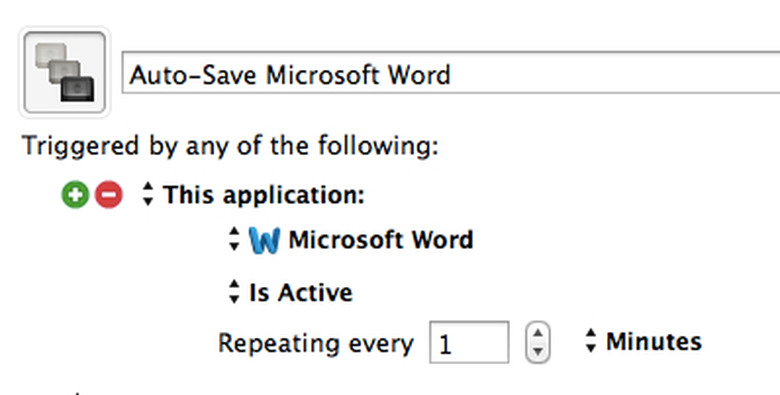
  • How to keep your OmniFocus 2 beta up-to-date

    The OmniGroup has announced that OmniFocus 2 for Mac is now available as a public beta and is due to be released in June. Anyone interested in testing it can download it for free and is encouraged to send feedback via the forums. One of the most important things to do when running beta builds is to make sure that you are running the latest version of the beta. Towards that end, I have written a shell script which will: download and install the latest beta check every hour to make sure you are running the latest version, and if not, it will download the new version quit the current version (if running) and move it to the trash install the new version re-launch the new version (if the app was running before it was updated) If you have either terminal-notifier or growlnotify installed, the script will use them to alert you if there is a newer update available. A plain text log file will also be saved to ~/Library/Logs/. The Easy Way If you want to install the script and launchd plist, the easiest way is to use the installer. Just download it and run it and it will download and install the necessary files. If you are already running the beta, it will check to make sure that you are current. If you aren't running the beta yet, it will download and install it for you. (The package was made with Payload-Free Package Creator.app from Rich Trouton. Thanks again, Rich!) The Nerdy Way If you prefer to do things manually, use the links below to download and install the com.tjluoma.keep-omnifocus2-beta-up-to-date.plist Install this to ~/Library/LaunchAgents/ and then either: restart run this command in Terminal: launchctl load ~/Library/LaunchAgents/com.tjluoma.keep-omnifocus2-beta-up-to-date.plist keep-omnifocus2-beta-up-to-date.sh Install this to somewhere in your $PATH (I recommend /usr/local/bin/keep-omnifocus2-beta-up-to-date.sh) and make sure it is executable by running this command in Terminal: chmod 755 /usr/local/bin/keep-omnifocus2-beta-up-to-date.sh How To Uninstall OmniGroup has said that the official version will be released in June. When the time comes to remove the beta check scripts from your site, just delete the two files: ~/Library/LaunchAgents/com.tjluoma.keep-omnifocus2-beta-up-to-date.plist /usr/local/bin/keep-omnifocus2-beta-up-to-date.sh After removing the files, reboot your Mac and they uninstallation process will be complete. Feedback? Feedback for the script can be made at the OmniGroup discussion forums since I assume most testers will already have an account there, and it would be good to keep all the feedback in one place! Update (May 9, 2014) The OmniGroup changed the format of the filenames used for downloads, which broke my existing script. I have posted detailed instructions on the OmniGroup's discussion forum explaining how to update the script so that downloads will work again.

    By TJ Luoma Read More

  • How to port your Google Voice number to your iPhone

    Earlier this week, I saw this post from @GrowlVoice: As of today, Google has officially shut off GrowlVoice's access to Google Voice as part of their integration of Google Voice into Hangouts. Google has also shut off 3rd-party access to Google Voice VoIP, and it seems that the writing is on the wall for Google Voice as a standalone product in any form. I have a Google Voice number that I really like and wanted to keep, so I decided I wanted to port it out of Google Voice and onto my Verizon iPhone. I wasn't even sure this was possible since Google Voice isn't really a cell phone provider like Sprint, AT&T, and Verizon, but Dan Moren of Macworld was kind enough to point me in the right direction to an encouragingly titled page at Google: Port your number out of Google Voice. In sum, on the Google side of things, there are two steps to porting your number out of Google Voice: Go to https://www.google.com/voice/unlock and follow the few steps there to say that you want to unlock your Google Voice number. Pay Google $3 as "a one time fee to port your number away from Google Voice" unless you are using a number that you ported into Google Voice. I did both of those steps and then decided to call Verizon. There may be a way to do this without having to talk to Verizon customer support, but since it was an unusual situation, I thought I'd be better off talking to another human being. Verizon has about eleventy-milion phone numbers for various technical/customer support issues. The number I called was 800–922–0204. When prompted, I pressed 3 for tech support. At the next prompt I said "Porting a number" and then "Porting to Verizon wireless" when it asked what kind of port I wanted. Lastly I was asked if I wanted to add a line to my account or replace an existing account, so I said "replace" since I was going to replace my current iPhone number. After that I was on hold for 5–10 minutes before being connected with "Jason" at Verizon Wireless. I explained what I wanted to do, making it clear that I wanted to move a number to Verizon, not the other way around. There were five pieces of information that Jason needed: The name of the account holder on the Google Voice account. The "billing address" for the Google Voice account. I wasn't sure what to use for that, so we just used the same billing address that was already associated with my Verizon account. The phone number that I wanted to port to Verizon. My "account number" with the carrier which currently held the number I wanted to port over. We used my Google Voice phone number. A password, if any. At first Jason thought this meant he was going to need my Google Account password, but it turned out there was an option for "No Password" so we used that. Once the whole thing went through, the system said that it would take 4–24 hours before it would take effect, and I would have to power cycle my iPhone for the new number to be recognized. (That turned out to be incorrect. Read on.) Jason said that in his experience it usually only takes about 2 hours, but it could take longer, and if it hadn't happened in 24 hours, give him a call back. After I hung up the phone, I realized that there were a few sites which used my current iPhone number to send me SMS login verifications for Two-Factor Authentication systems, most notably Paypal and Twitter. (Most others use the Google Authenticator, which I use with Authy.) For Twitter, I had to go to https://twitter.com/settings/security and choose "Don't verify login requests" and then to https://twitter.com/settings/devices and choose "Delete My Phone." Once the number was ported, those were the two URLs I needed to re-add my iPhone. For PayPal, I had to go to https://www.paypal.com/cgi-bin/customerprofileweb?cmd=%5fsecurity%2dtoken and "Deactivate" my "PayPal Security Key" and after the number was ported, I had to go to https://www.paypal.com/us/cgi-bin/webscr?cmd=_register-security-key-mobile to enable my Security Key with my new iPhone number. Then it was just a matter of waiting. I went back to https://www.google.com/voice/unlock and say that my Google Voice number was now listed as "Unlocked (Approved [1])" and they added: "You have a Google Voice number that has been unlocked. You can now initiate porting with your new provider. We will notify you by email once the number has been ported away." (Spoiler Alert: I never received an email from them.) Still later, I went back to that page and it said: "Google Voice has successfully approved your request, but the carrier to whom you are porting hasn't completed their necessary action. If you are still having issues and your number doesn't successfully port in 2–3 business days, please contact your new carrier for support, as Google Voice is unable to take any additional action." Waiting Two hours passed, four hours passed, 24 hours, 36 hours, and nothing. However, this morning when I sat down at my Mac, there was an alert panel from iMessage, asking if I wanted to use my Google Voice number for iMessage. I clicked yes, and then checked my iPhone by going into the Phone app, and inside the Phone app I tapped on the "Contacts" tab, and scrolled all the way to the top. It still showed my old iPhone number, even after restarting it. I tried to send an SMS (not a blue-colored iMessage, but a green-colored SMS) and it failed to send. I tried making a phone call, and was greeted by an automated message that they could not authenticate my iPhone. I tried rebooting again, but still nothing. I thought about going to Settings " General " Reset " "Reset Network Settings" but I knew that would also remove all my saved Wi-Fi passwords, so I decided to wait a few more hours and try again. In the meantime, iMessage and FaceTime both showed my Google Voice number as associated with my iCloud account, and I could use Verizon's 3G and LTE data networks, I just couldn't make any calls or send any SMS messages. Eventually I called Verizon (#8899, as the automated message suggested). After about 20 minutes on hold I was finally connected with someone, explained what had been going on, and she said "You aren't on that phone now, are you?" Well, of course I was, because I don't think calling #8899 from my landline was going to get me to Verizon Wireless tech support. She asked if there was another number where she could call me back, and I gave her my number, but asked: "If I wasn't on my iPhone right now, what would you have me do?" "Reset your network settings," she said. She wrote down my landline phone number and promised to call me back in about 10 minutes. I reset the network settings, my iPhone rebooted, the Verizon logo showed up, the LTE logo appeared, I went into the Phone app, looked up my own number and -- my old phone number was still there. I was in the car and had my iPhone on the windshield mount, but there wasn't anywhere I could pull over, so I just left it unlocked on the screen showing my old phone number. About two minutes later, the number changed right before my eyes. One second it was the old number, and then it was the new number. Success! Finally I could make calls, send/receive regular SMS messages, and everything else. Summary of Steps If I was starting over from the beginning, here's what I would do: Go through my texts for the past month or so and look to see what (if anything) is using my iPhone number for SMS instead of my Google Voice number. Temporarily disable any two-factor authentication systems which rely on SMS. Go to https://www.google.com/voice/unlock and pay Google $3 to unlock my Google Voice number. Call Verizon (800–922–0204 worked for me) and navigate the phone options for "Tech Support" and then "Port a phone number" and then "Port to Verizon" Verizon will need your name (as it appears in Google account), your Google Voice number is the number you want to port and your "account number" and there is no password for porting a number out. Accept that you may have to wait 2–3 days, and be on the lookout for iMessage or FaceTime to tell you that your Google Voice number has been associated with your account. Don't bother just rebooting your iPhone to see if that does it, bite the bullet and choose "Reset Network Settings." Tip: Whenever I am somewhere that has a Wi-Fi password, I always save the network name [SSID] and the password in 1Password, so if I do have to reset my network settings, I will still have the Wi-Fi passwords for the various networks that I use. Once the port has been completed, be sure to reenable any two-factor authentication systems which use SMS. Although these instructions were for a Verizon iPhone, I would assume that the process is similar for AT&T or Sprint, with the obvious exception of who you'd call to initiate the port from your carrier.

    By TJ Luoma Read More
  • Auto-Save Microsoft Word with Keyboard Maestro

    In Mac Power Users Episode 187, David Sparks and Katie Floyd talked about word processing apps, which meant talking a great deal about Microsoft Word, as well as Pages and others. Around the 38m40s mark, Katie mentioned that she uses Word a lot in her day job, and has a lot of issues with the app freezing up periodically. That led her to make a comment about intending to write a Keyboard Maestro macro to save every minute when using Microsoft Word. Having recently finished my D.Min. thesis in Microsoft Word[1], I already had a macro for that. As I was writing this article, it also occurred to me that I would like to save when Microsoft Word deactivates (is no longer the front-most app). However, even if you don't use Keyboard Maestro, I encourage you to read on, because I'm going to offer another suggestion at the end. Auto-Save every X minutes (or seconds) This probably is not what you want, although there is no harm in setting it. Microsoft Word does have an auto-recovery setting, but nothing beats the security of manually saving. Unlike modern apps, Microsoft Word does not support the versioning and auto-save features in OS X. Keyboard Maestro can run that save command every X seconds or minutes. The macro is designed to run only when Microsoft Word is active, and I set mine to run every minute. However, with Keyboard Maestro I don't have to just blindly save every sixty seconds, I can check specific criteria. I chose two: The front window of Microsoft Word exists (this means that there is an open document window in Word) A menu item "Save" is enabled (you'd find it under the "File" menu) Note that when the "Save As" window is open in Microsoft Word, the "Save" menu is disabled. That is not true in all apps, so if you implement this macro for another app, you may want to check that a button "Save" does not exist. Here is how those two conditions appear in Keyboard Maestro: Next we get to the actions section, and I included two here, although many people might choose to delete one of them. The first is a notification which will appear and inform the user that the macro is running. After awhile, that might get annoying, but I suggest using it until you get used to the idea, as it will help reinforce the fact that the macro is actually running. The second is the action which actually saves the document. You can do this one of two ways in Keyboard Maestro: Choose the menu item "Save" under the "File" menu, or Simulate ⌘ +S Most times I prefer to have Keyboard Maestro use the file menu, rather than keyboard shortcuts, because it's easier to understand what the macro is doing when I'm reviewing them in Keyboard Maestro. However, ⌘ +S is perfectly clear, and it should prevent the macro from causing any problems if I happen to be typing when it runs. So I recommend having Keyboard Maestro use keyboard shortcuts when it makes sense to do so. The only downside to this is that if you are navigating through Microsoft Word's menus at the same time that the macro runs, the menu will close, but the same problem will occur if we tell our macro to use the menu item File " Save. Auto-Save Microsoft Word when you switch to another app Saving your document while you are using Word is great, but what happens when you switch to another app? If you have been editing that Word document for at least a minute, it should have saved a recent copy, but wouldn't it be great if you could save every time you switched away from Word? But how? Obviously once we have switched away from Word, pressing ⌘ +S isn't going to save the current word document. Couldn't we tell Keyboard Maestro to use the menu item for Word, even after Word is no longer the front-most app? Nope. I learned this one the hard way with another app. The reason it won't work is obvious once you think about it: you switch away to another app, then Keyboard Maestro switches back to Word to save... then what happens? Well, either a) Keyboard Maestro leaves you in Word, which isn't what you wanted, or b) it switches you to away to another app... which will trigger the Keyboard Maestro macro to run again. We have now discovered something called an infinite loop, and I don't mean the address in Cupertino. So how can we do this? The answer is AppleScript: During the Mac Power Users episode, David mentioned several times that Microsoft Office has great AppleScript support, and he even mentioned Ben Waldie whose article is where I found this simple AppleScript command which tells Microsoft Word to save its current document.[2] This AppleScript command is nearly magic for three reasons: It does not require Microsoft Word to be active (front-most) in order for it to work, nor does it bring Microsoft Word to the front when it runs. If there is no active document, the AppleScript command will not cause any noticeable errors: no system beep, nothing. If you are navigating Word's menus when the AppleScript command is triggered, it will wait until the menu closes before running. Remember how I said that ⌘ +S had one downside? Well, this AppleScript command doesn't have it. Remember those conditions that we had to check for ("Does Microsoft Word have an existing front window? Is the 'Save' menu enabled?")? Now we don't need to worry about any of that. In fact, we no longer need two separate macros, all we need is one macro which will run: Every minute when Microsoft Word is active Any time that Microsoft Word deactivates Since we no longer need to check for any more conditions, all we need is one action, that AppleScript command. So now the whole thing just looks like this: Of course I added some additional comments and notifications, which you can delete if you don't want them. Installation To install this: download the macro, double-click on it, and it will be imported into Keyboard Maestro. Bonus Tips As mentioned above, Microsoft Word does not support OS X versions; however, if you save your Word documents to Dropbox it will save all of your changes for 30 days. Don't want to use Dropbox, but want locally saved versions? Take a look at ForeverSave 2 which not only gives you "versions" (even for apps that don't support OS X's implementation) but also can simulate ⌘ + S every X seconds (which means you wouldn't necessarily even need my Keyboard Maestro macro, although it's a more elegant and complete solution). There is a free demo version of ForeverSave 2 available, and a license is US$20. I have been using it and think it is quite useful. Because I had to, that's why. David went to great lengths to say that he doesn't think Word is as bad as its reputation, and a lot of it is leftover anti-Microsoft sentiments or something. I disagree. For a big project, MSWord was a giant PITA. Besides that, even with The Ribbon, by default what you get when you create a new document in Word just looks... gross. The good news is you can make it look much better. ↩ The only change I made was to add the check to see if Word is running, because if you quit Word that counts as deactivation which would trigger the AppleScript which would launch Word. ↩

    By TJ Luoma Read More
  • PhotoSync's location triggers send iOS photos to your Mac

    The best way to upload photos to Dropbox[1] from your iOS devices is by not using Dropbox. Well, not the iOS app, at least. Uploading to Dropbox is slow, and will drain your battery as it uses the Dropbox API to upload. If you aren't on Wi-Fi, it might even eat up your cellular data. If you have a Mac or Windows PC running Dropbox, it's much faster to upload to that over your local Wi-Fi network, and then let your computer upload it for you. I've done this for ages using CameraSync, but it required using FTP, which isn't enabled by default, and isn't wise to enable because it doesn't encrypt any traffic, including passwords. A much better solution is to use SFTP which you can enable by turning on "Remote Login" in the Sharing panel in System Preferences. Still, that's kind of nerdy, and might be more technical than you want. Turns out there's an even easier method: PhotoSync. It's a $3USD, Universal app available on the App Store. It comes with a free version of PhotoSync for Windows or Mac which you can run on your computer instead of FTP or SFTP. They even have some training videos to walk you through the process, which is pretty simple to do and should only take about 10 minutes. Once you have it configured, you can set up your iOS devices to automatically sync when you arrive at specific locations such as your home or office. Be sure to enable push notifications for PhotoSync, as you may need to bring it to the foreground if you have a lot of pictures to upload. (Blame Apple for that, they reduced the amount of background processing time allowed for photo uploads in iOS 7.) Using Dropbox's own app for photo upload may be easier in the short term, but that doesn't mean it is the best solution. For a couple of bucks you can extend your iOS battery life. Of course, you can also use this to upload to your computer if you don't use Dropbox. You can upload your pictures to any folder on your computer. ↩

    By TJ Luoma Read More

  • Launch your favorite apps as needed with Keyboard Maestro

    On Mac Power Users 181, I mentioned that I have a keyboard shortcut for OmniFocus' "Quick Entry" which works even if OmniFocus isn't running. Tom Siko asked if I'd be willing to share it, so here it is. Even if you don't use OmniFocus, this idea can be re-used for any application that you run via keyboard shortcut, such as Skitch (or, my preference, Skitch 1). First, here's the general idea... The idea behind this is fairly simple: Imagine you have some keyboard shortcut in your head, such as ⌘+⇧+5 for Skitch, or ⌘+⇧+O for "Quick Add" to OmniFocus. Over time, you learn that whenever you want to do {thing} you press {this keyboard shortcut}. But there's one problem: those keyboard shortcuts only work if the app is running. So what do you do? The usual solution is to have those apps (or some kind of "helper app") launch at login. But why have something launch before you need to use it? Especially with an SSD, launching an app only when it's needed will only take a second or two. Likewise, why keep an app running once you are done using it? Rather than have a bunch of these apps launch at login, I created several Keyboard Maestro macros to watch for the keyboard shortcuts, and then check to see if the related app is running. If it is, then Keyboard Maestro does nothing. If it isn't, then Keyboard Maestro will launch the app and trigger the action that was associated with the keyboard shortcut. The Keyboard Maestro "workflow" for this is very straightforward: When a certain keyboard shortcut (or "hot key" in Keyboard Maestro terminology) is pressed, have Keyboard Maestro run an "If Then Else" test: If the desired app is not running, then: Launch it Pause until it is running Activate YourApp Trigger the desired action else (that is, if YourApp is running): {This section intentionally left blank} The "Else" section is left empty, because if the app is running, we don't want Keyboard Maestro to do anything when the keyboard shortcut is pressed, because YourApp will. "OK, I get the idea, show me how you do it..." Some of you may already understand how to do this, but some of you may want to see how it actually looks in Keyboard Maestro. So here is a screenshot of my Keyboard Maestro macro for Skitch: Note: a larger version of this image is available on Github. Each one of those "blocks" in Keyboard Maestro is just something that I have clicked and dragged from Keyboard Maestro's list of available actions, and selected from the various drop-down menus. Building something like this is really not much more difficult than writing a Mail.app rule. With any multiple-step macro like this, the key to making it work is to make sure that "Step 2" doesn't try to run before "Step 1" has a chance to finish, and so on. Keyboard Maestro lets you choose between either waiting for a certain number of seconds, or waiting until certain conditions are met. For example, if I could tell Keyboard Maestro to launch (or "activate") Skitch, and then tell it to pause for 5 seconds before going on to the next step. I tend to prefer using conditions because they are a little less error-prone. If your computer is doing something else which makes it a little slower, it may take longer than 5 seconds, or it may take fewer than 5 seconds, especially if your computer is idle and has an SSD. So in the macro I told Keyboard Maestro to launch Skitch and then wait until there is a menu item called "Crosshair Snapshot" (which is what Skitch calls the command I associate with ⌘+⇧+5). When Keyboard Maestro sees that menu item available, I know that Skitch is now ready, so I tell Skitch to select the menu item "Crosshair Snapshot" from the "Capture" menu in Skitch. (Note: I didn't have to fill in the menu title or menu item names either. Keyboard Maestro did that when I clicked on the "Menu" button near the right. It shows me all currently available apps and all of their menus, so I just have to select the right one, and it fills in the exact details for me.) At the bottom of that macro window you see that the "otherwise execute the allowing actions" section is blank ("No Action"). This is the "Else" part of the "If Then Else" which started with "If Skitch is not running" so logically this section will only match if Skitch is running, in which case Skitch will see that I have pressed ⌘+⇧+5 and respond accordingly. After I have used Skitch I can either leave it running if I think I might use it again, or I can just quit it, knowing that Keyboard Maestro will launch it again later if necessary. Note! Here's one important potential "gotcha" for this: Skitch has an option in its preferences which will allow it to run only in the menu bar and not in the Dock. If you choose not to have it run in the dock, it will not have menu items that Keyboard Maestro can access! What do you do in that scenario? Just change Keyboard Maestro's conditional so that (instead of pausing until it finds a menu item) it will "Pause until Skitch is running" and then tell Keyboard Maestro to simulate the keyboard shortcut ⌘+⇧+5! Did I just blow your mind a little? You press ⌘+⇧+5 and then having Keyboard Maestro press ⌘+⇧+5 again. It's like having a sandwich that can make you another sandwich. OmniFocus My keyboard shortcut for OmniFocus Quick Entry is ⌃ + ⌥ + ⌘ + O, which might sound crazy, but as I explained on MPU, I have set my right ⌥ key and Caps Lock to equal ⌃ + ⌥ + ⌘, so when I want to add something to OmniFocus, I press Caps Lock + O or Option_R + O. The key is to make sure that whatever keyboard shortcut you have in OmniFocus' preferences here: matches whatever you use in the associated Keyboard Maestro macro under "This hot key": As before, a larger version of this image is on Github. Same idea as before: if OmniFocus is not running, activate it, pause until it is running and a "Show Quick Entry" menu item exists, and then select the menu item. If OmniFocus is running, Keyboard Maestro does nothing, and the Quick Entry window will simply appear as usual. These are only two examples, but the same idea applies to any application that you invoke via a keyboard shortcut. It is a handy way to avoid having a lot of apps launch at login, and allows you to only have them running when you need them. Download and Install If you would like to use my Keyboard Maestro macros as shown above, download the zip file from Github, unzip it, and inside you will find both .kmmacros files. Double-click on them to import into Keyboard Maestro, and you're ready to go! Any updates to these macros will be posted on the Github page, and if you have any problems getting these to work, you can send them to me there or ask me on Twitter. If you haven't already listened to Mac Power Users 181, I share a whole host of other nerdy automation tips there too.

    By TJ Luoma Read More

  • Toggle JavaScript in Safari with Keyboard Maestro

    I was very pleased to be a guest on Mac Power Users Episode #181. We had a great conversation about all things automation on the Mac, but Katie and David both seemed to like one Keyboard Maestro macro in particular. Three years ago, I wrote about how to Quickly enable or disable JavaScript in Safari, but had not yet come up with the Keyboard Maestro macro. After we finished recording the show, I decided to "flesh it out" a little with some additional error checking. In the course of doing so, I learned a new Keyboard Maestro feature thanks to its developer, Peter Lewis. The macro itself is fairly simple: it is designed to be used in Safari, a simple press of ⌘ + J will toggle Safari's JavaScript setting on or off, and then reload the current page (if any). Although the macro is simple, it is very convenient for those sites which are filled with all sorts of annoyances and distractions. The second macro uses ⌥ + J to only display the current JavaScript status in Safari, without changing it. If you are impatient, you can jump over to the Github page for these two macros where you can download the macros. If you want to learn more about how it works (and the new 'trick' I learned in Keyboard Maestro), read on. Building the macros Most Keyboard Maestro macros fall into one of two categories: "global" macros, which should work anywhere, and "local" macros, which are only meant to work in a specific app (or group of apps). For example, most people are familiar with the keyboard shortcut ⌘ + space to start a Spotlight search. That keyboard combination should work in any application. That's what I mean when I say "global" –- it works at any time, in any application. Contrast that with something like ⌘ + Y which may or may not do something, depending on which app you are in, and it will most likely do something different in different applications. That would be an example of a "local" macro. The reason I mention this is that these two macros which I have created are meant to be local macros, in the sense that they are only meant to be used when you are using Safari. For example, if you press ⌘ + J while you are using the Finder, you don't want Keyboard Maestro changing your JavaScript setting in Safari! To limit these to just Safari, the macros need to be placed in a Keyboard Maestro "Group" which has been limited to just be active in Safari. Don't get overwhelmed! I'm telling you this detail to help you understand how it works, but if you use my macros you won't have to worry about creating this Keyboard Maestro Group, it will be done for you. But it's important to understand how it works and why it is important. It's really not as complicated as it sounds; hopefully, this screenshot will help: A larger version of this screenshot is available on Github. In the left column, you can see a group called "Safari Only" Macros has been created. This group is like a folder which can hold any number of macros. In the second column you can see that I have 4 macros in that group (the 2 mentioned here and 2 others which are unrelated). In the right-most part of the window you can see that the "Safari Only" Macros have been set as only available in Safari. (If you wanted to rename the Group to something other than "Safari Only" Macros you would do that here.) When you import the macros I have created, Keyboard Maestro automatically creates the "Safari Only" Macros group, and it knows that these macros are only to be used in Safari. I mention it here only as explanation; you should not need to do anything in Keyboard Maestro to get them into this group. Once you have imported the macros into Keyboard Maestro (either by double-clicking on the .kmmacros file or by choosing File " Import... in Keyboard Maestro) you can look through the macros to see how they were put together. Do not be overwhelmed! These macros may look complicated, but that's mostly because I was very thorough, and added a lot of error-checking that I will admit I don't always include. What these macros do is really quite simple. Look at this menu item, and notice that in one there is a checkmark, and the other there isn't: I previously suggested you could go into System Preferences and assign a keyboard shortcut to "Disable JavaScript." The reason that Keyboard Maestro is better than that is that Keyboard Maestro's macros will sync via Dropbox, which means that if I create a macro once I will have it on all of my Macs, instantly. Maybe you're thinking, "But isn't a keyboard shortcut easier?" Well, maybe, but at its core, the macro to toggle this setting simply chooses that menu item, then it looks to see if the "Reload Page" item (under Safari's "View" menu) is enabled. If it is (meaning Safari has already loaded a page), it reloads the page, otherwise it stops. Now, already I have improved upon a keyboard shortcut, because I'm getting two actions for one keyboard shortcut. With a few minutes of extra work, the macro can be easily expanded, and the benefit of those extra minutes will benefit me every time I use this macro in the future. So here are the extra features I added into the macro: If there is no menu item 'Disable JavaScript' then chances are that the user has not turned on the "Show Develop menu in the menu bar" option in Safari's "Advanced" preferences. Oops! But we don't have to just give up; we can use Keyboard Maestro to open Safari's preferences (using the menu item), then select the "Advanced" preferences (telling Keyboard Maestro to press the 'Button' labeled "Advanced"), and then press button "Show Develop menu in the menu bar" which should have the effect of checking the box and enabling the menu. Just in case, we leave the Preferences window open, and open an alert window using a shell script set to 'Display results in a window' telling the user what should have happened, and what to do next. The macro is then canceled. It is easy enough for the user to press ⌘ + J again, if desired. Now if I reinstall this macro on a new Mac (remember, it syncs via Dropbox, so I can do that very easily) it will help me customize Safari even if I have forgotten to turn this option on! It is important to notice that, unlike some menu items, the Disable JavaScript menu does not change when it is toggled. For example, Safari's "Show Status Bar" menu changes to "Hide Status Bar" when the setting is changed. Ideally, "Disable JavaScript" would change to "Enable JavaScript" but, alas, all that happens is that a check mark is added or removed. Fortunately, Keyboard Maestro is smart enough to be able to tell the difference between "Disable JavaScript" and "Disable JavaScript with a check mark" and we can test for it by looking to see if the menu item "is marked" as shown here: If you were to click on "is marked" you would see another option for "is not marked" which means that now we can tell whether JavaScript is currently enabled or disabled! (This is the "new Keyboard Maestro trick" I learned while writing this.) With a little bit of effort we can not only tell the user (using OS X's built-in notification settings) whether they have just enabled or disabled JavaScript (rather than the generic "toggled"), and if the user uses the new companion macro (⌥ + J instead of ⌘ + J) we can use a notification to tell the user whether JavaScript is enabled or disabled without changing the setting. What problem did we solve, and how much effort did it take? JavaScript has a lot of good and beneficial uses, but it can also be used to have parts of a web page move around while you scroll, or have something jump up and block what you were trying to read. If you have been annoyed by something on a website, chances are good that disabling JavaScript would make it stop. Apple has made it very simple to disable JavaScript in Safari, but it's not very convenient. After all, once you disable JavaScript, you'll probably want to (or even need to) reload the page. Being able to do that with a keyboard shortcut is much more convenient. (Oh, and if you'd prefer to be able to trigger this macro using your mouse, Keyboard Maestro can do that as well.) So we've solved a real problem that can be a daily annoyance when browsing the web by making it convenient to turn JavaScript on or off, and making it even easier to check to see if it is off or on. Creating this macro probably took me about 10 minutes, but I will benefit from it every single day that I use Safari, on every Mac that I own, into the foreseeable future. Every time I press ⌥ + J or ⌘ + J, I'm going to be just slightly happier than I would have been without it, and I'm going to be slightly happier just after a moment of frustration ("Why is this site doing that?! Well, I can fix this easily enough.") This is the one of the benefits of doing these bits of automation on your Mac: it may not change the world, but it makes your part of it a little better and more enjoyable. What may be the best part of this particular effort, for me, is knowing that Katie Floyd and David Sparks are probably going to be using this too, as well as some listeners to the Mac Power Users podcast, and some people reading this article. So I've made their part of the world just a little better too.

    By TJ Luoma Read More
  • Find deals with TV Bobber, The Tracktor and TUAW's RSS feeds

    The holiday season may be over, but there are lots of places around the web to find deals throughout the year. Of course we offer deals through https://deals.tuaw.com and our 'deals' posts, but today I also want to tell you about two other services I use to find good prices. Then I'm going to end with a special tip that you can use to follow your favorite TUAW topics, writers or features, including our deals posts. TV Bobber The first is called TV Bobber, which tracks "over 5,000 seasons of shows in high definition" in the US and UK iTunes stores, although UK tracking is going to go on hiatus during an upcoming renovation of the site. I have been using this for awhile, and it is a great way to find out when TV shows go on sale on iTunes. You can track this via RSS at http://tvbobber.com/log?rss or on Twitter @TVBobber. There is no mailing list, but you could always point If This Then That at the RSS feed. Bonus Tip: Nathan Swartzendruber, who runs TV Bobber, suggests that one of the best ways to save money on iTunes is to keep an eye out for iTunes gift cards to go on sale. He makes a good point; I've seen iTunes gift cards on sale for "spend US$10/get $15" or "spend $20/get $25," although sometimes you have to wait for physical cards to get mailed to you. The Tracktor The second is a new-to-me discovery called "The Tracktor," which tracks prices on Amazon for customers in Canada, France, Germany, Japan, the United Kingdom and the United States. The Tracktor is a web service that will monitor specific items for you on Amazon's website, and send you email alerts when the price hits a specific price point. But that's really just the beginning. If you install the browser extension for Safari, Firefox or Google Chrome, you will get two other extremely useful features. First, when you visit a product page on Amazon's site, The Tracktor will show you a price history graph showing you previous prices for both new and used items. That way, you can see how the current prices compare to previous highs or lows. The second useful feature is that you can set an alert right from the Amazon page. For example, I'd like to buy Hannibal, Season 1 on Blu-ray, but I'm not in any rush, so I can wait for it to go on sale. It's currently selling for $29.50 (new), but thanks to The Tracktor, I can see that in the past six months it has been as low as $19.99: Data courtesy of TheTracktor.com I set my price alert to $20 so if The Tracktor sees that the price is at (or below) that level, it will send me an email. This is a feature that I have wanted Amazon to offer for years, but of course it's not in the company's interest to help you delay your purchases. The Tracktor cannot track prices for Kindle books (this is a limitation enforced by Amazon itself, as explained in the FAQ), but other than that, you can track just about anything that Amazon sells. There's no charge for the service. I assume that when you get an email notification from The Tracktor, it uses an affiliate referral code for Amazon. If so, that seems completely appropriate, since it is directly responsible for any purchases that I'd make through Amazon's site (and affiliate links don't raise the price that I'd pay by even $0.01). Custom RSS Feeds + IFTTT.com = TUAW in Your Email Here's something that I bet you didn't know about TUAW.com: We have a lot of RSS feeds. In fact, we (and by "we" I mean "our CMS") create RSS feeds for every category and every tag and every writer. For example, let's say that you wanted an RSS feed that would only include Mac topics (excluding, for example, iOS). You could use an RSS feed of our "Mac" category, which can be found here: http://www.tuaw.com/category/Mac/rss.xml. Want an RSS feed of just iOS posts? http://www.tuaw.com/category/iOS/rss.xml Every post on TUAW.com is also tagged. You can see the assigned tag(s) by scrolling to the bottom of a post and clicking on (wait for it...) the "View Tags" link. For example, our "deals" posts are all tagged with "deals" so if you wanted an RSS feed for that tag: http://www.tuaw.com/tag/deals/rss.xml Likewise, you can follow any tag by using the URL http://www.tuaw.com/tag/foo/rss.xml where "foo" is the tag that you want to follow. Each TUAW contributor has his/her own RSS feed as well, such as http://www.tuaw.com/editor/TJ-Luoma/rss.xml for my posts. Why do I mention this when we've been talking about how to find deals online? Because if you combine that with IFTTT.com, you can create an automatic system to, for example, email you all of the articles tagged "deals" by plugging the URL for the deals feed (http://www.tuaw.com/tag/deals/rss.xml) into the "If This" part, and then have an email or other notification sent to you using the "Then That" part of the formula. This can be especially useful for something like "deals," where the price drop may only be good for a certain amount of time. One important note: Tags on TUAW posts are added manually by the author of each article, and we strive to be consistent and reliable. However, we're not perfect, so it's possible we might miss a tag. You might also want to follow TUAW Twitter @TUAW and Facebook if you use those services.

    By TJ Luoma Read More
  • Mac turns 30, iWork updates return missing features, and other news from Jan 19-25

    Mac turns 30 The biggest news this week was the 30th anniversary of the Mac. This brought out a rare retrospective by Apple including a video and a timeline highlighting important events of the past three decades. Macworld's Jason Snell wrote Apple executives on the Mac at 30: 'The Mac keeps going forever.' and Dan Moren looks ahead with The Mac at 30: The next 30 years. Several TUAW writers offered their first Mac and favorite Mac thoughts, and Steve Sande & Doc Rock looked back at the The best and worst Macs of the last 30 years on TUAW TV. iWork restores missing features This week also marked the return of some of the missing features from iWork since it was updated a few months ago, including some AppleScript support. LogMeIn removes free option LogMeIn is removing its free option despite assurances less than a year ago that "LogMeIn Free is and will remain free." This followed the news that SugarSync recently ended their free level and Droplr ended free accounts too. Probably too soon to say if this is the beginning of a trend, but since Google stopped offering Google Apps Free Edition a little over a year ago, we've seen several others discontinue their free offering in the hopes of moving users to paid options. Want More? See TUAW.com for more news round-ups and new and notable apps.

    By TJ Luoma Read More
  • Adobe's Lightroom for iPad makes a brief appearance, Google acquires a Nest, and other news from Jan. 12-18

    With so much news and so many stories flying around every day, we here at TUAW thought it might be good to offer a quick "executive summary" of some of the most important news events from the past week. How do we measure the criteria for this round-up? Well, it's a work in progress, but the basic formula goes like this: "No rumors, no speculation, just news. If someone had been cut off from the Internet all week and came back today, what would be the stories you'd want to make sure they knew about? Or, to put it another way: what are the news stories from this past week that I'm likely to still care about in another week?" Obviously there's a certain amount of subjectivity in picking any kind of list like this, so we'll leave the comments open for awhile, in case you would like to suggest some bit of news we left off. Adobe's Lightroom for iPad briefly surfaces It looks like Adobe's Lightroom is making the leap to the iPad. 9to5Mac briefly spotted a listing for the software, with a subscription price of $99 a year, briefly on Adobe's site. When they inquired about it, Adobe pulled the link. With the release on the horizon, maybe there's hope that Apple will eventually do the same thing with Aperture. Adobe demonstrated a prototype for it in 2013. 9to5Mac says the software will sync with the desktop version of Lightroom. Apple's Anti-Trust Ebookcase The saga of Apple's anti-trust ruling in the eBook case continues to make the news. Apple sought the removal of court-appointed antitrust monitor claiming a litany of unnecessary expenses and inconveniences, but this week the judge ordered Apple and antitrust monitor to play nice. The whole thing still smells funny to many of us. Salon described it as Amazon's bogus anti-Apple crusade which didn't have the negative consequences anti-trust suits are meant to avoid. Dropbox down, but not hacked Dropbox experienced a rare bit of out downtime this week. Some well-timed pranksters tried to claim they had hacked the site, but Dropbox explains they had brought it on themselves. They outlined the problems in a post-mortem. Your Dropbox data was never at risk, but if it had been, the fine folks at Agile remind you that your Master Password is your defense from Dropbox breaches, real and imagined. Google bought Nest to the disappointment of the entire Internet Google bought Nest this week, which seemingly disappointed the entire Internet, and flooded Twitter with thousands of variations of approximately three jokes about a future update requiring a Google+ account to change your temperature. The Verge explained Why is everyone disappointed by Google buying Nest? in case you need someone to explain it to you. But my favorite response of the week was Joy Of Tech showing how Google/Nest had finally "disrupted" the market. Software Updates of Note The OmniGroup released OmniOutliner for Mac version 4. It requires OS X 10.9, and can be purchased either from the Mac App Store or directly from OmniGroup. You can download a demo from OmniGroup's website. (As always, I recommend purchasing directly from developers unless you must have iCloud. Developers can give you upgrade pricing, which Apple seems not to want to offer.) The Pro version is $100 ($50 upgrade) and the standard version is $50 ($25 upgrade). They also offer educational pricing. If you have any interest in making eBooks, you should check out Vellum which tackles the difficult process of making eBooks which are compatible with the Kindle, Nook, and iBooks. You can download and try the app for free. You only pay when you want to generate the actual files. This week they announced unlimited eBooks can be made for $300, or you can make 10 for $150, or 1 for $50. The unlimited version includes all future updates to the app. Some deals you don't want to miss There are no shortages of deals around. You can find them at http://deals.tuaw.com/ or by following our daily deals, but I did want to make sure that I made special mention of two: Save 50% in Take Control's Post-Holiday Ebook Sale: "Through 25 January 2014, you can add any number of our ebooks to your Take Control library for 50 percent off. All books are DRM-free and available in PDF, EPUB, and Mobipocket (Kindle) formats, so you can read wherever, whenever, and on whatever device you like." Get the all new Box for iPhone and iPad + 50GB free (Active Jan 15 - Feb 15, 2014). See the support page for nuts and bolts.

    By TJ Luoma Read More